
1. Koniec produktuview
The We Technology S11Y Slim Smart Lock is designed for sliding doors, offering multiple access methods for enhanced security and convenience. This manual provides detailed instructions for installation, operation, and configuration of your smart lock.

Obraz 1.1: Koniecview of the S11Y Smart Lock, including its front and back panels, mortise, and a representation of the mobile app interface.
Główne cechy:
- 6-in-1 Access: Fingerprint, Passcode, IC Card, Tuya App, Mechanical Key, One-time codes.
- Sliding Door Specific: Engineered with a 2885 hook mortise for aluminum/glass sliding doors.
- Zdalne sterowanie: Manage and monitor your lock from anywhere via the Tuya Smart App.
- Zintegrowany dzwonek do drzwi: Built-in doorbell for visitor notification.
- Zaawansowane zabezpieczenia: Auto-lock function and anti-peep code protection.
- Elegancki design: Smukły profile in black aluminum.
- Zasilany bateryjnie: Powered by 4 AAA batteries with low battery alerts.
Wideo 1.1: Overview of the S11Y Smart Lock, demonstrating its design and basic features.
2. Składniki i zawartość opakowania
Przed rozpoczęciem instalacji sprawdź, czy wszystkie komponenty są obecne i w dobrym stanie.

Image 2.1: All components included with the S11Y Smart Lock, including the lock body, panels, screws, keys, IC cards, and user manual.
Zawartość pudełka:
- 1 x Korpus zamka
- 1 x Instrukcja obsługi
- 2 x Klawisze mechaniczne
- 2 x IC Cards
- Śruby montażowe i osprzęt
- 1 x USB Cable (for emergency power)
3. Konfiguracja i instalacja
This section guides you through the physical installation of the smart lock. Ensure your door meets the specified thickness requirements (35-55mm).

Image 3.1: Detailed dimensions of the S11Y Smart Lock and its mortise, along with illustrations for left-handed and right-handed door configurations.
3.1 Kontrole przed instalacją
- Sprawdź, czy grubość drzwi mieści się w przedziale od 35 mm do 55 mm.
- Ensure the door frame is suitable for the 2885 hook mortise.
3.2 Regulacja kierunku uchwytu
The handle direction can be adjusted to suit your door's opening. Loosen the screw on the handle, pull out the handle, and turn it 180 degrees down to adjust its direction.
3.3 Mortise and Panel Installation
Install the mortise into the door edge first. Then, install the front panel, ensuring the square rod is correctly inserted into the handle. Finally, install the back panel and secure it with screws.
Video 3.1: A step-by-step guide on how to install the S11Y Smart Lock, including mortise and panel assembly.
3.4 Instalacja baterii
The lock is powered by 4 AAA batteries. Install them into the battery compartment on the back panel. Ensure correct polarity. Replace the back cover and secure it with screws.

Image 3.2: Illustration showing the battery compartment for the S11Y Smart Lock, highlighting its long battery life and emergency power option.
4. Instrukcja obsługi
The S11Y Smart Lock offers multiple ways to unlock your door.
Video 4.1: Demonstration of various unlocking methods for the S11Y Smart Lock, including fingerprint, password, IC card, and mechanical key.
4.1 Metody odblokowywania
- Odblokowanie linii papilarnych: Umieść zarejestrowany odcisk palca na czujniku.
- Odblokowanie kodem dostępu: Wprowadź zarejestrowany kod dostępu na klawiaturze.
- Odblokowanie karty IC: Tap your registered IC card on the card reader area.
- Odblokowanie kluczem mechanicznym: Use the provided mechanical key as a backup.
- Odblokowanie aplikacji Tuya: Use the Tuya Smart App for remote unlocking.
Video 4.2: A closer look at the different entry methods available with the S11Y Smart Lock.
4.2 Built-in Doorbell
The smart lock features an integrated doorbell. When a visitor presses the doorbell button, you will receive a notification on your connected Tuya Smart App.
4.3 Auto-Lock and Anti-Peep Code
- Automatyczna blokada: Zamek załączy się automatycznie po upływie określonego czasu od momentu zamknięcia drzwi.
- Anti-Peep Code: To prevent others from guessing your passcode, you can enter random digits before or after your actual passcode. The lock will still recognize the correct sequence within the longer input.
5. Podręcznik konfiguracji
This section details how to configure the settings of your S11Y Smart Lock.
Video 5.1: A comprehensive guide to configuring the S11Y Smart Lock settings, including administrator and system settings.
5.1 Enter Lock Menu
Press '*' then '#' on the keypad. Input your admin information (e.g., admin passcode or fingerprint) to enter the lock menu. The menu options are:
- Ustawienia administratora
- Ustawienia użytkownika
- Ustawienia systemowe
- Przywróć do fabryki
Note: '*' is for return/delete, '#' is for confirm.
5.2 Ustawienia administratora
From the lock menu, press '1' to enter Administrator Setting.
- Add Admin: Press '1'. Follow prompts to add a password (6 digits twice), fingerprint (multiple scans), or IC card.
- Delete Admin: Press '2'. Input the admin ID and press '#' to delete.
- Ustawienia sieci: Press '3'. (See section 5.5 for details).
Note: User settings (option '2' in the main menu) follow the same steps as admin settings for adding/deleting users.
5.3 Ustawienia systemowe
From the lock menu, press '3' to enter System Setting.
- Ustawienie głośności: Press '1' to enable speaker, '2' to disable speaker.
- Unlock Mode Setting: Press '2'. Options include Single Unlock Mode, Combination Unlock Mode, Enable Passage Mode (always open), Disable Passage Mode.
- Ustawienia języka: Press '3'. Options include Chinese and English.
- Ustawienie czasu: Press '4'. Input date based on the format: Year (2 digits)_Month_Day_Hour_Minute (e.g., 2505160712 for May 16, 2025, 07:12).
5.4 Restore to Factory
From the lock menu, press '4' to initialize the system. Note: All data will be cleared after initialization. Please operate carefully.
5.5 Network Setting (Tuya App)
To connect your smart lock to the Tuya Smart App:
- Enter the lock menu, then press '1' for Admin Setting, then '3' for Network Setting.
- Select '2' for Smart Connection.
- Download the 'Tuya Smart' app on your smartphone and register an account.
- In the app, follow the instructions to add a new device. The app will guide you through the pairing process.
6. Konserwacja
- Wymiana baterii: The lock will provide intelligent low battery alerts. Replace all 4 AAA batteries promptly when alerted to ensure continuous operation.
- Zasilanie awaryjne: In case of complete battery depletion, emergency power can be supplied via the Type-C port on the outer panel using a power bank.
- Czyszczenie: Use a soft, dry cloth to clean the lock's surface. Avoid abrasive cleaners or solvents.
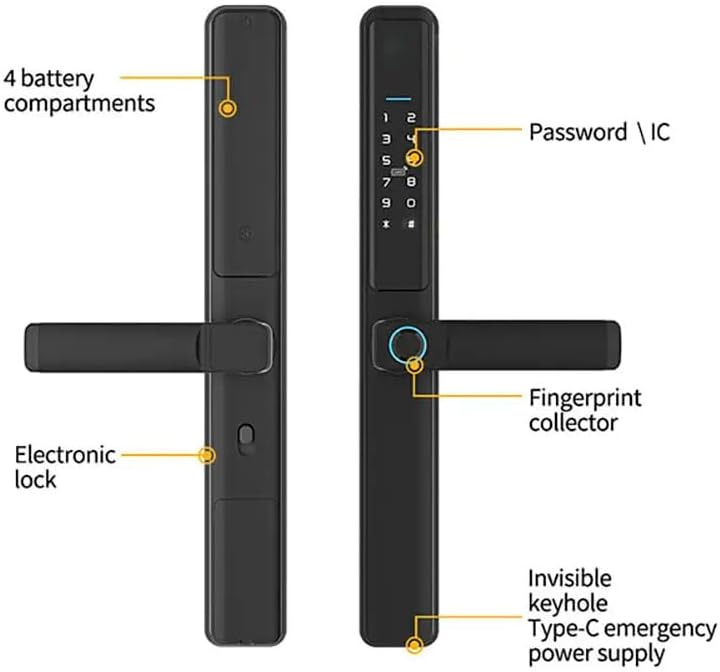
Image 6.1: Labeled diagram of the S11Y Smart Lock, indicating the 4 battery compartments, password/IC area, fingerprint collector, invisible keyhole, and Type-C emergency power supply port.
7. Rozwiązywanie Problemów
- Zamek nie odpowiada: Check battery levels. If batteries are low or depleted, replace them or use emergency Type-C power.
- Odcisk palca nie został rozpoznany: Upewnij się, że Twój palec jest czysty i suchy. Jeśli problem będzie się powtarzał, zarejestruj odcisk palca ponownie.
- Kod dostępu nie działa: Verify the correct passcode is entered. Ensure anti-peep code is used correctly if enabled.
- Problemy z łącznością aplikacji: Ensure your Wi-Fi network is stable and the lock is within range. Re-pair the device with the Tuya Smart App if necessary.
- Drzwi nie blokują się/odblokowują płynnie: Check for any obstructions in the door frame or mortise. Ensure the lock is installed correctly and aligned.
- Forgotten Admin Passcode: If the admin passcode is forgotten and no other admin access method is available, a factory reset may be required (see section 5.4).
8. Specyfikacje
| Funkcja | Szczegół |
|---|---|
| Marka | We Technology |
| Nazwa modelu | Sliding Smart Door (S11Y) |
| Typ zamka | Biometric, Mortise Lock, Sliding Lock |
| Tworzywo | Aluminium |
| Kolor | Czarny |
| Wymiary przedmiotu Dł. x Szer. x Wys. | 27.56 x 3.5 x 8.5 cala |
| Waga przedmiotu | 5.5 funtów |
| Cechy specjalne | Alarm, Anti-Peeping Password, Auto-Lock, One-Touch Lock |
| Metoda kontroli | Aplikacja, pilot, dotyk |
| Typ kontrolera | Android, iOS (Tuya App) |
| Źródło zasilania | Baterie 4 x AAA (brak w zestawie) |
| Producent | Smart Security Solutions |
9. Gwarancja i wsparcie
For warranty information or technical support, please refer to the contact details provided with your purchase or visit the official We Technology webstrona. Zachowaj dowód zakupu na potrzeby roszczeń gwarancyjnych.