
1. Wprowadzenie
This manual provides detailed instructions for the installation, operation, and maintenance of your We Technology Smart Sliding Door Lock S06YW. This advanced lock offers multiple access methods including fingerprint, PIN code, IC card, mechanical key, and remote control via the Tuya Smart App. Please read this manual thoroughly before installation and use to ensure proper function and safety.
2. Informacje dotyczące bezpieczeństwa
- Nie próbuj samodzielnie demontować ani naprawiać zamka. W celu uzyskania pomocy skontaktuj się z wykwalifikowanym personelem.
- Ensure correct battery polarity when inserting batteries. Use only specified AAA batteries.
- Klucze mechaniczne należy przechowywać w bezpiecznym miejscu poza posesją.
- Avoid exposing the lock to direct water or extreme temperatures.
- Regularly check the lock for any signs of damage or malfunction.
3. Zawartość opakowania
Sprawdź, czy w przesyłce znajdują się wszystkie elementy wymienione poniżej:
- 1 x Smart Sliding Door Lock (Front and Back Panels)
- 1 x Mortise Lock Body (2885 Hook Mortise)
- 2 x IC Cards
- 2 x Klawisze mechaniczne
- 1 x USB Cable (for emergency power)
- Śruby montażowe i akcesoria
- 1 x Instrukcja obsługi

Obraz: Ponadview of the smart lock components including cards, cylinder, keys, lock body, screws, and USB cable.

Image: All physical components of the smart lock laid out on a surface, including the front and back panels, mortise, cylinder, keys, IC cards, and various screws and tools.
Wideo: Rozpakowywanie i koniecview of the smart door lock components, demonstrating what is included in the package.
4. Specyfikacje
| Funkcja | Specyfikacja |
|---|---|
| Marka | We Technology |
| Nazwa modelu | S06YW (Sliding Door Lock) |
| Typ zamka | Biometric, Mortise Lock (2885 Hook Mortise) |
| Tworzywo | Aluminium |
| Kolor | Czarny |
| Pozycja Wymiary (dł. x szer. x wys.) | 15.75 x 1.65 x 3.14 cala |
| Waga przedmiotu | 5.5 funtów |
| Cechy specjalne | Alarm, Anti-Peeping Password, Auto-Lock, One-Touch Lock, Built-In Doorbell |
| Metoda kontroli | Aplikacja, pilot, dotyk |
| Protokół łączności | Wi-Fi (2.4 GHz) |
| Typ kontrolera | Android, iOS (Tuya Smart App) |
| Źródło zasilania | Baterie 4 x AAA (brak w zestawie) |
| Zgodność grubości drzwi | 35–55 mm |
5. Konfiguracja i instalacja
Before beginning installation, ensure your door meets the specified dimensions and is suitable for a sliding door lock. This lock is designed for aluminum or wooden sliding doors.
5.1 Check Door Dimensions

Image: Diagram showing the dimensions of the smart lock and mortise, indicating it is not suitable for standard doors and providing measurements for left-handed and right-handed doors.

Image: Detailed technical drawing showing all critical dimensions for the smart lock panels and the mortise, essential for pre-purchase verification and installation.
5.2 Kroki instalacji
- Montaż otworu wpuszczanego: Insert the 2885 hook mortise into the door edge. Secure it with two screws.
- Adjust Handle Direction: The handle direction may need to be adjusted based on your door's opening direction. Use the allen key to remove the screw from the handle, take off the handle, rotate it 180 degrees to the desired direction, and then re-tighten the screw. This applies to both front and back handles.
- Install Mortise Cylinder: Insert the mortise cylinder into its designated hole and fix it with the provided screw.
- Montaż panelu przedniego: Insert the square rod into the front handle hole. Carefully align and attach the front panel to the door.
- Montaż tylnego panelu: Insert the square rod into the back handle hole. Connect the wiring from the front panel to the back panel. Align and attach the back panel.
- Bezpieczne panele: Fix the back panel to the door using the provided screws.
- Włóż baterie: Open the battery compartment on the back panel and insert 4 AAA batteries, ensuring correct polarity.
Video: A step-by-step guide demonstrating the physical installation process of the S06Y Smart Door Lock, including mortise, handle adjustment, cylinder, and panel attachment.
6. Instrukcja obsługi
6.1 Metody odblokowywania
The We Technology Smart Sliding Door Lock offers five convenient ways to unlock your door:
- Odcisk palca: Umieść zarejestrowany odcisk palca na czujniku.
- Kod PIN: Enter your 6-digit PIN code on the keypad.
- Karta elektroniczna: Przyłóż zarejestrowaną kartę IC do wyznaczonego miejsca.
- Klucz mechaniczny: Use the physical key for traditional unlocking.
- Aplikacja Tuya Smart: Remotely unlock via the app.

Image: Visual representation of the four primary unlocking methods: Password, Fingerprint, Card, and Mechanical Key, for the smart sliding door lock.
Video: Demonstration of various entry methods for the S06YB Smart Door Lock, including fingerprint, password, IC card, and mechanical key.
6.2 Kontrola aplikacji Tuya Smart
The Tuya Smart App provides real-time access and alerts, enhancing your control over the lock.
- Zdalne odblokowanie: Odblokuj drzwi z dowolnego miejsca za pomocą aplikacji.
- Dynamic Passwords: Generate one-time or temporary passcodes for guests or service providers.
- Dzienniki dostępu: View historia tego, kto wszedł i kiedy.
- Zarządzanie użytkownikami: Add or delete users, assign different access levels (administrators, common members).
- Integracja z asystentem głosowym: Compatible with Google Assistant and Amazon Alexa for voice commands.

Image: A smartphone displaying Tuya App notifications, showing recent unlock events and settings changes, indicating real-time monitoring.
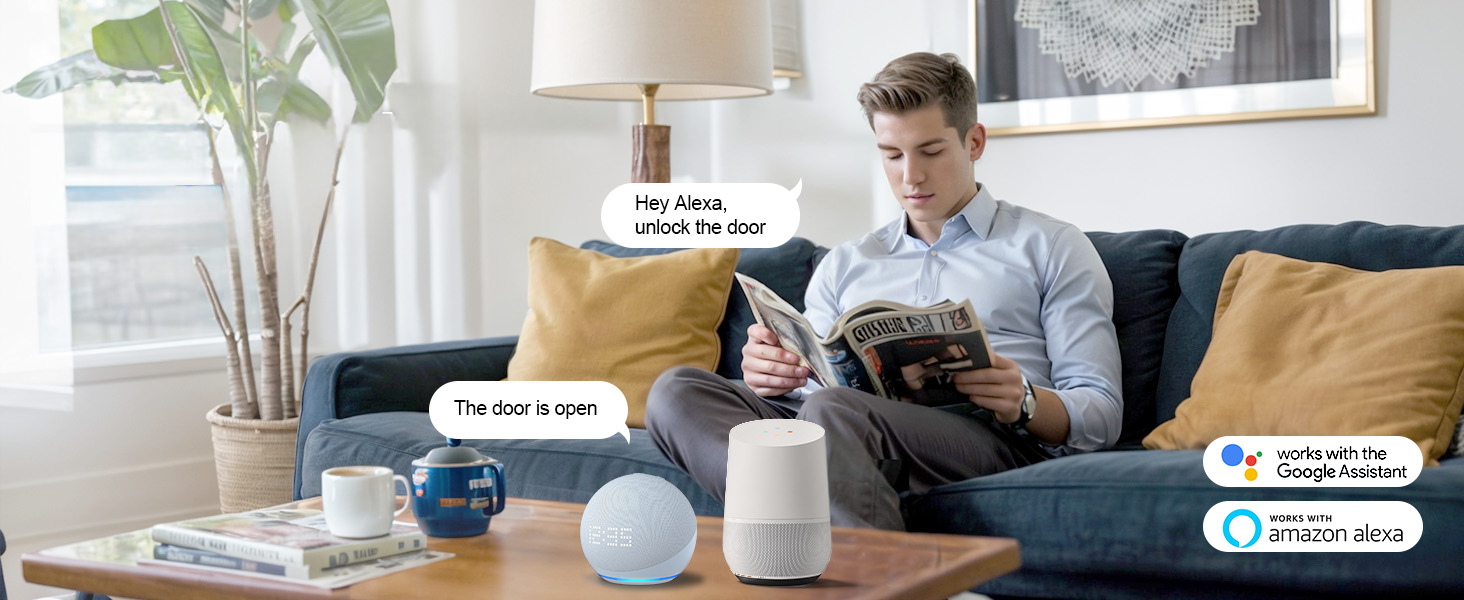
Image: A person interacting with smart home voice assistants (Alexa and Google Assistant) to unlock the door, highlighting the lock's compatibility.

Image: A smartphone screen showing the Tuya App interface for generating temporary passcodes, categorized for family, courier, repairman, friends, agent, and cleaner.
6.3 Lock Menu and Settings
To access the lock menu, press '*' then '#' on the keypad. Input the initial administrator password '123456'.
- Set Administrators: Press '1' to add administrators. Follow prompts to add password (6 digits, twice), fingerprint (multiple scans), or IC card.
- Set Regular Users: Press '2' to add regular users. The process is similar to adding administrators.
- Ustawienia systemowe: Press '3' to enter system settings.
- Voice Setting: Press '1' to enable or '2' to disable the speaker.
- Tryb odblokowania: Press '2' to select single authentication, double authentication, enable passage mode (always open), or disable passage mode.
- Ustawienia języka: Press '3' to choose between Chinese or English.
- Ustawienie czasu: Press '4' to set the time in Year_Month_Day_Hour_Minute format.
- Restore to Factory: Press '4' and input admin information to initialize the system. All data will be cleared. Operate carefully.
Video: A comprehensive configuration guide for the S06Y Smart Door Lock, detailing how to enter the lock menu, set administrators and users, adjust system settings like voice, unlock mode, language, time, and perform a factory reset.
6.4 Network Setting (Tuya App Pairing)
- Enter the lock menu, press '1' to enter administrator setting, then press '3' to enter network setting.
- Press '2' to select standard pairing.
- Download the 'Tuya Smart' app on your phone and register an account.
- Follow the in-app instructions to add your device. The app will search for nearby devices in pairing mode.
7. Konserwacja
- Czyszczenie: Wipe the lock surface with a soft, dry cloth. Avoid abrasive cleaners or solvents.
- Wymiana baterii: Replace all 4 AAA batteries when the low-battery alert is triggered. Do not mix old and new batteries.
- Regularne kontrole: Okresowo sprawdzaj wszystkie śruby i połączenia, aby mieć pewność, że są dobrze dokręcone.
8. Rozwiązywanie Problemów
- Zamek nie odpowiada: Check battery levels. If batteries are depleted, use the emergency USB power port or mechanical key.
- Odcisk palca nie został rozpoznany: Upewnij się, że palec jest czysty i suchy. Jeśli problem nadal występuje, spróbuj ponownie zarejestrować odcisk palca.
- Kod PIN nie działa: Verify the code is correct. Ensure the keypad is clean and responsive.
- Problemy z łącznością aplikacji: Ensure your Wi-Fi network is 2.4GHz and stable. Restart the lock and your router. Re-pair the device with the app if necessary.
- Doorbell not sounding: Check system settings for voice and speaker options.
9. Gwarancja i wsparcie
For warranty information, technical support, or service inquiries, please refer to the contact details provided with your purchase or visit the official We Technology webZachowaj paragon jako dowód zakupu.