
Wstęp
The Grandstream GWN7062E is a high-performance Wi-Fi 6 dual-band router designed for small offices, home offices, and remote work environments. It delivers wireless speeds up to 3Gbps and supports up to 128 concurrent client devices. Key features include secure VPN access, MU-MIMO technology, beamforming, and mesh network support for expanded coverage and reliable performance. Powered by a 1.3GHz dual-core processor, the GWN7062E integrates enterprise-grade security features and can be managed via Grandstream’s cloud and on-premise platforms.
Zawartość opakowania
Sprawdź, czy w przesyłce znajdują się wszystkie elementy:
- Router GWN7062E
- Zasilacz
- Kabel Ethernet
- Szybki przewodnik instalacji
Produkt ponadview
Panel przedni
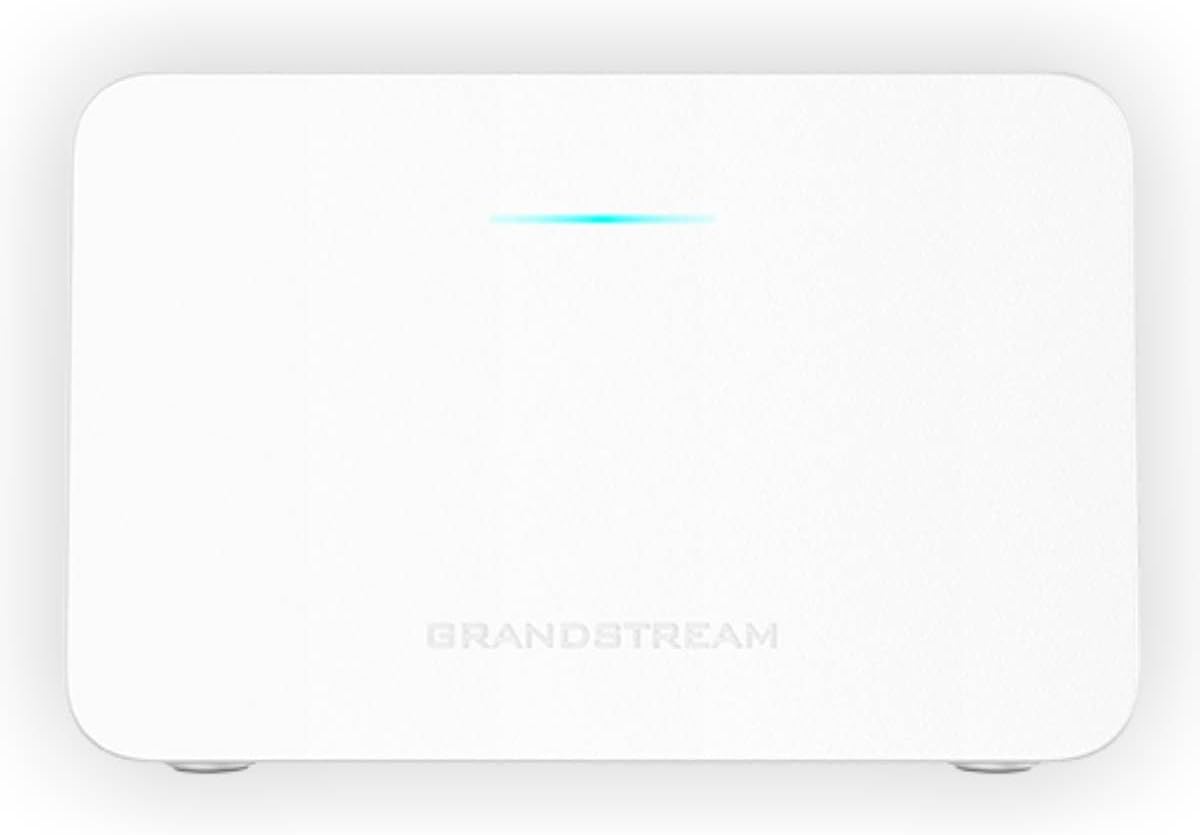
Rycina 1: Przód view of the GWN7062E router with a single LED indicator.
The front panel of the GWN7062E features a single LED indicator. This LED provides status information about the device's operation, including power status, internet connectivity, and Wi-Fi activity. Refer to the Quick Installation Guide for specific LED behavior interpretations.
Panel tylny
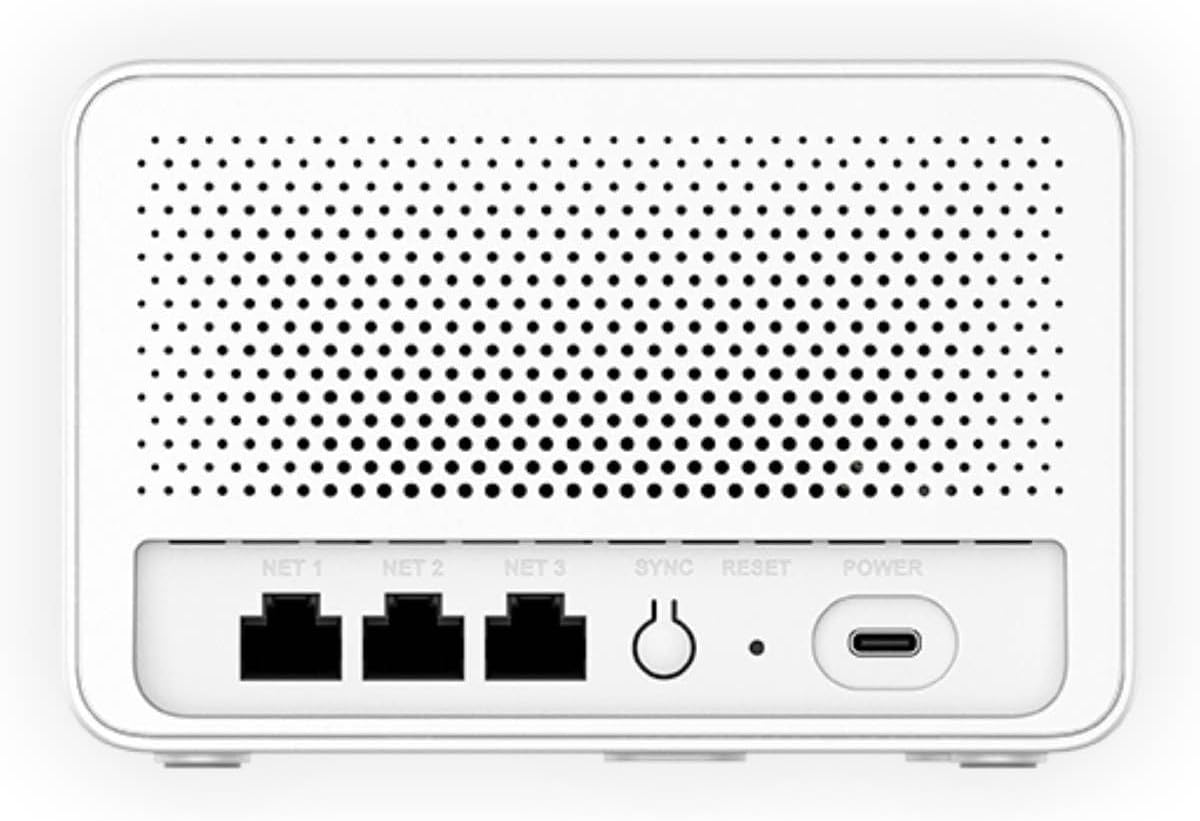
Rysunek 2: Tył view of the GWN7062E router showing Ethernet ports, SYNC, RESET, and POWER ports.
The rear panel provides all necessary connection points and control buttons:
- NET 1, NET 2, NET 3: Gigabit Ethernet ports for WAN and LAN connections. Typically, NET 1 is used for the WAN (Internet) connection, while NET 2 and NET 3 serve as LAN ports for wired devices.
- SYNCHRONIZACJA: Button used for mesh networking synchronization with other Grandstream routers.
- RESETOWANIE: Button to restore the router to factory default settings. Press and hold for approximately 10 seconds while the device is powered on.
- MOC: USB-C port for connecting the included power adapter.
Organizować coś
Instalacja sprzętu
- Podłącz zasilanie: Connect the included power adapter to the POWER port on the rear of the GWN7062E and then plug the adapter into a power outlet. The LED indicator on the front panel will illuminate.
- Połącz się z Internetem: Connect one end of the provided Ethernet cable to the WAN port (typically NET 1) on the GWN7062E and the other end to your modem or internet service provider's device.
- Podłącz urządzenia (opcjonalnie): For wired connections, connect Ethernet cables from your computers or other network devices to the LAN ports (NET 2 or NET 3) on the GWN7062E.
Konfiguracja początkowa
After hardware installation, configure your router using the web interfejs:
- Połącz się z routerem:
- Bezprzewodowy: Connect your computer or mobile device to the default Wi-Fi network (SSID) broadcast by the GWN7062E. The default SSID and password are usually printed on a label on the bottom of the router.
- wired: Ensure your computer is connected to a LAN port (NET 2 or NET 3) of the GWN7062E.
- Dostęp Web Interfejs użytkownika: Otwórz web przeglądarkę i wprowadź domyślny adres IP (np. http://192.168.1.1) or the router's domain name (if applicable, check the label) in the address bar.
- Zaloguj się: Enter the default username and password. These credentials are typically found on the router's label.
- Kreator konfiguracji początkowej: Follow the on-screen instructions of the setup wizard to change the default administrator password, configure your internet connection settings, and set up your Wi-Fi network name (SSID) and password. It is highly recommended to change all default credentials for security.
Instrukcja obsługi
Konfiguracja sieci Wi-Fi
To customize your wireless network settings:
- Log in to the GWN7062E web interfejs.
- Navigate to the 'Wi-Fi' or 'Wireless Settings' section.
- You can configure the 2.4GHz and 5GHz bands separately. Change the SSID (network name) and set a strong WPA2/WPA3 password for each.
- Save your changes. Your devices will need to reconnect using the new SSID and password.
Zaawansowane funkcje
- Wsparcie VPN: The GWN7062E includes built-in VPN support, allowing remote employees to securely access corporate networks. Configuration options are available in the 'VPN' section of the web interfejs.
- Sieć kratowa: Expand your Wi-Fi coverage by integrating the GWN7062E with other Grandstream routers to form a mesh network. Use the SYNC button or the web interface to establish mesh connections.
- Firewall Features: Utilize the router's rich firewall capabilities, including Denial of Service (DoS) protection, network blocklists, and URL content filtering, to enhance network security. These settings are typically found under 'Security' or 'Firewall' in the web interfejs.
- Sieć gości: Create separate guest Wi-Fi networks to provide internet access to visitors without compromising your main network's security.
Konserwacja
- Aktualizacje oprogramowania układowego: Regularly check for and install firmware updates from the Grandstream webwitrynę lub przez router web interface. Firmware updates provide new features, performance improvements, and security patches.
- Przywrócenie ustawień fabrycznych: If you encounter persistent issues or forget your administrator password, you can perform a factory reset. With the router powered on, press and hold the RESET button on the rear panel for approximately 10 seconds. This will erase all custom configurations and restore the device to its original factory settings.
- Czyszczenie: Keep the router in a clean, dust-free environment. Use a soft, dry cloth to clean the exterior. Do not use liquid cleaners or aerosols. Ensure ventilation openings are not obstructed.
Rozwiązywanie problemów
| Wydanie | Możliwe rozwiązanie |
|---|---|
| Brak połączenia internetowego |
|
| Nie można uzyskać dostępu Web Interfejs |
|
| Sieć Wi-Fi niewidoczna |
|
| Niska prędkość Wi-Fi |
|
Specyfikacje
| Funkcja | Szczegół |
|---|---|
| Marka | Wielki strumień |
| Nazwa modelu | GWN7062E |
| standard bezprzewodowy | Wi-Fi 6 (802.11ax) |
| Przepustowość bezprzewodowa | Do 3 Gbps |
| Klasa pasma częstotliwości | Dwuzakresowy (2.4 GHz i 5 GHz) |
| Technologia MIMO | 2.4G 2x2:2 and 5G 3x3:2 MU-MIMO |
| Urządzenia współbieżne | Up to 128 wireless client devices |
| Edytor | 1.3 GHz dwurdzeniowy |
| Porty | 3 Gigabit Ethernet ports (NET 1, NET 2, NET 3), 1 USB-C Power port |
| Cechy specjalne | VPN Support, Mesh Networking, Enterprise-Grade Security, Firewall Features |
| Protokół bezpieczeństwa | WPA2-PSK, WPA3, WPA2-Enterprise, WPA-Enterprise |
| Waga przedmiotu | 16 uncji |
| Zawarte komponenty | GWN7062E router, Power Adapter, Ethernet Cable, Quick Installation Guide |
Gwarancja i wsparcie
For warranty information and technical support, please contact Grandstream directly. Details regarding product warranty periods and support channels are typically available on the official Grandstream website or within the product's packaging.
Producent: Wielki strumień
Dane kontaktowe producenta: Refer to the official Grandstream webstrona zawierająca najnowsze dane kontaktowe i zasoby pomocy.