
1. Koniec produktuview
The Amazon Basics Multi-Touch Trackpad is a wireless input device designed for Windows PCs, offering enhanced navigation and control through multi-touch gestures. It features dual device connectivity and a rechargeable battery for convenience.
Główne cechy:
- Gesty wielodotykowe: Supports up to four-finger gestures for intuitive control.
- Dual Device Control: Connects to two devices via Bluetooth with easy switching.
- Integrated Buttons: Built-in left and right mouse button functionality.
- Smukła konstrukcja: Portable and sleek with colored indicator lights for enhanced functionality.
- Akumulator: Equipped with a lithium battery, rechargeable via USB-C.
- Zgodność: Designed for Windows OS. Not compatible with macOS, Chrome OS, or Linux.

Obraz 1.1: Góra view of the Amazon Basics Multi-Touch Trackpad.
2. Konfiguracja i instalacja
2.1 Zawartość opakowania
Upewnij się, że wszystkie elementy są obecne:
- Amazon Basics Multi-Touch Trackpad
- Kabel ładujący USB-C
- Instrukcja obsługi (ten dokument)
2.2 Ładowanie gładzika
- Locate the USB-C port on the trackpad.
- Connect the provided USB-C cable to the trackpad and the other end to a USB power source (e.g., computer USB port, USB wall adapter).
- The indicator light will show charging status. A full charge typically takes [X] hours (Note: Specific charging time not provided in source data, user should refer to product packaging or quick start guide for exact duration).
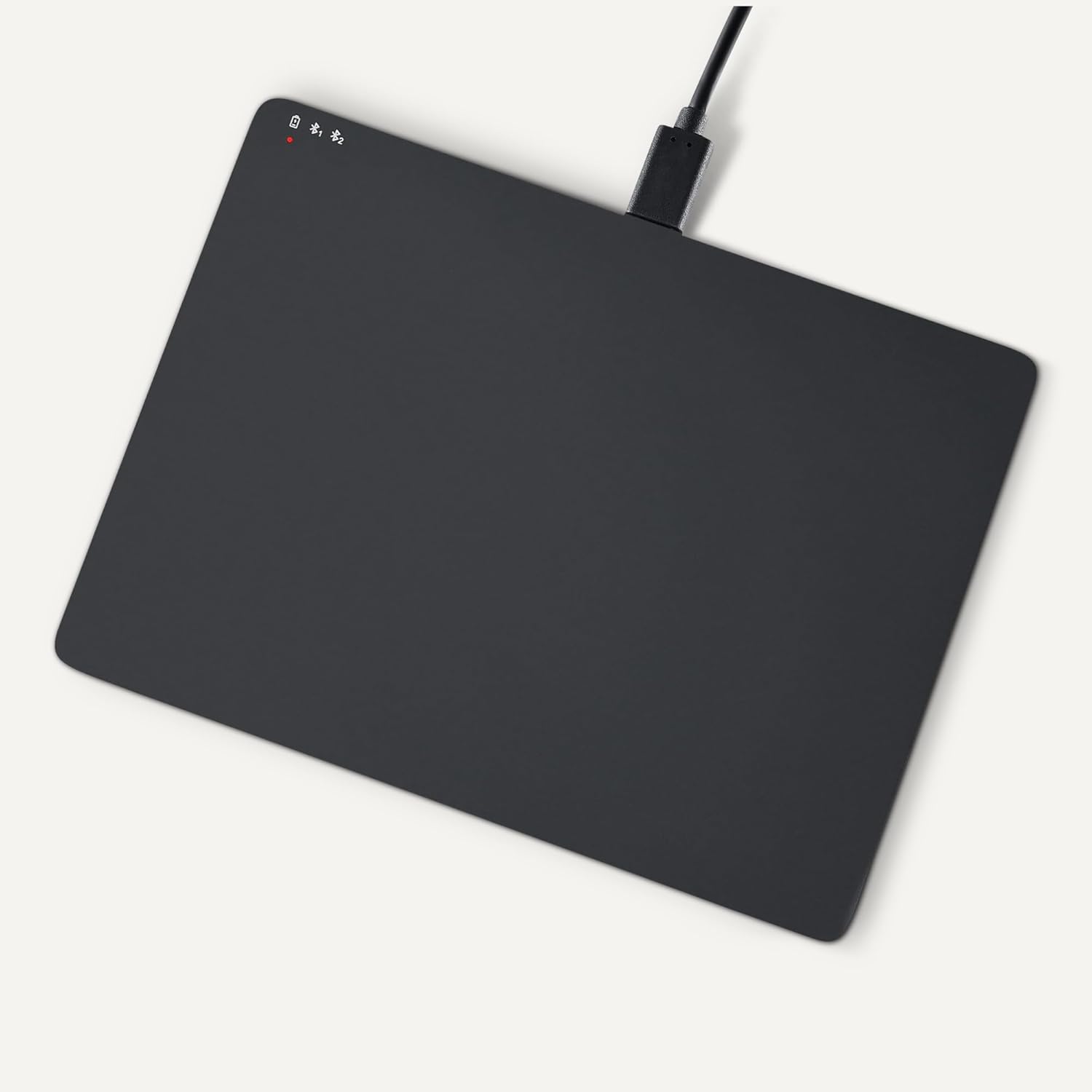
Image 2.1: Trackpad connected for charging via USB-C.
2.3 Włączanie/wyłączanie
Locate the power switch on the side of the trackpad. Slide it to the "ON" position to power on, and "OFF" to power off.

Obraz 2.2: Bok view illustrating the power switch and USB-C port.
2.4 parowanie Bluetooth
- Sprawdź, czy gładzik jest włączony.
- Na komputerze z systemem Windows przejdź do Ustawienia > Urządzenia > Bluetooth i inne urządzenia.
- Turn on Bluetooth and click "Add Bluetooth or other device".
- Select "Bluetooth" from the options.
- The trackpad should appear in the list of available devices (e.g., "Amazon Basics Trackpad"). Select it to pair.
- Follow any on-screen prompts to complete the pairing process. The indicator light on the trackpad will confirm successful connection.
3. Operating the Trackpad
3.1 Podstawowa nawigacja
- Przesuń kursor: Slide one finger across the trackpad surface.
- Lewy przycisk myszy: Press down on the lower-left area of the trackpad or tap with one finger.
- Kliknij prawym przyciskiem myszy: Press down on the lower-right area of the trackpad or tap with two fingers (if configured in Windows settings).
3.2 Multi-Touch Gestures (Windows OS)
The trackpad supports various multi-touch gestures for enhanced productivity. These gestures are typically configured within Windows settings (Settings > Devices > Touchpad).
- Zwój: Place two fingers on the trackpad and slide them up or down to scroll vertically, or left or right to scroll horizontally.
- Powiększ/pomniejsz: Place two fingers on the trackpad and pinch them together to zoom out, or spread them apart to zoom in.
- Show All Open Windows (Task View): Swipe three fingers upwards.
- Pokaż pulpit: Swipe three fingers downwards.
- Switch Between Open Windows: Swipe three fingers left or right.
- Otwarty dom Aukcyjny: Tap with four fingers.
- Przełączanie komputerów stacjonarnych: Swipe four fingers left or right.
Note: Gesture functionality may vary based on your Windows version and specific settings. Refer to your Windows documentation for detailed customization options.
3.3 Dual Device Control
The trackpad can be paired with two different devices. To switch between connected devices:
- Ensure both devices are paired with the trackpad.
- Press the mode switch button located on the trackpad (refer to Image 2.2 for location).
- The indicator light will change to show which device is currently active.
4. Konserwacja i pielęgnacja
- Czyszczenie: Use a soft, dry, lint-free cloth to clean the trackpad surface. For stubborn marks, slightly dampPrzetrzyj szmatkę wodą. Unikaj silnych środków chemicznych i materiałów ściernych.
- Składowanie: When not in use for extended periods, power off the trackpad to conserve battery life. Store in a cool, dry place.
- Pielęgnacja baterii: To prolong battery life, avoid fully discharging the trackpad frequently. Recharge when the low battery indicator appears.
- Unikaj płynów: Keep the trackpad away from liquids and excessive moisture.
5. Rozwiązywanie Problemów
| Problem | Możliwa przyczyna | Rozwiązanie |
|---|---|---|
| Trackpad does not power on. | Akumulator jest rozładowany. | Charge the trackpad using the provided USB-C cable. |
| Trackpad does not connect via Bluetooth. |
|
|
| Gestures are not working or inconsistent. |
|
|
| Trackpad is unresponsive. |
|
|
Jeśli po wypróbowaniu tych rozwiązań problem nadal występuje, zapoznaj się z sekcją Gwarancja i wsparcie.
6. Specyfikacje
| Funkcja | Szczegół |
|---|---|
| Marka | Podstawy Amazon |
| Numer modelu | TK053 |
| Łączność | Bluetooth |
| Wymiary (dł. x szer. x wys.) | 6.39 x 4.78 x 0.42 cala |
| Waga przedmiotu | 9.2 uncji (261.2 grama) |
| Kolor | Czarny |
| Bateria | 1 bateria litowo-jonowa (w zestawie) |
| Port ładowania | USB-C |
| Zgodność | Windows OS (Not compatible with macOS, Chrome OS, or Linux) |
| UPC | 840324434217 |
7. Gwarancja i wsparcie
For warranty information and customer support, please refer to the official Amazon Basics website or the documentation included with your purchase. You can typically find support resources, FAQs, and contact information on the product's dedicated page on Amazon.com.
Wsparcie online: Visit the Amazon Basics Store