
Wstęp
Welcome to the user manual for your new VAIO SX-R Laptop. This document provides essential information to help you set up, operate, maintain, and troubleshoot your device. Please read this manual thoroughly to ensure optimal performance and longevity of your laptop.
Produkt ponadview
The VAIO SX-R is a high-performance laptop designed for productivity and creative tasks. It features an Intel Core Ultra 7 processor, a vibrant 14-inch WQXGA Touch Display, amppamięć i szybkie przechowywanie.
Główne cechy
- Edytor: Intel Core Ultra 7 (16-Core, AI-Boosted) for enhanced speed and responsiveness.
- Wyświetlacz: 14-inch WQXGA Touch Display (2560x1600) offering high resolution and wide color gamut.
- Pamięć: 32GB LPDDR5 RAM for superior multitasking.
- Składowanie: 1TB PCIe NVMe SSD for fast data access and ample magazyn.
- System operacyjny: Windows 11 Pro with enterprise-grade security and productivity features.
- Bezpieczeństwo: Integrated IR Camera and Fingerprint Reader for secure login.
- Podwozie: Durable Carbon Fiber construction.
Laptop Components and Ports

Figure 1: VAIO SX-R Laptop, illustrating the overall design.
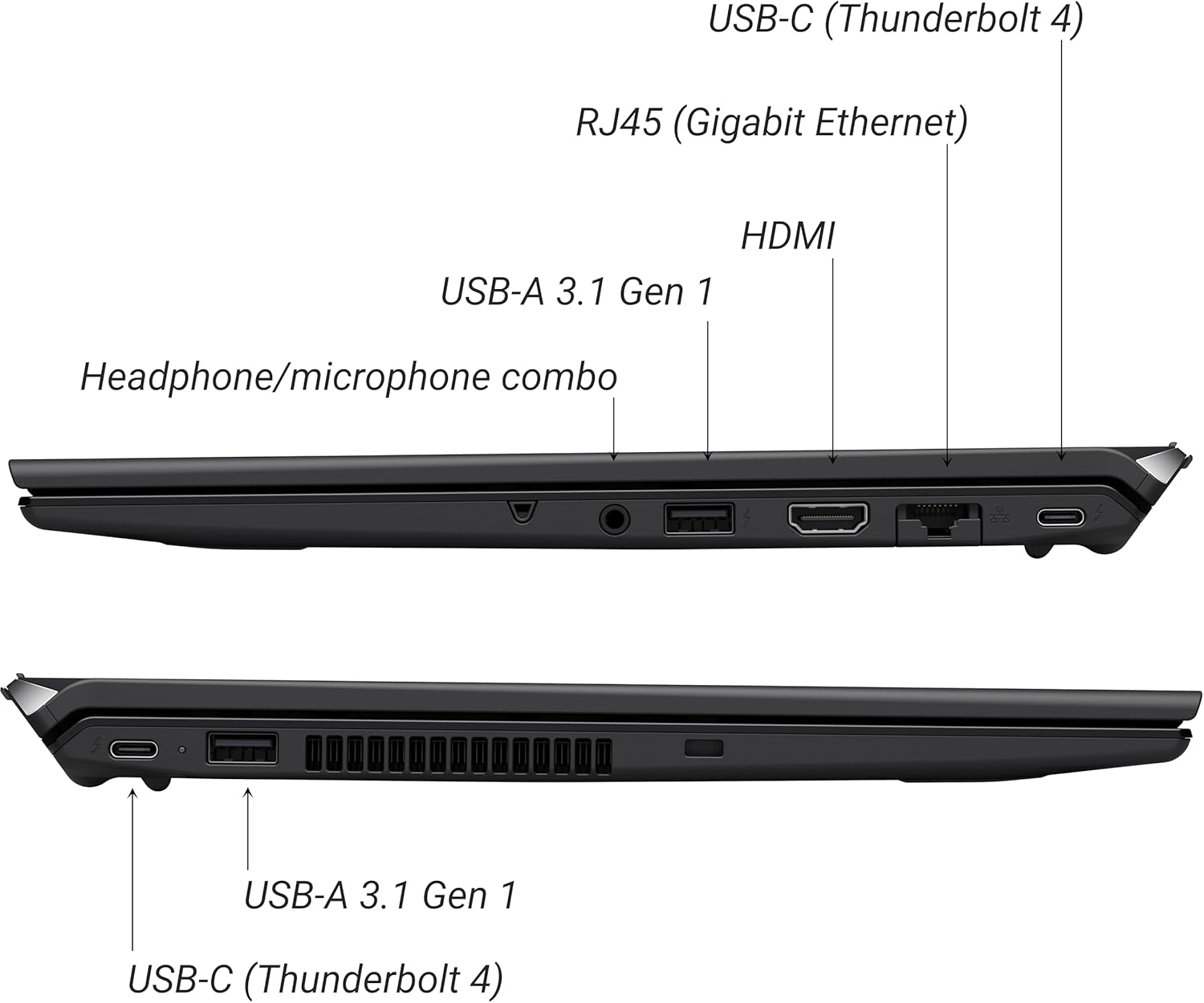
Figure 2: Port layout of the VAIO SX-R Laptop. The left side includes a headphone/microphone combo jack, USB-A 3.1 Gen 1, HDMI, RJ45 (Gigabit Ethernet), and USB-C (Thunderbolt 4). The right side features another USB-C (Thunderbolt 4) and USB-A 3.1 Gen 1 port.
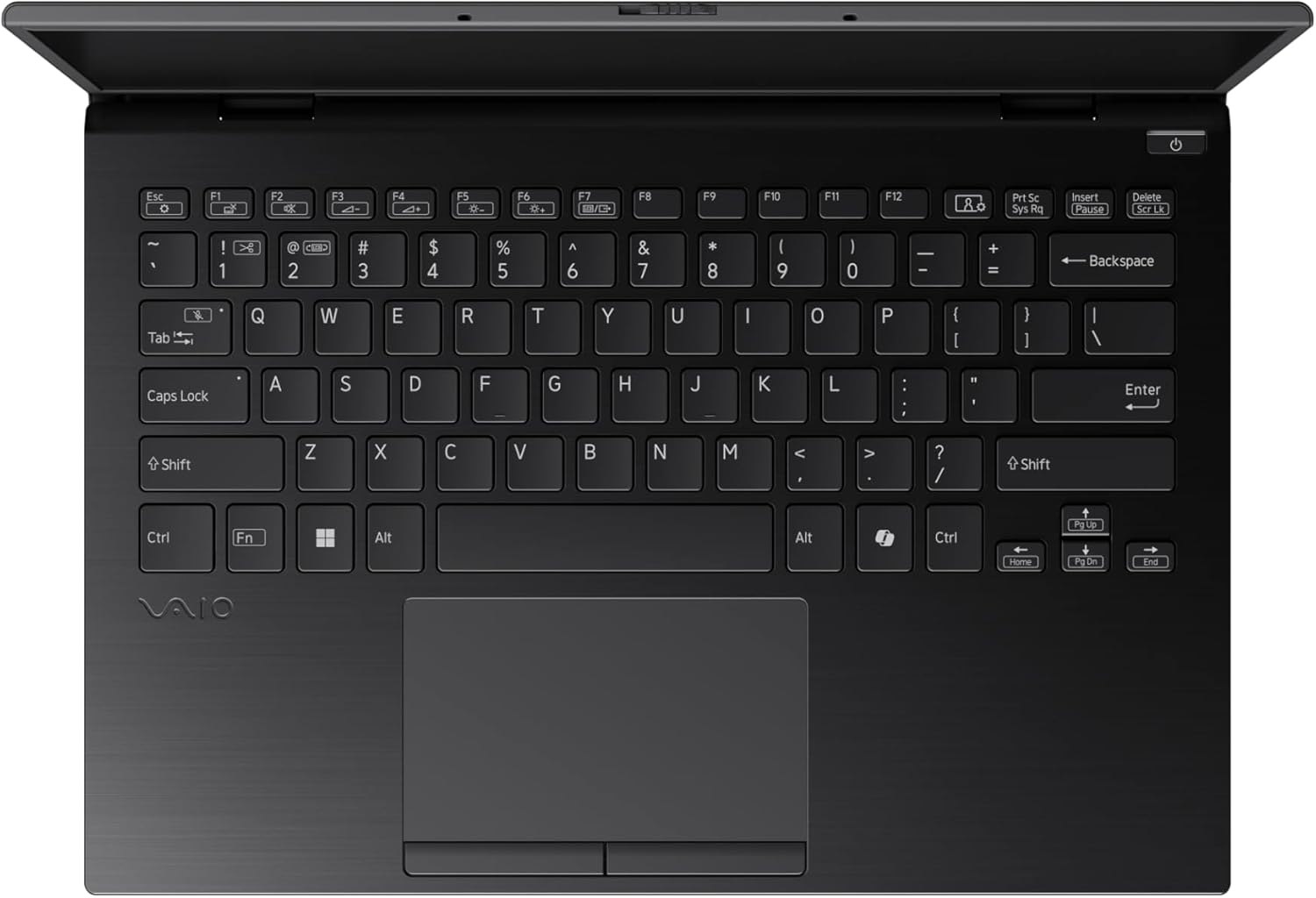
Figure 3: The VAIO SX-R Laptop keyboard and touchpad, featuring a backlit keyboard and integrated fingerprint sensor.
Organizować coś
1. Pierwsze włączenie zasilania
- Podłącz zasilanie: Podłącz zasilacz sieciowy do portu zasilania laptopa, a następnie do gniazdka ściennego.
- Otwórz laptopa: Ostrożnie otwórz pokrywę laptopa.
- Włączanie: Press the power button, typically located on the top right of the keyboard deck. The power indicator light will illuminate.
2. Windows 11 Pro Setup
Follow the on-screen instructions to complete the initial Windows 11 Pro setup. This includes:
- Wybór regionu i układu klawiatury.
- Łączenie z siecią Wi-Fi.
- Akceptacja umowy licencyjnej.
- Creating or logging in with a Microsoft account.
- Setting up your PIN, fingerprint, or facial recognition (IR Camera).
3. Podłączanie urządzeń peryferyjnych
You can connect external devices such as mice, keyboards, external monitors, and USB drives to the available ports as shown in Figure 2.
Operacyjny
1. Podstawowe użytkowanie
- Klawiatura: Use the integrated backlit keyboard for typing. Function keys (F1-F12) often have secondary functions accessible via the 'Fn' key.
- Panel dotykowy: The precision touchpad supports multi-touch gestures for navigation.
- Ekran dotykowy: Interact directly with the 14-inch WQXGA display using touch gestures.
2. Funkcje bezpieczeństwa
- Czytnik linii papilarnych: Enroll your fingerprints through Windows Settings > Accounts > Sign-in options for quick and secure login.
- Kamera IR: Utilize Windows Hello facial recognition for convenient and secure access. Set this up in Windows Settings > Accounts > Sign-in options.
3. Zarządzanie energią
- Tryb uśpienia: Close the lid or press the power button briefly to put the laptop to sleep.
- Zamknięcie: Aby całkowicie wyłączyć laptopa, przejdź do menu Start > Zasilanie > Wyłącz.
- Uruchom ponownie: Aby ponownie uruchomić system, przejdź do Start > Zasilanie > Uruchom ponownie.
Konserwacja
1. Czyszczenie
- Ekran: Użyj miękkiej, niestrzępiącej się ściereczki, lekko wyczyśćampPrzemyj wodą lub płynem do czyszczenia ekranów. Unikaj silnych środków chemicznych.
- Klawiatura i obudowa: Użyj miękkiej ściereczki. W przypadku uporczywych zabrudzeń, delikatnie przetrzyj.amp Można użyć ściereczki zwilżonej łagodnym mydłem, upewniając się, że żaden płyn nie dostanie się do otworów.
- Porty: Delikatnie usuń kurz z portów za pomocą sprężonego powietrza.

Figure 4: The VAIO SX-R features a water-resistant keyboard, designed to withstand minor spills.
2. Aktualizacje oprogramowania
Regularly update your Windows operating system and device drivers to ensure optimal performance, security, and compatibility. Access updates via Windows Settings > Windows Update.
3. Pielęgnacja baterii
- Unikaj ekstremalnych temperatur.
- Nie należy zbyt często całkowicie rozładowywać akumulatora.
- W przypadku długotrwałego przechowywania naładuj akumulator do poziomu ok. 50–60%.
Rozwiązywanie problemów
W tej sekcji omówiono typowe problemy, na które możesz natrafić.
1. Laptop się nie włącza
- Upewnij się, że zasilacz sieciowy jest prawidłowo podłączony do laptopa i do sprawnego gniazdka elektrycznego.
- Sprawdź, czy gniazdko elektryczne działa prawidłowo, podłączając do niego inne urządzenie.
- Jeśli akumulator jest całkowicie rozładowany, należy ładować go przez co najmniej 30 minut przed próbą włączenia urządzenia.
2. Problemy z wyświetlaniem
- Brak wyświetlacza: Podłącz zewnętrzny monitor do portu HDMI, aby sprawdzić, czy problem dotyczy wewnętrznego wyświetlacza laptopa.
- Migotanie/zniekształcony wyświetlacz: Update your graphics drivers. Adjust display resolution and refresh rate in Windows Settings > System > Display.
3. Problemy z łącznością Wi-Fi
- Ensure Wi-Fi is enabled in Windows Settings > Network & internet > Wi-Fi.
- Uruchom ponownie router i modem.
- Uruchom narzędzie do rozwiązywania problemów z siecią systemu Windows.
4. Niska wydajność
- Zamknij niepotrzebne aplikacje działające w tle.
- Check Task Manager (Ctrl+Shift+Esc) for resource-intensive processes.
- Ensure your system is up to date and free from malware.
Specyfikacje
Below are the detailed specifications for the VAIO SX-R Laptop (Model: VJS4R1X0511B).
| Funkcja | Specyfikacja |
|---|---|
| Marka | VAIO |
| Nazwa modelu | VAIO SX-R |
| Numer modelu przedmiotu | VJS4R1X0511B |
| System operacyjny | Windows 11 Pro |
| Edytor | Intel Core Ultra 7 (1.4 GHz) |
| Pamięć RAM | 32 GB pamięci LPDDR5 |
| Dysk twardy | Dysk SSD PCIe NVMe o pojemności 1 TB |
| Rozmiar ekranu | 14 cali |
| Rozdzielczość ekranu | 2560 x 1600 pikseli (WQXGA) |
| Karta graficzna | Intel Integrated Graphics |
| Typ bezprzewodowy | 802.11bgn |
| Porty USB 3.0 | 3 |
| Średnia żywotność baterii | 10 godzin |
| Waga przedmiotu | 3.1 funta |
| Wymiary produktu | 14.2 x 15 x 3.3 cala |
| Cechy specjalne | Backlit Keyboard, Fingerprint Reader, HD Audio, Memory Card Slot, Webkrzywka |
Gwarancja i wsparcie
1. Informacje o gwarancji
Your VAIO SX-R Laptop is covered by a manufacturer's warranty. Please refer to the warranty card included with your product packaging for specific terms, conditions, and duration. Keep your proof of purchase for warranty claims.
2. Wsparcie techniczne
For technical assistance, troubleshooting beyond this manual, or service inquiries, please contact VAIO customer support. You can typically find contact information on the official VAIO website or in the documentation provided with your laptop.
- Wsparcie online: Visit the official VAIO support website for FAQs, driver downloads, and contact options.
- Wsparcie telefoniczne: Refer to your product documentation for regional support phone numbers.