
1. Wprowadzenie
This manual provides essential information for the safe and efficient use of your BOOX Go 7 ePaper Tablet. Please read it thoroughly before operating the device and retain it for future reference.

Figure 1.1: BOOX Go 7 ePaper Tablet
2. Informacje dotyczące bezpieczeństwa
- Nie wystawiaj urządzenia na działanie ekstremalnych temperatur, bezpośredniego światła słonecznego i wysokiej wilgotności.
- Unikaj upuszczania i narażania urządzenia na silne uderzenia.
- Do ładowania używaj wyłącznie dostarczonego kabla USB.
- Keep the device away from water and liquids, despite its water-repellent features.
- Nie próbuj samodzielnie demontować ani naprawiać urządzenia. Skontaktuj się z autoryzowanym serwisem.
3. Zawartość opakowania
Sprawdź, czy w opakowaniu znajdują się wszystkie elementy:
- BOOX Go 7 ePaper Tablet
- Kabel USB
- Szybki przewodnik (może się różnić w zależności od regionu)

Figure 3.1: BOOX Go 7 Package Contents
4. Urządzenie ponadview
4.1 Komponenty fizyczne
Familiarize yourself with the main components of your BOOX Go 7 tablet:
- E Ink Screen: 7-inch monochrome display with 300 ppi resolution.
- Światło przednie: Adjustable illumination for reading in various lighting conditions.
- Page-Turn Buttons: Ergonomically designed buttons for easy navigation.
- Port USB-C: Do ładowania i przesyłania danych.
- Przycisk zasilania: Znajduje się na górnej krawędzi.
- Wbudowany mikrofon: Do wejścia audio.
- Wbudowane dwa głośniki: Do wyjścia audio.

Figure 4.1: Page-Turn Buttons and Water-Repellent Protection
5. Konfiguracja
5.1 Pierwsze ładowanie
Before first use, fully charge your BOOX Go 7 tablet. Connect the provided USB-C cable to the device and a compatible power adapter (not included) or a computer's USB port. The charging indicator will show the charging status.
5.2 Włączanie/wyłączanie zasilania
- Włączanie: Press and hold the Power button until the BOOX logo appears.
- Aby wyłączyć: Naciśnij i przytrzymaj przycisk zasilania, a następnie wybierz opcję „Wyłącz” z listy opcji na ekranie.
- Aby zasnąć/obudzić się: Krótko naciśnij przycisk zasilania.
5.3 Połączenie sieciowe (Wi-Fi)
- Na ekranie głównym przesuń palcem od góry w dół, aby uzyskać dostęp do panelu Szybkie ustawienia.
- Kliknij ikonę Wi-Fi, aby włączyć Wi-Fi.
- Dotknij i przytrzymaj ikonę Wi-Fi, aby otworzyć ustawienia Wi-Fi.
- Wybierz żądaną sieć z listy i wpisz hasło, jeśli zostaniesz o to poproszony.
- Po nawiązaniu połączenia ikona Wi-Fi będzie sygnalizować pomyślne połączenie.
6. Instrukcja obsługi
6.1 Podstawowa nawigacja
- Ekran dotykowy: Tap, swipe, and pinch to navigate menus, open applications, and interact with content.
- Page-Turn Buttons: Use the physical buttons on the side to turn pages in documents and books.
6.2 Reading Documents and Books
The BOOX Go 7 supports various document formats. Open your desired file from the library. Use the page-turn buttons or swipe gestures to navigate through pages. Adjust font size, contrast, and frontlight settings for optimal reading comfort.
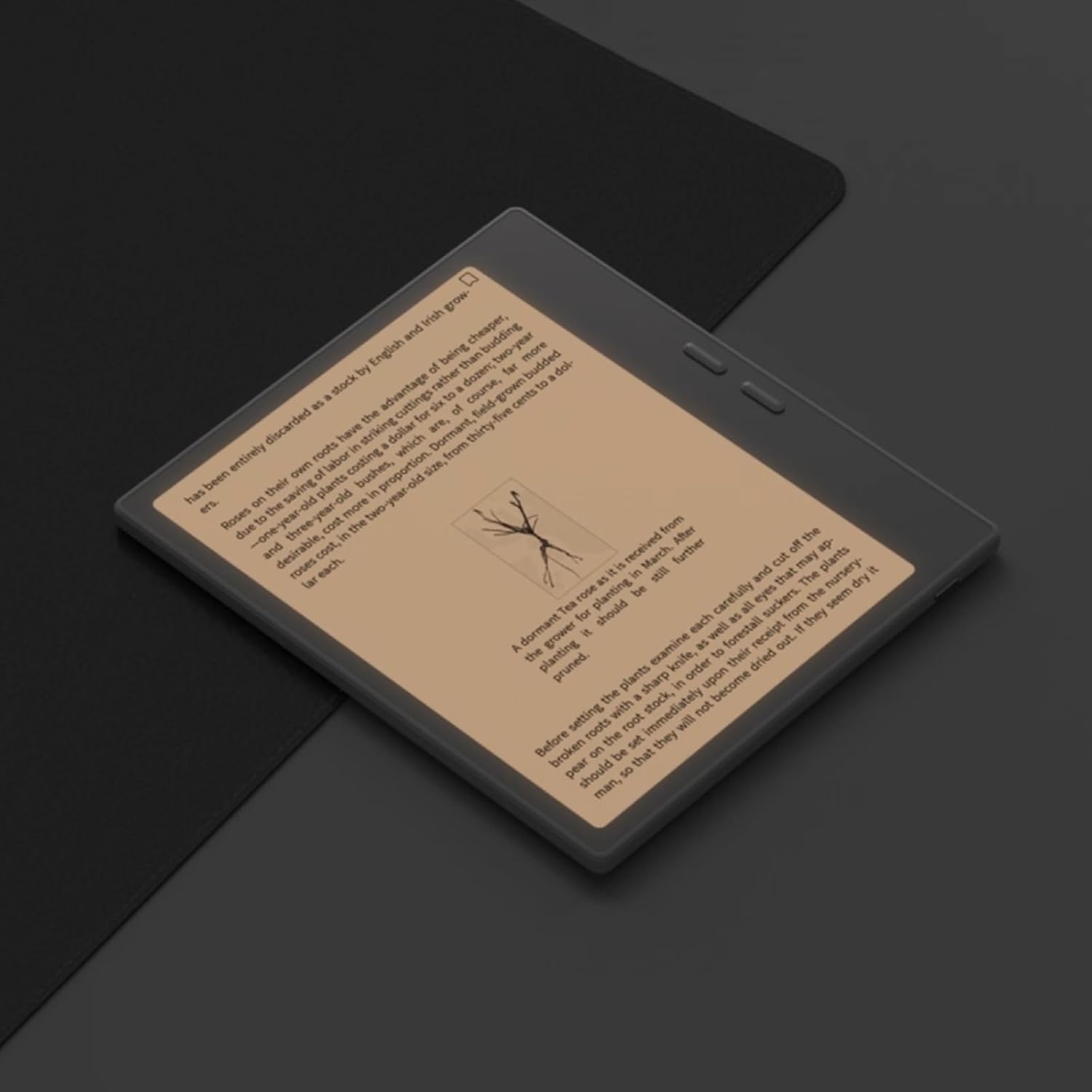
Figure 6.1: Reading with Frontlight
6.3 Using Android Applications
As an Android 13 device, the BOOX Go 7 allows installation of various applications from the Google Play Store. Navigate to the App Store, search for your desired application, and install it. Note that some applications may not be fully optimized for ePaper displays.

Figure 6.2: Various Android Applications on BOOX Go 7
6.4 Robienie notatek i rysowanie
Utilize the stylus (if included or purchased separately) for note-taking, sketching, and annotating documents. The device offers various templates and tools for creative and organizational tasks.

Figure 6.3: Stylus Use for Note-Taking

Figure 6.4: Handwriting to Text Conversion
7. Konserwacja
7.1 Czyszczenie urządzenia
Use a soft, lint-free cloth to gently wipe the screen and body of the device. Do not use harsh chemicals, abrasive cleaners, or excessive moisture.
7.2 Aktualizacje oprogramowania
Regularly check for and install software updates to ensure optimal performance and access to new features. Connect to Wi-Fi and navigate to Ustawienia > System > Aktualizacja systemu aby sprawdzić dostępność aktualizacji.
8. Rozwiązywanie Problemów
- Urządzenie nie włącza się: Upewnij się, że urządzenie jest naładowane. Podłącz je do źródła zasilania i spróbuj ponownie.
- Ekran nie odpowiada: Perform a soft reset by holding the Power button for 10-15 seconds.
- Problemy z połączeniem Wi-Fi: Verify your Wi-Fi password and router settings. Try restarting your router and the device.
- Aplikacje ulegają awarii: Ensure applications are updated to their latest versions. Clear the app's cache or reinstall if issues persist.
9. Specyfikacje
| Marka | BOOX |
| Nazwa modelu | Idź 7 |
| Pojemność magazynowa | 64 GB |
| Rozmiar ekranu | 7 cali |
| Maksymalna rozdzielczość wyświetlacza | 300 Pixels per inch |
| System operacyjny | Android 13 |
| Kolor | Noir (Czarny) |
| Rozmiar zainstalowanej pamięci RAM | 4 GB |
| Cechy specjalne | USB OTG support, Expandable storage, Stylus support |
| Rok modelowy | 2025 |
| Typ baterii | Litowo-jonowy |
| Zawartość energii w akumulatorze | 8.8 watogodzin |
| Marka procesora | Qualcomm |
| Opis procesora | Procesor Qualcomm Snapdragon |
| Kamera | Brak kamery |
| Typ czujnika | Żyroskop |
| Item Dimensions (LxWxT) | 15.6L x 0.6W x 13.7T centimeters |
| Metoda wprowadzania | Touchscreen with stylus |
| Opis karty graficznej | Zintegrowany |
| Kompatybilne urządzenia | Igła |
| Typ wyświetlacza | Atrament elektroniczny |
| Rozdzielczość ekranu | 1280 x 800 pikseli |
| Proporcje obrazu | 16:10 |
| Łączność Hardware | USB |
| Technologia bezprzewodowa | Bluetooth, Wi-Fi (802.11ax) |
| Łączna liczba portów USB | 1 |

Figure 9.1: BOOX Go 7 Energy Label (Łącze EPREL)
10. Informacje o gwarancji
The BOOX Go 7 ePaper Tablet comes with a 2-roczna ograniczona gwarancja. This warranty covers manufacturing defects under normal use. For specific terms and conditions, please refer to the warranty card included in your package or contact customer support.
The standard return policy allows for returns within 30 days of purchase for refund or replacement.
11. Wsparcie
For technical assistance, troubleshooting, or warranty claims, please contact BOOX customer service. You can find support resources and submit inquiries through the official BOOX help center.
- Aktualizacje oprogramowania układowego: BOOX commits to at least 3 years of firmware updates for each product.
- Przechowywanie w chmurze: 10 GB of free cloud storage is provided for each user.
- Czas reakcji: Na zapytania klientów odpowiadamy zazwyczaj w ciągu 24 godzin.
Więcej informacji znajdziesz na stronie BOOX Brand Store on Amazon.