
1. Wprowadzenie
This manual provides detailed instructions for the installation, configuration, and operation of the Intelbras iNVD 5232 32-Channel IP Digital Video Recorder. Please read this manual thoroughly before using the device to ensure proper functionality and to prevent damage.
The Intelbras iNVD 5232 is designed for professional surveillance applications, offering advanced features for recording, monitoring, and managing IP camera feeds.
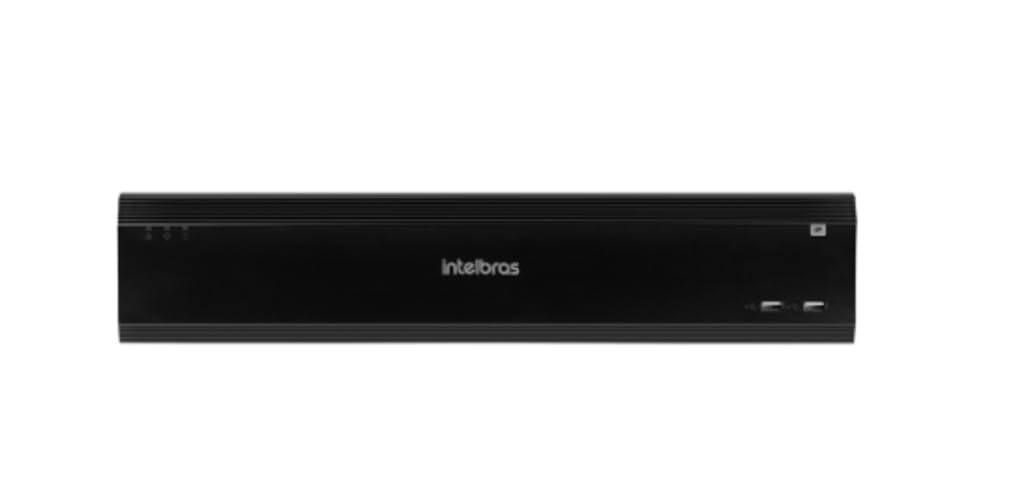
Figure 1: Intelbras iNVD 5232 Digital Video Recorder. This image shows the front panel of the iNVD 5232 unit, featuring a sleek black design with the Intelbras logo and USB ports.
2. Informacje dotyczące bezpieczeństwa
Aby zapobiec obrażeniom ciała i uszkodzeniu urządzenia, należy przestrzegać następujących środków ostrożności:
- Upewnij się, że napięcie zasilaniatage odpowiada wymaganiom urządzenia.
- Nie wystawiaj urządzenia na działanie wilgoci, deszczu i ekstremalnych temperatur.
- Unikaj umieszczania urządzenia w bezpośrednim świetle słonecznym lub w pobliżu źródeł ciepła.
- Nie otwierać urządzenia casing. Wszelkie prace serwisowe powierzaj wykwalifikowanemu personelowi.
- Używaj tylko akcesoriów określonych przez producenta.
- Aby zapobiec porażeniu prądem elektrycznym, należy prawidłowo uziemić urządzenie.
3. Zawartość opakowania
Sprawdź, czy w opakowaniu znajdują się wszystkie elementy:
- Intelbras iNVD 5232 Digital Video Recorder Unit
- Zasilacz
- Mysz USB
- Śruby do montażu dysku twardego
- Szybki przewodnik
- CD-ROM (containing software and full manual)
4. Koniec produktuview
4.1 Panel przedni
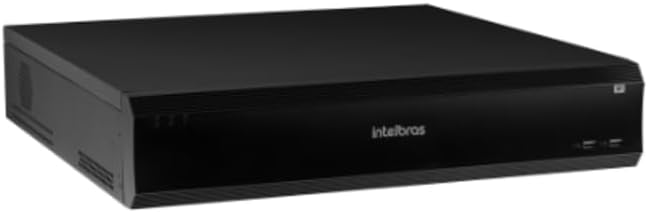
Figure 2: Front Panel of the iNVD 5232. This image displays the front of the DVR, showing LED indicators for power and status, along with two USB ports for peripheral connections.
- Dioda LED zasilania: Wskazuje stan zasilania.
- Dioda LED stanu: Wskazuje stan operacyjny systemu.
- Porty USB: For connecting a mouse, USB drive, or other peripherals.
4.2 Panel tylny

Figure 3: Rear Panel of the iNVD 5232. This image details the rear connections, including power input, network ports, video outputs (HDMI, VGA), audio inputs/outputs, and alarm terminals.
- Pobór mocy: Podłącz dołączony zasilacz.
- Wyjście HDMI: Connect to an HDMI-compatible monitor.
- Wyjście VGA: Connect to a VGA-compatible monitor.
- Porty LAN: Connect to your network for IP camera communication and remote access.
- Wejście/wyjście audio: Do podłączania zewnętrznych urządzeń audio.
- Wejście/wyjście alarmu: For connecting external alarm sensors and actuators.
- Porty USB: Dodatkowe porty USB dla urządzeń peryferyjnych.
5. Konfiguracja
5.1 Instalacja sprzętu
- Zainstaluj dysk twardy (jeśli nie został zainstalowany fabrycznie): Otwórz rejestrator DVRasing, mount the hard drive using the provided screws, and connect the SATA power and data cables.
- Podłącz monitor: Podłącz monitor do portu wyjściowego HDMI lub VGA.
- Podłącz mysz: Podłącz mysz USB do jednego z portów USB.
- Połącz sieć: Connect an Ethernet cable from the LAN port to your network router or switch.
- Podłącz zasilanie: Plug the power adapter into the DVR's power input and then into a power outlet. The device will power on automatically.
5.2 Konfiguracja początkowa
Upon first boot, the system will guide you through an initial setup wizard:
- Wybór języka: Wybierz preferowany język.
- Konfiguracja hasła: Create a strong administrator password.
- Ustawienia sieciowe: Configure IP address, subnet mask, gateway, and DNS. DHCP is usually enabled by default.
- Data i godzina: Ustaw prawidłową datę, godzinę i strefę czasową.
- Inicjalizacja dysku twardego: Sformatuj zainstalowany dysk twardy w celu nagrywania.
- IP Camera Search and Add: The system will scan for available IP cameras on the network. Select and add your cameras.
6. Obsługa
6.1 Na żywo View
After initial setup, the system will display the live view podłączonych kamer. Możesz przełączać się między trybami pojedynczej kamery view, siatki wielokamerowe i sekwencje viewza pomocą elementów sterujących na ekranie lub myszy.
6.2 Zarządzanie nagraniami
- Harmonogram nagrywania: Configure continuous, motion-detection, or alarm-triggered recording schedules for each camera.
- Nagrywanie ręczne: Initiate recording manually from the live view interfejs.
- Odtwarzanie nagranego dźwięku: Uzyskaj dostęp do nagranego pliku footage by date, time, and event type. Use the playback controls to navigate through recordings.
- Utworzyć kopię zapasową: Export recorded video clips to a USB drive or network storage.
6.3 Dostęp zdalny
The iNVD 5232 supports remote access via a web browser or dedicated mobile application. Ensure your network is configured for remote access (e.g., port forwarding or P2P cloud service activation).
- Web Przeglądarka: Enter the DVR's IP address into a web przeglądarkę na komputerze podłączonym do tej samej sieci.
- Aplikacja mobilna: Download the official Intelbras surveillance app from your device's app store. Scan the QR code on the DVR (if available) or manually enter the device ID for connection.
7. Konserwacja
7.1 Czyszczenie
Regularnie czyść zewnętrzną część rejestratora DVR miękką, suchą ściereczką. Nie używaj płynnych środków czyszczących ani aerozoli. Upewnij się, że otwory wentylacyjne są wolne od kurzu i zanieczyszczeń.
7.2 aktualizacji oprogramowania sprzętowego
Periodically check the Intelbras webStrona z aktualizacjami oprogramowania sprzętowego. Aktualizacje oprogramowania sprzętowego mogą zapewnić nowe funkcje, poprawę wydajności i bezpieczeństwa. Należy ściśle przestrzegać instrukcji dołączonych do pakietu aktualizacji oprogramowania sprzętowego.
7.3 Zarządzanie dyskiem twardym
Monitor the health of your hard drives through the system's HDD management menu. Replace failing drives promptly to avoid data loss. Configure automatic overwriting of old footage, aby zapewnić ciągłe nagrywanie.
8. Rozwiązywanie Problemów
| Problem | Możliwa przyczyna | Rozwiązanie |
|---|---|---|
| Brak zasilania | Power cable disconnected; faulty power adapter; power outlet issue. | Check power connections; test power adapter; try a different outlet. |
| Brak wyjścia wideo | Monitor off/disconnected; incorrect video output settings; faulty cable. | Ensure monitor is on and connected; check video cable; try a different output port or cable. |
| Cannot connect IP cameras | Network issue; incorrect camera IP address/credentials; camera not powered. | Verify network connectivity; ensure cameras are powered and configured correctly; check camera credentials. |
| Brak nagrywania | HDD not initialized/full; recording schedule not set; camera disconnected. | Initialize HDD; check recording schedule; verify camera connection and status. |
9. Specyfikacje
| Funkcja | Opis |
|---|---|
| Model | iNVD 5232 |
| Wejście wideo | 32 Kanały IP |
| Wyjście wideo | 1 HDMI, 1 VGA |
| Wejście/wyjście audio | Specific ports (e.g., RCA) |
| Rozdzielczość nagrywania | Up to 8MP (depending on camera) |
| Playback Capability | Multi-channel synchronous playback |
| Składowanie | Multiple SATA HDD bays (HDDs not included) |
| Interfejs sieciowy | Porty Gigabit Ethernet |
| Interfejs USB | Porty USB 2.0/3.0 |
| Zasilacz | DC 12V (adapter included) |
| Temperatura pracy | 0°C do 50°C (32°F do 122°F) |
10. Gwarancja i wsparcie
Aby uzyskać informacje dotyczące gwarancji, zapoznaj się z kartą gwarancyjną dołączoną do produktu lub odwiedź oficjalną stronę internetową firmy Intelbras website. Technical support is available through Intelbras authorized service centers and online resources.
Oficjalny Intelbras Webstrona: www.intelbras.com.br
Kontaktując się z pomocą techniczną, przygotuj model produktu i numer seryjny.