
1. Wprowadzenie
Thank you for choosing the LEFFOT M1 Plus Android 14.0 TV Box. This device is designed to transform your television into a smart entertainment hub, offering stunning 4K UHD visuals, powerful performance, and a wide range of connectivity options. This manual provides detailed instructions for setting up, operating, and maintaining your TV box to ensure an optimal user experience.
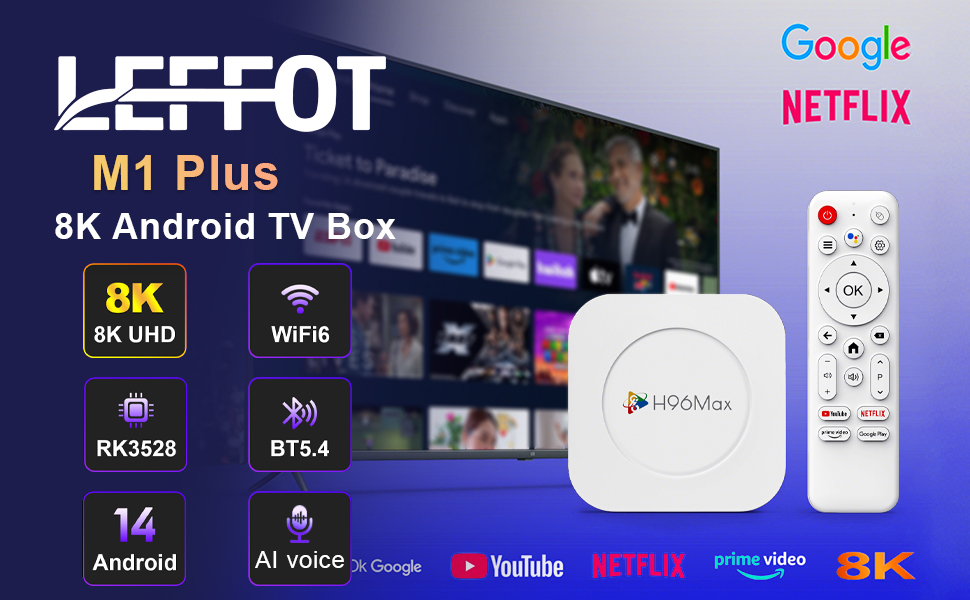
Obraz 1.1: Koniecview of the LEFFOT M1 Plus Android TV Box highlighting its core features like 8K UHD, WiFi 6, BT 5.4, Android 14, and AI voice control.
2. Informacje dotyczące bezpieczeństwa
Przed użyciem urządzenia należy uważnie przeczytać wszystkie instrukcje bezpieczeństwa. Nieprzestrzeganie tych instrukcji może spowodować porażenie prądem, pożar lub uszkodzenie urządzenia.
- Używaj wyłącznie dołączonego zasilacza.
- Nie wystawiaj urządzenia na działanie wody, wilgoci ani ekstremalnych temperatur.
- Zapewnij odpowiednią wentylację wokół urządzenia, aby zapobiec przegrzaniu.
- Nie próbuj samodzielnie demontować ani naprawiać urządzenia. Skontaktuj się z wykwalifikowanym personelem serwisowym.
- Trzymaj urządzenie z dala od bezpośredniego światła słonecznego i źródeł ciepła.
3. Zawartość opakowania
Sprawdź, czy w opakowaniu znajdują się wszystkie elementy:
- LEFFOT M1 Plus Android TV Box
- Zdalne sterowanie
- Kabel HDMI
- Zasilacz
- Instrukcja obsługi (ten dokument)
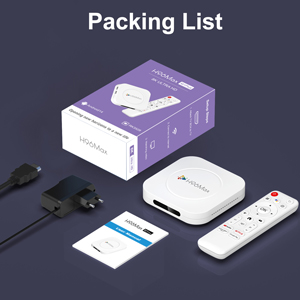
Image 3.1: The package contents including the TV box, remote control, power adapter, and HDMI cable.
4. Koniec produktuview
Familiarize yourself with the components and ports of your LEFFOT M1 Plus TV Box.
4.1. Device and Remote

Image 4.1: The LEFFOT M1 Plus TV Box (left) and its accompanying remote control (right).
4.2. Porty i interfejsy
The TV box features various ports for connectivity:
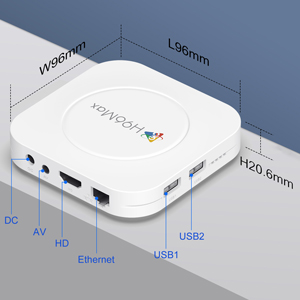
Rysunek 4.2: Szczegółowy view of the TV box's ports: DC (power), AV (audio/video out), HD (HDMI), Ethernet, USB1, and USB2.
- Prąd stały: Port wejściowy zasilania.
- AV: Analog audio/video output (for older TVs).
- Jakość HD: HDMI output for connecting to your TV.
- Ethernet: RJ-45 port for wired network connection.
- USB1 i USB2: USB ports for connecting external devices like USB drives, keyboards, or mice.
5. Konfiguracja
Follow these steps to set up your LEFFOT M1 Plus TV Box:
- Połącz z telewizorem: Connect one end of the provided HDMI cable to the "HD" port on the TV box and the other end to an HDMI input port on your television. Note the HDMI input number (e.g., HDMI 1, HDMI 2) on your TV.
- Podłącz zasilanie: Plug the power adapter into the "DC" port on the TV box, then plug the adapter into a wall outlet.
- Włączanie: The TV box should automatically power on. If not, press the power button on the remote control.
- Wybierz wejście TV: On your TV, use the remote control to select the corresponding HDMI input source you connected the TV box to.
- Kreator konfiguracji początkowej: Follow the on-screen instructions to complete the initial setup, including language selection, time zone, and network connection.
6. Instrukcja obsługi
Navigate and use your TV box effectively.
6.1. Podstawowa nawigacja
- Użyj kierunkowego (Góra, dół, lewo, prawo) buttons on the remote to move between menu items and applications.
- Naciśnij OK przycisk umożliwiający wybór elementu lub potwierdzenie akcji.
- Naciśnij Z powrotem przycisk, aby powrócić do poprzedniego ekranu.
- Naciśnij Dom button to return to the main home screen.
6.2. Dostęp do aplikacji
From the home screen, you can access pre-installed applications or download new ones from the Google Play Store. Navigate to the desired app icon and press OK aby go uruchomić.

Image 6.1: The Android 14.0 TV Box home screen displaying popular streaming applications.
6.3. Sterowanie głosowe
The LEFFOT M1 Plus supports voice control via Google Assistant. To use this feature:
- Ensure your remote control is paired and has working batteries.
- Naciśnij Asystent głosowy button (often a microphone icon) on your remote.
- Speak clearly into the remote's microphone. You can ask to open apps, search for content, or control playback.

Image 6.2: Demonstrating the convenient voice control feature using the remote and Google Assistant.
6.4. Funkcje odtwarzania i wyświetlania multimediów
Enjoy high-quality media with advanced features:
- 8K UHD: The device supports up to 8K*4K@23fps and 4Kx2K@60fps resolution with HDR10 for vibrant and detailed visuals.
- Airplay, DLNA, WiFidisplay: Easily cast content from your mobile devices to your TV screen.

Image 6.3: Experience crystal-clear 8K resolution with the LEFFOT M1 Plus.

Image 6.4: The TV box supports various connectivity options and display technologies like Airplay, DLNA, and WiFidisplay.
6.5. Scenariusze użytkowania
The LEFFOT M1 Plus TV Box is versatile for various uses:
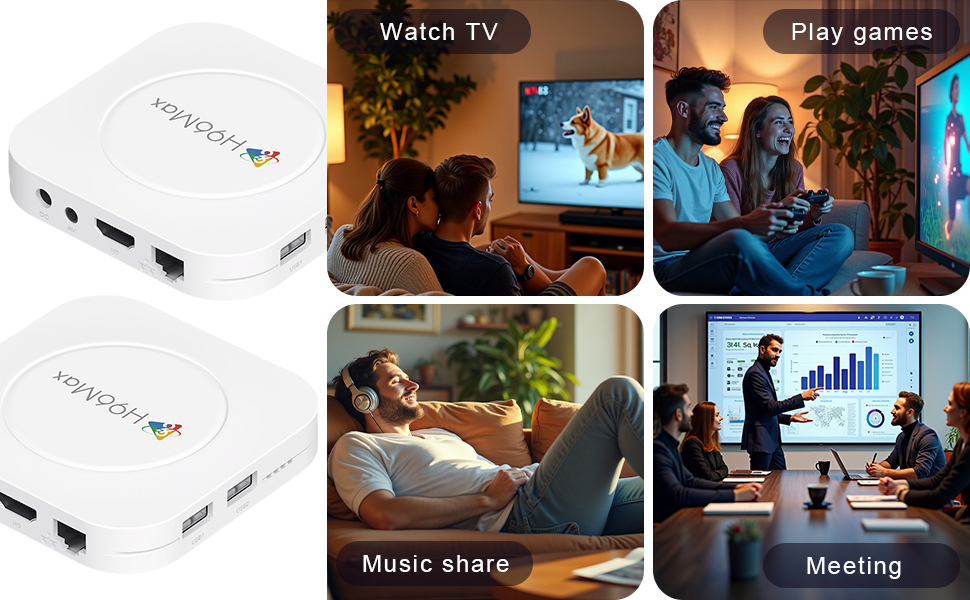
Image 6.5: The TV box can be used for watching TV, playing games, sharing music, and even for business presentations.
7. Łączność
7.1. Połączenie WiFi
The device supports 2.4G & 5G dual-band Wi-Fi 6 for fast and stable wireless internet.
- Idź do Ustawienia > Sieć i Internet.
- Włączyć coś Wi-Fi.
- Wybierz swoją sieć Wi-Fi z listy.
- Enter the password if prompted and select Łączyć.

Image 7.1: The TV box features advanced Wi-Fi 6 technology for faster and more reliable connections.
7.2. Połączenie Ethernet
For a wired connection, plug an Ethernet cable into the "Ethernet" port on the TV box and the other end into your router/modem.
7.3. Połączenie Bluetooth
The device supports Bluetooth 5.4 for connecting peripherals like headphones, game controllers, or speakers.
- Idź do Ustawienia > Podłączone urządzenia > Sparuj nowe urządzenie.
- Przełącz urządzenie Bluetooth w tryb parowania.
- Select your device from the list and follow the on-screen prompts to pair.
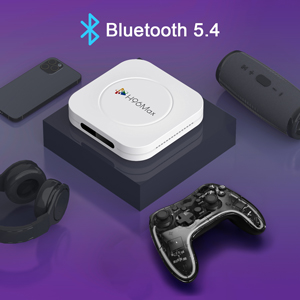
Image 7.2: The TV box supports Bluetooth 5.4 for seamless connection with various external devices.
8. Rozwiązywanie Problemów
W tej sekcji znajdziesz informacje o typowych problemach i ich rozwiązaniach.
| Problem | Możliwa przyczyna | Rozwiązanie |
|---|---|---|
| Brak zasilania | Zasilacz nie jest podłączony lub jest uszkodzony. | Upewnij się, że zasilacz jest prawidłowo podłączony do urządzenia i działa. Spróbuj użyć innego gniazdka. |
| Brak sygnału w telewizji | Wybrano niewłaściwe wejście HDMI w telewizorze; kabel HDMI jest poluzowany lub uszkodzony. | Verify TV input matches the HDMI port used. Check HDMI cable connections. Try a different HDMI cable or port. |
| Problemy z połączeniem Wi-Fi | Nieprawidłowe hasło; router jest za daleko; zakłócenia. | Re-enter Wi-Fi password. Move device closer to router. Restart router and TV box. |
| Pilot nie odpowiada | Niski poziom baterii; pilot nie jest sparowany. | Replace batteries. Re-pair the remote control if it's a Bluetooth remote (refer to device settings). |
| Aplikacje ulegają awarii lub działają wolno | Zbyt wiele uruchomionych aplikacji, mało pamięci, błąd oprogramowania. | Close background apps. Clear app caches. Restart the TV box. Consider a factory reset if issues persist (data will be lost). |
9. Specyfikacje
Key technical specifications of the LEFFOT M1 Plus Android TV Box:
- System operacyjny: Android 14.0
- Procesor: RK3528 Quad Core ARM Cortex-A53
- Procesor graficzny: Mali-450 MP2
- BARAN: 4 GB
- ROM: 32 GB
- Wyjście wideo: Supports 4Kx2K@60fps, 8K*4K@23fps, HDR10
- Wi-Fi: 2.4G & 5G Dual-band Wi-Fi 6
- Ethernet: 100 mln
- Bluetooth: BT5.4
- Porty: HDMI, USB (x2), DC, AV, Ethernet
- Cechy szczególne: Airplay, DLNA, WiFidisplay, Voice Control
- Wymiary: 3.78 x 3.78 x 0.81 cala (96 x 96 x 20.6 mm)
- Waga: 4.3 uncji (około 122 g)
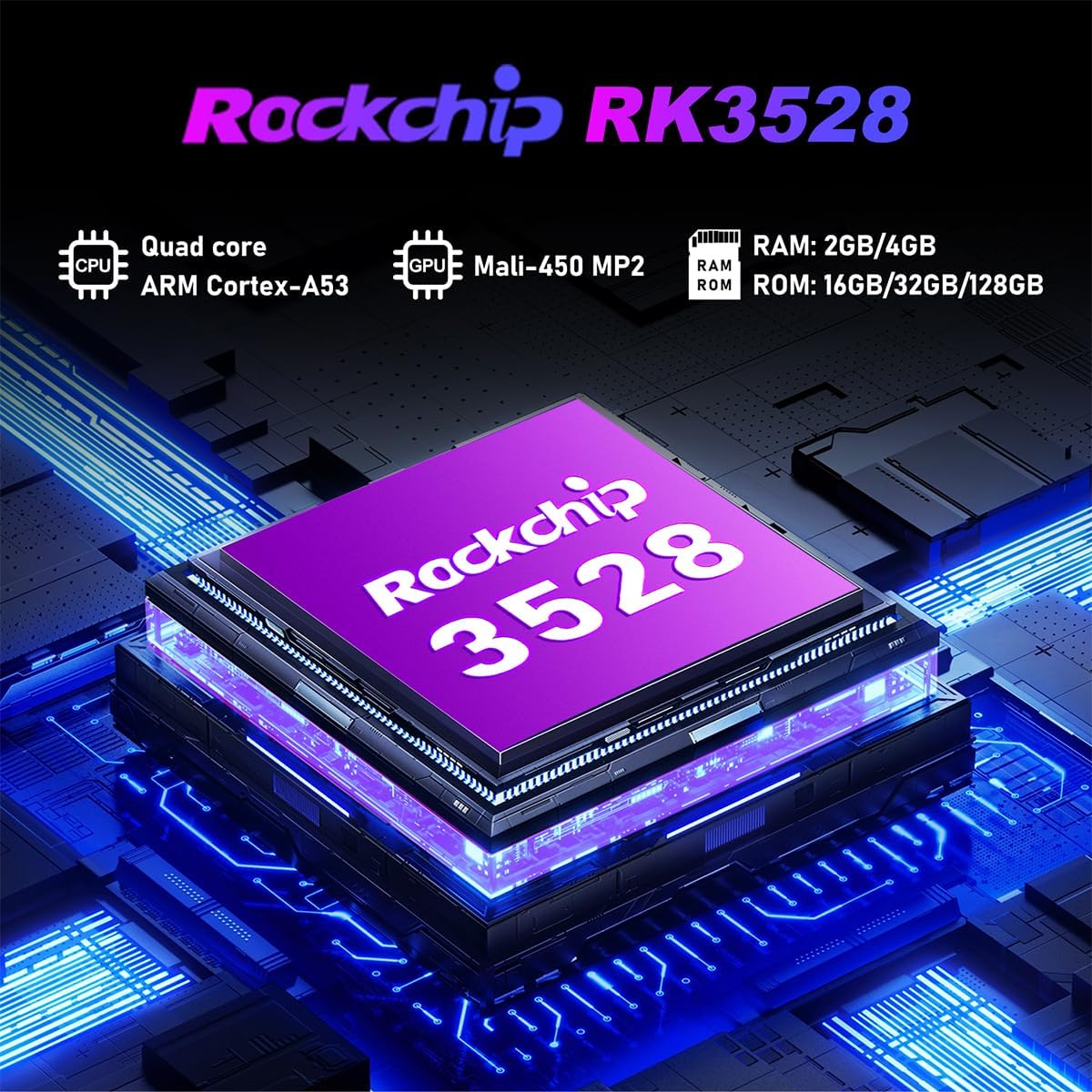
Rysunek 9.1: Szczegółowy view of the Rockchip RK3528 processor, highlighting its quad-core CPU, Mali-450 MP2 GPU, and memory configurations.
10. Konserwacja
To ensure the longevity and optimal performance of your TV box:
- Czyszczenie: Do czyszczenia zewnętrznej części urządzenia należy używać miękkiej, suchej ściereczki. Nie należy używać płynnych środków czyszczących ani aerozoli.
- Wentylacja: Ensure the ventilation holes are not blocked. Do not place the device on soft surfaces that may obstruct airflow.
- Składowanie: Jeśli urządzenie nie będzie używane przez dłuższy czas, należy odłączyć zasilacz i przechowywać je w chłodnym, suchym miejscu.
11. Gwarancja i wsparcie
LEFFOT products are designed for reliability and performance. This product comes with a standard manufacturer's warranty. Please refer to the warranty card included in your package for specific terms and conditions.
For technical support, troubleshooting assistance, or warranty claims, please contact LEFFOT customer service through the retailer where you purchased the product or visit the official LEFFOT webwitryna do informacji kontaktowych.
Prosimy zachować dowód zakupu w celach gwarancyjnych.