
Samsung A56
Instrukcja obsługi Samsunga Galaxy A56
Easy To Follow Manual with ILLUSTRATIONS to Master Your New Device

Image: Front cover of the user guide, highlighting its focus on the Samsung Galaxy A56 5G and the inclusion of illustrations.
1. Wprowadzenie
Congratulations on acquiring your new Samsung Galaxy A56! This comprehensive guide is meticulously designed to assist you in navigating and mastering all the features of your device. It provides clear, simple instructions accompanied by detailed visuals to ensure a smooth learning experience.
Whether you are performing the initial setup, customizing settings, or exploring advanced functionalities, this manual covers essential topics to help you utilize your Galaxy A56 with confidence. The guide emphasizes:
- Instrukcje krok po kroku: Processes are explained in clear, concise language for easy comprehension.
- Helpful Visuals: Illustrations are integrated with each step to provide visual clarity and prevent confusion.
- Kompleksowe ubezpieczenie: Topics range from fundamental setup procedures to advanced features such as app management, camera operation, and security configurations.
- Przyjazny dla użytkownika projekt: Structured to be accessible for all users, regardless of their prior smartphone experience.
2. Konfiguracja początkowa
2.1. Rozpakowanie i pierwsze włączenie
Upon unboxing your Samsung Galaxy A56, ensure all components are present. Before powering on, it is recommended to fully charge the device using the provided charger. Locate the power button, typically on the right side of the device, and press and hold it until the Samsung logo appears.
2.2. Wstępna konfiguracja
The device will guide you through the initial setup wizard. This includes selecting your preferred language, connecting to a Wi-Fi network, and agreeing to the terms and conditions. You will also be prompted to sign in with or create a Google account, which is essential for accessing the Google Play Store and various Google services.
Follow the on-screen prompts to transfer data from a previous device (if applicable), set up a screen lock (PIN, pattern, or fingerprint), and configure other basic settings. This process ensures your device is personalized and ready for use.
3. Obsługa urządzenia
3.1. Nawigacja i gesty
The Samsung Galaxy A56 supports intuitive navigation through gestures or traditional navigation buttons. Swipe up from the bottom of the screen to access the app drawer, swipe down from the top for the notification panel and quick settings. Familiarize yourself with these gestures for efficient device interaction.
3.2. Wykonywanie połączeń i wysyłanie wiadomości
Aby wykonać połączenie, otwórz Telefon application, enter the number using the dial pad, or select a contact from your address book. For sending messages, open the Wiadomości application, tap the new message icon, select a contact, and compose your text.
3.3. Korzystanie z aparatu
The Galaxy A56 features a versatile camera system. Open the Kamera application from your home screen or app drawer. Select different modes such as Photo, Video, Portrait, or Pro mode. Tap the shutter button to capture images or the record button to start/stop video recording. Explore settings for resolution, filters, and other enhancements.
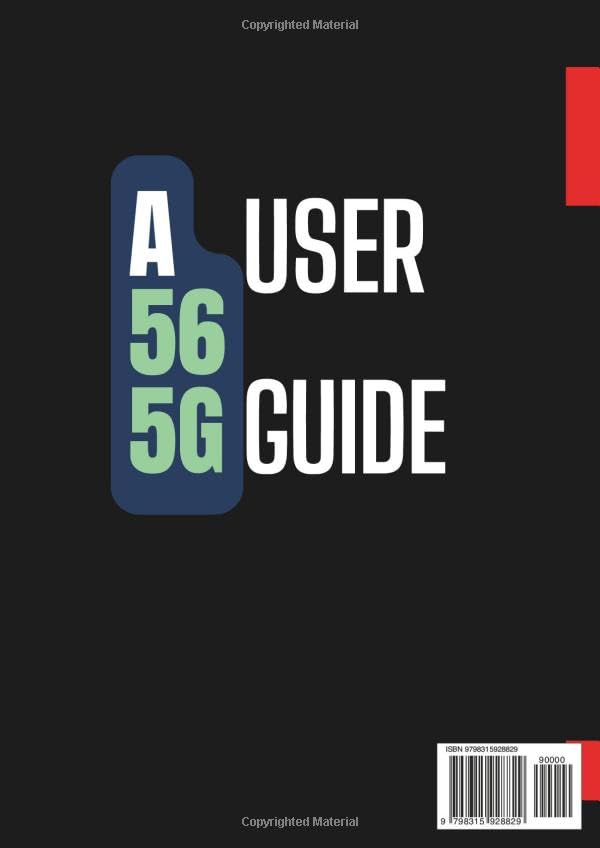
Image: Back cover of the user guide, illustrating the book's design and ISBN information.
4. Konserwacja urządzenia
4.1. Zarządzanie baterią
To optimize battery life, utilize the device's power-saving modes found in Ustawienia > Bateria i pielęgnacja urządzenia > Bateria. Reduce screen brightness, disable unnecessary background app refresh, and close unused applications. Avoid extreme temperatures to preserve battery health.
4.2. Zarządzanie magazynem
Regularly check your device's storage in Ustawienia > Bateria i pielęgnacja urządzenia > Pamięć. Usuń niepotrzebne files, clear app caches, and uninstall unused applications to free up space and maintain optimal performance. Consider using cloud storage for large files.
4.3. Aktualizacje oprogramowania
Keeping your device's software updated is crucial for security and performance. Check for updates by navigating to Ustawienia > Aktualizacja oprogramowania > Pobierz i zainstaluj. Ensure your device is connected to Wi-Fi and has sufficient battery charge before initiating an update.
5. Rozwiązywanie typowych problemów
5.1. Urządzenie nie odpowiada
If your Galaxy A56 becomes unresponsive, perform a force restart by pressing and holding the Przycisk zmniejszania głośności i Przycisk zasilania simultaneously for about 7-10 seconds until the device restarts.
5.2. Problemy z łącznością
For Wi-Fi or Bluetooth issues, try toggling the respective settings off and on. If the problem persists, restart your device and the router (for Wi-Fi). For mobile data issues, ensure your SIM card is properly inserted and your data plan is active.
5.3. App Crashes or Freezes
If an application frequently crashes, try clearing its cache and data via Ustawienia > Aplikacje > [Nazwa aplikacji] > Pamięć > Wyczyść pamięć podręczną / Wyczyść dane. If the issue continues, uninstall and then reinstall the application.
6. Specyfikacja produktu (Instrukcja obsługi)
| Atrybut | Szczegół |
|---|---|
| ASIN | B0F32TLHTR |
| Wydawca | Niezależnie opublikowane |
| Data publikacji | 29 marca 2025 r. |
| Język | angielski |
| Długość Drukuj | 137 strony |
| Numer katalogowy: 13 | 979-8315928829 |
| Waga przedmiotu | 15.4 uncji |
| Wymiary | 8.27 x 0.31 x 11.69 cala |
7. Gwarancja i wsparcie
This document is a user guide designed to provide comprehensive instructions for operating the Samsung Galaxy A56 smartphone. It is a published book and does not come with a product warranty for the phone itself.
For official warranty information, technical support, or service related to your Samsung Galaxy A56 device, please refer to the official documentation provided with your smartphone or visit the official Samsung support website. Contact Samsung customer service directly for device-specific inquiries.
Ask a question about this manual
Ask about setup, troubleshooting, compatibility, parts, safety, or missing instructions. Manuals+ will review the question and use this page’s manual context to help answer it.