
1. Wprowadzenie
Thank you for choosing the HUNTVISION 5MP Smart Light Bulb Camera. This device integrates a high-definition security camera into a standard light bulb socket, offering convenient installation and comprehensive surveillance capabilities. It features 5MP HD clarity, smart night vision, two-way audio, and advanced AI algorithms for enhanced security monitoring.
This manual provides detailed instructions for setting up, operating, and maintaining your camera to ensure optimal performance and security for your home or office.

Image: The HUNTVISION Smart Light Bulb Camera, designed for versatile use in various environments including residential and commercial settings.
2. Informacje dotyczące bezpieczeństwa
- Ensure the power is off before installing or removing the camera from the light bulb socket.
- This device is designed for indoor and outdoor use. Ensure proper weather protection if used outdoors.
- Do not expose the camera to extreme temperatures, humidity, or direct water immersion.
- Use only standard E27/E26 light bulb sockets for installation.
- Przechowuj aparat poza zasięgiem dzieci i zwierząt domowych.
- Nie próbuj samodzielnie demontować ani naprawiać aparatu. Skontaktuj się z obsługą klienta, aby uzyskać pomoc.
3. Zawartość opakowania
Sprawdź, czy w opakowaniu znajdują się wszystkie elementy:
- HUNTVISION 5MP Smart Light Bulb Camera (Model: A5M10)
- Mounting Stand (if applicable)
- Śruby montażowe (jeśli dotyczy)
- Instrukcja obsługi (ten dokument)
4. Przewodnik konfiguracji
4.1. Instalacja fizyczna
- Locate a standard E27/E26 light bulb socket where you wish to install the camera.
- Ensure the power to the socket is turned off at the circuit breaker before proceeding.
- Carefully screw the HUNTVISION Smart Light Bulb Camera into the socket until it is securely fastened. Do not overtighten.
- Turn on the power to the socket. The camera will power on and initiate its startup sequence.
4.2. Pobieranie aplikacji i tworzenie konta
- Download the "IVY IoT" application from your smartphone's app store (App Store for iOS or Google Play Store for Android).
- Open the IVY IoT app and follow the on-screen instructions to create a new account or log in if you already have one.
4.3. Podłączanie kamery do sieci Wi-Fi
The camera supports various network connection methods:
- Skanowanie kodu QR: In the IVY IoT app, select "Add Device" and choose the QR code scanning option. Position your phone's screen with the generated QR code in front of the camera lens until you hear a confirmation sound.
- Parowanie Bluetooth: Some models support Bluetooth for initial setup. Follow the app's prompts to pair via Bluetooth.
- Sound Wave Pairing: The app can generate a sound wave to transmit Wi-Fi credentials. Ensure your phone's volume is up and place it near the camera.
- Połączenie LAN: For wired setup, connect an Ethernet cable to the camera's LAN port (if available) and your router.
Follow the specific instructions within the IVY IoT app for your chosen connection method. Ensure your Wi-Fi network is 2.4GHz, as 5GHz networks may not be supported by the camera for initial setup.

Image: The camera and its accompanying mobile application, illustrating the Wi-Fi connection process.
5. Instrukcja obsługi
5.1. Transmisja na żywo i nagrywanie
Once connected, open the IVY IoT app and select your camera from the device list to view the live feed. You can:
- View Przekaz na żywo: Uzyskaj dostęp do obrazu wideo w czasie rzeczywistym z Twojej kamery.
- Nagraj wideo: Ręczne uruchamianie i zatrzymywanie nagrywania wideo.
- Take Snapshots: Przechwytuj nieruchome obrazy z transmisji na żywo.
- Odtwarzanie nagranego dźwięku: Uzyskaj dostęp do nagranego pliku footage from cloud storage or a local TF card.
5.2. Remote Control (Pan/Tilt & Digital Zoom)
The camera features a 355° horizontal pan and 85° vertical tilt, allowing you to adjust the viewing angle remotely through the app. It also supports 6X digital zoom for closer inspection of details.

Image: Demonstrating the camera's remote pan, tilt, and digital zoom capabilities for comprehensive area coverage.
5.3. Smart Night Vision Modes
The camera offers multiple night vision options for clear monitoring in low-light conditions:
- Pełnokolorowa wizja nocna: Utilizes ambient light or the camera's built-in light to provide color images at night.
- Nocna Nocna Wizja: Wykorzystuje diody LED podczerwone, pozwalające uzyskać wyraźne czarno-białe obrazy w całkowitej ciemności.
- Custom Night Vision: Allows you to configure specific settings based on your preferences.
The camera can automatically switch between modes based on lighting conditions.
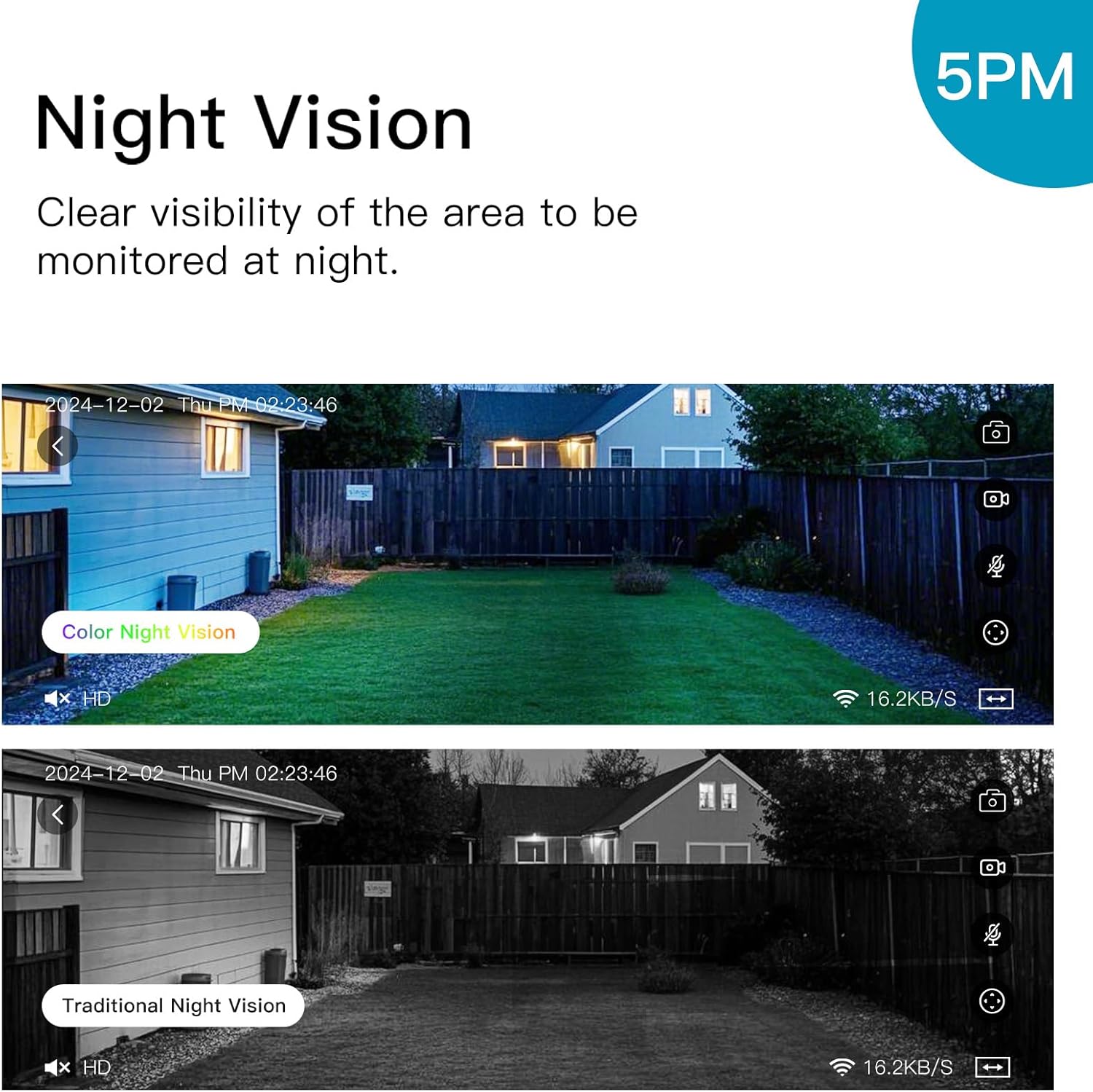
Image: Illustrating the difference between color and traditional infrared night vision capabilities.
5.4. Dźwięk dwukierunkowy
The built-in microphone and speaker enable two-way communication. You can listen to the environment around the camera and speak through the camera using the IVY IoT app. This feature is useful for communicating with visitors or deterring intruders.
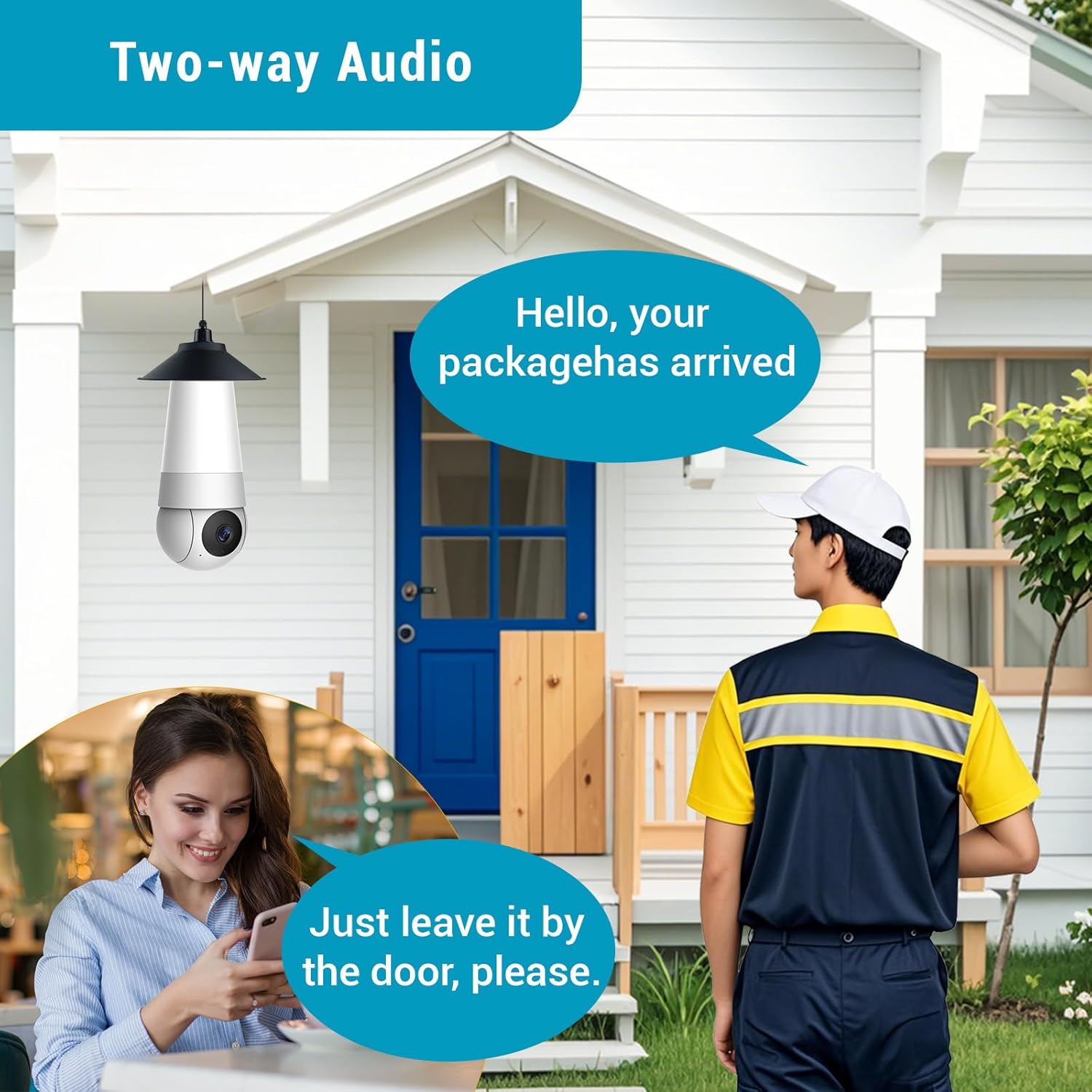
Obraz: Demonstracja funkcji dwukierunkowej komunikacji audio.
5.5. AI Smart Algorithms
The camera is equipped with advanced AI algorithms to provide intelligent alerts and monitoring:
- Wykrywanie człowieka: Identifies human shapes, reducing false alarms from pets or inanimate objects.
- Detekcja ruchu: Triggers recording and alerts upon detecting any movement.
- Flame Recognition: Detects the presence of flames and sends immediate alerts.
- Personality Tracking: Follows detected human movement within the camera's field of view.
- Wykrywanie płaczu: Alerts you to the sound of crying, useful for baby monitoring.
Configure these settings within the IVY IoT app to receive real-time push notifications and alert messages.

Obraz: Ponadview of the camera's multiple device-side AI algorithms for intelligent monitoring.
5.6. Cloud Storage & Multi-User Sharing
- Opcje przechowywania: Supports both local TF (microSD) card storage (card not included) and cloud storage subscriptions for recorded footage.
- Odtwarzanie nagranego dźwięku: Łatwo ponownieview recorded events from either storage option through the app.
- Udostępnianie wielu użytkownikom: Share access to your camera with up to 10 authorized users, allowing family members or colleagues to view oglądać transmisję na żywo i otrzymywać alerty.
6. Konserwacja
- Czyszczenie: Delikatnie przetrzyj obiektyw i korpus aparatu miękką, suchą ściereczką. Nie używaj płynnych środków czyszczących ani materiałów ściernych.
- Aktualizacje oprogramowania układowego: Regularly check the IVY IoT app for available firmware updates. Keeping your camera's firmware updated ensures optimal performance, new features, and security enhancements.
- Zarządzanie pamięcią masową: If using a TF card, periodically check its status and consider formatting it through the app to maintain performance. Manage cloud storage settings as needed.
7. Rozwiązywanie Problemów
| Problem | Możliwa przyczyna / rozwiązanie |
|---|---|
| Kamera się nie włącza. |
|
| Nie można połączyć się z Wi-Fi. |
|
| Słaba jakość obrazu lub opóźnienie. |
|
| Alerty o wykryciu ruchu pojawiają się zbyt często/rzadko. |
|
8. Specyfikacje
| Funkcja | Szczegół |
|---|---|
| Marka | HUNTVISJA |
| Nazwa modelu | A5M10 |
| Rozdzielczość przechwytywania wideo | 1920p (5MP HD) |
| Technologia łączności | Bezprzewodowy (Wi-Fi) |
| Protokół łączności | Wi-Fi |
| Źródło zasilania | Corded Electric (Light Bulb Socket) |
| Typ kontrolera | IVY IoT App |
| Typ montażu | Ceiling Mount (via light socket) |
| Pozycja Wymiary (dł. x szer. x wys.) | 7.87 x 2.83 x 2.95 cala |
| Waga przedmiotu | 10.4 uncji |
| Zastosowanie wewnątrz/na zewnątrz | Na zewnątrz, Wewnątrz |
| Zalecane zastosowania | Monitorowanie dzieci, monitorowanie zwierząt domowych, bezpieczeństwo wewnętrzne, bezpieczeństwo zewnętrzne |
| Zawarte komponenty | Stand, Mounting Screw, Instruction Manual |
9. Obsługa klienta
For technical support, warranty information, or any inquiries regarding your HUNTVISION Smart Light Bulb Camera, please contact our customer service team. Refer to the product packaging or the official HUNTVISION webstrona zawierająca najbardziej aktualne dane kontaktowe.
We are committed to providing you with the best possible experience.