
Epico Epico Keyboard Case
Instrukcja obsługi etui z klawiaturą Epico do iPada
Model: Epico Keyboard Case
Wstęp
Transform your iPad into a versatile workstation with the Epico iPad Keyboard Case. This innovative accessory features a detachable keyboard with seven-colour backlighting, a multi-finger gesture touchpad, and comprehensive iPadOS shortcuts. Designed for both functionality and protection, it enhances your iPad experience for typing, watching, and browsing.

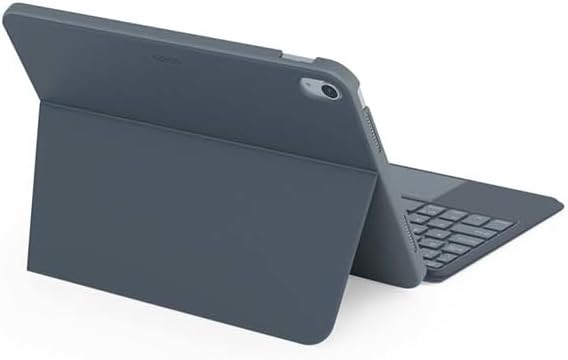
Image: The Epico iPad Keyboard Case with an iPad inserted, shown in a tilted typing position.
Cechy
- Podświetlana klawiatura: Seven distinct backlight colours with adjustable brightness levels for comfortable typing in any lighting condition.
- Funkcjonalność touchpada: Multi-finger gesture touchpad provides precise control and enhanced navigation capabilities.
- Shortcut Integration: Comprehensive range of iPadOS shortcuts built into the keyboard for efficient device control and workflow optimisation.
- Wszechstronny projekt: Includes detachable keyboard and tilted backside stand for multiple viewing angles and usage modes.
- Power Solution: Equipped with Li-ion battery and USB-C charging capability, operating independently from iPad's power source.
Zawartość opakowania
- Epico iPad Keyboard Case
- Kabel do ładowania z USB-C na USB-C
- Instrukcja obsługi (ten dokument)
Organizować coś
1. Ładowanie klawiatury
Before first use, fully charge the keyboard. Connect the provided USB-C to USB-C charging cable to the keyboard's USB-C port and the other end to a compatible USB-C power adapter (not included).
Obraz: Bok view of the keyboard case, highlighting the USB-C charging port.
2. Wkładanie iPada
- Gently align your iPad with the case's frame.
- Press firmly but carefully to secure the iPad into the protective shell. Ensure all edges are properly seated.

Obraz: Tył view of the Epico iPad Keyboard Case, demonstrating the secure fit of the iPad.
3. Parowanie z iPadem
- Turn on the keyboard by sliding the power switch (usually located on the side or back of the keyboard).
- Na iPadzie przejdź do Ustawienia > Bluetooth.
- Enable Bluetooth. The keyboard should appear in the "Other Devices" list as "Epico Keyboard" or similar.
- Tap on the keyboard name to pair. Follow any on-screen prompts.
- Once paired, the keyboard's indicator light will change, and it will be ready for use.
Instrukcja obsługi
Użycie klawiatury
The keyboard functions like a standard QWERTY keyboard. Ensure the keyboard is paired with your iPad before typing.

Obraz: Przód view of the Epico iPad Keyboard Case, displaying the full keyboard layout and touchpad.
Kontrola podświetlenia
- Naciśnij Żarówka key (often near the function keys) to cycle through backlight colours.
- Naciskać Fn + Żarówka key to adjust backlight brightness levels.
Gesty na panelu dotykowym
Zintegrowany panel dotykowy obsługuje gesty wieloma palcami, co usprawnia nawigację:
- Stuknięcie jednym palcem: Lewy przycisk myszy.
- Stuknięcie dwoma palcami: Kliknij prawym przyciskiem myszy (menu kontekstowe).
- Przewijanie dwoma palcami: Przewiń w górę/w dół lub w lewo/w prawo.
- Uszczypnij, aby powiększyć: Powiększ/pomniejsz zawartość.
- Refer to iPadOS settings for additional gesture customization.
iPadOS Shortcuts
The keyboard includes dedicated function keys for common iPadOS shortcuts. These may vary slightly by iPadOS version, but typically include:
- Dom: Wróć do ekranu głównego.
- Szukaj: Activate Spotlight search.
- Kontrola jasności: Dostosowanie jasności ekranu.
- Kontrola mediów: Odtwórz/Pauza, Poprzedni/Następny utwór.
- Regulacja głośności: Dostosuj głośność systemu.
- Ekran blokady: Lock your iPad.
Konserwacja
Czyszczenie
- Use a soft, lint-free cloth to wipe the exterior of the case and keyboard.
- W przypadku uporczywych plam, delikatnieamppl szmatkę wodą lub łagodnym, nieściernym środkiem czyszczącym.
- Avoid getting moisture into the keyboard keys or ports.
- Nie należy używać silnych środków chemicznych, rozpuszczalników ani materiałów ściernych.
Składowanie
Jeśli klawiatura nie jest używana przez dłuższy czas, przechowuj ją w chłodnym i suchym miejscu. Upewnij się, że klawiatura jest wyłączona, aby oszczędzać baterię.
Rozwiązywanie problemów
- Klawiatura nie łączy się:
Ensure the keyboard is charged and turned on. Check iPad's Bluetooth settings to confirm it's enabled and the keyboard is paired. Try unpairing and re-pairing the keyboard.
- Klawisze nie reagują:
Check battery level. Restart both the keyboard and your iPad. Ensure no debris is lodged under the keys.
- Podświetlenie nie działa:
Ensure the keyboard is on and charged. Cycle through backlight settings using the dedicated key.
- Touchpad nie odpowiada:
Ensure the touchpad is enabled (some keyboards have a function key to toggle it). Check iPadOS settings for touchpad functionality.
Specyfikacje
| Marka | epicki |
| Nazwa modelu | Epico Keyboard Case |
| Kompatybilne urządzenia | Apple iPad |
| Łączność | Bluetooth |
| Podświetlenie | 7-Colour, Adjustable Brightness |
| Panel dotykowy | Multi-finger Gesture Support |
| Port ładowania | USB-C |
| Źródło zasilania | Wbudowany akumulator litowo-jonowy |
| Waga przedmiotu | 15.9 uncji (około 450 g) |
| Wymiary produktu (dł. x szer. x wys.) | 9.94 x 7.24 x 0.48 cala (ok. 25.25 x 18.39 x 1.22 cm) |
| Tworzywo | Plastik, Metal |
Gwarancja i wsparcie
This Epico product is covered by a manufacturer's warranty. Please refer to the warranty card included with your purchase or visit the official Epico webSzczegółowe warunki gwarancji można znaleźć na naszej stronie.
For technical support, troubleshooting assistance, or inquiries about your product, please contact Epico customer service through their official webstronę internetową lub dane kontaktowe podane na paragonie.
Ask a question about this manual
Ask about setup, troubleshooting, compatibility, parts, safety, or missing instructions. Manuals+ will review the question and use this page’s manual context to help answer it.