
1. Wprowadzenie
Niniejsza instrukcja zawiera podstawowe informacje dotyczące konfiguracji, obsługi, konserwacji i rozwiązywania problemów z urządzeniem. ViewSonic IFP55G1 55-inch 4K UHD ViewBoard Interactive Display. Please read this manual thoroughly before using the product to ensure proper and safe operation.
Ten ViewSonic IFP55G1 is a 55-inch 4K Ultra HD (3840x2160p) interactive display designed for educational and business environments. It features multi-point touch recognition, an OPS slot for external PCs, 10W dual speakers, and versatile connectivity options including HDMI, VGA, USB Hub, and USB-C inputs. Its OS-free design allows flexibility with various computing solutions.
Główne cechy:
- Ultra HD Resolution: 55 Inch 4K Ultra HD (3840x2160p) interactive display for crisp visuals.
- Advanced Multi-Touch: Allows multiple users to write and interact simultaneously with fingers and passive pens.
- Elastyczna łączność: Equipped with a powerful quad-core processor and versatile ports including HDMI, VGA, RJ45, and USB.
- OS-Free Design: Provides enhanced security and flexibility to integrate with your preferred operating system via external PC or OPS device.
- Write-Away Technology: Enables instant writing with the stylus without extended setup.
2. Co znajduje się w pudełku
Sprawdź, czy wszystkie wymienione poniżej elementy znajdują się w przesyłce. Jeśli któregokolwiek z nich brakuje lub jest uszkodzony, skontaktuj się natychmiast ze sprzedawcą.
- ViewSonic IFP55G1 Interactive Display
- 3m USB 2.0 touch cable x 1
- Touch pen (Passive pen) x 2 (VB-PEN-002)
- Kabel zasilający 3 m
- HDMI 2.0 cable 3m x 1
- Skrócona instrukcja obsługi + oświadczenie o zgodności
- Adapter RS232
- Screw (wall mount 4)
- Płyta kamery
- Remote control with AAA battery (Optional)
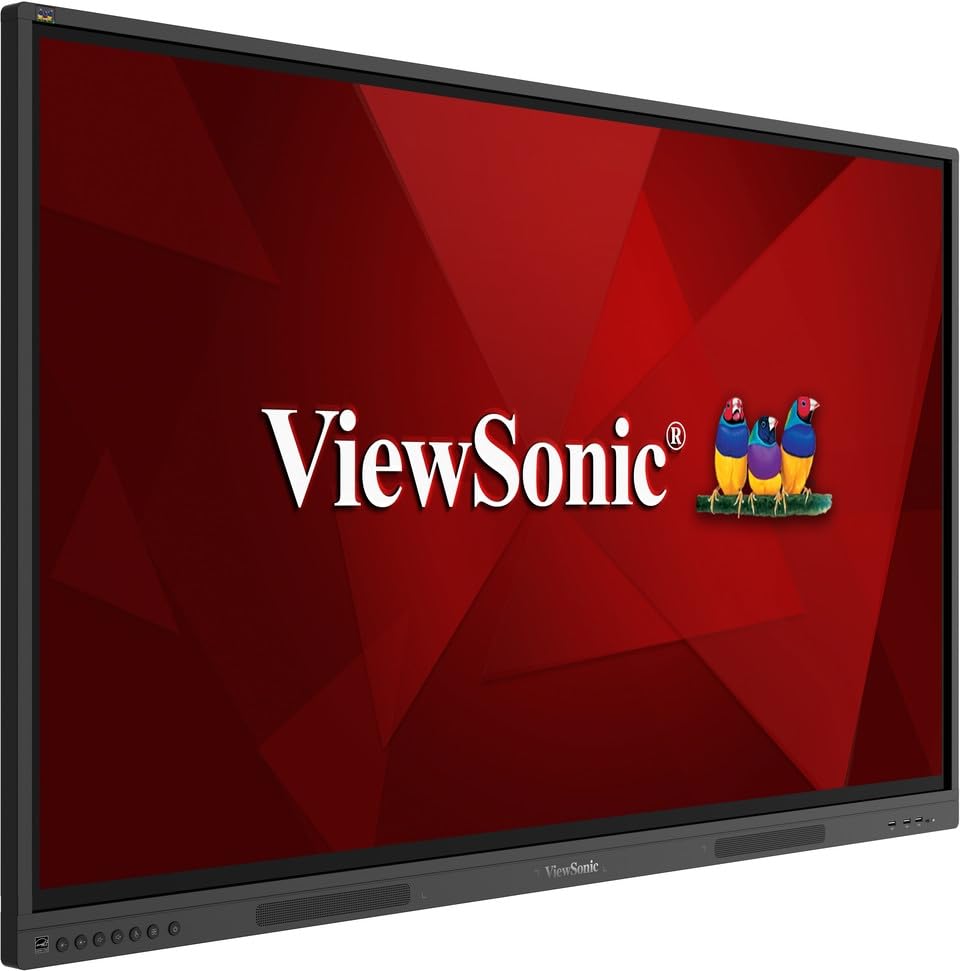
Obraz: ViewSonic IFP55G1 55-inch ViewBoard Interactive Display, front view.
3. Instrukcje konfiguracji
3.1 Montaż wyświetlacza
The IFP55G1 can be wall-mounted or installed on a compatible mobile cart (sold separately). Ensure the mounting solution supports the display's weight (approximately 59.3 lbs / 26.9 kg) and dimensions (3.37 x 49.7 x 30.3 inches).
- For wall mounting, use the provided wall mount screws and ensure the wall structure is robust enough.
- Follow the instructions provided with your specific wall mount or mobile cart.
3.2 Podłączanie urządzeń peryferyjnych
The display offers various ports for connecting external devices. Refer to the image below for port locations.

Obraz: Bok view z ViewSonic IFP55G1 interactive display showing various input ports including HDMI, VGA, and USB.
- Podłączenie zasilania: Connect the 3m power cable to the display and a grounded power outlet.
- Wejście wideo: Connect your external PC or media player to the display using an HDMI 2.0 cable (provided), VGA cable, or USB-C cable. The display has 3 HDMI ports, 1 VGA port, and USB-C connectivity.
- Funkcja dotykowa: For interactive touch features with an external PC, connect the 3m USB 2.0 touch cable from the display's USB-B (Touch) port to a USB-A port on your PC.
- Gniazdo OPS: If using an optional ViewSonic Slot-in PC (OPS device), insert it into the dedicated OPS slot on the rear of the display. This provides an integrated computing solution.
- Sieć: Podłącz kabel Ethernet do portu RJ45, aby uzyskać przewodowy dostęp do sieci.
- Urządzenia USB: Use the available USB-A ports to connect USB drives, keyboards, mice, or other peripherals.

Obraz: ViewSonic IFP55G1 display demonstrating connectivity with various external devices, including laptops and mini PCs, highlighting its 'Bring Your Own Devices' capability.
4. Instrukcja obsługi
4.1 Włączanie/wyłączanie
- Włączanie: Press the power button located on the display's front or side panel, or use the remote control. The display will power on and show the input source.
- Wyłączone: Press the power button again. A confirmation message may appear; select 'Power Off'. For complete power disconnection, unplug the power cable.
4.2 Wybór źródła sygnału wejściowego
Use the 'Source' button on the display or remote control to cycle through available input sources (HDMI 1, HDMI 2, HDMI 3, VGA, USB-C, OPS).
4.3 Korzystanie z funkcji dotykowych
Once the USB touch cable is connected to your external PC, the display will function as a multi-touch input device. You can use your fingers or the provided passive pens for interaction.
- Finger Touch: Use gestures similar to a tablet or smartphone for navigation, zooming, and drawing.
- Passive Pens: The two included passive pens (VB-PEN-002) allow for precise writing and drawing on the screen. The display's Write-Away technology enables instant use of the pens.

Image: A group of individuals collaborating around a ViewSonic IFP55G1 interactive display in a modern meeting room, demonstrating its multi-touch capabilities for instantaneous collaboration.
4.4 Sterowanie dźwiękiem
The display features integrated 10W dual speakers. Adjust volume using the remote control or the buttons on the display panel.
5. Konserwacja
5.1 Czyszczenie wyświetlacza
- Ekran: Delikatnie przetrzyj ekran miękką, niepozostawiającą włókien ściereczką. W przypadku uporczywych zabrudzeń delikatnie przetrzyj.ampPrzetrzyj ściereczkę wodą lub nieściernym środkiem do czyszczenia ekranów bez amoniaku. Nie rozpylaj środka czyszczącego bezpośrednio na ekran.
- Casing: Wytrzyj casinCzyścić miękką, suchą ściereczką. Unikać stosowania silnych środków chemicznych i materiałów ściernych.
5.2 Ogólna opieka
- Unikaj umieszczania ciężkich przedmiotów na wyświetlaczu.
- Do not block ventilation openings on the rear of the display.
- Trzymaj wyświetlacz z dala od bezpośredniego światła słonecznego, źródeł ciepła i nadmiernej wilgoci.
6. Rozwiązywanie Problemów
Jeśli napotkasz problemy z urządzeniem ViewSonic IFP55G1, refer to the following common problems and solutions.
6.1 Brak obrazu / Czarny ekran
- Ensure the power cable is securely connected to both the display and a working power outlet.
- Verify that the display is powered on (power indicator light should be active).
- Check that the video cable (HDMI, VGA, USB-C) is securely connected to both the display and the source device (PC, OPS).
- Select the correct input source using the 'Source' button on the display or remote control.
- Ensure the source device (PC, OPS) is powered on and outputting a video signal.
6.2 Funkcja dotykowa nie działa
- Confirm the USB touch cable is securely connected from the display's USB-B (Touch) port to a USB-A port on your external PC.
- Ensure your external PC's operating system has the necessary drivers installed for touch input.
- Restart both the display and the connected PC.
6.3 Brak dźwięku
- Check the volume level on the display and the connected source device.
- Ensure the audio output from your source device is routed correctly to the display (e.g., via HDMI).
- If using an external audio system, ensure it is properly connected and powered on.
7. Specyfikacje
Below are the technical specifications for the ViewSonic IFP55G1 interactive display.
| Funkcja | Specyfikacja |
|---|---|
| Marka | ViewDźwiękowy |
| Nazwa modelu | IFP55G1 |
| Rozmiar ekranu | 55 cali |
| Maksymalna rozdzielczość wyświetlacza | 3840x2160 Pixels (4K UHD) |
| Rozdzielczość natywna | 3840x2160 |
| Typ wyświetlacza | LCD |
| Proporcje obrazu | 16:9 |
| Wprowadzanie danych przez interfejs użytkownika | Ekran dotykowy |
| Technologia łączności | Ethernet, HDMI, USB Type C, VGA |
| Total Number of HDMI Ports | 3 |
| Łączna liczba portów USB | 9 |
| Interfejs wyjścia wideo | DisplayPort |
| Wyjście audio | Integrated 10W Dual Speakers |
| Wymiary produktu (DxSxW) | 3.37 x 49.7 x 30.3 cala |
| Waga przedmiotu | 59.3 funtów |
| Kolor | Czarny |
| Cechy specjalne | All-in-one USB port, Anti Glare Display, Light Sensor, Speakers, Touchscreen |
| Kompatybilne urządzenia | Komputer stacjonarny, laptop |
| UPC | 766907024654 |
8. Gwarancja i wsparcie
8.1 Informacje o gwarancji
Ten ViewSonic IFP55G1 interactive display comes with an industry-leading 3-roczna ograniczona gwarancja on parts, labor, and backlight. Onsite warranty service may also be available. Please refer to the warranty card included in your package or visit the official ViewDźwiękowy website for detailed terms and conditions, and information on optional warranty extensions.
8.2 Obsługa klienta
W celu uzyskania pomocy technicznej, zapytania o produkt lub zgłoszenia reklamacji prosimy o kontakt ViewSonic's award-winning customer service team. Contact information can be found on the official ViewDźwiękowy webznajdziesz na stronie internetowej lub w skróconym przewodniku dołączonym do produktu.