
MZK XP600 A3 Printer+Oven
MZK A3 Pro F1080 DTF Printer (XP600 Gen2) User Manual
Model: XP600 A3 Printer+Oven
1. Wprowadzenie
This manual provides essential information for the safe and efficient operation, maintenance, and troubleshooting of your MZK A3 Pro F1080 DTF Printer (XP600 Gen2). Please read this manual thoroughly before using the printer to ensure optimal performance and longevity.
The MZK A3 Pro F1080 DTF Printer features an XP600 Gen2 printhead, designed for high-quality Direct-to-Film (DTF) printing. Key features include an automatic timing cleaning system for printhead maintenance, an ink anti-clog design, and a 5-inch LED touch screen for intuitive control. This model is bundled with an oven for curing DTF prints.

Obraz: Ponadview of the MZK A3 Pro F1080 DTF Printer, showcasing jego projektu i kluczowych komponentów.
2. Konfiguracja
Before operating the printer, ensure all components are correctly assembled and connected. Refer to the included video tutorial and accessories for detailed guidance.
2.1 Rozpakowywanie i umieszczanie
Carefully unpack all items from the box. Place the printer on a stable, level surface in a well-ventilated area, away from direct sunlight and heat sources. Ensure sufficient space around the printer for operation and maintenance.
2.2 Identyfikacja komponentów
Pakiet zawiera:
- DTF Printer unit
- 5 x 250ml five-color ink bottles
- 100m roll of Transfer Films (33cm width)
- 500g DTF hot melt Powder
- Upgraded User-Friendly software
- Comprehensive video tutorial (USB)
- Różne akcesoria

Image: Contents of the MZK DTF printer bundle, including the printer, inks, film, powder, and accessories.
2.3 Napełnianie tuszem
The printer features a one-touch ink fill system to prevent spills. Follow the video tutorial for precise ink loading. Ensure each ink color is filled into its corresponding tank.

Image: Illustration of the one-touch ink extraction system, designed for clean and easy ink refilling.
2.4 Instalacja oprogramowania
Install the dedicated DTF software from the provided USB tutorial. The software is compatible with Windows 7, 10, and 11 (macOS not supported). If installation issues arise, contact technical support.

Image: Screenshot showing the DTF software interface, highlighting flexible typography, virus-free operation, and Windows compatibility.
3. Instrukcja obsługi
Follow these steps for successful DTF printing:
- Tworzenie projektu: Create your design on a computer using the provided software.
- Druk: Load the DTF film into the printer. Initiate printing via the software or the LCD control panel. The printer supports up to 13-inch wide DTF film and offers high-speed printing (A3 sheet in approximately 3 minutes).
- Aplikacja proszku: After printing, apply DTF hot melt powder evenly onto the wet ink.
- Curing in Oven: Place the powdered film into the oven for curing. The oven ensures proper adhesion and durability of the print.
- Prasa termiczna: Once cured, transfer the design onto your desired garment or material using a heat press.
- Folia odklejana: Carefully peel off the PET film after the heat press process.

Image: Visual representation of the DTF printing workflow, from design to final transfer.
3.1 LCD Multi-Function Control Panel
The 5-inch LED touch screen allows for direct control of various printer functions without needing software. You can check nozzles, clean printheads, and adjust print layouts.

Image: Close-up of the LCD multi-function control panel, showing options for margin adjustment, maintenance, and detection.
3.2 High Definition Printing
Achieve stunning print quality with up to 2880x1440 DPI resolution. The F1080 printhead ensures sharper images and clearer details.

Image: Comparison illustrating the clarity and detail of 2880x1440 DPI printing versus lower resolutions.
4. Konserwacja
Regular maintenance is crucial for extending the life of your printer and ensuring consistent print quality.
4.1 Automatic Printhead Cleaning
The printer features an automatic timing cleaning system. You can set a timer for the machine to run a maintenance program every 8 hours (adjustable) to prevent printhead clogging. This function can operate even when the printer is not actively in use, eliminating the need to turn it off.

Image: Screenshot of the printer's interface for setting the timed auto-cleaning function, showing options for cleaning strength and interval.
4.2 Anti-Clogging System
The integrated 3-in-1 anti-clogging system continuously circulates and mixes white ink, and includes an ink particle filter. This prevents ink sedimentation and nozzle clogging, ensuring smooth performance.

Image: Diagram illustrating the 3-in-1 anti-clogging system with ink stirring motor, ink purifier, and ink circulation pump.
4.3 Suction Heating Platform
The suction heating platform eliminates film wrinkles and provides a preheating function for fast ink fixation. This contributes to smooth, high-quality prints and helps maintain the film.

Image: Illustration of the suction heating platform, showing automatic heating and air suction to flatten wrinkled film.
4.4 Waste Ink Management
The printer includes a waste ink overflow alert to prevent mess and ensure proper disposal.
5. Rozwiązywanie Problemów
This section addresses common issues you might encounter. For more complex problems, please contact MZK technical support.
| Problem | Możliwa przyczyna | Rozwiązanie |
|---|---|---|
| Printhead Clogging | Infrequent cleaning, ink sedimentation. | Activate the automatic timing cleaning system. Perform a manual printhead clean via the LCD panel. Ensure white ink circulation is active. |
| Low Ink Alert | Ink levels are low. | Refill ink tanks using the one-touch ink fill system. |
| Film Warping during Printing | Lack of film adhesion or improper heating. | Ensure the suction heating platform is active. Check preheating settings. |
| Software Installation Issues | Incompatibility or corrupted files. | Verify Windows OS version (7, 10, or 11). Re-download software if necessary. Contact technical support for assistance. |
| Poor Print Quality (e.g., blurry, faded) | Clogged nozzles, incorrect print settings, low ink. | Perform nozzle check and cleaning. Adjust print resolution and color settings in software. Check ink levels. |
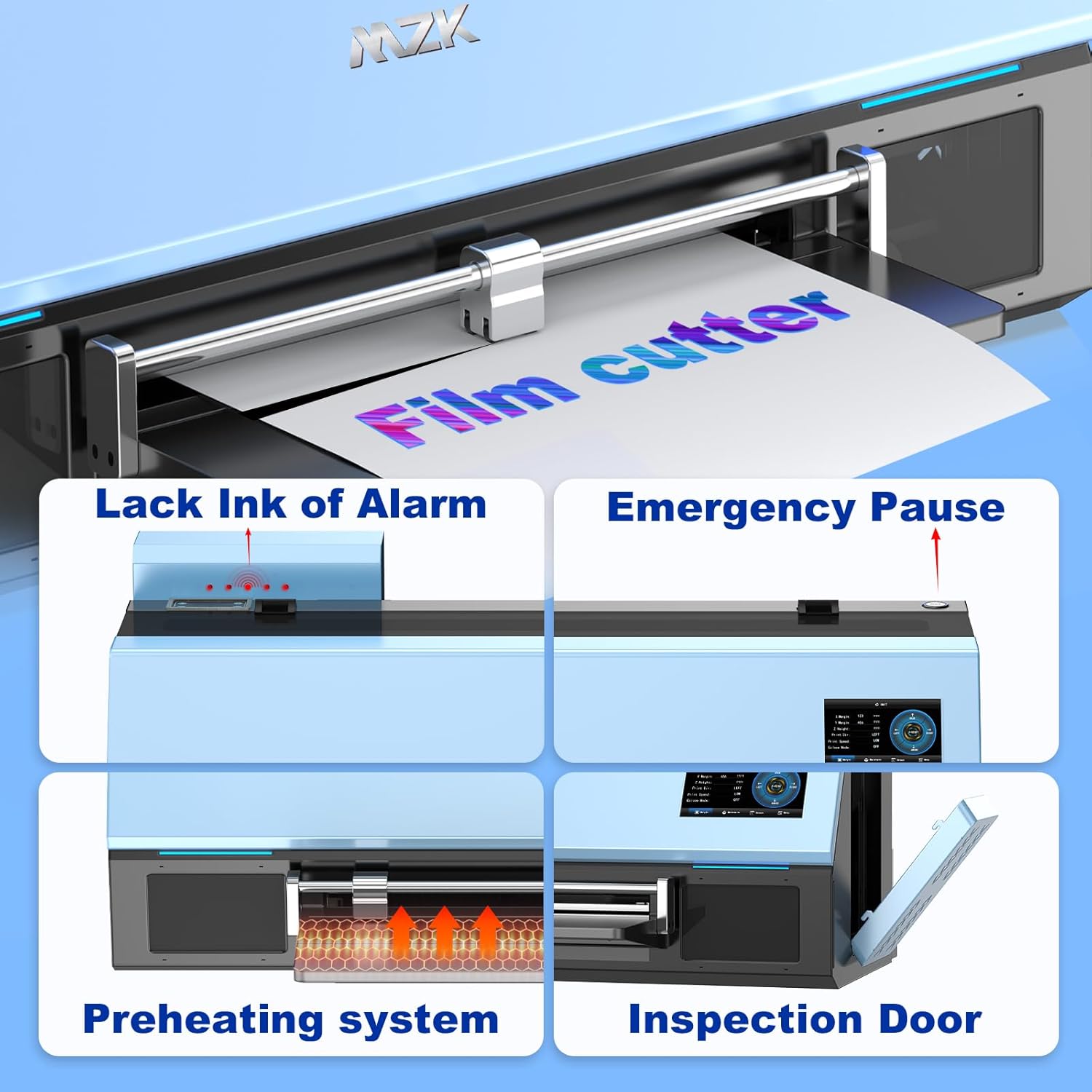
Image: Visual guide to printer features like low ink alarm, emergency pause, preheating system, and inspection door, useful for troubleshooting.
6. Specyfikacje
| Funkcja | Szczegół |
|---|---|
| Marka | MZK |
| Model | XP600 A3 Printer+Oven (C13-F1080) |
| Typ głowicy drukującej | XP600 Gen2 |
| Technologia druku | Self-cleaning Inkjet |
| Maksymalna szerokość druku | 13 cala (330 mm) |
| Max Print Media Size | 13 x 41 cali |
| Prędkość drukowania | A3 sheet in approximately 3 minutes (0.5 pages/minute) |
| Dokładność drukowania | Up to 2880x1440 DPI |
| Rodzaj tuszu | CMYK+WW 6-Color |
| Ink System | Refillable Ink Tank, 3-in-1 Anti-Clogging (circulation, mixing, filter) |
| Panel sterowania | 5-inch LED Touch Screen |
| Zgodność z systemem operacyjnym | Windows 7, 10, 11 (macOS not supported) |
| Łączność | USB |
| Cechy specjalne | Automatic Time Cleaning, Dual Ink Level Alert, Film Cutter, Suction Heating Platform, High-Performance Motherboard |
| Wymiary produktu | Wymiary 33.02 x 73.66 x 33.02 cm |
| Waga przedmiotu | 68.49 kilogramów |

Image: Diagram showing the printer's dimensions and a table summarizing key parameters like print size, speed, and features.
7. Gwarancja i wsparcie
MZK provides comprehensive support for your DTF printer.
7.1 Informacje o gwarancji
- Gwarancja na części: 2 Years maintenance on parts.
- Printhead Replacement: 6 Month replacement on up to 1 Printhead.
7.2 Wsparcie techniczne
Access detailed installation videos and live remote setup help. Professional troubleshooting for any DTF printer issues is available within 24 hours.
Informacje kontaktowe:
- E-mail: mzkservice@outlook.com
- Telefon: +86 15874762852
- Usługi zdalne: Dostępny
- Czat na żywo: Contact MZK technician (via platform where purchased or official webteren)

Image: MZK brand logo, representing the manufacturer.

Image: Depiction of customer support representatives, emphasizing the availability of technical assistance.
Ask a question about this manual
Ask about setup, troubleshooting, compatibility, parts, safety, or missing instructions. Manuals+ will review the question and use this page’s manual context to help answer it.