Wstęp
Welcome to the user manual for your new CRKD Gibson Les Paul Guitar Controller. This guide provides essential information for setting up, operating, and maintaining your controller to ensure an optimal gaming experience. Designed for rhythm game enthusiasts, this controller offers multi-platform compatibility and innovative features to enhance your gameplay.

Obraz: Przód view of the CRKD Gibson Les Paul Guitar Controller in Blueberry Burst Pro finish.
Produkt ponadview
The CRKD Gibson Les Paul Guitar Controller is engineered for precision and versatility across various gaming platforms.
Główne cechy:
- Zgodność z wieloma platformami: Works with PC, PC handhelds, Nintendo Switch 1|2, Android devices (Smart TVs, tablets, mobile), and cloud streaming services (Xbox Cloud Gaming, Luna).
- KEYJAM Mode (Mode 9): Transforms the controller into a keyboard and mouse for seamless compatibility with games like Fortnite Festival on PC, Xbox Series X|S, Xbox One, PlayStation 5, and PlayStation 4.
- Premium Frets & Strum Bar: Features mechanical frets for precision and responsiveness, and a Hall effect strum bar with customizable actuation points and haptic feedback for tactile play.
- Konstrukcja modułowa: Allows for interchangeable necks, including an optional solo neck with 5 additional frets.
- Łatwa nawigacja: Equipped with two integrated Hall effect analog sticks, an ergonomic D-pad on the headstock, and an eight-button navigation hub.
- Elastyczna łączność: Supports wired (USB cable), Rapid polling low latency wireless (2.4GHz dongle), and Bluetooth connectivity. Includes tilt functionality for Star Power activation.
Składniki:

Obraz: Przód view showcasing the main body, strum bar, and fret buttons.

Obraz: Tył view of the guitar controller, showing the battery compartment and general shape.

Image: Close-up of the USB-C port and switches for selecting connectivity modes (PC, NS, AN, PS).

Image: Detail of the analog stick surrounded by navigation buttons (Y, RB, B, RT, A, LT, X, LB).

Image: Close-up of the two golden control knobs on the guitar body, one with the CRKD logo.

Image: A mobile phone displaying the CRKD app, showing product recognition and rarity ranking.
Organizować coś
1. Montaż:
Your CRKD Gibson Les Paul Guitar Controller features a modular design, allowing for easy assembly and customization.
- Carefully align the neck of the guitar controller with the main body.
- Gently push the neck into the designated slot until it clicks securely into place. Ensure a firm connection.
- If using the shoulder strap, attach it to the strap pins located on the guitar body.
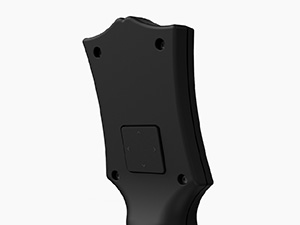
Image: Illustration of the modular neck detaching from the guitar body, highlighting the connection point.
2. Połączenie początkowe:
The controller offers multiple connectivity options:
- Połączenie przewodowe: Connect the included 2.5m USB-C cable with its locking mechanism to the controller and your gaming device (PC, console, etc.).
- 2.4GHz Wireless (Dongle): Insert the 2.4GHz wireless dongle into an available USB port on your gaming device. Ensure the controller's mode switch is set to the appropriate wireless setting.
- Bluetooth: Switch the controller to Bluetooth mode. On your device, search for available Bluetooth devices and select the CRKD Gibson Les Paul Controller to pair.
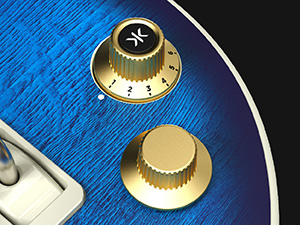
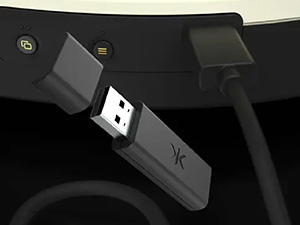
Image: Close-up of the USB wireless dongle being inserted into a port on the guitar controller.
Instrukcja obsługi
1. Multi-Platform Use:
Use the mode switch located near the USB-C port to select the desired platform: PC, Nintendo Switch (NS), Android (AN), or PlayStation (PS). This ensures optimal compatibility and performance for your chosen device.
2. KEYJAM Mode (Mode 9):
Activate KEYJAM Mode (Mode 9) to transform your guitar controller into a keyboard and mouse. This mode is particularly useful for navigating menus and playing games like Fortnite Festival. The fret buttons, strum bar, and other inputs are mapped to keyboard controls, while the right thumbstick functions as a mouse.
3. Nawigacja i sterowanie:
- Guziki progowe: Press the colored fret buttons on the neck to hit notes in rhythm games.
- Bar brzdąkania: Use the strum bar to activate notes. The Hall effect design provides precise and responsive feedback.
- Gałki analogowe: Two integrated analog sticks provide precise movement and control.
- Pad kierunkowy: The ergonomic D-pad on the headstock allows for directional input and menu navigation.
- Navigation Hub: The eight-button navigation hub around the analog stick provides quick access to common in-game functions and menu navigation.
- Tilt Functionality: Tilt the guitar controller to activate "Star Power" or similar in-game abilities.

Obraz: Zbliżenie view of the mechanical frets, showing their internal mechanism for enhanced responsiveness.
Obraz: Szczegółowy view of the Hall effect strum bar mechanism, illustrating its durable and precise design.
4. CRKD CTRL Dashboard App:
For advanced customization and product details, download the CRKD CTRL Dashboard app. This app serves as a central hub for accessing product information, firmware updates, and customizable features. You can also use it to reveal your product number and rarity ranking.

Image: Screenshot of the CRKD CTRL Dashboard app interface, showing various settings and product details.
Konserwacja
1. Czyszczenie:
To keep your controller in optimal condition, regularly wipe it down with a soft, dry cloth. Avoid using abrasive cleaners or solvents, as these can damage the finish and electronic components.
2. Informacje o baterii:
The controller includes 1 Lithium Ion battery. Ensure the battery is charged for wireless operation. If the battery life diminishes significantly, it may be time for replacement or professional servicing. Refer to the CRKD website for battery replacement guidelines.
Rozwiązywanie problemów
| Problem | Możliwa przyczyna | Rozwiązanie |
|---|---|---|
| Kontroler nie łączy się bezprzewodowo. | Low battery, incorrect mode selected, dongle not properly inserted, Bluetooth not paired. | Charge the battery. Ensure the mode switch is set correctly (2.4GHz or Bluetooth). Re-insert the wireless dongle. Re-pair via Bluetooth. |
| Buttons or strum bar unresponsive. | Loose connection, software glitch, physical obstruction. | Ensure the neck is securely attached. Restart the controller and gaming device. Check for any debris under buttons or strum bar. |
| Lag or input delay. | Zakłócenia, odległość od odbiornika, niski poziom baterii. | Move closer to the receiver/device. Ensure no strong wireless interference. Use wired connection if persistent. Charge battery. |
Specyfikacje
- Model: Multi Platform Pro
- ASIN: B0DZ71SS97
- Producent: CRKD
- Łączność: Przewodowy (USB-C), bezprzewodowy 2.4 GHz, Bluetooth
- Zgodność: PC, PC handhelds, Nintendo Switch 1|2, Android devices (Smart TVs, tablets, mobile), Xbox Cloud Gaming, Luna, Fortnite Festival, classic Guitar Hero/Rock Band games, YARG, Clone Hero.
- Moc: 1 bateria litowo-jonowa (w zestawie)
- Waga przedmiotu: 4.69 funta
- Wymiary opakowania: 21.5 x 14.41 x 2.91 cala
- Data wydania: 8 sierpnia 2025 r.
Gwarancja i wsparcie
For detailed warranty information and technical support, please visit the official CRKD webOdwiedź witrynę lub skontaktuj się z działem obsługi klienta. Zachowaj dowód zakupu na wypadek roszczeń gwarancyjnych.
CRKD Official Webstrona: Visit the CRKD Store on Amazon