
1. Wprowadzenie
This manual provides instructions for the installation, use, and maintenance of your BoxWave ClearTouch Anti-Glare Screen Protector, specifically designed for the Reach Technology G2C1 PCAP (51-0401-33) device. This screen protector is engineered to reduce glare, resist fingerprints, and provide a smooth, paper-like touch experience.
Główne cechy:
- Przeciwodblaskowy: Disperses light to reduce reflections and eye strain, blocking 90% of UV rays.
- Ochrona przed odciskami palców: Matte surface repels smudges and fingerprints, keeping your screen clean.
- Precision Cut: Custom-fit for the Reach Technology G2C1 PCAP (51-0401-33) screen, ensuring full functionality.
- Residue-Free Adhesive: Special glueless adhesive ensures no sticky residue upon removal.
- Dwupak: Includes two screen protectors and installation accessories.
2. Zawartość opakowania
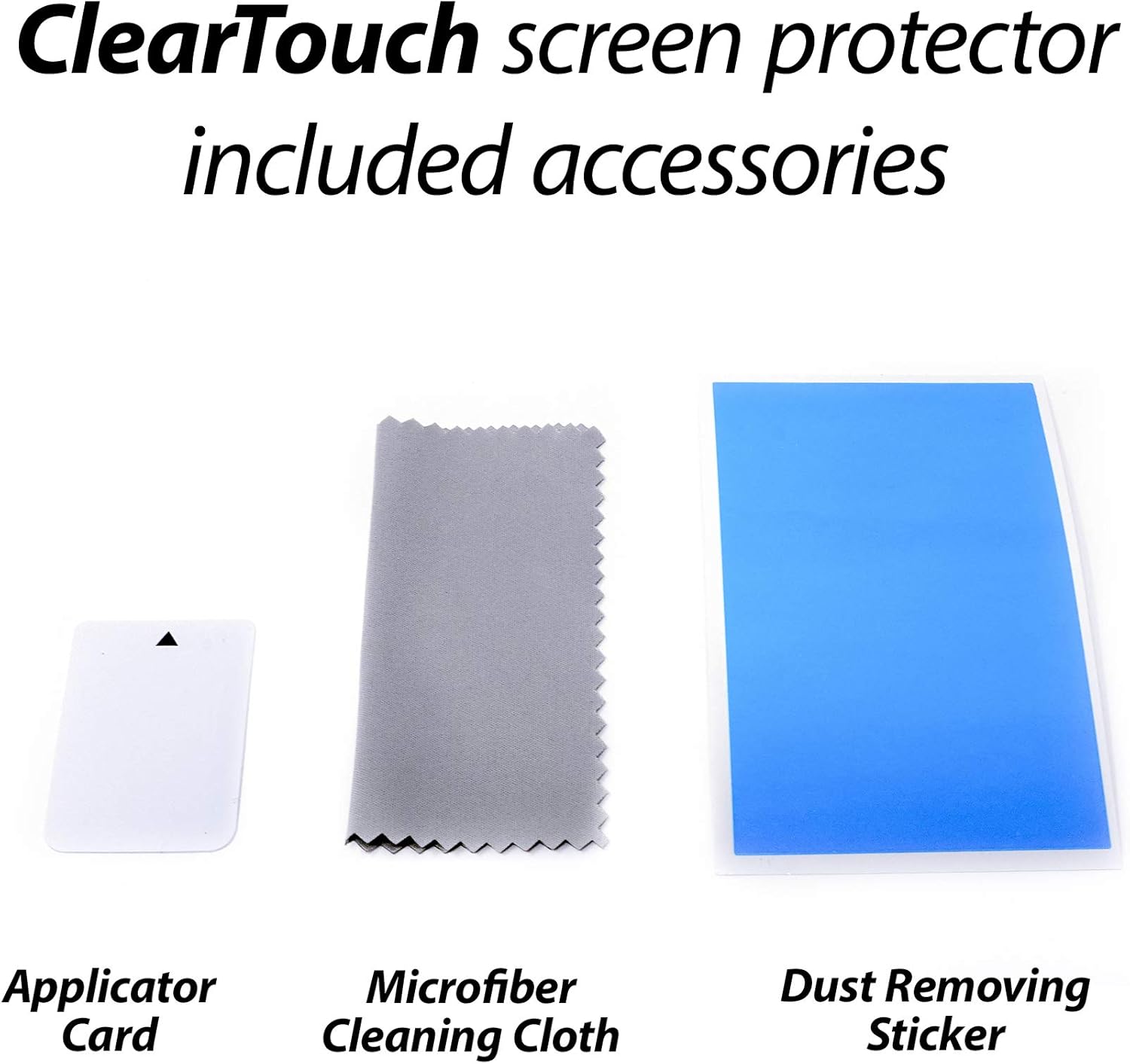
Your BoxWave ClearTouch Anti-Glare Screen Protector package includes the following items:
- 2 x ClearTouch Anti-Glare Screen Protectors
- 1 x Applicator Card
- 1 x ściereczka czyszcząca z mikrofibry
- 1 x Dust Removing Sticker

3. Instrukcje instalacji
Follow these steps carefully for optimal screen protector application:
- Przygotuj swoje miejsce pracy: Wybierz czyste, wolne od kurzu środowisko. Dokładnie umyj ręce, aby uniknąć przeniesienia tłuszczu lub brudu na ekran.
- Wyczyść ekran urządzenia:
- Use the provided microfiber cleaning cloth to gently wipe the screen of your Reach Technology G2C1 PCAP (51-0401-33) device, removing any smudges or fingerprints.
- If necessary, use a screen cleaner (not included) and then dry with the microfiber cloth.
- Usuń kurz: Use the dust-removing sticker to lift any remaining dust particles from the screen. Lightly dab the sticker across the entire screen surface.
- Wyrównaj folię ochronną ekranu:
- Carefully peel back a small portion of the protective film labeled "Step 1" (or similar) from one end of the screen protector.
- Align the exposed edge of the screen protector with the corresponding edge of your device screen. Ensure all cutouts (if any) for cameras, sensors, or buttons are correctly positioned.
- Załóż folię ochronną ekranu:
- Once aligned, slowly and steadily lower the screen protector onto the device screen while gradually peeling off the rest of the "Step 1" film.
- As you apply, use the applicator card to gently push out any air bubbles towards the edges of the screen. Start from the center and work your way outwards.
- Remove Top Film: Once the screen protector is fully applied and all major bubbles are removed, carefully peel off the top protective film, usually labeled "Step 2" (or similar).
- Ostatnie szlify: Use the microfiber cloth to gently wipe the newly installed screen protector, removing any remaining small bubbles or smudges. Small bubbles may disappear over 24-48 hours.

4. Zastosowanie i korzyści
The BoxWave ClearTouch Anti-Glare Screen Protector enhances your device experience in several ways:
- Zmniejszone olśnienie: The matte finish significantly reduces reflections from ambient light sources, improving screen visibility in various lighting conditions, including outdoors.
- Odporność na odciski palców: The anti-fingerprint coating minimizes smudges and oily residue, keeping your screen cleaner and clearer with less frequent wiping.
- Paper-like Feel: The unique surface texture provides a tactile experience similar to writing on paper, which can be beneficial for stylus use or drawing applications.
- Ochrona przed zarysowaniami: Provides a protective layer against scratches and minor abrasions from daily use.


5. Pielęgnacja i konserwacja
Aby zachować przejrzystość i skuteczność folii ochronnej na ekranie:
- Czyszczenie: Use the provided microfiber cloth to gently wipe the screen protector. For stubborn smudges, lightly dampPrzetrzyj ściereczkę wodą lub środkiem czyszczącym do ekranów. Unikaj silnych środków chemicznych i materiałów ściernych.
- Unikaj ostrych przedmiotów: While the protector offers scratch resistance, avoid contact with sharp objects that could damage the film.
- Możliwość ponownego użycia: The ClearTouch screen protector is designed to be reusable. If you need to remove and reapply it, ensure both the screen and the adhesive side of the protector are free of dust and debris.
6. Rozwiązywanie Problemów
Poniżej znajdziesz rozwiązania typowych problemów, na które możesz natrafić w trakcie lub po instalacji:
- Bąbelki po instalacji:
- Małe bąbelki: Many small bubbles will naturally dissipate within 24-48 hours.
- Duże bąbelki: Gently lift the nearest edge of the screen protector and use the applicator card to push the bubble towards the lifted edge. Re-adhere the section slowly.
- Kurz pod ochraniaczem:
- Carefully lift the corner of the screen protector closest to the dust particle.
- Use a dust-removing sticker or a piece of tape to gently dab and lift the dust from both the device screen and the adhesive side of the screen protector.
- Re-apply the screen protector slowly.
- Niewspółosiowość: If the screen protector is significantly misaligned, carefully peel it off completely, clean both surfaces again, and re-attempt installation from Step 4.
7. Specyfikacje produktu
| Marka | Fala pudełkowa |
| Zgodność modelu | Reach Technology G2C1 PCAP (51-0401-33) (4.3 in) |
| Tworzywo | Politereftalan etylenu (PET) |
| Opis powierzchni ekranu | Matte, Anti-Glare, Anti-Fingerprint |
| Ilość w opakowaniu | 2 Screen Protectors |
| Waga przedmiotu | 0.7 uncji |
8. Gwarancja i wsparcie
For information regarding warranty coverage or technical support, please refer to the official BoxWave website or contact their customer service directly. Contact details are typically available on the product packaging or the manufacturer's official support pages.
BoxWave is committed to providing high-quality accessories and customer satisfaction. If you encounter any issues not covered in this manual, please reach out to their support team for assistance.


