
1. Wprowadzenie
This manual provides detailed instructions for the installation, operation, and maintenance of your UNITOPSCI 4GB+64GB Single Din Android Car Stereo. This device features a 7-inch flip-out touchscreen, Wireless CarPlay, Android Auto, GPS navigation, Wi-Fi, Bluetooth 5.0, FM/RDS radio, DSP, USB/TF card/AUX inputs, backup camera support, and steering wheel control compatibility. Please read this manual thoroughly before using the product to ensure proper function and safety.
2. Informacje dotyczące bezpieczeństwa
- Zawsze prowadź pojazd bezpiecznie. Rozproszenie uwagi podczas jazdy może prowadzić do wypadków.
- Do not attempt to install or service this unit if you are not qualified. Professional installation is recommended.
- Upewnij się, że wszystkie przewody są prawidłowo podłączone, aby zapobiec zwarciom lub uszkodzeniom układu elektrycznego pojazdu.
- Utrzymuj głośność na poziomie umożliwiającym usłyszenie ruchu ulicznego i pojazdów uprzywilejowanych.
- Unikaj wystawiania urządzenia na działanie ekstremalnych temperatur, długotrwałego bezpośredniego światła słonecznego i nadmiernej wilgoci.
- Nie blokuj otworów wentylacyjnych urządzenia.
3. Zawartość opakowania
Sprawdź, czy w opakowaniu znajdują się wszystkie elementy:
- 1 x jednostka stereo samochodowe
- 1 x kabel zasilający
- Kabel 1 x RCA
- 1 x kabel kamery tylnej
- 1 x 6 PIN USB Cable
- 1 x wspornik montażowy
- 1 x antena radiowa
- 1 x antena GPS
- 1 x Mikrofon
- 1 x Instrukcja obsługi
- 1 x kamera cofania AHD

4. Koniec produktuview
The UNITOPSCI Single Din Android Car Stereo is designed to integrate advanced multimedia and navigation features into your vehicle. It features a motorized 7-inch IPS touchscreen that flips out from a standard single DIN chassis.

Główne cechy:
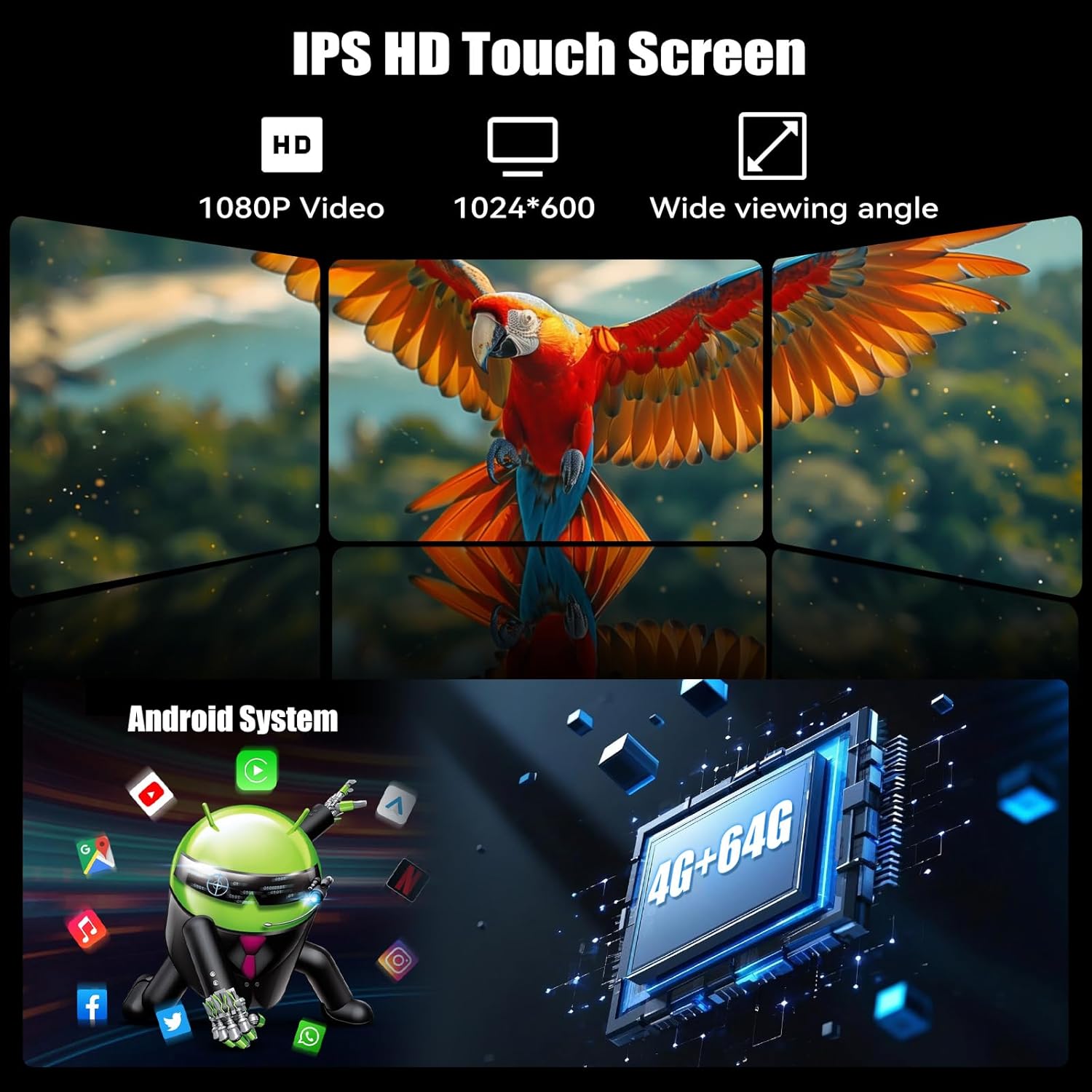
- System Android 13: Wyposażony w 4 GB pamięci RAM i 64 GB pamięci ROM zapewniającej płynną pracę i ample magazyn.
- 7-inch IPS Flip-Out Touchscreen: High-definition 1024*600 capacitive display with wide viewkąty.
- Bezprzewodowy CarPlay i Android Auto: Bezproblemowa integracja smartfona z nawigacją, muzyką i komunikacją.
- Nawigacja GPS: Built-in GPS module supporting online and offline maps.
- Łączność Wi-Fi: For online functions, app downloads, and internet browsing.
- Bluetooth 5.0: Rozmowy telefoniczne w trybie głośnomówiącym i strumieniowe przesyłanie dźwięku.
- Radio FM/RDS: 18 preset stations with memory function.
- DSP & EQ Sound: Built-in digital sound processing with customizable EQ settings.
- Wiele wejść: Dual USB ports, TF card slot, and AUX input.
- Kamera cofania AHD: Included for enhanced reversing safety.
- Sterowanie z kierownicy (SWC): Compatible with existing vehicle steering wheel controls.
- Link lustrzany: Supports wireless mirroring for Android/iOS devices.
- Funkcja podzielonego ekranu: Allows two applications to run simultaneously on the display.
- 7 Color Backlight: Customizable button illumination.
5. Konfiguracja i instalacja
Ważny: Due to the complexity of car audio system wiring, professional installation is highly recommended. Incorrect wiring can cause damage to the unit or your vehicle.
5.1 Lista kontrolna przed instalacją
- Przed rozpoczęciem jakichkolwiek prac elektrycznych należy odłączyć ujemny zacisk akumulatora pojazdu.
- Ensure you have the correct wiring harness adapter for your vehicle model (if not included).
- Confirm the single DIN opening in your dashboard is compatible with the unit's dimensions.
5.2 połączeń przewodów
Refer to the wiring diagram provided in the included user manual for specific connections. General connections include:
- Moc: Podłącz żółty przewód do stałego napięcia 12 V, czerwony przewód do dodatkowego napięcia 12 V, a czarny przewód do uziemienia.
- Prelegenci: Podłącz przewody głośnikowe do odpowiednich przewodów głośnikowych w pojeździe (np. przedni lewy +, przedni lewy -).
- Antena GPS: Podłącz antenę GPS i zamontuj ją w miejscu z wolnym dostępem do światła. view nieba (np. deska rozdzielcza, róg przedniej szyby).
- Kamera tylna: Connect the video input from the AHD backup camera to the unit's camera input. Connect the camera's power to the reverse light circuit.
- Mikrofon: Podłącz zewnętrzny mikrofon, aby korzystać z funkcji głośnomówiącej.
- Kable USB: Route the USB extension cables to an accessible location.
- Antena radiowa: Podłącz antenę radiową pojazdu.
- Sterowanie z kierownicy (SWC): Connect the SWC wires according to your vehicle's wiring diagram.
5.3 Montaż urządzenia
- Slide the mounting sleeve into the dashboard opening.
- Secure the sleeve using the bending tabs.
- Carefully slide the car stereo unit into the mounting sleeve until it locks into place.
- Podłącz ponownie ujemny zacisk akumulatora pojazdu.
6. Instrukcja obsługi
6.1 Podstawowa obsługa
- Włączanie/wyłączanie: Naciśnij przycisk zasilania (zazwyczaj pokrętło głośności), aby włączyć lub wyłączyć urządzenie.
- Regulacja głośności: Obróć pokrętło, aby wyregulować głośność.
- Regulacja ekranu: The 7-inch screen is motorized. Use the screen controls to adjust its angle or retract it.
- Interfejs ekranu dotykowego: Navigate the Android system by tapping, swiping, and pinching on the capacitive touchscreen.

6.2 Bezprzewodowy CarPlay i Android Auto
Connect your smartphone wirelessly for an integrated driving experience.
- Upewnij się, że w smartfonie są włączone Bluetooth i Wi-Fi.
- Na samochodowym radiu otwórz aplikację CarPlay lub Android Auto.
- Follow the on-screen prompts to pair your phone. Once paired, your phone will automatically connect in the future.


6.3 Nawigacja GPS
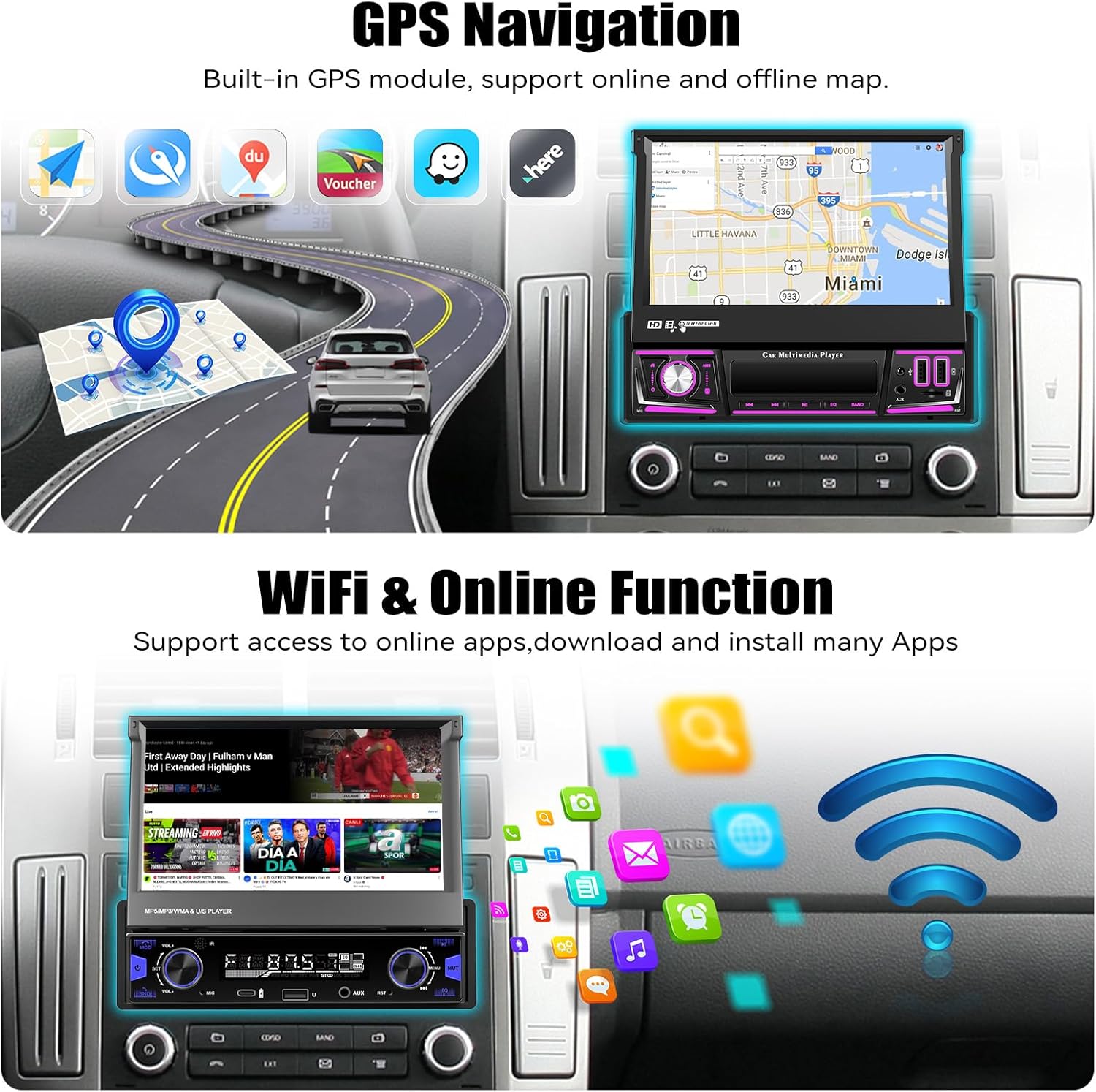
The unit includes a built-in GPS module for navigation. It supports both online and offline map applications.
- Upewnij się, że antena GPS jest prawidłowo zainstalowana i ma zapewnioną przejrzystość. view nieba.
- Use pre-installed navigation apps or download your preferred map applications via Wi-Fi.
- For offline maps, download the necessary map data when connected to Wi-Fi.


6.4 Wi-Fi & Online Functions
Connect the stereo to a Wi-Fi hotspot (e.g., from your smartphone) to access online features.
- Przejdź do Ustawienia > Sieć i Internet > Wi-Fi.
- Wybierz żądaną sieć Wi-Fi i wpisz hasło.
- Once connected, you can download apps from the Google Play Store, browse the internet, and stream online content.

6.5 Bluetooth 5.0
Połącz swój telefon komórkowy przez Bluetooth, aby móc wykonywać połączenia w trybie głośnomówiącym i przesyłać strumieniowo muzykę.
- Włącz Bluetooth w telefonie i samochodowym radiu.
- On the car stereo, search for available devices and select your phone.
- Potwierdź kod parowania na obu urządzeniach.
- Po nawiązaniu połączenia możesz bezprzewodowo wykonywać i odbierać połączenia oraz odtwarzać muzykę.


Radio 6.6 FM/RDS
Access local radio stations with FM and RDS (Radio Data System) functionality.
- Wybierz aplikację „Radio” z menu głównego.
- Użyj funkcji skanowania, aby automatycznie wyszukać i zapisać dostępne stacje.
- Ręcznie dostrój się do częstotliwości lub wybierz jedną ze stacji zaprogramowanych.
- RDS provides station information, song titles, and traffic announcements where available.


Ustawienia dźwięku EQ 6.7
Customize your audio experience using the built-in Equalizer (EQ).
- Access the 'EQ' or 'Sound Settings' option from the main menu or during audio playback.
- Adjust frequency bands, bass, treble, and other audio parameters to your preference.
- Select from various preset EQ modes (e.g., Pop, Rock, Jazz) or create custom settings.

6.8 Obsługa kamery cofania
Dołączona kamera cofania AHD automatycznie wyświetla obraz z tyłu view gdy pojazd jest na biegu wstecznym.
- Ensure the camera is properly installed and connected to the reverse trigger wire.
- When shifting into reverse, the screen will automatically switch to the camera view, displaying parking guidelines.


6.9 Sterowanie z kierownicy (SWC)
Program your vehicle's steering wheel buttons to control the car stereo functions.
- Przejdź do ustawień „Sterowanie za pomocą kierownicy” w menu urządzenia.
- Follow the on-screen instructions to assign functions (e.g., volume up/down, track skip, mode) to your steering wheel buttons.

6.10 Łącze lustrzane
Mirror your Android or iOS smartphone screen onto the car stereo display.
- Open the 'Mirror Link' application on the car stereo.
- Connect your phone via Wi-Fi or USB cable as prompted.
- Your phone's screen will be displayed on the stereo, allowing you to view apps not supported by CarPlay/Android Auto.

6.11 Multiple Input (USB/TF/AUX)
The unit supports various media inputs for playback and charging.
- USB: Connect USB drives for media playback or use the USB ports for charging your smartphone.
- Karta TF: Włóż kartę TF (microSD) do przeznaczonego gniazda, aby odtwarzać multimedia.
- AUX: Podłącz zewnętrzne urządzenia audio (np. odtwarzacze MP3) przez wejście AUX 3.5 mm.

6.12 Funkcja podzielonego ekranu
The split-screen feature allows you to run two applications side-by-side on the display.
- While an app is open, swipe up from the bottom of the screen or long-press the recent apps button (if available) to enter split-screen mode.
- Select a second app to display on the other half of the screen.

6.13 7 Color Backlight
Customize the illumination color of the physical buttons on the unit.
- Navigate to the 'Settings' menu and look for 'Button Light' or 'Backlight Color' options.
- Choose from seven available colors to match your vehicle's interior lighting or personal preference.

7. Konserwacja
- Czyszczenie ekranu: Delikatnie przetrzyj ekran dotykowy miękką, niepozostawiającą włókien ściereczką. W przypadku uporczywych plam delikatnie przetrzyj.ampPrzetrzyj ściereczkę wodą lub płynem do czyszczenia ekranów. Unikaj silnych środków chemicznych.
- Ogólne sprzątanie: Przetrzyj obudowę urządzenia suchą, miękką ściereczką. Nie używaj środków czyszczących o właściwościach ściernych.
- Aktualizacje oprogramowania: Periodically check for software updates via the unit's settings menu to ensure optimal performance and access to new features.
- Unikaj płynów: Nie dopuść do przedostania się płynów do wnętrza urządzenia, gdyż może to spowodować poważne uszkodzenia.
8. Rozwiązywanie Problemów
| Problem | Możliwa przyczyna | Rozwiązanie |
|---|---|---|
| Urządzenie nie włącza się. | Nieprawidłowe okablowanie; Przepalony bezpiecznik; Brak zasilania. | Sprawdź połączenia zasilania (żółty, czerwony, czarny przewód). Sprawdź bezpieczniki pojazdu. Upewnij się, że akumulator jest naładowany. |
| Brak dźwięku z głośników. | Incorrect speaker wiring; Volume too low; Mute activated. | Verify speaker connections. Increase volume. Check if mute is active. |
| GPS signal lost frequently. | GPS antenna improperly placed; Obstructions; Weak signal area. | Upewnij się, że antena GPS ma czyste pole widzenia view of the sky. Relocate antenna if necessary. Update map data. |
| Problemy z połączeniem Bluetooth. | Telefon nie jest wykrywalny; Nieprawidłowe parowanie; Zakłócenia. | Ensure phone's Bluetooth is on and discoverable. Delete previous pairings and re-pair. Restart both devices. |
| CarPlay/Android Auto nie łączy się. | Wi-Fi/Bluetooth issues; Phone software outdated; App permissions. | Check Wi-Fi and Bluetooth connections. Update phone OS and CarPlay/Android Auto apps. Verify app permissions. |
| Kamera cofania nie jest wyświetlana. | Camera wiring incorrect; Reverse trigger not connected; Faulty camera. | Check camera power and video connections. Ensure reverse trigger wire is correctly connected. |
| Ekran dotykowy nie reaguje. | Błąd oprogramowania; uszkodzenie ekranu. | Restart the unit. If issue persists, perform a factory reset (data will be lost). Contact support if physical damage is suspected. |
9. Specyfikacje
| Funkcja | Szczegół |
|---|---|
| System operacyjny | Android 13 |
| BARAN | 4 GB |
| Pamięć wewnętrzna (ROM) | 64 GB |
| Rozmiar wyświetlacza | 7 cali |
| Rozdzielczość wyświetlacza | 1024 * 600 IPS |
| Łączność | Bluetooth 5.0, Wi-Fi, Wireless CarPlay, Android Auto |
| Nawigacja | Built-in GPS (North America, Worldwide map support) |
| Tryb wyjścia audio | Stereo, Built-in EQ |
| Wejścia | Dual USB, TF Card, AUX-in, Rear Camera Input |
| Cechy specjalne | Flip-out screen, Mirror Link, Split Screen, Steering Wheel Control, 7 Color Backlight |
| Wymiary produktu | 7.36 x 7.87 x 2.32 cala (18.7 x 20.0 x 5.9 cm) |
| Waga przedmiotu | 4.18 funtów (1.9 kg) |
10. Gwarancja i wsparcie
This UNITOPSCI product comes with a 1-letnia gwarancja Gwarancja obowiązuje od daty zakupu i obejmuje wady produkcyjne. Prosimy zachować dowód zakupu na wypadek roszczeń gwarancyjnych.
Obsługa klienta:
For technical assistance, troubleshooting, or warranty inquiries, please contact UNITOPSCI customer service:
- E-mail: UNITOPSCI@126.com
Aby szybciej rozwiązać problem, podczas kontaktu z pomocą techniczną podaj model swojego produktu i szczegółowy opis problemu.
