
DOOGEE TabA9
Instrukcja obsługi tabletu DOOGEE Tab A9 z systemem Android 15
Model: Tab A9 | Brand: DOOGEE
1. Wprowadzenie
Thank you for choosing the DOOGEE Tab A9 Android 15 Tablet. This manual provides essential information for setting up, operating, and maintaining your device. Please read it thoroughly to ensure optimal performance and longevity of your tablet.
The DOOGEE Tab A9 is a 10-inch tablet running on the latest Android 15 system, powered by a Unisoc T310 quad-core processor. It features 12GB RAM, 64GB ROM (expandable up to 2TB), a 6580mAh battery, dual speakers, 8MP AI camera, 5MP front camera, and supports Face ID.

Obraz: przód i tył view of the DOOGEE Tab A9 tablet, highlighting its 6580mAh battery, 5G WiFi, 10.1-inch IPS display, Android 15, 12GB RAM, 64GB ROM, and Unisoc T310 processor.
2. Co znajduje się w pudełku
- DOOGEE Tab A9 Tablet
- Rumak
- Kabel USB typu C
3. Układ urządzenia
Familiarize yourself with the physical components of your DOOGEE Tab A9 tablet.

Obraz: Bok view of the DOOGEE Tab A9 tablet, illustrating the placement of buttons and ports such as the power button, volume rocker, and USB-C port.
- Przycisk zasilania: Znajduje się z boku urządzenia i służy do włączania/wyłączania lub wybudzania/uśpienia urządzenia.
- Przyciski głośności: Dostosuj głośność dźwięku.
- Port USB typu C: Do ładowania i przesyłania danych.
- Gniazdo audio 3.5 mm: Do podłączenia słuchawek.
- Przednia kamera (5MP): Located above the screen, for video calls and selfies.
- Tylna kamera (8 MP): Znajduje się z tyłu i służy do robienia zdjęć i nagrywania filmów.
- Podwójne głośniki: Located on the sides/bottom for enhanced audio experience.
4. Konfiguracja
4.1 Pierwsze włączenie zasilania
- Naciśnij i przytrzymaj Przycisk zasilania aż pojawi się logo DOOGEE.
- Postępuj zgodnie z instrukcjami wyświetlanymi na ekranie, aby wybrać swój język, połączyć się z siecią Wi-Fi i skonfigurować konto Google.
4.2 Ładowanie tabletu
Podłącz dołączony kabel USB typu C do portu ładowania tabletu, a drugi koniec do ładowarki. Podłącz ładowarkę do gniazdka elektrycznego. Ikona baterii na ekranie wskaże stan ładowania.

Image: Visual representation of the 6580mAh large battery and 10W fast charging capability of the DOOGEE Tab A9 tablet.
4.3 Wkładanie karty Micro SD (opcjonalnie)
The tablet supports storage expansion up to 2TB via a Micro SD card (not included). Locate the SIM/SD card tray on the side of the tablet. Use the provided ejector tool to open the tray and insert the Micro SD card as shown in the diagram (refer to device layout section for tray location). Ensure the tablet is powered off before inserting or removing the card.
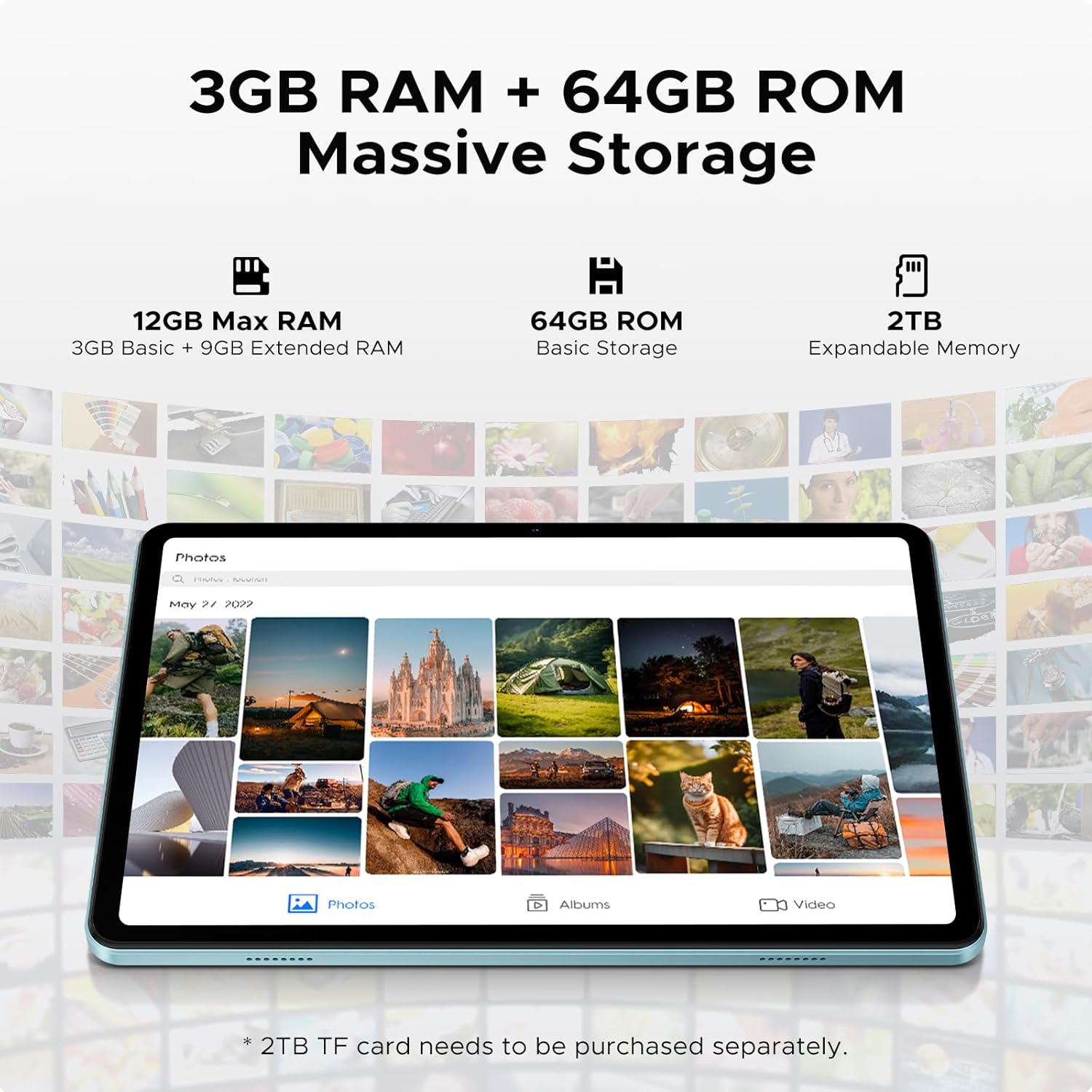
Image: Details on the tablet's 12GB Max RAM (3GB Basic + 9GB Extended RAM) and 64GB ROM Basic Storage, with a note about 2TB Expandable Memory via TF card (sold separately).
5. Instrukcja obsługi
5.1 Podstawowa nawigacja
- Dotykać: Kliknij ikonę lub opcję, aby ją wybrać.
- Trzepnąć: Przesuwaj palcem po ekranie, aby przewijać strony lub treści.
- Powiększanie za pomocą szczypania: Użyj dwóch palców, aby powiększyć lub pomniejszyć obrazy lub web stron.
5.2 Łączenie z Wi-Fi
- Idź do Ustawienia > Sieć i internet > Wi-Fi.
- Włącz Wi-Fi. Tablet przeskanuje dostępne sieci.
- Wybierz żądaną sieć i wpisz hasło, jeśli zostaniesz o to poproszony.
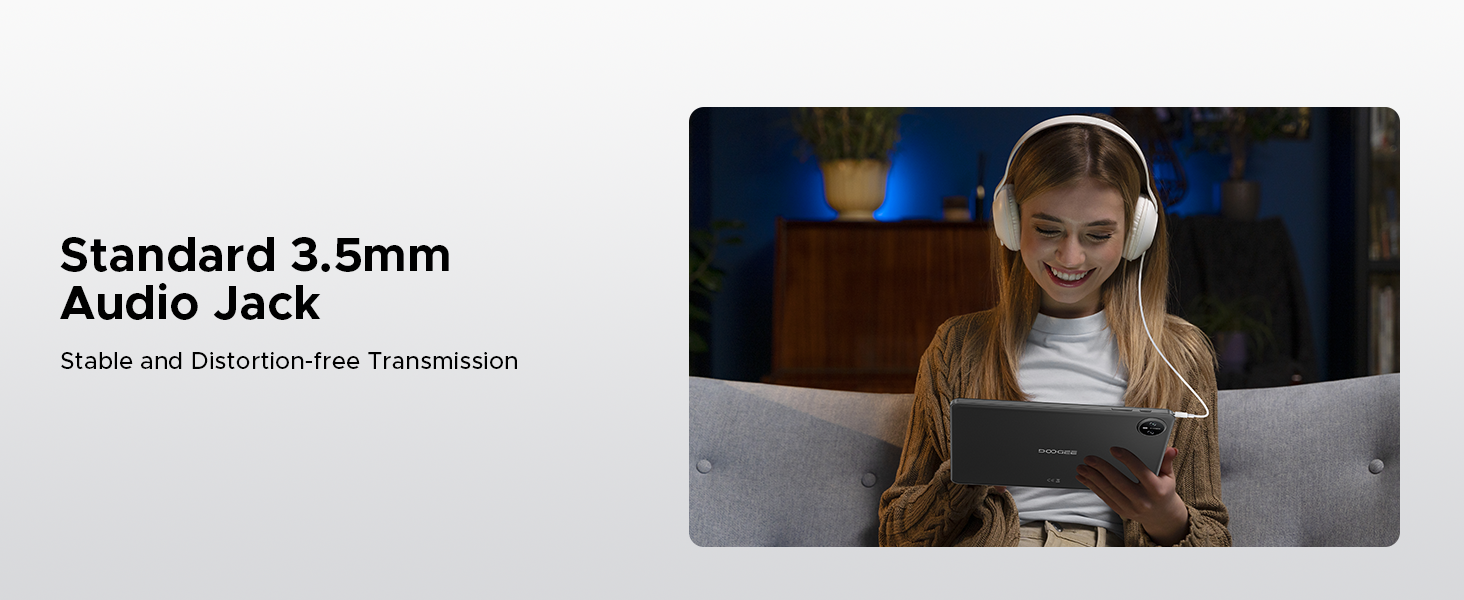
Image: Diagram illustrating the benefits of Faster WiFi 5 connectivity, including low latency, anti-congestion, wide coverage, low power consumption, and high speed.
5.3 Korzystanie z Face ID
The DOOGEE Tab A9 supports facial recognition for quick and secure unlocking.
- Idź do Ustawienia > Bezpieczeństwo i prywatność > Odblokowanie twarzą.
- Postępuj zgodnie z instrukcjami wyświetlanymi na ekranie, aby zarejestrować swoją twarz.
- Po zarejestrowaniu możesz odblokować tablet, patrząc po prostu na przednią kamerę.
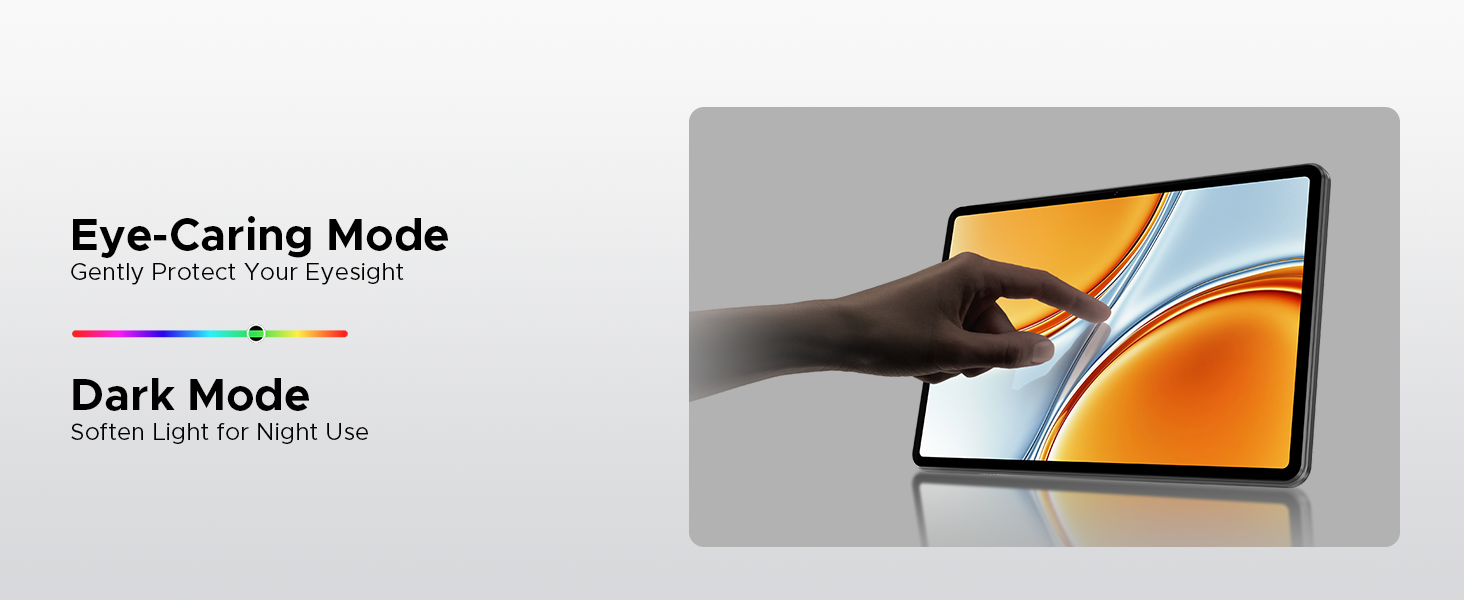
Image: A visual demonstrating the Facial Recognition Unlock feature for effortless access to the tablet.
5.4 Obsługa kamery
Capture moments with the 8MP rear camera and 5MP front camera.
- Otwórz Kamera aplikacja.
- Stuknij przycisk migawki, aby zrobić zdjęcie.
- Przełączaj się między przednim i tylnym aparatem za pomocą ikony przełączania aparatów.
- Explore various modes like Beauty Mode for enhanced photos.

Image: Depiction of the 8MP main camera and 5MP front camera, highlighting their use for capturing lively moments and video calls.
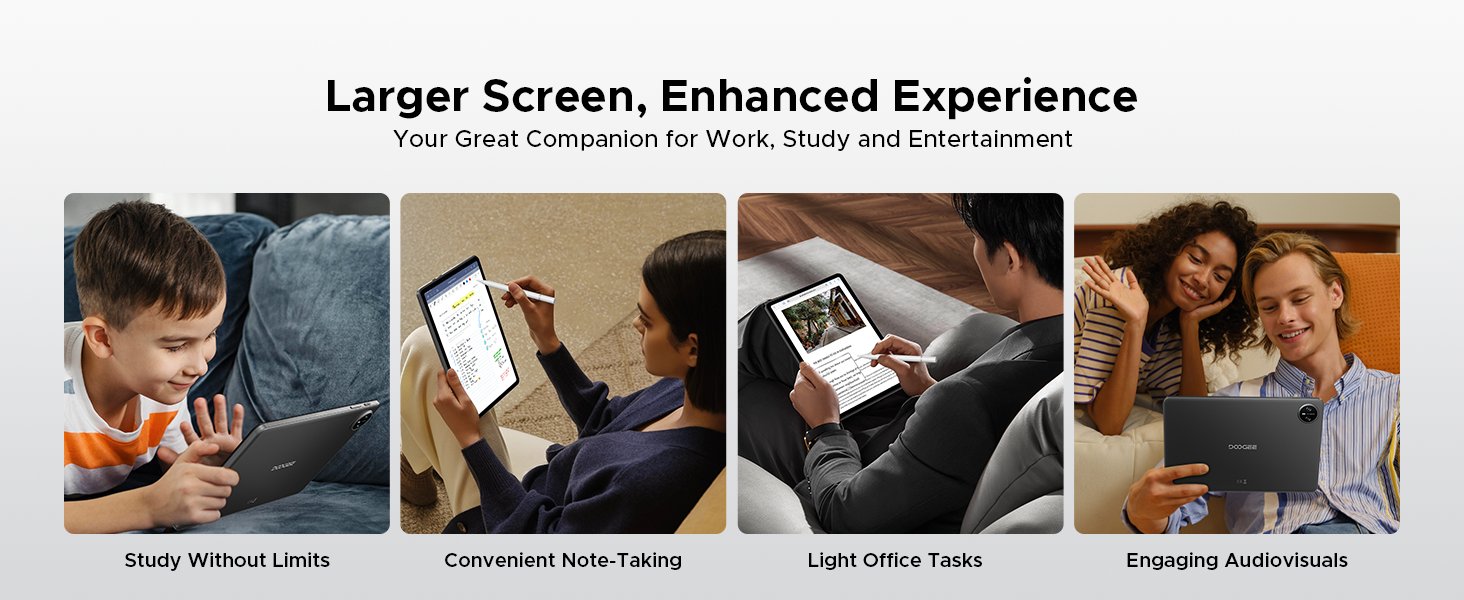
Image: A visual demonstrating the "Beauty Mode" feature for enhancing photos.
5.5 Wielozadaniowość na podzielonym ekranie
The tablet supports efficient split-screen multitasking, allowing you to use two apps simultaneously.
- Open the first app you want to use.
- Przesuń palcem w górę od dołu ekranu i przytrzymaj, aby uzyskać dostęp do ostatnio używanych aplikacji.
- Tap the app icon at the top of the app's card and select "Split screen".
- Wybierz drugą aplikację z ostatnio używanych aplikacji lub szuflady aplikacji.
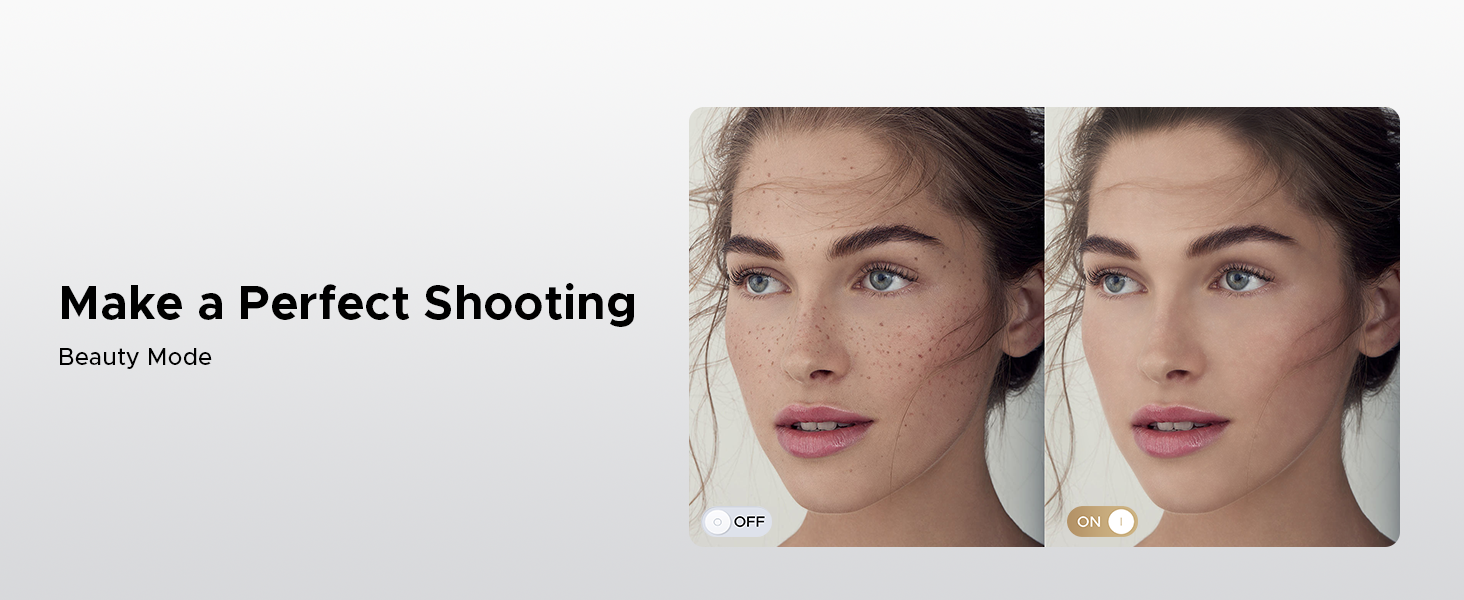
Image: A user demonstrating efficient split-screen multitasking on the DOOGEE Tab A9 tablet, with two applications open side-by-side.
6. Główne cechy
6.1 System Android 15
The DOOGEE Tab A9 runs on the latest Android 15, offering enhanced performance, improved app launch speeds, and a more secure privacy management system.
Image: The Android 15 system logo, emphasizing intelligence, seamlessness, and security.
Image: Features of the Fortified Privacy Shield in Android 15, including precision permission control, robust data encryption, timely security patches, and proactive app screening.
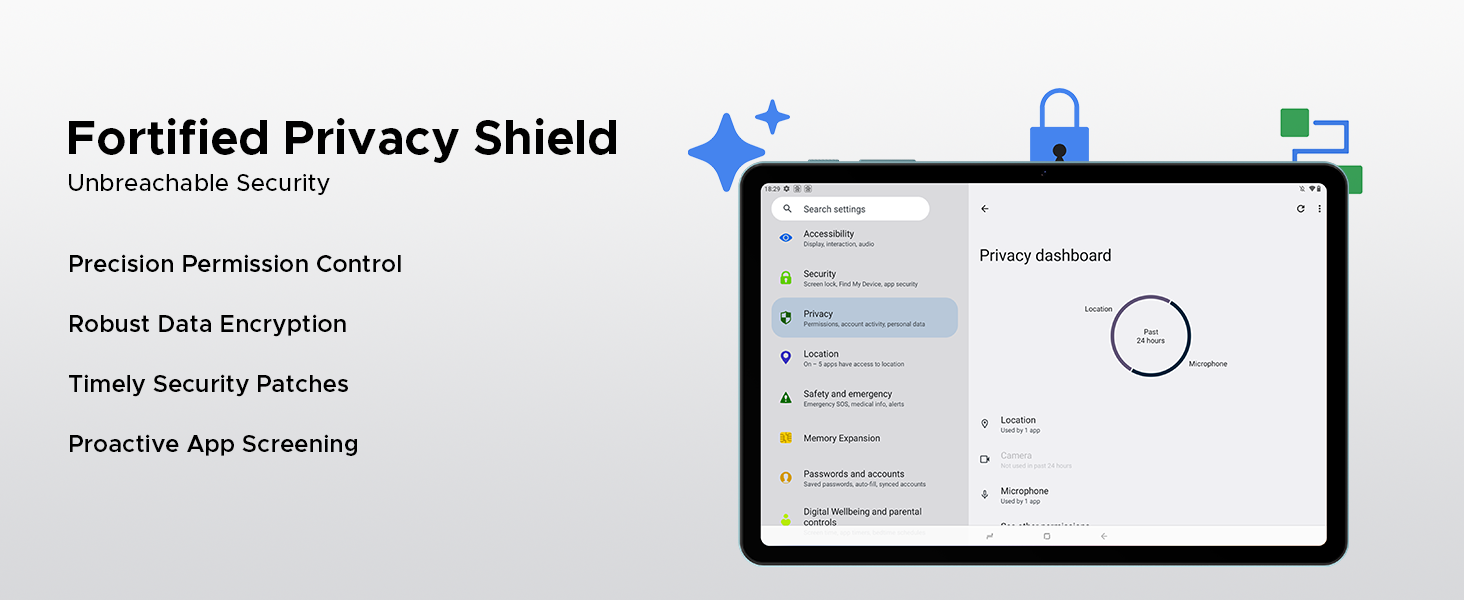
Image: Illustrations of additional Android 15 features such as Bedtime Mode, Multi-user System, and Parental Control.
6.2 Unisoc T310 Quad-Core Processor
Equipped with the Unisoc T310 processor, the tablet delivers smooth performance for daily tasks, web browsing, and office software, while maintaining low power consumption.

Obraz: Diagram pokazanyasing the Unisoc T310 Quad-Core Processor, highlighting its powerful quad-core design, 2.0GHz ultimate frequency, and 12nm advanced process technology.
6.3 10.1" IPS HD Display
Ciesz się szerokim polem view and vibrant colors on the 10.1-inch IPS HD display with 1280x800 resolution.
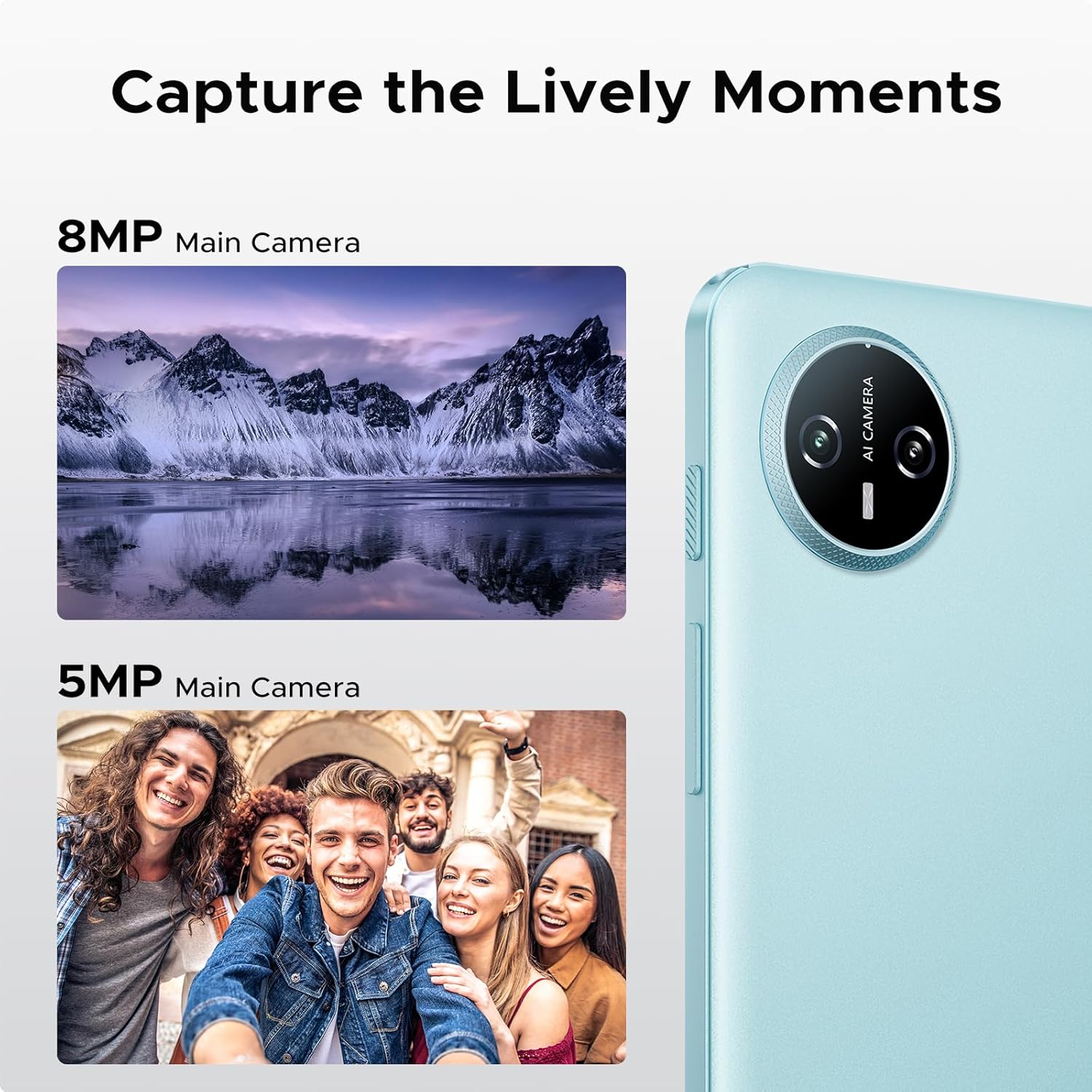
Image: Specifications of the 10.1-inch IPS HD display, including 1280*800 resolution, 16:10 aspect ratio, 80.2% screen-to-body ratio, 1200:1 contrast, 16.7 million screen colors, and 2.5D cover glass.
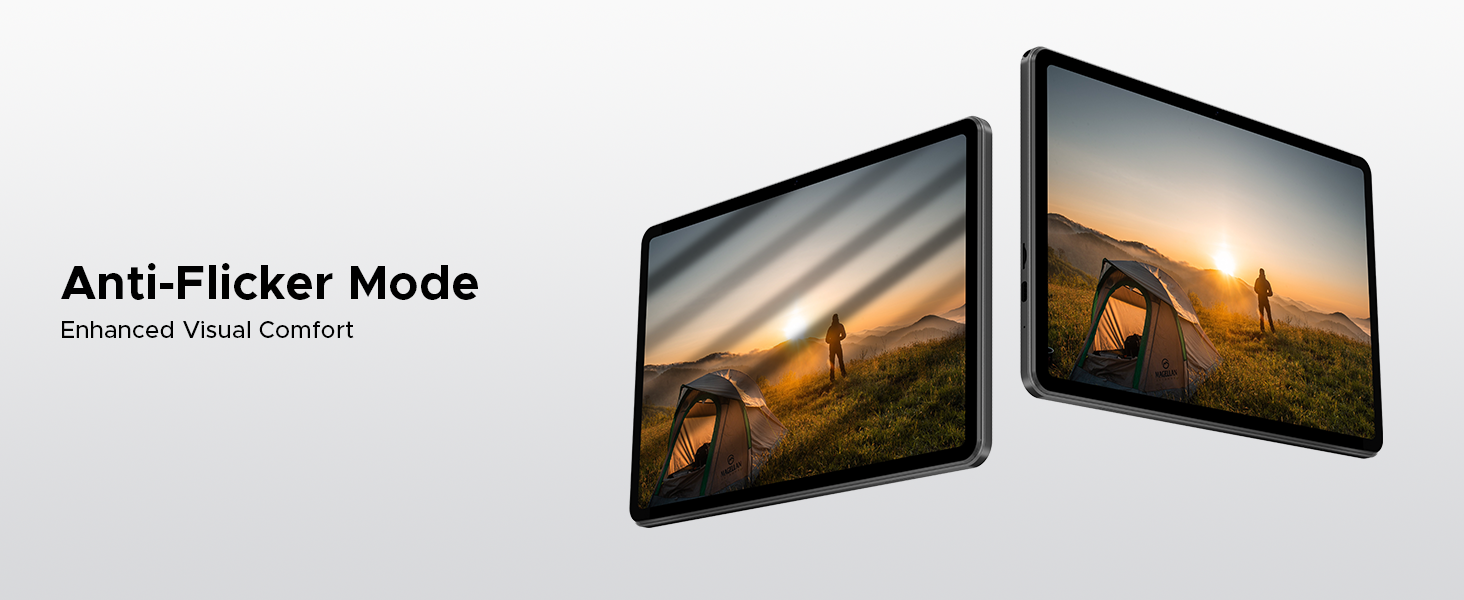
Image: Visuals explaining Eye-Caring Mode to gently protect eyesight and Dark Mode to soften light for night use.
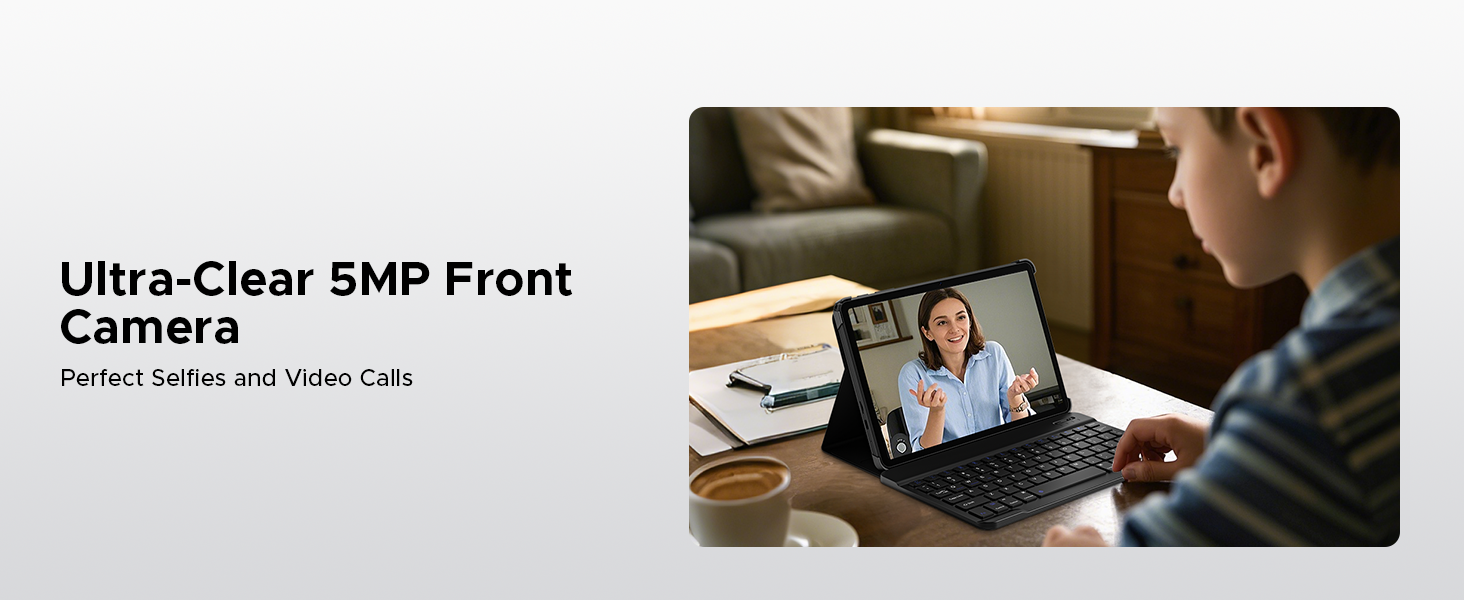
Image: Various usage scenarios for the tablet, including studying, note-taking, light office tasks, and engaging with audiovisuals.
6.4 Podwójne głośniki
Experience crystal-clear sound with the premium 1217 BOX dual speakers.

Image: Illustration of the 1217 BOX Dual Speakers, indicating sound follows the picture for an immersive experience.
6.5 Built-in WPS Office
The tablet comes with built-in PC-level WPS Office for seamless productivity on-the-go, supporting Word, Excel, and PowerPoint documents.

Image: Tablets displaying WPS Word, Excel, and PPT applications, demonstrating the built-in PC-level WPS Office suite.
7. Konserwacja i pielęgnacja
- Keep the tablet dry. Moisture can damage the internal circuits.
- Avoid extreme temperatures. High temperatures can shorten the life of electronic devices and deform certain plastics.
- Do not drop, knock, or shake the tablet. Rough handling can break internal circuit boards and fine mechanics.
- Używaj wyłącznie zatwierdzonych ładowarek i akcesoriów.
- Czyść ekran miękką, niepozostawiającą włókien ściereczką. Unikaj stosowania silnych środków chemicznych.
8. Rozwiązywanie Problemów
| Problem | Możliwe rozwiązanie |
|---|---|
| Tablet nie włącza się. | Upewnij się, że bateria jest naładowana. Podłącz ładowarkę i odczekaj kilka minut przed ponownym włączeniem. |
| Ekran nie reaguje. | Perform a forced restart by holding the power button for about 10-15 seconds. If the issue persists, contact support. |
| Problemy z połączeniem Wi-Fi. | Restart your Wi-Fi router. Go to Settings > Network & internet > Wi-Fi and try reconnecting. Forget the network and re-add it if necessary. |
| Aplikacje ulegają awarii lub zawieszają się. | Clear the cache of the problematic app (Settings > Apps > [App Name] > Storage & cache > Clear cache). If it continues, uninstall and reinstall the app. Ensure sufficient storage space. |
| Bateria szybko się rozładowuje. | Reduce screen brightness, close unused apps running in the background, disable unnecessary notifications, and turn off Wi-Fi/Bluetooth when not in use. |
9. Specyfikacje
- Model: Karta A9
- System operacyjny: Android 15
- Edytor: Unisoc T310 Quad-Core, 1.8 GHz
- BARAN: 12 GB (3 GB podstawowa + 9 GB rozszerzona)
- Pamięć wewnętrzna: 64 GB pamięci ROM
- Możliwość rozbudowy pamięci masowej: Up to 2TB via Micro SD (TF card)
- Wyświetlacz: 10.1-inch IPS HD, 1280 x 800 pixels
- Kamera tylna: Aparat 8MP AI
- Przednia kamera: 5MP
- Bateria: Polimer litowy 6580 mAh
- Łączność: Wi-Fi 5G, Bluetooth
- Porty: USB typu C, gniazdo audio 3.5 mm
- Wymiary: Wymiary 24.25 x 16.09 x 0.97 cm
- Waga: 900 gramów
- Cechy szczególne: Face ID, OTG Support, Dual Speakers, GMS Certified
10. Oficjalne filmy o produktach
Watch these official videos for more information and visual guides on your DOOGEE Tab A9 tablet.
DOOGEE Tab A9 Android tablets
Ten film zapewnia ponadview of the DOOGEE Tab A9 Android tablet, showcasing jego projektu i kluczowych funkcjonalności.
DOOGEE Tablet Android 15-Tab A9
A detailed look at the DOOGEE Tab A9, highlighting its Android 15 operating system and user experience.
DOOGEE 10 Inch Tablet Tab A9 Android Tablets
This video focuses on the 10-inch display and overall design of the DOOGEE Tab A9, suitable for various uses.
DOOGEE Tab A9 Android 15 Tablet
A concise video highlighting the key selling points of the DOOGEE Tab A9 Android 15 Tablet.
11. Gwarancja i wsparcie
DOOGEE zapewnia kompleksowe wsparcie dla swoich produktów.
- Gwarancja: This product typically comes with a 2-year limited warranty. Please refer to your purchase documentation for specific terms and conditions.
- Zwroty: A 30-day money-back guarantee and free return policy may apply. Check with your retailer for details.
- Obsługa klienta: For technical assistance or customer support, please visit the official DOOGEE webodwiedź witrynę lub skontaktuj się z ich kanałami obsługi klienta.
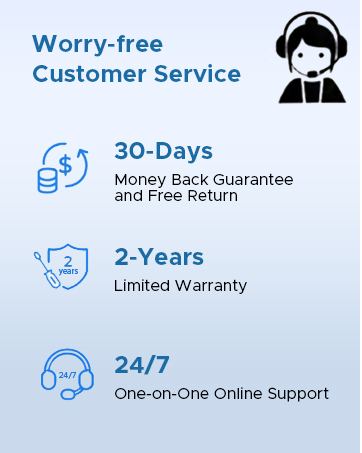
Image: Information on DOOGEE's customer service, including 30-day money back guarantee, 2-year limited warranty, and 24/7 online support.
Ask a question about this manual
Ask about setup, troubleshooting, compatibility, parts, safety, or missing instructions. Manuals+ will review the question and use this page’s manual context to help answer it.