
GESKS Tuya 8MP
GESKS Tuyasmart Wireless 4K 8MP WiFi Security Camera User Manual
Model: Tuya 8MP
Wstęp
This manual provides detailed instructions for the installation, operation, and maintenance of your GESKS Tuyasmart Wireless 4K 8MP WiFi Security Camera. This advanced security camera offers 4K Ultra HD resolution, intelligent features like motion detection and human tracking, two-way audio, and robust night vision, ensuring comprehensive surveillance for your property.
Co jest w pudełku
Przed przystąpieniem do instalacji należy sprawdzić, czy wszystkie komponenty są obecne.
- GESKS Tuyasmart Wireless 4K 8MP WiFi Camera
- Zasilacz
- Śruby montażowe
- Instrukcja obsługi (ten dokument)
Produkt ponadview
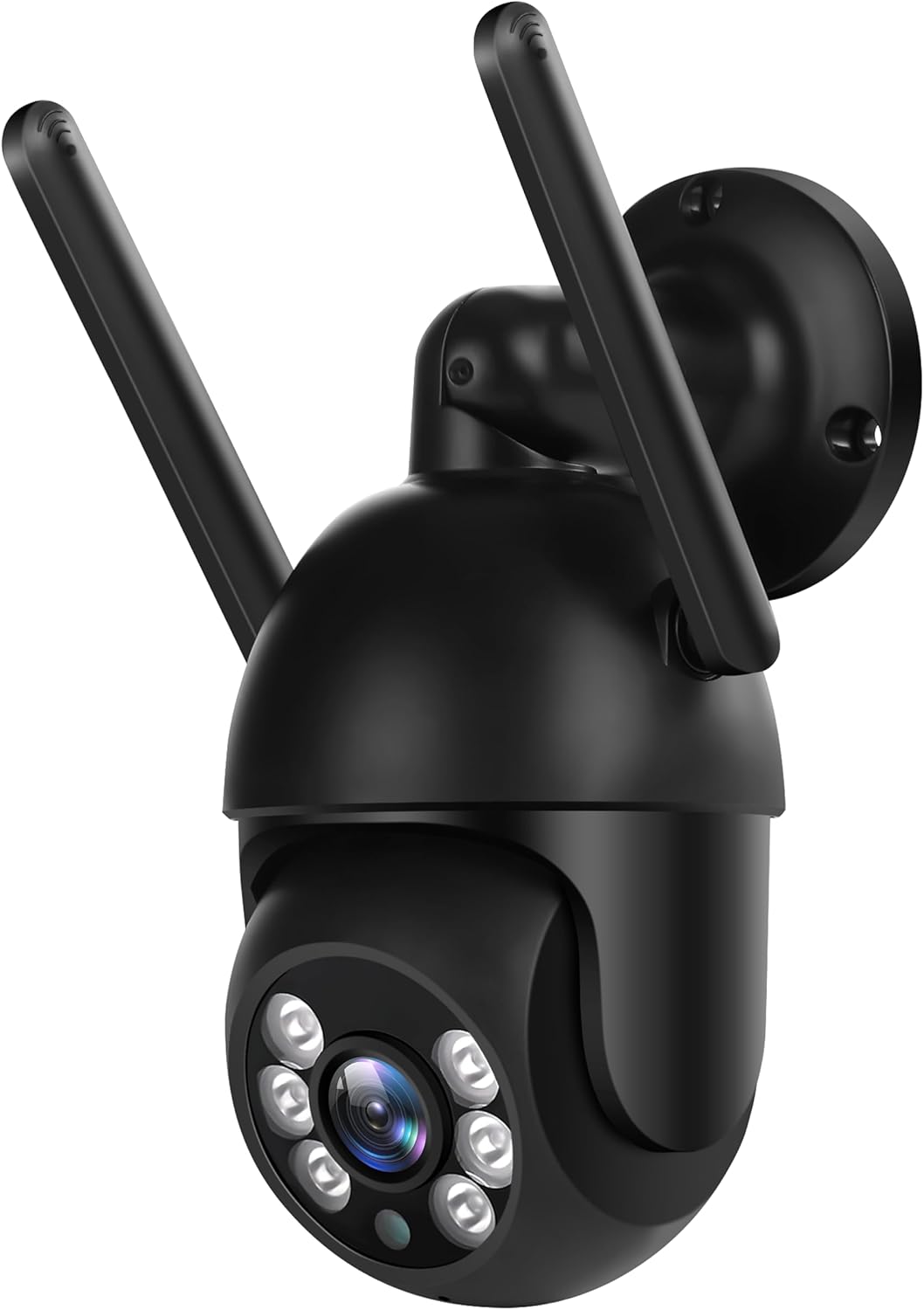
Figure 1: GESKS Tuyasmart Wireless 4K 8MP WiFi Security Camera. This image displays the black dome-shaped security camera with two external antennas. The camera features a lens surrounded by multiple infrared and white light LEDs for night vision. It is designed for wall mounting, with a circular base visible at the top right. The camera's compact design allows for versatile installation.
The GESKS Tuyasmart camera is a compact, outdoor-rated dome PTZ camera. It features a 2.8mm lens, IR-CUT filter, and a combination of infrared and white light LEDs for effective night vision up to 20 meters. The camera supports horizontal rotation of 355 degrees and vertical rotation of 110 degrees, providing wide area coverage.
Organizować coś
1. Montaż kamery
- Wybierz lokalizację: Select a suitable outdoor or indoor location that provides the desired viewing angle and is within range of your Wi-Fi network. Ensure the mounting surface is sturdy enough to support the camera.
- Zaznacz otwory wiertnicze: Use the camera's mounting base as a template to mark the positions for drilling holes on the wall or ceiling.
- Wiercenie otworów: Drill pilot holes at the marked positions. Insert wall anchors if necessary for added stability.
- Zabezpiecz kamerę: Align the camera's mounting base with the drilled holes and secure it using the provided mounting screws.
2. Podłączenie zasilania
Connect the provided power adapter to the camera's power input port. Plug the power adapter into a standard electrical outlet. The camera will power on and initiate its startup sequence.
3. Instalacja aplikacji i połączenie Wi-Fi
- Pobierz aplikację: Download the "Tuyasmart" or "Smartlife" app from the iOS App Store (for Apple devices) or Google Play Market (for Android devices).
- Zarejestruj się/Zaloguj: Otwórz aplikację i zarejestruj nowe konto lub zaloguj się, jeśli już je posiadasz.
- Dodaj urządzenie: Tap the "+" icon or "Add Device" button in the app. Select "Security & Video Surveillance" and then "Smart Camera (Wi-Fi)".
- Połącz się z Wi-Fi: Follow the on-screen instructions to connect the camera to your 2.4GHz Wi-Fi network. Ensure your mobile device is connected to the same Wi-Fi network during the setup process. You may need to scan a QR code displayed on your phone with the camera lens or listen for a connection tone.
- Dodano urządzenie: Once connected, the camera will appear in your device list within the app. You can rename the camera for easier identification.
Obsługa aparatu
1. Na żywo View i nagrywanie
- Dostęp na żywo View: Open the Tuyasmart/Smartlife app and tap on your camera's name to access the live video feed.
- Nagrywanie ręczne: Na żywo view, you can manually start and stop video recording directly to your mobile device.
- Odtwarzanie nagranego dźwięku: Uzyskaj dostęp do nagranego pliku footagz sekcji odtwarzania aplikacji. Możesz view recordings stored on a TF card or in cloud storage.
2. Sterowanie obrotem, pochyleniem i powiększeniem (PTZ)
Z koncertu view interfejs w aplikacji, użyj elementów sterujących kierunkowych, aby zdalnie dostosować kamerę viewing angle. The camera supports 355 degrees horizontal rotation and 110 degrees vertical rotation.
3. Motion Detection and Human Tracking
- Włącz wykrywanie ruchu: Navigate to the camera settings in the app and enable motion detection. You can adjust sensitivity levels and set detection zones.
- Śledzenie ludzi: When enabled, the camera will automatically track detected human figures within its field of view, keeping them centered in the frame.
- Alarm Push Notifications: Configure the app to send rapid push notifications to your mobile device when motion or human activity is detected.
4. Dźwięk dwukierunkowy
The camera features a built-in microphone and speaker. Tap the microphone icon in the live view interfejs umożliwiający mówienie przez kamerę i słuchanie dźwięków z otoczenia kamery.
5. Wizja nocna
The camera automatically switches to night vision mode in low-light conditions. It utilizes 6 infrared LEDs and 6 white light LEDs to provide clear visibility up to 20 meters, offering both infrared (black and white) and colorful night vision options.
6. Opcje przechowywania
- Przechowywanie kart TF: Insert a MicroSD (TF) card (up to 128GB, not included) into the camera's TF card slot for local storage of recordings. The app supports playback and downloading of videos from the TF card.
- Nagrywanie w chmurze: The camera supports optional cloud storage services (subscription may be required). Refer to the app for details on activating and managing cloud recording.
Konserwacja
- Czyszczenie: Regularly clean the camera lens and housing with a soft, dry cloth to ensure clear image quality. Do not use abrasive cleaners or solvents.
- Aktualizacje oprogramowania układowego: Check the Tuyasmart/Smartlife app periodically for available firmware updates. Keeping the firmware updated ensures optimal performance and access to new features.
- Zarządzanie pamięcią masową: W przypadku korzystania z karty TF należy okresowo ją aktualizować.view i zarządzaj zapisanymi plikami footage to prevent the card from becoming full. Old footage may be overwritten automatically depending on settings.
- Cykl zasilania: Jeśli zauważysz problemy z łącznością lub kamera zachowuje się nietypowo, spróbuj wyłączyć ją i włączyć ponownie, odłączając i ponownie podłączając zasilacz.
Rozwiązywanie problemów
| Problem | Możliwa przyczyna | Rozwiązanie |
|---|---|---|
| Kamera offline w aplikacji | Brak zasilania; rozłączone Wi-Fi; problem z routerem | Sprawdź połączenie z zasilaniem; Sprawdź siłę sygnału Wi-Fi; Uruchom ponownie router i kamerę. |
| Nie można połączyć się z siecią Wi-Fi | Incorrect Wi-Fi password; 5GHz network selected; Weak signal | Ensure correct 2.4GHz Wi-Fi password; Connect to a 2.4GHz network; Move camera closer to router. |
| Niska jakość obrazu | Brudny obiektyw; Niewystarczające oświetlenie; Problemy z przepustowością sieci | Wyczyść obiektyw; Zapewnij odpowiednie oświetlenie lub sprawdź ustawienia widzenia w nocy; Sprawdź prędkość sieci. |
| Wykrywanie ruchu nie działa | Feature disabled; Sensitivity too low; Incorrect detection zone | Enable motion detection in app; Increase sensitivity; Adjust detection zone. |
| Problemy z dwukierunkową transmisją dźwięku | Microphone/speaker muted; Network delay | Check audio settings in app; Ensure stable network connection. |
Specyfikacje
| Funkcja | Szczegół |
|---|---|
| Nazwa modelu | 4K 8Mpx |
| Rezolucja | Rozdzielczość 8 Mpx (3840*2160) |
| Czujnik obrazu | 1/2.7" 8megapixel progressive CMOS sensor |
| Typ soczewki | 2.8mm |
| Zakres noktowizora | 20 metrów (66 stóp) |
| Dioda LED podczerwieni | 6 infrared + 6 white light |
| Rotation Angle (Horizontal) | 355 stopnia |
| Rotation Angle (Vertical) | 110 stopnia |
| Łączność | WiFi 2.4G |
| Dwukierunkowy dźwięk | Supported (with Echo Cancellation) |
| Wykrywanie ruchu | Utrzymany |
| Śledzenie ludzi | Supported (Auto Tracking) |
| Składowanie | TF card (max 128G), Cloud Recording |
| Aplikacja mobilna View | Tuyasmart and Smartlife App |
| Zasilacz | Prąd stały 12 V/2 A |
| Material & Use Environment | Plastic / Outdoor dome PTZ camera |
| Wymiary produktu | 3.2 x 3.2 x 7.4 cala |
| Waga przedmiotu | 14.1 uncji |
Gwarancja i wsparcie
For warranty information and technical support, please refer to the contact details provided with your purchase or visit the official GESKS webZachowaj paragon jako dowód zakupu na wypadek reklamacji.
Ask a question about this manual
Ask about setup, troubleshooting, compatibility, parts, safety, or missing instructions. Manuals+ will review the question and use this page’s manual context to help answer it.