
1. Wprowadzenie
Welcome to the CyberpowerPC Gamer Xtreme GXi3200BSTV10 Gaming Desktop PC. This manual provides essential information for setting up, operating, maintaining, and troubleshooting your new gaming system. Designed for high-performance gaming and demanding applications, this PC features an Intel Core i5-14400F processor, NVIDIA GeForce RTX 5060 graphics, 16GB DDR5 RAM, and a 1TB PCIe SSD, all running on Windows 11 Home.
For optimal performance and longevity, please read this manual thoroughly before using your computer.
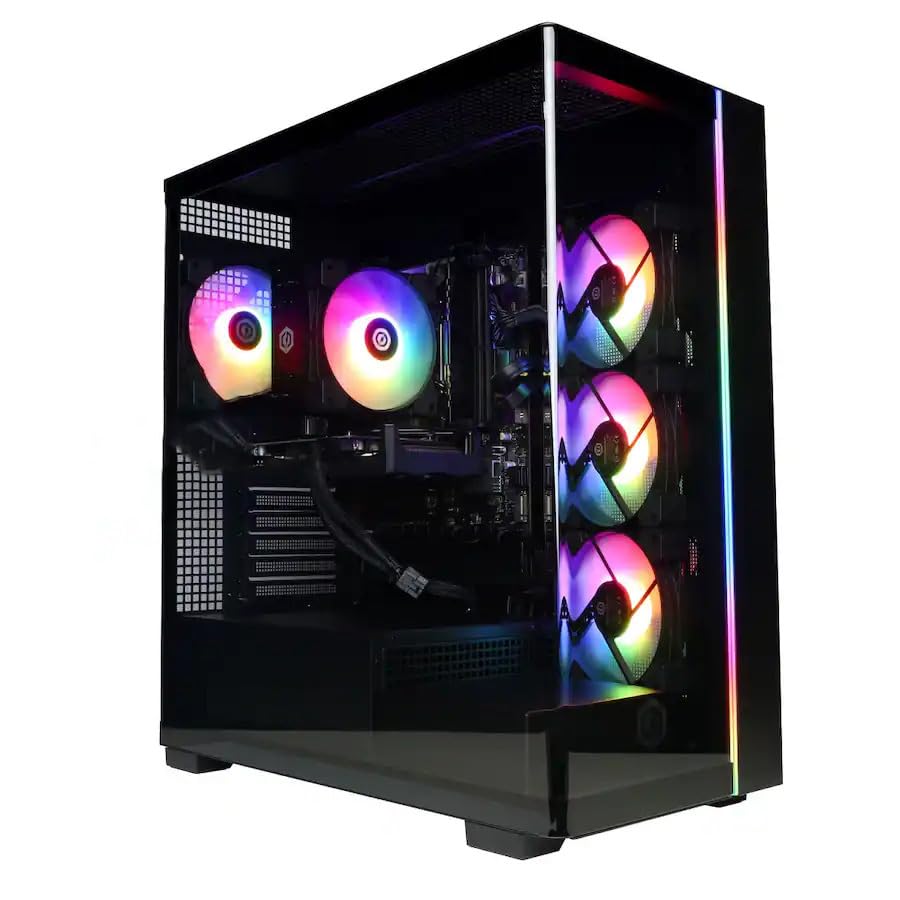
Obraz: Przód view of the CyberpowerPC Gamer Xtreme GXi3200BSTV10 Gaming Desktop PC, showcasing its sleek design and RGB lighting elements.
2. Co znajduje się w pudełku
Upon unpacking your CyberpowerPC Gamer Xtreme GXi3200BSTV10, please ensure all the following items are present:
- CyberpowerPC Gamer Xtreme GXi3200BSTV10 Desktop PC
- Kabel zasilający
- Klawiatura do gier RGB
- Mysz do gier RGB
- Dokumentacja (w tym niniejszy podręcznik)

Image: The included CyberpowerPC NOHI 2 Black Wired RGB 104-Key Keyboard and CyberPowerPC Elite M2 Black Wired RGB 4-Button Mouse.
3. Przewodnik konfiguracji
Follow these steps to set up your new CyberpowerPC Gamer Xtreme desktop:
3.1 Rozpakowywanie i umieszczanie
- Ostrożnie wyjmij komputer i wszystkie akcesoria z opakowania. Zachowaj opakowanie na wypadek transportu lub reklamacji.
- Place the PC on a stable, flat surface with adequate ventilation. Ensure there is clear space around the air intake and exhaust vents.
- Remove any protective films or internal packing materials from the PC case.
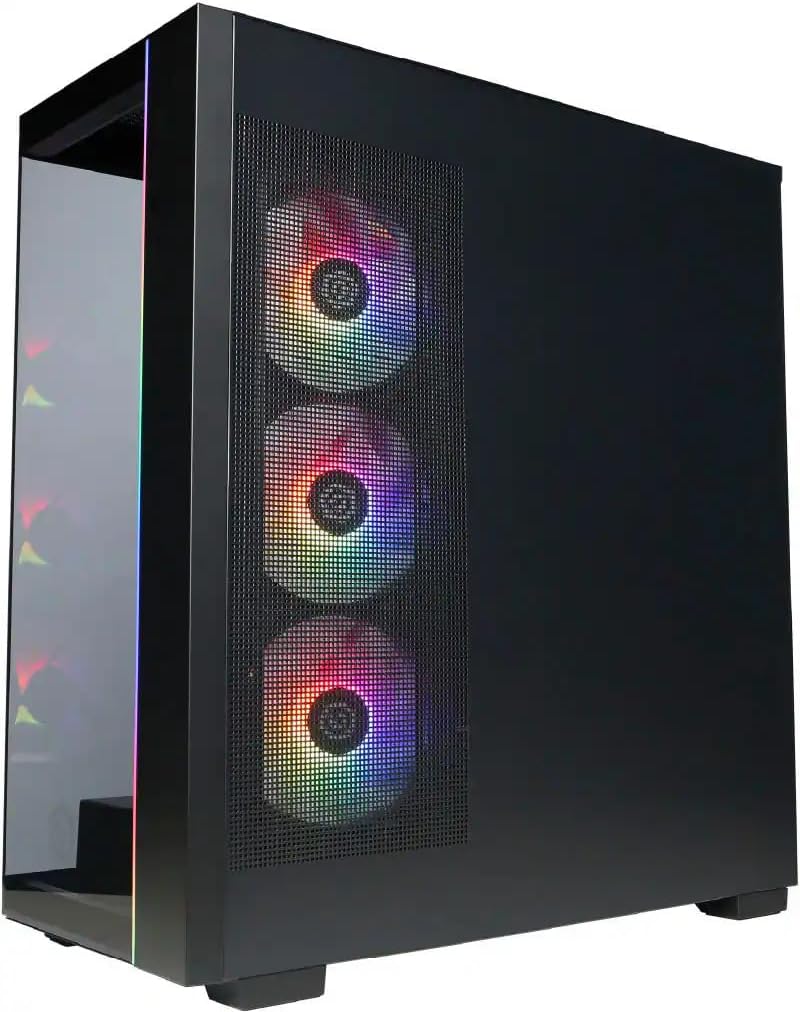
Obraz: Bok view of the PC case, highlighting the mesh panel for airflow and the RGB fans visible through it.
3.2 Podłączanie urządzeń peryferyjnych
Connect your monitor, keyboard, mouse, and other devices to the appropriate ports on the back of the PC.
- Monitor: Connect your monitor to one of the graphics card's display outputs (DisplayPort or HDMI). Ensure it's connected to the dedicated graphics card (NVIDIA GeForce RTX 5060), not the motherboard's integrated graphics ports.
- Klawiatura i mysz: Connect the included RGB keyboard and mouse to any available USB ports.
- Sieć: For wired internet, connect an Ethernet cable to the RJ-45 port. For wireless internet, ensure the Wi-Fi antennas (if provided) are attached.
- Audio: Podłącz głośniki lub słuchawki do gniazd wyjściowych audio.
3.3 Podłączenie zasilania i pierwsze uruchomienie
- Podłącz kabel zasilający do zasilacza komputera (PSU), a następnie do uziemionego gniazdka elektrycznego.
- Naciśnij przycisk zasilania znajdujący się z przodu lub u góry komputera.
- Follow the on-screen instructions to complete the Windows 11 Home setup process. This may include setting up your user account, network connection, and privacy settings.
4. Korzystanie z komputera
This section covers basic operation of your CyberpowerPC Gamer Xtreme.
4.1 Włączanie/wyłączanie i ponowne uruchamianie
- Włączanie: Naciśnij przycisk zasilania raz.
- Zamknięcie: Kliknij przycisk Start w systemie Windows, a następnie wybierz Zasilanie > Wyłącz.
- Uruchom ponownie: Kliknij przycisk Start w systemie Windows, a następnie wybierz Zasilanie > Uruchom ponownie.
- Wymuszone wyłączenie: If the system is unresponsive, press and hold the power button for 5-10 seconds until the PC turns off. Use this only as a last resort.
4.2 Łączność sieciowa
- Przewodowe (Ethernet): Po podłączeniu kabla Ethernet system Windows 11 powinien automatycznie wykryć sieć i nawiązać z nią połączenie.
- Bezprzewodowa (Wi-Fi): Click the Wi-Fi icon in the taskbar, select your desired network, enter the password, and click Connect.
4.3 Sterowanie oświetleniem RGB
Your system features customizable RGB lighting for fans, case, and CPU cooler. Control software for RGB lighting may be pre-installed or available for download from the CyberpowerPC website. Refer to the specific software's instructions for detailed customization options.

Obraz: Szczegółowy view of the RGB fans, illustrating the vibrant lighting effects within the PC case.

Image: Close-up of the CPU cooler, showing its design and integrated RGB lighting.
5. Konserwacja
Regularna konserwacja pomaga zapewnić długowieczność i optymalną wydajność Twojego komputera.
5.1 Czyszczenie
- Zewnętrzny: Użyj miękkiego, damp Do czyszczenia zewnętrznej części obudowy użyj ściereczki. Unikaj silnych środków chemicznych.
- Pył: Periodically clean dust from the internal components, especially fans and heatsinks, using compressed air. Ensure the PC is powered off and unplugged before opening the case.
- Filtry powietrza: If your case has removable air filters, clean them regularly to maintain optimal airflow.
5.2 Aktualizacje oprogramowania
- Aktualizacje systemu Windows: Regularly check for and install Windows updates to ensure security and performance improvements. Go to Settings > Windows Update.
- Aktualizacje sterowników: Keep your graphics card drivers (NVIDIA GeForce) and other component drivers updated for best performance and compatibility. Visit the respective manufacturer's webwitryny z najnowszymi sterownikami.
5.3 Kopia zapasowa danych
Regularly back up your important data to an external drive or cloud storage to prevent data loss in case of hardware failure or other issues.
6. Rozwiązywanie Problemów
W tej sekcji znajdziesz rozwiązania typowych problemów, na jakie możesz natrafić.
6.1 Brak zasilania
- Upewnij się, że kabel zasilający jest solidnie podłączony zarówno do komputera, jak i do gniazdka ściennego.
- Check if the power switch on the PSU (located at the back of the PC) is in the 'ON' position.
- Sprawdź, czy gniazdko ma zasilanie, podłączając do niego inne urządzenie.
6.2 Brak obrazu na monitorze
- Verify that the monitor is powered on and its video cable is securely connected to the graphics card (NVIDIA GeForce RTX 5060) on the PC.
- Sprawdź, czy źródło sygnału wejściowego monitora jest ustawione prawidłowo (np. HDMI 1, DisplayPort).
- Spróbuj podłączyć monitor do innego portu wyjściowego wyświetlacza na karcie graficznej.
6.3 System Running Slowly
- Check Task Manager (Ctrl+Shift+Esc) for applications consuming excessive CPU, RAM, or disk resources.
- Upewnij się, że system Windows i sterowniki są aktualne.
- Uruchom pełne skanowanie systemu w celu wykrycia złośliwego oprogramowania i wirusów.
- Sprawdź, czy komputer ma odpowiednią wentylację i się nie przegrzewa.
7. Specyfikacje
Detailed technical specifications for your CyberpowerPC Gamer Xtreme GXi3200BSTV10:

Image: Infographic summarizing key specifications including Intel Core i5-14400F, NVIDIA GeForce RTX 5060, 16GB DDR5 RAM, and 1TB PCIe NVMe M.2 SSD.
| Część | Specyfikacja |
|---|---|
| Edytor | Intel Core i5-14400F (10-Core, 2.5 GHz base, up to 4.7 GHz Turbo Boost) |
| Karta graficzna | NVIDIA GeForce RTX 5060 8 GB GDDR7 |
| BARAN | 16 GB DDR5 6000 MHz |
| Składowanie | Dysk SSD PCIe NVMe M.2 o pojemności 1 TB |
| System operacyjny | Windows 11 Home |
| Łączność bezprzewodowa | Wi-Fi (802.11ax), Bluetooth |
| Audio | Dźwięk wysokiej rozdzielczości 7.1-kanałowy |
| Wyświetl wyjścia | 3x DisplayPort, 1x HDMI |
| Porty USB | 1x USB-C 3.2, 3x USB-A 3.2, 4x USB-A 2.0 |
| Wymiary (dł. x szer. x wys.) | 18.1 x 9.2 x 20 cala |
| Waga przedmiotu | 40 funta |
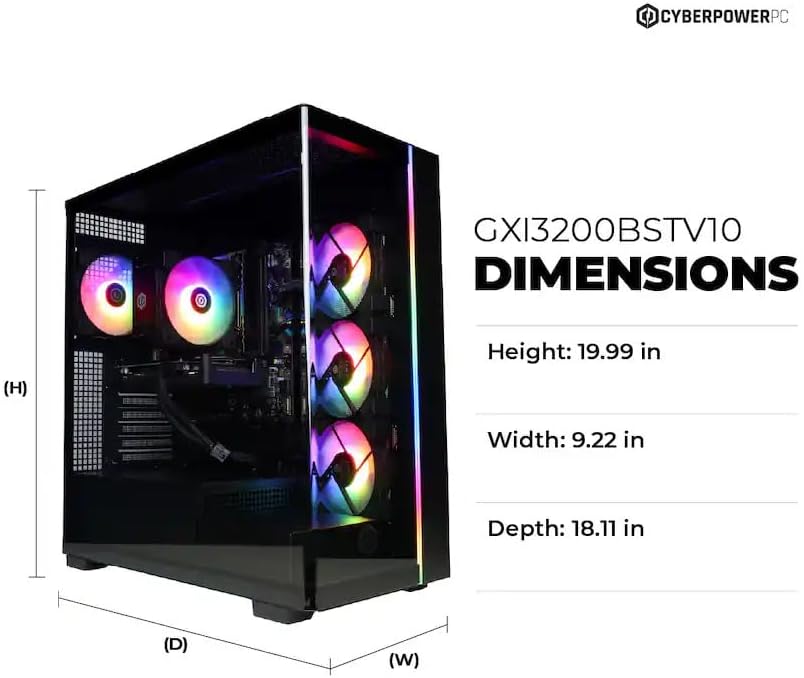
Image: Diagram illustrating the dimensions of the CyberpowerPC Gamer Xtreme GXi3200BSTV10: Height 19.99 in, Width 9.22 in, Depth 18.11 in.
8. Gwarancja i wsparcie
8.1 Gwarancja producenta
Your CyberpowerPC Gamer Xtreme GXi3200BSTV10 comes with a Roczna gwarancja producentaNiniejsza gwarancja obejmuje wady materiałowe i wykonawcze powstałe w wyniku normalnego użytkowania. Prosimy zachować dowód zakupu na potrzeby roszczeń gwarancyjnych.
For specific terms and conditions of the warranty, please refer to the documentation included with your PC or visit the official CyberpowerPC webstrona.
8.2 Wsparcie techniczne
If you encounter issues that cannot be resolved using the troubleshooting steps in this manual, please contact CyberpowerPC technical support. Have your model number (GXi3200BSTV10) and serial number ready when contacting support.
You can typically find support contact information on the CyberpowerPC webstronie lub w dokumentacji dostarczonej wraz z systemem.