
Ważne informacje dotyczące bezpieczeństwa
Przed użyciem monitora prosimy o dokładne zapoznanie się z instrukcją. Zachowaj instrukcję do wykorzystania w przyszłości.
- Nie wystawiaj monitora na działanie deszczu i wilgoci, aby uniknąć ryzyka pożaru lub porażenia prądem.
- Nie otwierać monitora casing. Wewnątrz nie ma żadnych części, które mogłyby być naprawiane przez użytkownika. Wszelkie prace serwisowe należy zlecać wykwalifikowanemu personelowi.
- Zapewnij odpowiednią wentylację wokół monitora. Nie blokuj otworów wentylacyjnych.
- Należy używać wyłącznie zasilacza i kabli dostarczonych przez producenta.
- Jeśli monitor nie będzie używany przez dłuższy czas, należy odłączyć wtyczkę zasilającą od gniazdka.
Zawartość opakowania
Sprawdź, czy w przesyłce znajdują się wszystkie elementy:
- GIGABYTE MO32U Monitor
- Kabel zasilający
- Kabel HDMI 2.1
- DP cable (DisplayPort cable)
- USB cable (USB Type-A to Type-B upstream cable)
- Szybki przewodnik / Podręcznik użytkownika (ten dokument)
Organizować coś
1. Montaż stojaka
Carefully remove the monitor and stand components from the packaging. Attach the stand neck to the monitor panel, ensuring it clicks securely into place. Then, attach the base to the stand neck and tighten the screws if necessary. The stand allows for height adjustment (up to 130mm) and tilt (-5° to +21°).
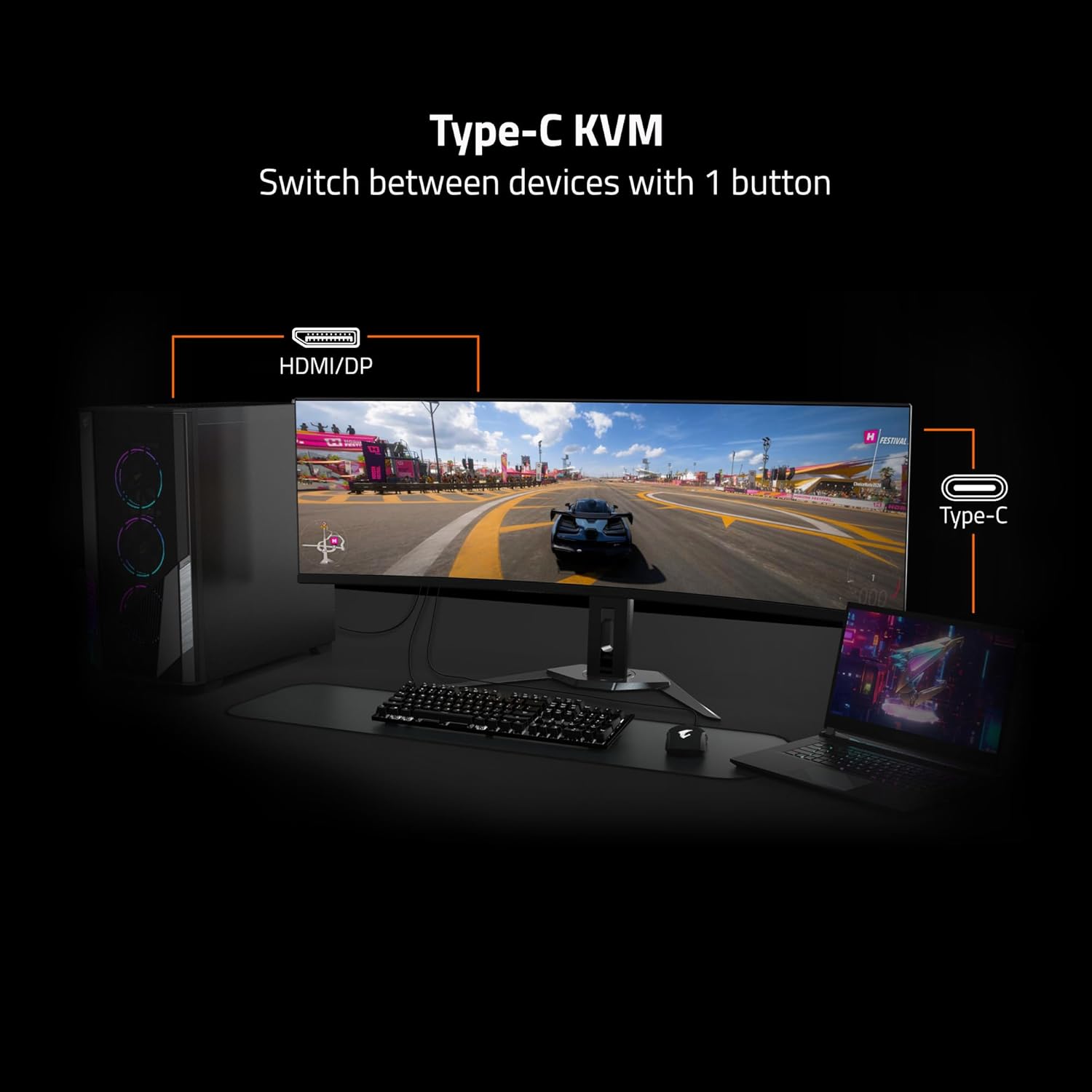
Image: Adjustable Stand and VESA Wall Mount points.
2. VESA Wall Mount Installation
The monitor supports VESA 100x100mm mounting. If using a VESA compatible wall mount or arm, remove the stand from the monitor. Secure the VESA mount to the monitor using appropriate screws (not included) according to the mount manufacturer's instructions. Refer to the image above for VESA mount point location.
3. Podłączanie monitora
Connect the necessary cables to the corresponding ports on the back of the monitor and to your computer or other devices. Ensure all connections are secure.
- Moc: Podłącz kabel zasilający do monitora i gniazdka elektrycznego.
- Wejście wideo: Use the provided HDMI 2.1 or DisplayPort 1.4 cables to connect to your graphics card. The monitor also supports USB Type-C for video input.
- Przesyłanie USB: Connect the USB upstream cable (USB Type-A to Type-B) from your computer to the monitor's USB 3.0 Upstream port to enable the monitor's USB downstream ports and KVM functionality.
- Odbiór USB: Connect USB devices (keyboard, mouse, USB drives) to the USB 3.0 Downstream ports.
- Gniazdo słuchawkowe: Podłącz słuchawki lub głośniki zewnętrzne.

Image: I/O Ports diagram on the back of the monitor.
Obsługa monitora
1. Włączanie/wyłączanie zasilania
Naciśnij przycisk zasilania, zazwyczaj znajdujący się z tyłu lub na spodzie monitora, aby włączyć lub wyłączyć monitor. Kontrolka zasilania zaświeci się, gdy monitor jest włączony.
3. Funkcjonalność KVM
The GIGABYTE MO32U features a built-in KVM (Keyboard, Video, Mouse) switch, allowing you to control multiple devices (e.g., a desktop PC and a laptop) with a single set of keyboard and mouse connected to the monitor. To use KVM, ensure both devices are connected to the monitor via video inputs (HDMI/DP and Type-C) and the USB upstream cable is connected to the primary device. You can switch between devices using a dedicated KVM button or through the OSD menu.

Image: Type-C KVM setup for switching between devices.
4. Ustawienia i funkcje wyświetlacza
The MO32U monitor offers advanced display features for an optimized viewdoświadczenie:
- Rozdzielczość i częstotliwość odświeżania: Enjoy a 4K UHD (3840x2160) resolution with a 165Hz refresh rate for smooth visuals.
- Czas reakcji: Experience ultra-fast 0.03ms GTG (Gray-to-Gray) response time, minimizing motion blur.
- Technologia AMD FreeSync Premium Pro: Synchronizuje częstotliwość odświeżania monitora z liczbą klatek na sekundę procesora graficznego, aby wyeliminować rozrywanie obrazu i zacinanie się obrazu.
- QD-OLED Panel: Delivers vibrant colors, deep blacks, and high contrast (1.5M:1) with 99% DCI-P3 color gamut and 10-bit color depth.
- VESA DisplayHDR True Black 400: Provides enhanced contrast and color accuracy for HDR content.
- VESA ClearMR 9000: Ensures high motion clarity.
- Funkcje pielęgnacji oczu: Includes Flicker-Free and Low Blue Light technologies, certified by Eyesafe, to reduce eye strain during prolonged use.

Image: Key display features and certifications.

Image: Visual comparison of 0.03ms/165Hz performance versus 5ms/60Hz.
5. GIGABYTE OLED Care
The monitor incorporates GIGABYTE OLED Care, an AI-based algorithm designed to minimize the risk of OLED burn-in issues. This suite of technologies operates in the background with minimal user interference. OLED Care includes various adjustable settings within the OSD menu to help protect the panel and extend its lifespan.
Konserwacja
Właściwa konserwacja gwarantuje długowieczność i optymalną wydajność monitora.
- Czyszczenie ekranu: Delikatnie przetrzyj ekran miękką, niepozostawiającą włókien ściereczką. W przypadku uporczywych zabrudzeń delikatnie przetrzyj.ampPrzetrzyj ściereczkę wodą lub nieściernym płynem do czyszczenia ekranów. Nie rozpylaj płynu bezpośrednio na ekran.
- Czyszczenie Casing: Do czyszczenia monitora należy używać miękkiej, suchej ściereczki.asing. Unikaj stosowania silnych detergentów i środków czyszczących o właściwościach ściernych.
- Pielęgnacja OLED: Allow the monitor to perform its automatic OLED Care functions. Avoid prolonged display of static images at high brightness settings.
Rozwiązywanie problemów
Jeśli masz problemy z monitorem, zapoznaj się z poniższymi typowymi rozwiązaniami:
- Brak zasilania: Upewnij się, że kabel zasilający jest prawidłowo podłączony do monitora i sprawnego gniazdka elektrycznego. Sprawdź, czy świeci się kontrolka zasilania.
- Brak sygnału: Verify that the video cables (HDMI, DisplayPort, USB-C) are correctly connected to both the monitor and your source device. Ensure the correct input source is selected in the monitor's OSD menu.
- Migotanie lub zniekształcenie obrazu: Check cable connections. Ensure your graphics card drivers are up to date. Try adjusting the refresh rate in your operating system's display settings.
- Retencja/wypalanie obrazu: While OLED Care minimizes this risk, prolonged static images can contribute. Utilize OLED Care features and avoid displaying static content for extended periods.
- KVM nie przełącza się: Ensure the USB upstream cable is connected to the active source device and that the KVM function is properly configured in the OSD menu.
If the problem persists after trying these steps, contact GIGABYTE customer support.
Specyfikacje
| Funkcja | Szczegół |
|---|---|
| Marka | GIGABAJT |
| Numer modelu | MO32U |
| Rozmiar ekranu | 32 cali |
| Typ wyświetlacza | Wyświetlacz OLED |
| Rezolucja | 4K UHD (3840 x 2160) |
| Częstotliwość odświeżania | 165 Hz |
| Czas reakcji | 0.03 Milliseconds GTG |
| Proporcje obrazu | 16:9 |
| Współczynnik kontrastu | 1.5M:1 |
| Jasność | 1000 Candela per Square Meter (Peak) |
| Gama kolorów | 99% DCI-P3 |
| Viewing kąt | 178 stopni |
| Łączność | 2x HDMI 2.1, 1x DisplayPort 1.4, 1x USB Type-C, 1x USB 3.0 Upstream, 3x USB 3.0 Downstream, 1x Earphone Jack |
| Adaptacyjna synchronizacja | Technologia AMD FreeSync Premium Pro |
| Obsługa HDR | VESA DisplayHDR True Black 400 |
| KVM | Tak, KVM typu C |
| Typ montażu | VESA 100x100mm, Height Adjustable Stand |
| Pobór mocy | 54 watów |
| Kolor | Czarny |
Informacje o gwarancji
This GIGABYTE MO32U monitor comes with a 3 lata gwarancji producenta. For detailed terms and conditions, please refer to the warranty card included in your product packaging or visit the official GIGABYTE webstrona.
Wsparcie
For technical assistance, troubleshooting beyond this manual, or warranty claims, please contact GIGABYTE customer support. You can find contact information and additional resources on the official GIGABYTE webstrona.
Zasoby internetowe: Visit the GIGABYTE support page for drivers, FAQs, and further documentation.