
1. Wprowadzenie
Dziękujemy za zakupasing the VIGORWORK 7-inch Car Stereo MP5 Player. This device is designed to enhance your in-car entertainment and connectivity with its high-definition touchscreen, Bluetooth capabilities, mirror link function, and various media playback options. Please read this manual thoroughly before installation and operation to ensure proper use and to maximize your enjoyment of the product.
2. Informacje dotyczące bezpieczeństwa
Aby zapobiec obrażeniom ciała lub uszkodzeniu urządzenia, należy przestrzegać następujących środków ostrożności:
- Zalecana profesjonalna instalacja: Due to the complexity of car electrical systems, professional installation is highly recommended. Incorrect wiring can cause damage to the unit or the vehicle.
- Zasilanie: Upewnij się, że urządzenie jest podłączone do źródła zasilania 12 V DC z ujemnym biegunem uziemienia.
- Unikaj wody i wilgoci: Nie wystawiaj urządzenia na działanie wody ani nadmiernej wilgoci.
- Temperatura: Używaj urządzenia w normalnych temperaturach roboczych pojazdu.
- Bezpieczeństwo jazdy: Nie używaj urządzenia w sposób rozpraszający Cię podczas jazdy. Zawsze priorytetowo traktuj bezpieczeństwo na drodze.
- Wentylacja: Aby zapobiec przegrzaniu, należy zapewnić odpowiednią wentylację wokół urządzenia.
- Wymiana bezpiecznika: When replacing a fuse, ensure the new fuse has the correct ampocena wieku.
3. Zawartość opakowania
Proszę sprawdzić, czy w paczce znajdują się następujące elementy:
- VIGORWORK 7-inch Car Stereo MP5 Player Unit
- Wiązka kabli zasilających
- Remote Control (Steering Wheel Controller)
- Instrukcja obsługi
- Mounting Brackets/Screws (if included)
4. Koniec produktuview
The VIGORWORK Car Stereo MP5 Player features a 7-inch HD digital touchscreen with a 1024*600 resolution, supporting 1080P video playback. It offers a range of functionalities for an enhanced driving experience.
Główne cechy:
- Ekran dotykowy HD: 7-inch display with 1024*600 resolution for clear visuals and 1080P video support.
- Łączność Bluetooth: Hands-free calling, Bluetooth music streaming, and voice navigation support.
- Link lustrzany: Two-way connection for Android phones and one-way projection for Apple phones.
- Sterowanie z kierownicy: Compatible with included steering wheel controller for easy operation.
- Reverse Image Support: Automatycznie przełącza się na tył view when reversing (requires optional camera).
- Odtwarzanie wielu multimediów: Supports USB, AUX, TF card, and various audio/video formats (APE, FLAC, WAV, DIS, MP3, AVI, MP4, etc.).
- Radio FM: High-performance digital tuning with 18 radio station presets.
- Dostosowanie dźwięku: Electronic volume, treble, bass, balance, and sound field adjustments with various EQ modes.
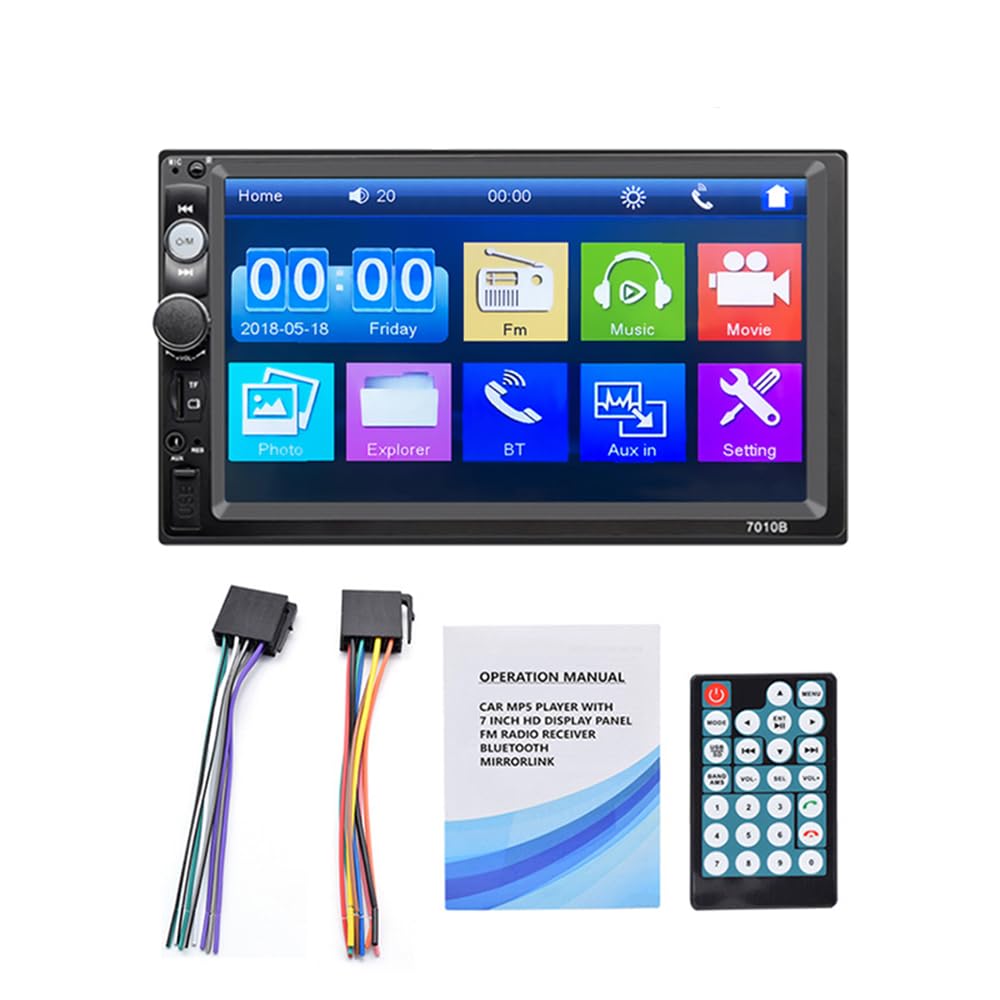
Figure 4.1: The 7-inch car stereo displaying video content, highlighting its 1024x600 resolution and multi-format playback capabilities.
5. Instalacja i konfiguracja
This section provides general guidelines for installing your car stereo. Due to variations in vehicle models, specific wiring and mounting procedures may differ. If you are unsure, consult a professional installer.
5.1 Schemat okablowania (ogólny)
Refer to the wiring diagram provided with your unit for specific connections. A typical setup includes:
- Żółty przewód: Constant 12V (Battery Positive)
- Czerwony przewód: ACC (Accessory/Ignition Switch 12V)
- Czarny przewód: Ground (Chassis Ground)
- Orange/Brown Wire: Illumination (Connect to vehicle's illumination wire)
- Niebieski przewód: Antena zasilająca/Amplifier Zdalne włączanie
- Przewody głośnikowe: Connect to corresponding vehicle speakers (e.g., White/White-Black for Front Left, Gray/Gray-Black for Front Right, Green/Green-Black for Rear Left, Purple/Purple-Black for Rear Right).
- Reverse Gear Wire: Connect to the vehicle's reverse light circuit for automatic camera switching.
- Wejście wideo: Do tyłu view kamera.
5.2 Montaż urządzenia
- Wyjmij istniejące radio samochodowe z deski rozdzielczej.
- Connect the wiring harness from the new unit to your vehicle's wiring. Ensure all connections are secure.
- Slide the new stereo into the dashboard opening. Secure it using the provided mounting brackets and screws.
- Zamontuj ponownie element wykończeniowy deski rozdzielczej.
- Przed sfinalizowaniem instalacji należy przetestować wszystkie funkcje.
6. Instrukcja obsługi
6.1 Podstawowa obsługa
- Włączanie/wyłączanie: Press the power button or turn the ignition key to ACC/ON.
- Regulacja głośności: Use the rotary knob or steering wheel controls to adjust volume.
- Nawigacja po menu: Tap icons on the touchscreen to access different functions (Radio, Bluetooth, USB, AUX, Settings, etc.).
6.2 Łączność Bluetooth
Connect your mobile phone via Bluetooth for hands-free calls and audio streaming.
- Na stereo przejdź do menu Bluetooth.
- Włącz Bluetooth w swoim telefonie komórkowym i wyszukaj dostępne urządzenia.
- Select "Car Radio" or a similar name from the list on your phone.
- Jeśli zostaniesz o to poproszony, potwierdź kod parowania.
- Once connected, you can make/receive calls and play music through the car stereo.

Figure 6.1: The Bluetooth interface of the car stereo, demonstrating hands-free call functionality and music streaming.
6.3 Funkcja łącza lustrzanego
Mirror Link allows you to display your phone's screen on the car stereo. Use a USB data cable for connection.
- Dla telefonów z systemem Android: Supports two-way connection (control from stereo or phone). Connect your phone via USB and follow on-screen prompts to enable USB debugging and allow screen mirroring.
- Dla telefonów Apple: Supports one-way screen projection (view only, control from phone). Connect your iPhone via USB and allow screen mirroring when prompted.

Figure 6.2: Illustration of the Mirror Link feature, showing how mobile phones connect to the car stereo for screen mirroring.
6.4 Obsługa radia FM
Uzyskaj dostęp do funkcji radia FM i słuchaj ulubionych stacji.
- Automatyczne skanowanie: Press the "SCAN" button to automatically search and save available stations.
- Strojenie ręczne: Use the arrow buttons to fine-tune frequencies.
- Ustawienia wstępne: Tap on a preset number (1-6) to recall a saved station. To save a station, tune to it and then press and hold a preset number.

Figure 6.3: The FM radio interface, displaying frequency tuning and station preset options.
6.5 Media Playback (USB, AUX, TF Card)
Urządzenie obsługuje różne wejścia multimedialne umożliwiające odtwarzanie dźwięku i obrazu.
- USB: Insert a USB flash drive into the USB port. The unit will automatically switch to USB mode or you can select it from the main menu.
- Karta TF: Insert a TF (Micro SD) card into the designated slot. The unit will detect the card and allow playback.
- AUX: Connect an external audio device (e.g., MP3 player) to the AUX input using a 3.5mm audio cable. Select AUX mode from the main menu.

Figure 6.4: Visual representation of the four available playback modes: USB flash disk, AUX input, Bluetooth, and TF Card.
6.6 Sterowanie z kierownicy
Use the provided steering wheel controller for convenient operation without taking your hands off the wheel.
- Odbierz / rozłącz: Zarządzaj połączeniami telefonicznymi.
- Pomijanie utworów: Navigate to the next or previous song.
- Regulacja głośności: Increase or decrease the audio volume.

Rysunek 6.5: Byłyample of a steering wheel controller, illustrating its functions for managing calls, changing tracks, and adjusting volume.
6.7 Reverse Camera Function
Jeśli opcjonalny tylny view camera is connected and properly wired, the stereo will automatically display the reverse image when the vehicle is shifted into reverse gear.

Figure 6.6: The car stereo screen automatically switching to a reverse image with parking guidelines when the vehicle is in reverse gear.
7. Konserwacja
- Czyszczenie ekranu: Do czyszczenia ekranu dotykowego użyj miękkiej, suchej ściereczki. W przypadku uporczywych plam delikatnie przetrzyj.ampPrzetrzyj ściereczkę wodą lub płynem do czyszczenia ekranów przeznaczonym do urządzeń elektronicznych. Unikaj silnych środków chemicznych.
- Ogólne sprzątanie: Utrzymuj urządzenie w czystości, usuwając kurz i zanieczyszczenia. Do czyszczenia okolic przycisków i portów używaj miękkiej szczotki lub sprężonego powietrza.
- Unikaj ekstremalnych temperatur: Długotrwałe narażenie na działanie ekstremalnie wysokich lub niskich temperatur może mieć wpływ na wydajność i żywotność urządzenia.
8. Rozwiązywanie Problemów
| Problem | Możliwa przyczyna | Rozwiązanie |
|---|---|---|
| Brak zasilania | Nieprawidłowe okablowanie; Przepalony bezpiecznik; Luźne połączenie. | Check power and ground connections. Inspect and replace fuses if necessary. Ensure all wires are securely connected. |
| Brak dźwięku | Volume too low; Mute function active; Incorrect speaker wiring; Faulty speakers. | Increase volume. Check if mute is active. Verify speaker connections. Test with known good speakers. |
| Bluetooth nie łączy się | Bluetooth not enabled on phone/stereo; Device not discoverable; Incorrect pairing process. | Ensure Bluetooth is on for both devices. Make sure the stereo is in pairing mode. Delete previous pairings and try again. |
| Mirror Link nie działa | Incorrect USB cable; USB debugging not enabled (Android); Phone not compatible. | Use a high-quality USB data cable. Enable USB debugging in Android developer options. Ensure your phone model supports Mirror Link with the unit. |
| Tył view kamera nie wyświetla | Kamera nie jest podłączona; Przewód wyzwalacza biegu wstecznego nie jest podłączony; Wadliwa kamera. | Sprawdź wejście wideo i połączenia zasilania kamery. Upewnij się, że przewód włącznika biegu wstecznego jest prawidłowo podłączony do obwodu światła cofania pojazdu. |
9. Specyfikacje
| Funkcja | Szczegół |
|---|---|
| Rozmiar ekranu | 7-inch HD Digital Touch Screen |
| Rezolucja | 1024*600 |
| Odtwarzanie wideo | Supports 1080P video |
| Bluetooth | Hands-free calls, music player, voice navigation |
| Link lustrzany | Android (two-way), Apple (one-way) |
| Formaty audio | APE, FLAC, WAV, DIS, MP3, WMA, ACC, OGG, RA, AC3, MP2, AMR |
| Formaty wideo | AVI, MP4, FLV, PMP, RM, RMVB, MPG |
| Formaty obrazów | Plik JPEG |
| Port USB | High-speed USB 2.0, supports high current output for phone charging |
| Slot karty TF | Tak |
| Wejście AUX | Tak |
| Radio FM | Automatic scanning, 18 station storage |
| Zasilacz | 12 V DC (uziemienie ujemne) |
| Wymiary (w przybliżeniu) | 180mm (szer.) x 104mm (wys.) x 63mm (gł.) |

Figure 9.1: Product dimensions of the VIGORWORK 7-inch Car Stereo, indicating width, height, and depth.
10. Gwarancja i wsparcie
VIGORWORK products are designed and manufactured to the highest quality standards. For warranty information and technical support, please refer to the warranty card included with your product or contact your retailer. Keep your purchase receipt as proof of purchase.
For further assistance, please visit the VIGORWORK official webodwiedź witrynę lub skontaktuj się z obsługą klienta.