
Wstęp
This manual provides detailed instructions for the ACASIS USB C Docking Station, Model B0DSBLFVH6. This device expands your laptop's connectivity, offering multiple display outputs, high-speed data transfer, power delivery, and network access through a single USB-C connection. Please read this manual thoroughly before use to ensure proper setup and operation.

Image: The ACASIS USB C Docking Station shown with its various connection cables and peripherals, highlighting its comprehensive connectivity options.
Zawartość opakowania
- ACASIS USB C Docking Station
- USB-C to USB-C Cable (for host connection)
- Instrukcja obsługi
Produkt ponadview
The ACASIS USB C Docking Station features 14 ports designed to enhance your workstation's capabilities.

Image: A detailed diagram illustrating all 14 ports of the ACASIS USB C Docking Station, including their types and specifications.
Opisy portów:
- 2 x HDMI 2.0 Ports: Supports up to 4K@60Hz resolution on a single display.
- 1 x VGA Port: Supports up to 1080P@60Hz resolution.
- 3 x USB-C 3.1 Ports: Prędkość przesyłu danych 10 Gbps.
- 1 x port USB-A 3.1: Prędkość przesyłu danych 10 Gbps.
- 2 porty USB 2.0: 480Mbps data transfer speed, suitable for peripherals like keyboards and mice.
- 1 x RJ45 Ethernet Port: 1000Mbps (1 Gigabit) network connectivity.
- 1 x czytnik kart SD: Supports SD 3.0, up to 104MB/s.
- 1 x TF Card Reader: Supports TF 3.0, up to 104MB/s.
- 1 x 3.5mm Audio Out/Mic In Port: For wired headsets or speakers.
- 1 x USB-C PD 100W Port: For power delivery to the host laptop.

Obraz: Zbliżenie view of the docking station highlighting the 10Gbps USB-C and USB-A ports for ultra-fast data transfer.

Image: The docking station connected to a laptop, illustrating its 100W Power Delivery capability for fast charging.

Image: The docking station displaying its integrated SD and TF card readers, capable of 104MB/s data transfer.
Przewodnik po konfiguracji
Podłączanie stacji dokującej:
- Connect your external monitors to the docking station's HDMI and/or VGA ports using appropriate cables.
- Connect any USB peripherals (keyboard, mouse, external drives) to the available USB-A or USB-C data ports on the docking station.
- For network access, connect an Ethernet cable from your router/modem to the RJ45 port on the docking station.
- If you wish to charge your laptop via the docking station, connect your laptop's power adapter to the PD 100W USB-C port on the docking station.
- Connect the provided USB-C to USB-C cable from the docking station's host port to your laptop's USB-C/Thunderbolt 3/4 port.
Instalacja sterownika:
The ACASIS USB C Docking Station is generally plug-and-play. No specific drivers are typically required for basic functionality on most operating systems. If you encounter issues, ensure your laptop's USB-C/Thunderbolt drivers are up to date.
Instrukcja obsługi
Display Configuration (Windows):
The docking station supports MST (Multi-Stream Transport) on Windows systems, allowing for extended and mirrored display modes across multiple monitors.
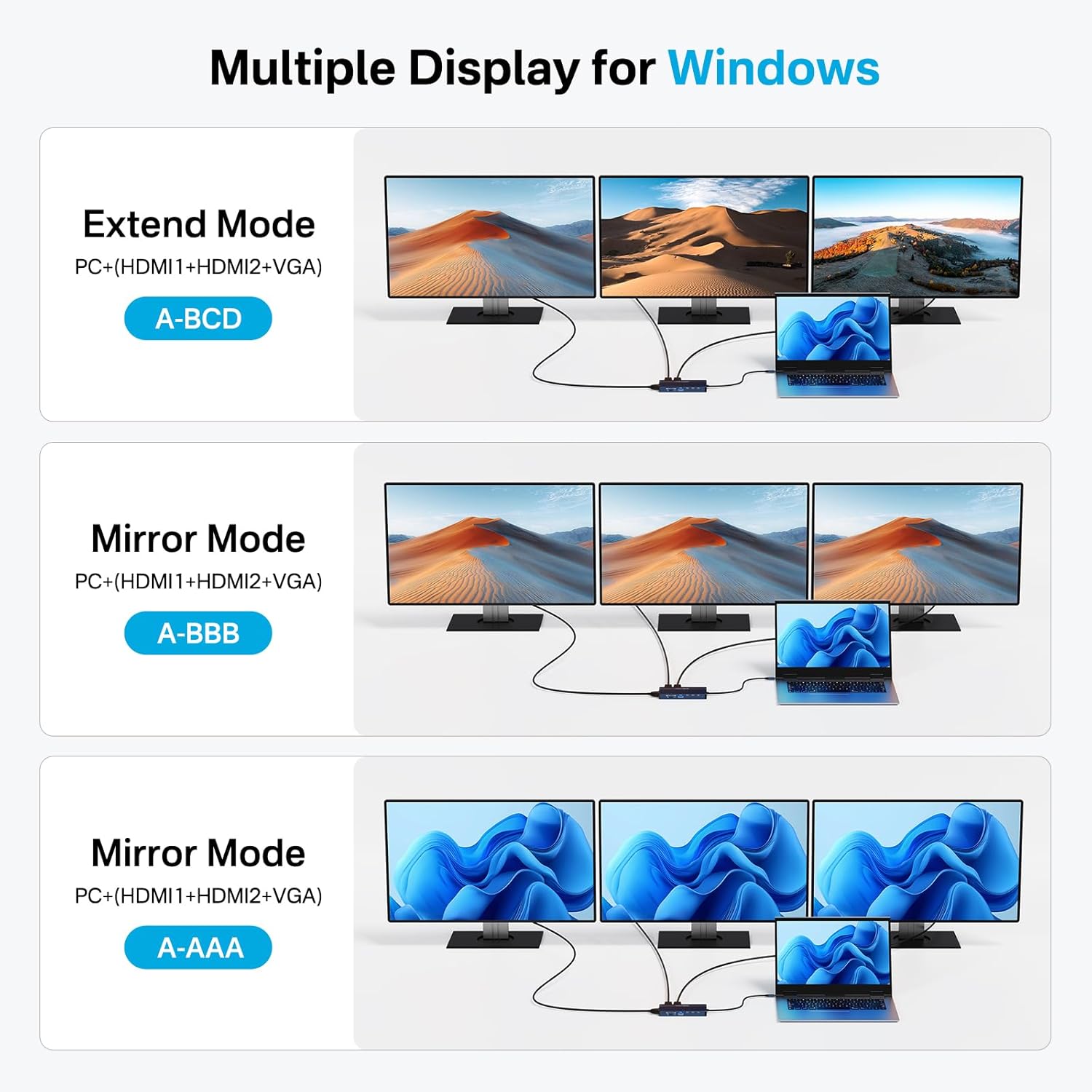
Obraz: Wizualizacjaamples of Extend Mode (A-BCD) and Mirror Mode (A-BBB, A-AAA) display configurations for Windows operating systems.
- Kliknij prawym przyciskiem myszy na pulpicie i wybierz „Ustawienia wyświetlania”.
- Under 'Multiple displays', you can detect and arrange your monitors.
- Choose your preferred display mode:
- Rozszerz te wyświetlacze: Each monitor shows a different desktop area.
- Powiel te ekrany: Wszystkie monitory wyświetlają tę samą treść.
- Show only on 1/2/3: Only one selected monitor is active.
- Adjust resolution and orientation for each monitor as needed.
Display Configuration (macOS):
macOS systems support SST (Single-Stream Transport) for external displays. This means that while you can connect multiple monitors, they will typically mirror each other or extend from the primary display, but true MST (independent extended displays) is not supported.
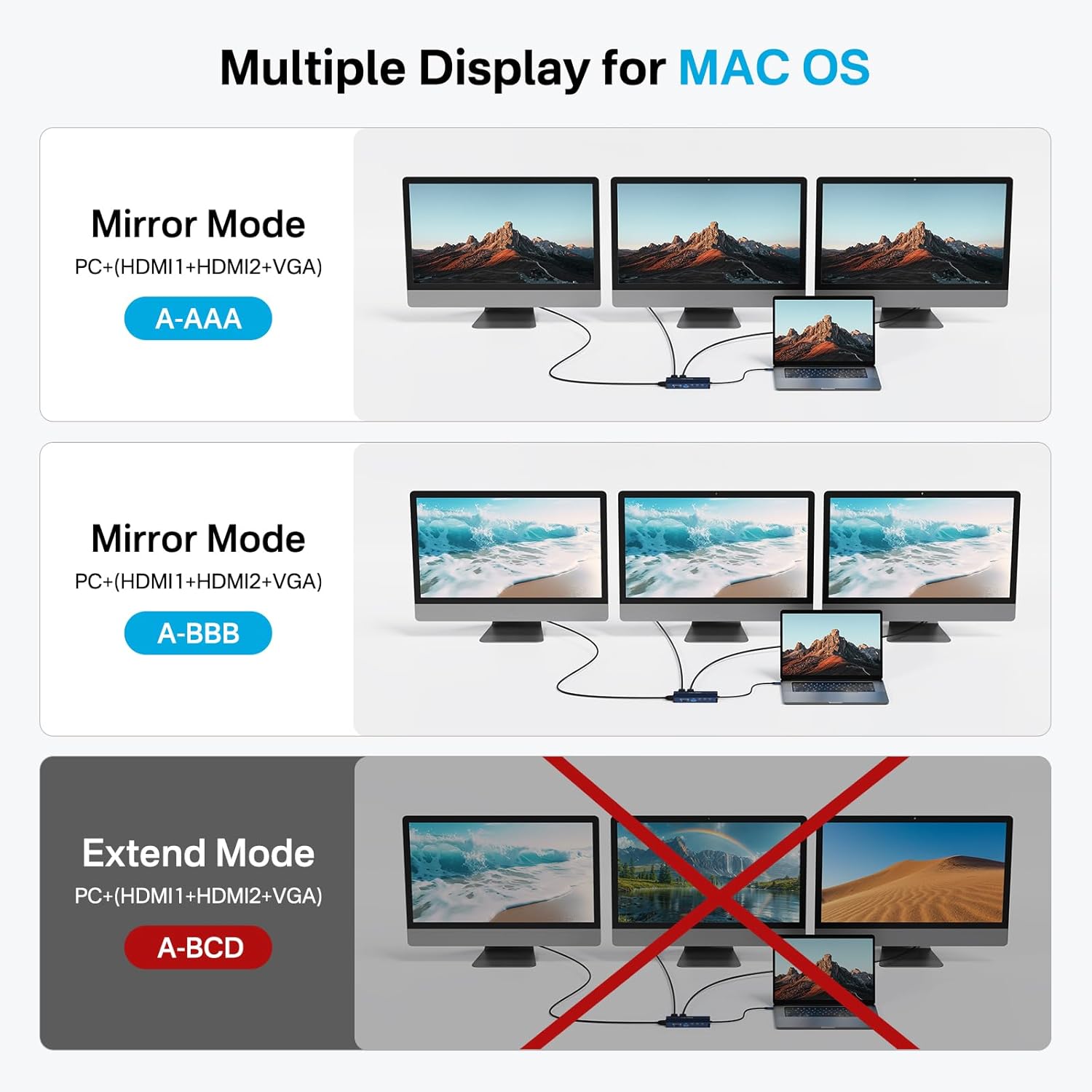
Obraz: Wizualizacjaamples of Mirror Mode (A-AAA, A-BBB) for macOS, with a crossed-out Extend Mode (A-BCD) indicating it is not supported.
- Przejdź do „Ustawień systemowych” (lub „Preferencji systemowych” w starszych wersjach systemu macOS).
- Wybierz „Wyświetlacze”.
- You can arrange your displays and choose between 'Mirror Displays' or 'Use as separate display' (which extends the desktop). Note that extending to multiple external monitors will result in mirrored content across those external monitors.

Image: A laptop connected to three external monitors (VGA, HDMI 2, HDMI 1) through the docking station, demonstrating a triple display setup.
Specyfikacje
| Funkcja | Specyfikacja |
|---|---|
| Model | B0DSBLFVH6 |
| Wymiary produktu | 1 x 1 x 1 cala |
| Waga przedmiotu | 1 uncji |
| Producent | AKAZ |
| Kolor | Srebrny |
| Interfejs sprzętowy | USB typu C |
| Kompatybilne urządzenia | Laptop |
| Łączna liczba portów USB | 6 (3x USB-C 3.1, 1x USB-A 3.1, 2x USB 2.0) |
| Liczba portów | 14 |
| Wszystkie porty HDMI | 2 |
| Port VGA | 1 |
| Cotage (PD) | 100 W |
| Sieć Ethernetowa | 1 Gigabit |
| Czytniki kart | SD/TF (104 MB/s) |
| Port audio | 3.5mm Mic/Audio |
Rozwiązywanie problemów
Brak wyjścia wyświetlacza:
- Ensure all display cables (HDMI, VGA) are securely connected to both the docking station and the monitors.
- Verify that the docking station is properly connected to your laptop's USB-C port.
- Check your laptop's display settings to ensure the external monitors are detected and configured correctly (Extend/Duplicate).
- Spróbuj ponownie uruchomić laptopa.
- Sprawdź, czy port USB-C Twojego laptopa obsługuje wyjście wideo (tryb alternatywny DisplayPort).
Ładowanie nie działa:
- Confirm your laptop's power adapter is connected to the PD 100W port on the docking station.
- Ensure your laptop's USB-C port supports Power Delivery.
- Check if the power adapter itself is functioning correctly.
Urządzenia USB nie są rozpoznawane:
- Podłącz urządzenie USB do innego portu w stacji dokującej.
- Ensure the docking station is firmly connected to your laptop.
- Przetestuj urządzenie USB podłączając je bezpośrednio do laptopa.
Problemy z połączeniem Ethernet:
- Sprawdź, czy kabel Ethernet jest prawidłowo podłączony do stacji dokującej i routera/modemu.
- Sprawdź ustawienia sieciowe na swoim laptopie.
- Wypróbuj inny kabel Ethernet.
Konserwacja
- Keep the docking station in a dry environment, away from extreme temperatures.
- Clean the device with a soft, dry cloth. Avoid using liquid cleaners or solvents.
- Do not attempt to disassemble the docking station.
Gwarancja i wsparcie
ACASIS products typically come with a standard manufacturer's warranty. For specific warranty details, technical support, or service inquiries, please refer to the warranty card included with your product or visit the official ACASIS webstrona.
Możesz również odwiedzić ACASIS Store on Amazon Aby uzyskać dodatkowe informacje o produkcie i zasoby pomocy technicznej.