
Wstęp
This manual provides detailed instructions for the setup, operation, and maintenance of your LENRUE E-1103 Computer Speaker Soundbar. Please read this manual thoroughly before using the product to ensure proper function and longevity.

Image: The LENRUE E-1103 Computer Speaker Soundbar, a sleek black soundbar with RGB lighting on the ends and a USB-A cable with a USB-C adapter.
Zawartość opakowania
Sprawdź, czy w opakowaniu znajdują się wszystkie elementy:
- LENRUE E-1103 Computer Speaker Soundbar
- Adapter USB-C
- Instrukcja obsługi (ten dokument)
Produkt ponadview
The LENRUE E-1103 features a compact soundbar design with integrated stereo speakers and touch-controlled ambient lighting. It connects via a single USB cable for both power and audio.
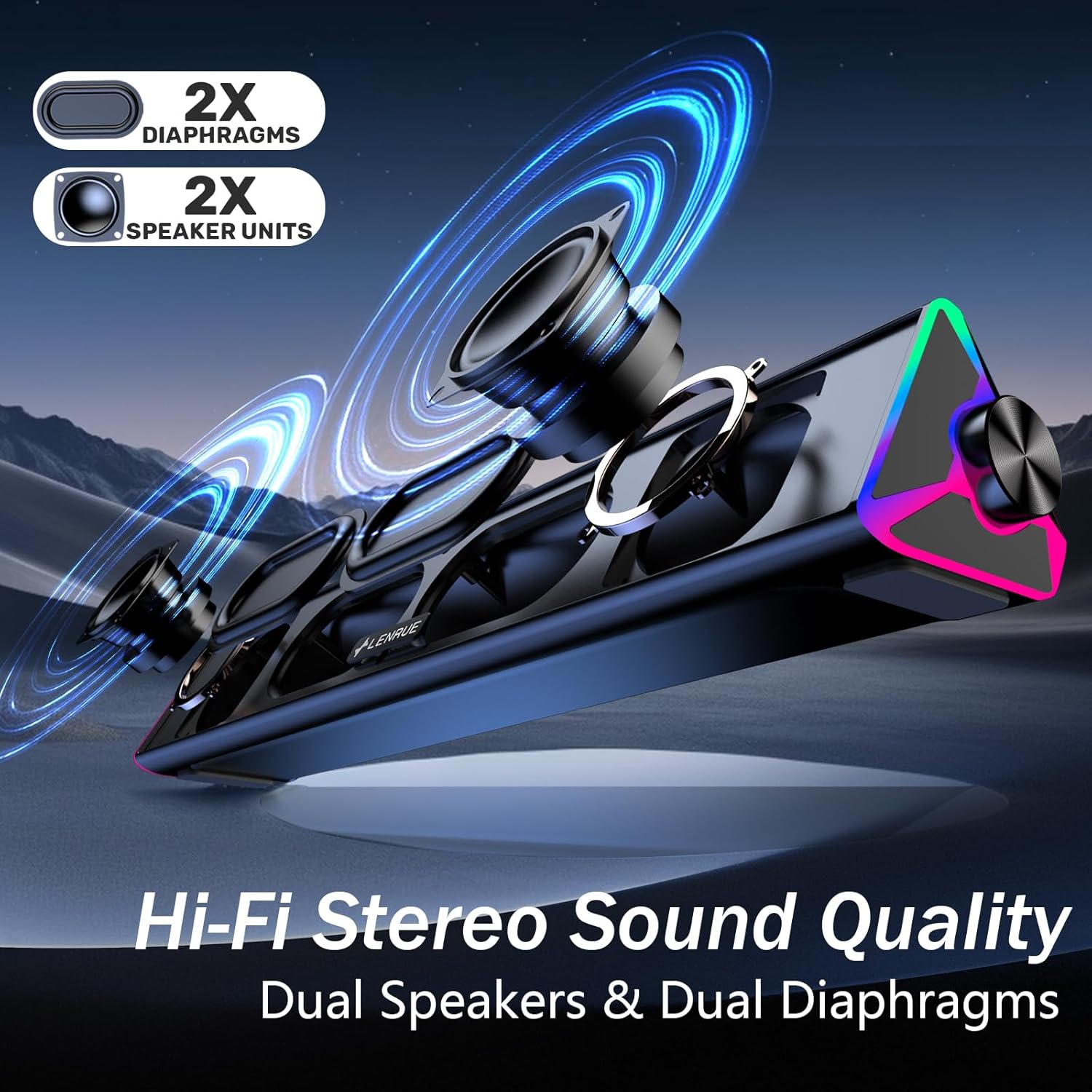
Obraz: Wybuch view of the LENRUE E-1103 speaker, highlighting its dual speaker units and dual diaphragms for stereo sound.
Kluczowe komponenty:
- Kratka głośnika: Front-facing mesh covering the speaker drivers.
- Pokrętło głośności: Located on the right side, for adjusting audio output level.
- Czujnik dotykowy: Integrated into the right side for controlling the ambient lighting.
- USB Cable (USB-A): Main connection for power and audio.
- Adapter USB-C: For compatibility with USB-C ports.
- Oświetlenie RGB: Dynamic lighting effects on both ends of the soundbar.
Organizować coś
Follow these steps to set up your LENRUE E-1103 speaker:
- Umieszczenie: Position the soundbar on a stable surface, such as your desktop, beneath your monitor, or in front of your laptop. Ensure the speaker grille faces towards you for optimal sound delivery.
- Connect to Power and Audio:
- Dla portu USB-A: Plug the USB-A connector of the speaker's cable directly into an available USB-A port on your computer (desktop PC or laptop).
- Dla portu USB-C: Attach the included USB-C adapter to the USB-A connector of the speaker's cable, then plug the USB-C adapter into an available USB-C port on your computer.

Image: A visual guide demonstrating how to connect the LENRUE E-1103 speaker to a laptop using either the standard USB-A cable or the included USB-C adapter.
The speaker is plug-and-play; no additional drivers or software installation is required.
- Początkowa regulacja głośności: After connecting, ensure your computer's audio output is set to the LENRUE E-1103 speaker. Adjust the volume using the physical volume knob on the right side of the speaker. It is recommended to start with a lower volume and gradually increase it to a comfortable listening level.

Image: A diagram illustrating the compact dimensions of the LENRUE E-1103 speaker and its single USB cable for both power and audio, designed to minimize cable clutter.
Instrukcja obsługi
Regulacja głośności:
The speaker features a rotary volume knob located on the right side. Rotate the knob clockwise to increase the volume and counter-clockwise to decrease it. For optimal sound, ensure your computer's system volume is also appropriately set.

Image: A three-step visual guide showing how to adjust the volume, including checking computer settings and using the speaker's physical volume knob.
Ambient Lighting Control:
The LENRUE E-1103 includes dynamic RGB lighting on both ends. To control the lighting:
- Włącz/Wyłącz: Gently touch the touch-sensitive area near the volume knob on the right side of the speaker. Each touch will toggle the lighting on or off.
- The lighting features a soft breathing effect, providing ambient illumination.

Image: A close-up of the right side of the LENRUE E-1103 speaker, highlighting the touch control icon for activating or deactivating the gentle breathing ambient lighting.
Konserwacja
Właściwa konserwacja gwarantuje długowieczność i wydajność głośnika:
- Czyszczenie: Use a soft, dry, lint-free cloth to wipe the surface of the speaker. Do not use liquid cleaners, aerosols, or solvents, as these may damage the finish or internal components.
- Składowanie: Jeśli głośnik nie będzie używany przez dłuższy czas, należy przechowywać go w chłodnym, suchym miejscu, z dala od bezpośredniego światła słonecznego i ekstremalnych temperatur.
- Unikaj wilgoci: Keep the speaker away from water and high humidity environments.
- Zachowaj ostrożność: Unikaj upuszczania głośnika i narażania go na silne uderzenia.
Rozwiązywanie problemów
If you encounter issues with your LENRUE E-1103 speaker, refer to the following common problems and solutions:
| Problem | Możliwa przyczyna | Rozwiązanie |
|---|---|---|
| Brak dźwięku z głośnika. |
|
|
| Dźwięk jest zniekształcony lub niewyraźny. |
|
|
| Ambient lights are not working. |
|
|
| Speaker not recognized by computer. |
|
|
Specyfikacje
| Funkcja | Szczegół |
|---|---|
| Marka | LENRUE |
| Nazwa modelu | E-1103 |
| Technologia łączności | USB |
| Tryb wyjścia audio | Stereofoniczny |
| Maksymalna moc wyjściowa głośnika | 5 watów |
| Odpowiedź częstotliwościowa | 20 kHz |
| Wymiary produktu | 6.35 cm gł. x 38.1 cm szer. x 6.35 cm wys. (2.5" gł. x 15" szer. x 2.5" wys.) |
| Waga przedmiotu | 15.3 uncji (435 grama) |
| Kolor | Czarny |
| Zalecane zastosowania | For Computers (Desktop PCs, Laptops, Monitors) |
| Zgodność | Windows PCs, some macOS and Chrome OS laptops. Not compatible with Xbox gaming systems or Projectors. |
Gwarancja i wsparcie
LENRUE products are designed for reliability and performance. For warranty information or technical support, please refer to the contact details provided on the product packaging or the official LENRUE webZachowaj paragon jako dowód zakupu na wypadek reklamacji.
Aby uzyskać dalszą pomoc, odwiedź stronę LENRUE Store on Amazon.

