
CHESONA iPad Pro 11 (M4) 2024 Keyboard Case
CHESONA Rugged Keyboard Case for iPad Pro 11 (M4) 2024 User Manual
Model: iPad Pro 11 (M4) 2024 Keyboard Case

Image: The CHESONA Rugged Keyboard Case for iPad Pro 11 (M4) 2024, shown with an iPad inserted, highlighting its keyboard, trackpad, and adjustable stand features.
1. Zgodność
This keyboard case is specifically designed for the iPad Pro 11-inch (M4) 2024. To ensure proper fit, verify your iPad's model numbers. Compatible model numbers include A2836, A2837 i A3006. This case is niekompatybilny with the iPad Air 11-inch (M2) 2024 or any other iPad models.

Image: A visual guide illustrating the compatible iPad Pro 11 (M4) 2024 model and its corresponding model numbers (A2836, A2837, A3006), alongside an incompatible iPad Air 11 (M2) 2024 model.
2. Co znajduje się w pudełku
Po otwarciu przesyłki prosimy upewnić się, że znajdują się w niej wszystkie poniższe elementy:
- 1 x CHESONA Rugged Case for iPad Pro 11 (M4) (Tablet NOT included)
- 1 x Bezprzewodowa klawiatura
- 1 x USB Charging Cable (No Charger)
- 1 x Instrukcja obsługi

Obraz: widok z góry view displaying the CHESONA keyboard, magnetic case, USB charging cable, user manual, and product packaging box.
3. Przewodnik konfiguracji
Follow these steps to set up your CHESONA Rugged Keyboard Case:
3.1. Step 1: Adjust the Kickstand
Bend the integrated kickstand to achieve your desired viewing angle. The stand is designed to be adjustable from 15° to 180° for optimal comfort.
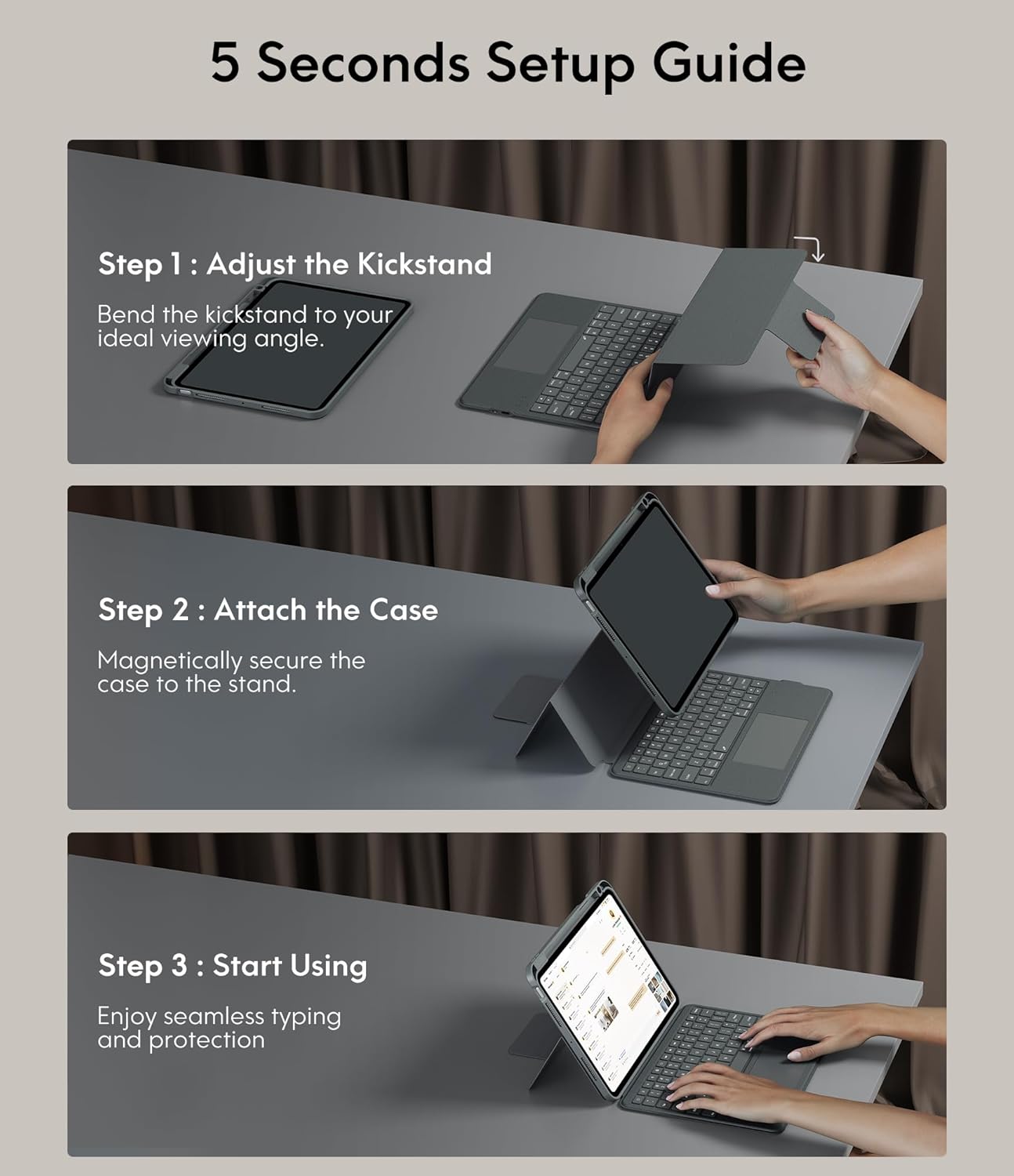
Image: A three-step visual guide showing how to adjust the kickstand, attach the iPad to the magnetic case, and begin using the keyboard.
3.2. Step 2: Attach the Case
Securely place your iPad into the protective case. The case features strong magnets that will hold the iPad firmly in place on the stand.
3.3. Step 3: Start Using
Once the iPad is securely attached and the kickstand is adjusted, you can begin using your keyboard case for typing and protection.
3.4. Parowanie Bluetooth
- Sprawdź, czy klawiatura jest naładowana.
- Włącz klawiaturę za pomocą włącznika zasilania.
- Na iPadzie przejdź do Ustawienia > Bluetooth i włącz Bluetooth.
- Select the keyboard from the list of available devices (it may appear as 'CHESONA Keyboard' or similar).
- Confirm the pairing code if prompted. The keyboard will now be connected.
4. Instrukcja obsługi
4.1. Magnetic Detachable Keyboard
The keyboard is magnetically attached to the case, allowing for easy detachment. This feature enables you to switch between a laptop-like setup and a standalone tablet experience. Simply pull the keyboard away from the case when not needed, or reattach it when typing is required.

Image: A hand detaching the magnetic keyboard from the iPad case, illustrating the strong magnetic connection.
4.2. Regulowana podstawka i ViewTryby pracy
The case offers a wide range of adjustable angles (15°-180°) and supports multiple placement modes for various activities:
- Tryb pisania: Use with the keyboard for productivity.
- Tryb rysowania: Lay the iPad flat or at a low angle for creative tasks.
- Tryb czytania: Detach the keyboard and hold the iPad comfortably.
- ViewTryb pracy: Adjust the stand for watching videos or video calls.

Image: A visual representation of five different usage modes: Video Call, Draw, To Read, Writing Documents, and Watch Movies, demonstrating the case's versatility.
4.3. Sterowanie podświetleniem klawiatury
The keyboard features 7-color backlighting and 3 levels of brightness, enhancing visibility in various lighting conditions.
- Aby zmienić kolor podświetlenia: Naciśnij Shift + Return.
- Aby dostosować jasność: Naciśnij Przesunięcie + Przesunięcie (or dedicated brightness keys if available).

Image: The keyboard illuminated with various backlight colors, demonstrating the 7-color options and the keys used to adjust brightness and color.
4.4. Trackpad Functionality
The integrated multi-touch trackpad provides precise navigation and supports various gestures for enhanced productivity:
- Opór: Tap and hold an item, then drag to move it.
- Trzepnąć: Use two fingers to scroll up/down or left/right.
- Powiększ/pomniejsz: Pinch with two fingers to zoom.
- App Publication (App Switcher): Swipe up with three fingers to reveal open applications.
- Swipe between full screen apps: Swipe left or right with three fingers to switch between full-screen applications.

Image: A close-up of the trackpad with illustrations of common multi-touch gestures like drag, swipe, zoom in/out, app publication, and switching between full-screen apps.
4.5. Function Keys and Shortcuts
The keyboard includes a dedicated row of function keys for quick access to common iPad features:
- Dom: Powrót do ekranu głównego.
- Szukaj: Aktywuj wyszukiwanie na iPadzie.
- Kontrola jasności: Dostosowanie jasności ekranu.
- Sterowanie multimediami: Odtwórz/pauza, poprzedni utwór, następny utwór.
- Regulacja głośności: Wycisz, zmniejsz głośność, zwiększ głośność.
- Ekran blokady: Lock your iPad.

Obraz: szczegółowy view of the keyboard's top row, highlighting the function keys for media control, volume, brightness, and other shortcuts.
5. Funkcje ochronne
The CHESONA Rugged Keyboard Case provides comprehensive protection for your iPad Pro 11 (M4) 2024:
- Hard-Shell Design: The premium hard-shell design protects all sides of your tablet.
- Ochrona 360°: The included compatible camera case ensures 360° protection against accidental drops, scratches, and dust.
- Gniazdo na długopis: A dedicated pen slot securely holds your Apple Pencil, preventing loss and allowing for convenient charging.
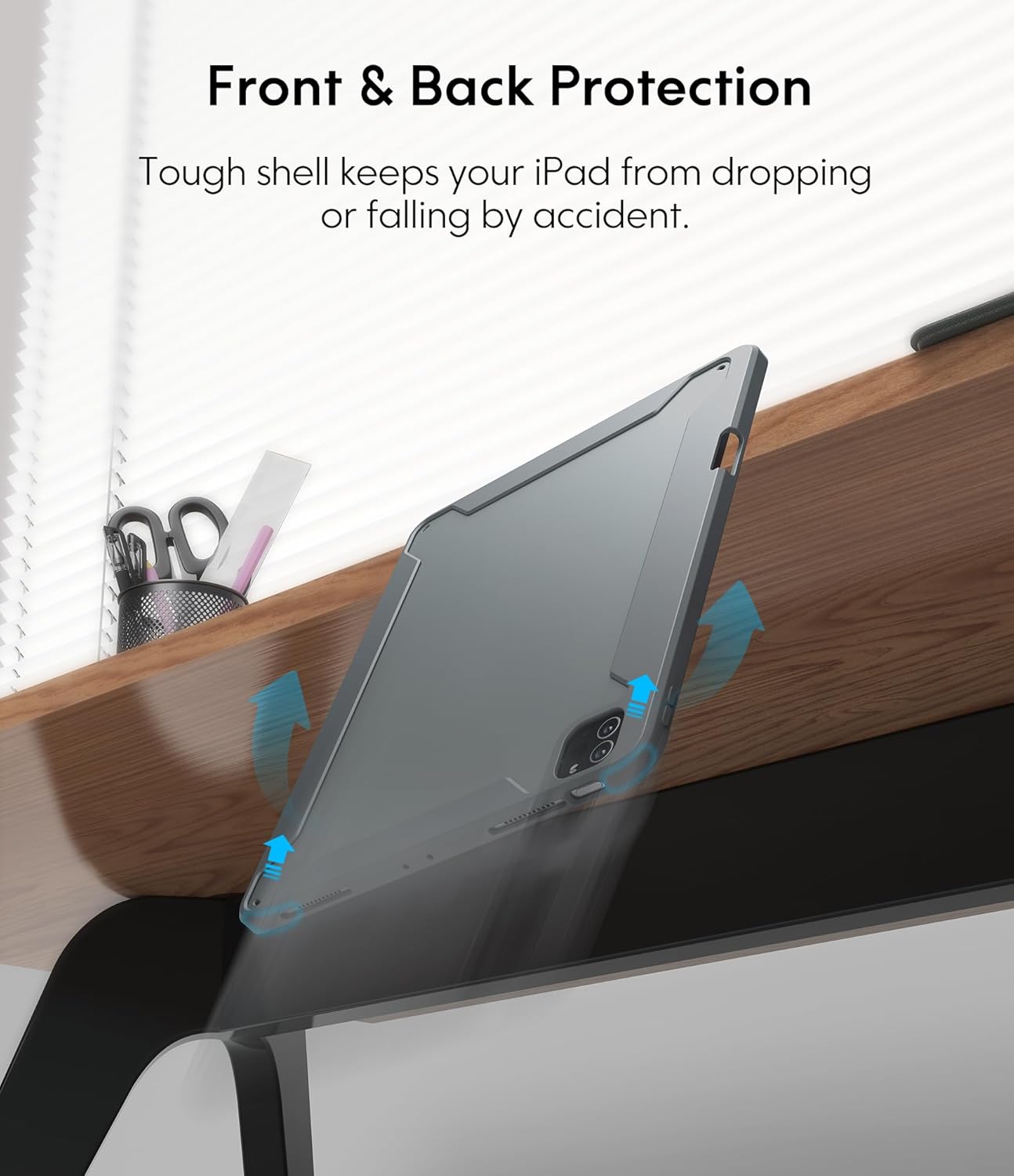
Image: An illustration showing the iPad case protecting the device from a fall, emphasizing its tough shell and front and back protection.
6. Zarządzanie baterią i energią
The keyboard features a built-in rechargeable battery designed for extended use:
- Czas pracy baterii: A full charge provides over 50 hours of working time.
- Czas ładowania: Approximately 2-3 hours for a full charge using the provided USB charging cable.
- Tryb uśpienia: If the keyboard is inactive for 10 minutes, it will enter sleep mode and disconnect from your iPad to conserve power. Press any key to wake it up and automatically reconnect.
7. Konserwacja
Aby zapewnić długą żywotność i optymalną wydajność obudowy klawiatury, należy przestrzegać poniższych wskazówek dotyczących konserwacji:
- Czyszczenie: Użyj miękkiego, damp cloth to wipe the exterior of the case and keyboard. Avoid harsh chemicals or abrasive materials.
- Składowanie: Jeśli etui z klawiaturą nie będzie używane przez dłuższy czas, należy je przechowywać w chłodnym i suchym miejscu.
- Unikaj płynów: Keep the keyboard away from liquids to prevent damage to electronic components.
8. Rozwiązywanie Problemów
If you encounter any issues, refer to the following troubleshooting tips:
- Klawiatura nie łączy się:
- Sprawdź, czy klawiatura jest naładowana i włączona.
- Sprawdź, czy Bluetooth jest włączony na Twoim iPadzie.
- Zapomnij urządzenie w ustawieniach Bluetooth swojego iPada i spróbuj sparować je ponownie.
- Uruchom ponownie iPada i klawiaturę.
- Gładzik nie odpowiada:
- Upewnij się, że klawiatura jest podłączona przez Bluetooth.
- Check if the trackpad is enabled in your iPad's settings (Settings > Accessibility > Touch > AssistiveTouch).
- Wyczyść powierzchnię gładzika, usuwając wszelkie zanieczyszczenia.
- Podświetlenie nie działa:
- Sprawdź, czy klawiatura ma wystarczająco naładowaną baterię.
- Press the backlight adjustment keys (Shift + Shift or dedicated keys) to cycle through brightness levels.
- Klawisze nie reagują:
- Sprawdź połączenie Bluetooth.
- Sprawdź, czy klawiatura nie jest w trybie uśpienia.
- Naładuj klawiaturę.
9. Specyfikacje produktu
| Wymiary produktu | 10.04 x 7.68 x 0.83 cala |
| Waga przedmiotu | 1.72 funta |
| Marka | CZESONA |
| Kompatybilne urządzenia | iPad Pro 11 (M4) 2024 |
| Technologia łączności | Bezprzewodowy (Bluetooth) |
| Opis klawiatury | Wielofunkcyjny |
| Funkcja specjalna | Podświetlany, panel dotykowy |
| Kolor | Szary |
| Źródło zasilania | Zasilany bateryjnie |
| Baterie | 1 bateria P76 (w zestawie) |
10. Gwarancja i wsparcie
CHESONA products are designed for durability and performance. For information regarding warranty coverage, product support, or to report any issues, please refer to the contact information provided with your purchase or visit the official CHESONA webStrona. Zachowaj dowód zakupu na wypadek roszczeń gwarancyjnych.
Ask a question about this manual
Ask about setup, troubleshooting, compatibility, parts, safety, or missing instructions. Manuals+ will review the question and use this page’s manual context to help answer it.