
Wstęp
Thank you for choosing the Phomemo M221 Bluetooth Thermal Label Printer. This manual provides essential information for the safe and efficient operation of your device. Please read it thoroughly before use and retain it for future reference. The Phomemo M221 is designed for fast, clear, and smart label printing, supporting various label types and applications for small businesses, home, and school use.
Informacje dotyczące bezpieczeństwa
Aby zapewnić bezpieczną obsługę i zapobiec uszkodzeniom, należy przestrzegać następujących środków ostrożności:
- Do not disassemble, repair, or modify the printer.
- Keep the printer away from water, moisture, and direct sunlight.
- Use only Phomemo-approved power adapters and accessories.
- Unikaj dotykania głowicy drukującej bezpośrednio po drukowaniu, gdyż może być gorąca.
- Store the printer and labels in a cool, dry place.
Zawartość opakowania
Sprawdź, czy w przesyłce znajdują się wszystkie elementy:
- Drukarka etykiet Phomemo M221
- Kabel do ładowania USB typu C.
- 1 roll of 40 x 30 mm thermal labels
- 1 roll of 50 x 80 mm thermal labels
- 1 roll of 70 x 80 mm thermal labels
- Przenośny futerał
- Instrukcja obsługi (ten dokument)
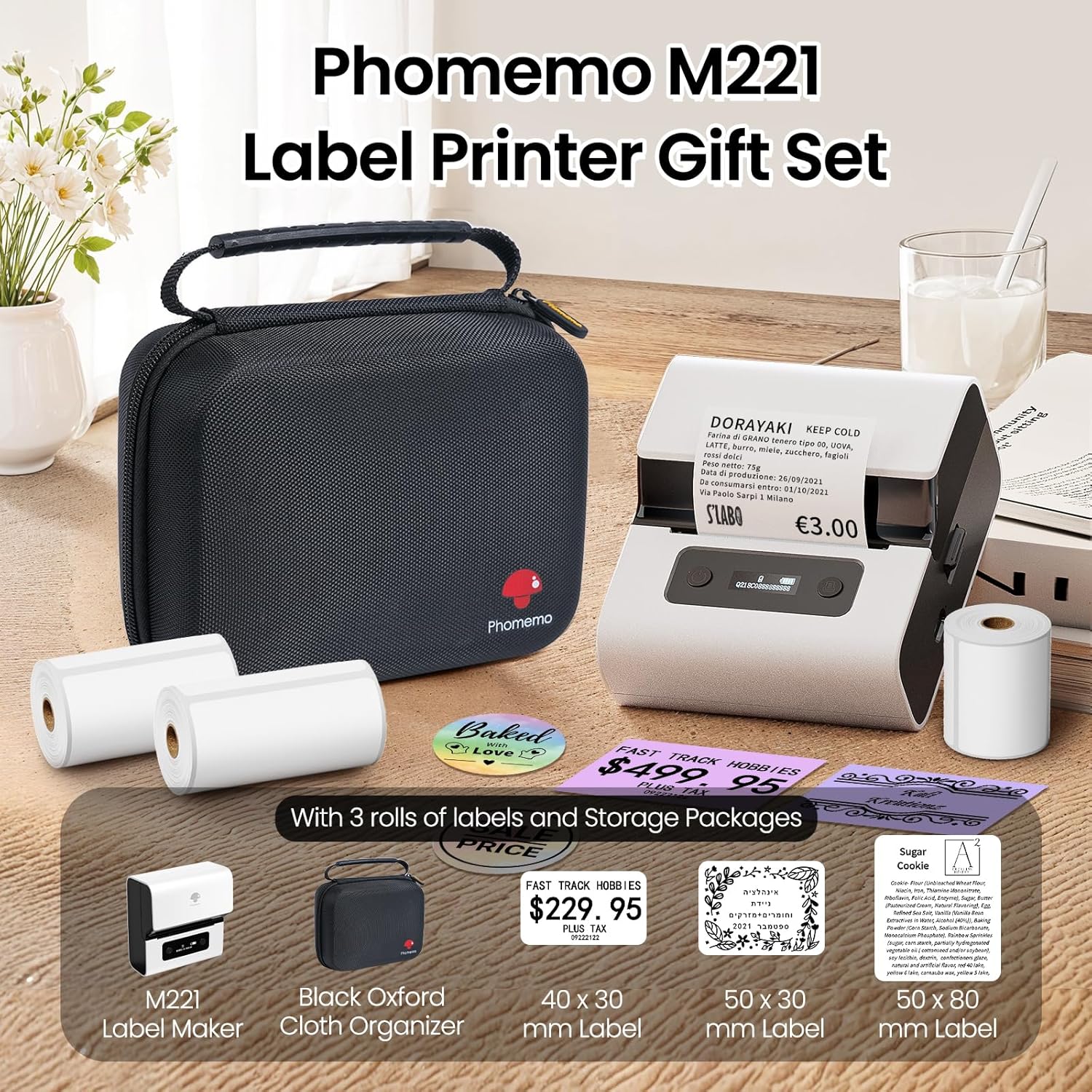
Image: Phomemo M221 Label Printer Gift Set, showing the printer, a black carrying case, and three rolls of white thermal labels.
Produkt ponadview
The Phomemo M221 is a compact and efficient thermal label printer. Key features include:
- Technologia druku termicznego: Nie potrzeba tuszu ani tonera.
- Kompatybilność z szeroką gamą etykiet: Supports labels from 20mm to 80mm (0.78" to 3.14") wide, including rectangular, round, transparent, and colored types.
- Łączność: Bluetooth for iOS/Android smartphones and tablets, USB for Windows PCs.
- Bateria o dużej pojemności: 2200 mAh battery with Type-C fast charging.
- Szybka i cicha praca: Prints at 50 mm/s with reduced noise.
- Przyjazny dla użytkownika projekt: Easy label loading and automatic gap detection.

Image: Phomemo M221 Label Maker Set, illustrating its features such as no ink requirement, large battery capacity, Bluetooth wireless printing, and its suitability as a gift.
Organizować coś
1. Ładowanie drukarki
Before first use, fully charge the Phomemo M221 printer.
- Podłącz dołączony kabel USB typu C do portu ładowania drukarki.
- Podłącz drugi koniec kabla do zasilacza USB 5 V (brak w zestawie) lub do portu USB komputera.
- The indicator light will show charging status. A full charge typically takes several hours. The 2200 mAh battery supports extended use.
2. Ładowanie etykiet
The M221 features an integrated label fixing structure for easy loading.
- Otwórz pokrywę drukarki.
- Insert the label roll into the compartment, ensuring the printing side faces upwards and the labels feed smoothly.
- Adjust the side guide plates to secure the label roll in place.
- Close the printer cover. The printer will automatically detect and calibrate the label gap.
3. Łączenie się z urządzeniem
The Phomemo M221 supports both Bluetooth and USB connections.
Bluetooth Connection (Smartphones/Tablets)
- Ensure Bluetooth is enabled on your iOS or Android device.
- Download and install the "Print Master" application from your device's app store.
- Open the "Print Master" app and follow the on-screen instructions to search for and connect to your M221 printer.

Image: Phomemo M221 printer demonstrating Bluetooth wireless connection with a tablet and a smartphone.
USB Connection (Windows PC)
- Connect the USB Type-C cable from the printer to an available USB port on your Windows PC.
- Download and install the "Labelife" software and printer drivers from the official Phomemo webstrona.
- Follow the software installation prompts. Once installed, you can select the M221 as your printer.

Image: Phomemo M221 printer connected to a laptop using a USB cable, indicating wired connectivity.
Instrukcja obsługi
1. Basic Printing with "Print Master" App (Mobile)
- Ensure your M221 printer is connected via Bluetooth to your mobile device.
- Open the "Print Master" app.
- Select a template or create a new label design. The app offers various templates for text, images, barcodes, QR codes, and more.
- Customize your label content.
- Tap the print icon. Confirm print settings such as quantity.
- The printer will begin printing your labels.
2. Printing with "Labelife" Software (PC)
- Ensure your M221 printer is connected via USB to your Windows PC.
- Open the "Labelife" software.
- Design your label using the software's features, including text, images, barcodes, and QR codes.
- Przejdź do "File> "Drukuj" lub kliknij ikonę drukowania.
- Select the Phomemo M221 from the list of available printers and adjust any necessary print settings.
- Click "Print" to start printing.
3. Drukowanie wsadowe
Both "Print Master" and "Labelife" support batch printing for efficiency.
- In the print dialogue, specify the desired number of copies.
- The printer will automatically print multiple labels consecutively.

Image: Phomemo M221 printer demonstrating its versatility with examples of address labels, price tags, ingredient labels, and gift tags.

Image: Phomemo M221 printer showcasing its compatibility with over 50 types of thermal labels, including various shapes and designs.
Konserwacja
1. Czyszczenie głowicy drukującej
Regularne czyszczenie głowicy drukującej zapewnia optymalną jakość wydruku.
- Wyłącz drukarkę i odłącz kabel zasilający.
- Otwórz pokrywę drukarki.
- Delikatnie przetrzyj głowicę drukującą wacikiem bawełnianym.ampnasączone alkoholem izopropylowym.
- Przed zamknięciem pokrywy i włączeniem drukarki należy odczekać, aż głowica drukująca całkowicie wyschnie.
2. Przechowywanie
Store the printer in a clean, dry environment, away from extreme temperatures and direct sunlight. When not in use for extended periods, ensure the printer is fully charged and then powered off.

Image: A man holding the Phomemo M221 printer's carrying case, illustrating its portable design.
Rozwiązywanie problemów
Printer Does Not Turn On or Charge
- Sprawdź połączenie zasilania: Ensure the USB Type-C cable is securely connected to both the printer and a working power source (5V adapter or PC USB port).
- Sprawdź zasilacz: Use a reliable 5V USB power adapter.
- Czas ładowania: Allow sufficient time for charging. The battery indicator should show charging status.
No Printing or Blank Output
- Sprawdź orientację etykiety: Ensure the thermal labels are loaded correctly with the printing side facing upwards.
- Typ etykiety: Confirm you are using thermal labels. The M221 does not use ink.
- Czystość głowicy drukującej: A dirty print head can cause blank lines or poor print quality. Refer to the Maintenance section for cleaning instructions.
- Wyrównanie etykiet: Ensure the label roll is properly seated and aligned by the side guide plates to prevent misalignment errors.
Problemy z połączeniem Bluetooth
- Drukarka włączona: Ensure the printer is powered on and within Bluetooth range of your device.
- Włączony Bluetooth: Verify Bluetooth is active on your smartphone or tablet.
- Połączenie aplikacji: Connect through the "Print Master" app, not directly through your device's Bluetooth settings.
- Uruchom ponownie urządzenia: Spróbuj ponownie uruchomić drukarkę i urządzenie mobilne.
Słaba jakość druku
- Czystość głowicy drukującej: Wyczyść głowicę drukującą zgodnie z opisem w rozdziale Konserwacja.
- Jakość etykiety: Use high-quality thermal labels.
- Print Density Settings: Adjust print density settings within the "Print Master" app or "Labelife" software if available.
Specyfikacje
| Funkcja | Szczegół |
|---|---|
| Numer modelu | M221 |
| Marka | Fomemo |
| Technologia łączności | Bluetooth, USB typu C |
| Technologia druku | Termiczny |
| Wyjście druku | Monochromia |
| Maksymalna prędkość drukowania (monochromatyczna) | 15.0 pages per minute (50 mm/s) |
| Maksymalna rozdzielczość druku (monochromatyczny) | 203 dpi |
| Obsługiwana szerokość etykiety | 20 mm - 80 mm (0.78" - 3.14") |
| Bateria | 2200 mAh (1 D - included) |
| Waga przedmiotu | 820 gram |
| Wymiary produktu (dł. x szer. x wys.) | 12.9 x 6.7 x 11.9 centymetra |
| Control Device Type | Smartphone/PC |
| Typ nośnika | Etykiety |
Gwarancja i wsparcie
Aby uzyskać informacje dotyczące gwarancji i pomocy technicznej, zapoznaj się z oficjalną stroną Phomemo webOdwiedź stronę internetową lub skontaktuj się bezpośrednio z działem obsługi klienta. Zachowaj paragon jako dowód zakupu.
Zasoby internetowe: Odwiedź Sklep Phomemo na Amazonie for product updates and FAQs.