
1. Koniec produktuview
The GIGABYTE B850 Gaming WIFI6 motherboard is designed to support AMD AM5 Processors, including Ryzen 9000, Ryzen 8000, and Ryzen 7000 Series. It offers robust performance with an upgraded power design, high-grade storage standards, and extensive connectivity options to optimize your system's capabilities.
Główne cechy obejmują:
- AMD Socket AM5 for the latest Ryzen processors.
- DDR5 compatibility with 4 DIMM slots.
- Robust 6+2+2 power design.
- Fully covered MOSFET heatsinks for enhanced thermal management.
- Advanced connectivity: PCIe 5.0, three M.2 slots, and USB-C.
- Integrated WIFI6E and 1GbE LAN for high-speed networking.
- EZ-Latch features for hassle-free component installation.

Figure 1.1: GIGABYTE B850 Gaming WIFI6 Motherboard and retail packaging.
2. Przewodnik konfiguracji
This section provides step-by-step instructions for installing your GIGABYTE B850 Gaming WIFI6 motherboard and its components.
2.1. Lista kontrolna przed instalacją
- Ensure your power supply is compatible and has sufficient wattage.
- Verify your CPU (AMD Ryzen 7000/8000/9000 series) and DDR5 RAM are compatible with the AM5 socket and motherboard.
- Prepare your PC case with appropriate standoffs for ATX form factor.
- Zbierz niezbędne narzędzia: śrubokręt krzyżakowy, opaskę antystatyczną na nadgarstek (zalecana).
2.2. Instalacja płyty głównej
- Ostrożnie umieść płytę główną w obudowie komputera, dopasowując otwory na śruby do dystansów.
- Przymocuj płytę główną śrubami. Nie dokręcaj ich zbyt mocno.
2.3. Instalacja procesora (gniazdo AMD AM5)
The GIGABYTE B850 Gaming WIFI6 motherboard features an AMD Socket AM5. Handle the CPU by its edges to avoid touching the pins or contacts.
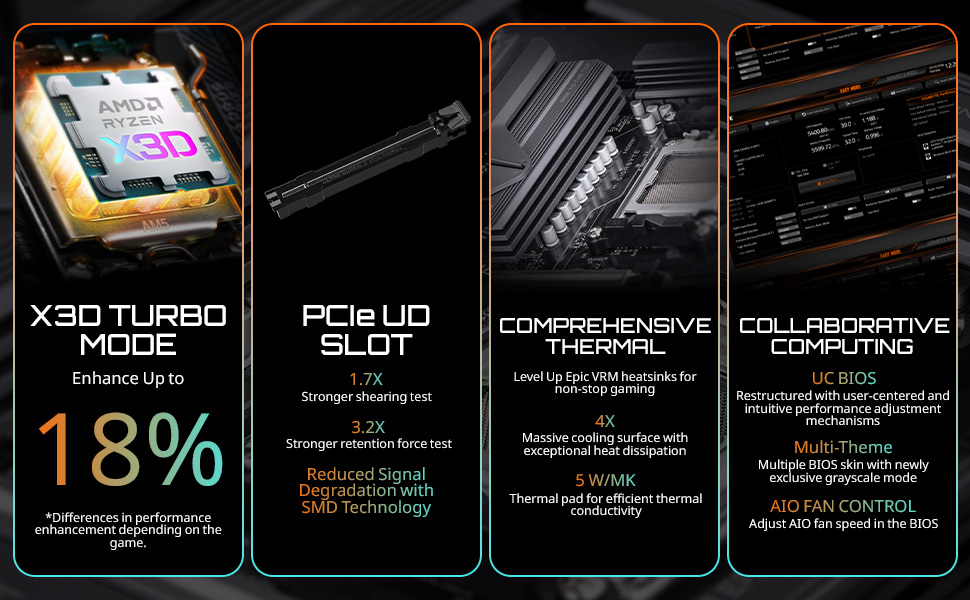
Figure 2.1: AMD Socket AM5 for Ryzen 7000/8000/9000 Series Processors.
- Lift the CPU retention lever on the socket.
- Align the triangular marker on the CPU with the corresponding marker on the socket.
- Delikatnie włóż procesor do gniazda. Nie używaj siły.
- Zamknij dźwignię mocującą, aby zabezpieczyć procesor.
- Zainstaluj chłodzenie procesora zgodnie z instrukcją producenta.
2.4. Instalacja pamięci RAM (DDR5)
This motherboard supports DDR5 memory. Ensure your RAM modules are DDR5 compatible.
- Otwórz zaciski na obu końcach gniazd DIMM.
- Align the notch on the DDR5 RAM module with the notch in the DIMM slot.
- Naciśnij mocno oba końce modułu RAM, aż klipsy zatrzasną się na swoim miejscu.
2.5. Instalacja dysku SSD M.2
The motherboard features three M.2 slots for high-speed NVMe SSDs, with EZ-Latch for tool-less installation.

Figure 2.2: M.2 EZ-Latch for easy SSD installation.
- Znajdź dostępne gniazdo M.2.
- Włóż dysk SSD M.2 do gniazda pod kątem.
- Push down the M.2 SSD until it is flat, and secure it using the EZ-Latch mechanism.
2.6. Instalacja karty PCIe
Install your graphics card or other PCIe expansion cards into the appropriate PCIe slots. The motherboard supports PCIe 5.0.

Figure 2.3: PCIe EZ-Latch for convenient graphics card removal.
- Otwórz zatrzask mocujący na gnieździe PCIe.
- Align the card with the slot and press down firmly until it is seated and the clip snaps into place.
- Przymocuj kartę do obudowy za pomocą śrubki.
2.7. Połączenia zasilania
Podłącz główne 24-pinowe złącze zasilania ATX i 8-pinowe złącze zasilania procesora do płyty głównej.
2.8. Panel przedni i złącza wejścia/wyjścia
Podłącz złącza panelu przedniego obudowy (przycisk zasilania, przycisk resetowania, porty USB, gniazda audio) do odpowiednich pinów na płycie głównej. Prawidłową orientację złącza znajdziesz na etykietach na płycie głównej.

Figure 2.4: Rear I/O Panel with various ports including USB, LAN, Wi-Fi antenna connectors, and audio jacks.
Install the included Wi-Fi antenna to the rear I/O panel connectors for optimal wireless performance.
3. Instrukcja obsługi
3.1. Pierwsze uruchomienie i dostęp do BIOS-u/UEFI
Po złożeniu systemu podłącz monitor, klawiaturę i mysz. Włącz system. Aby wejść do ustawień BIOS/UEFI, naciskaj kilkakrotnie przycisk USUNĄĆ key during startup. The BIOS/UEFI interface allows you to configure system settings, boot order, and enable features like EXPO for memory optimization.
3.2. BIOS/UEFI Update (Q-Flash Plus)
It is highly recommended to update your motherboard's BIOS/UEFI to the latest version for improved compatibility, stability, and performance, especially for DDR5 memory and new CPU releases. The GIGABYTE B850 Gaming WIFI6 features Q-Flash Plus, allowing BIOS updates without a CPU, RAM, or graphics card installed.

Figure 3.1: Q-Flash Plus button and indicator lights for BIOS updates.
- Pobierz najnowszy BIOS file z oficjalnego GIGABYTE webwitryna dla konkretnego modelu płyty głównej.
- Zmień nazwę pobranego BIOS-u file to GIGABYTE.bin (or as specified in the BIOS update instructions).
- Skopiuj zmienioną nazwę BIOS-u file to the root directory of a USB flash drive (FAT32 format).
- Po wyłączeniu systemu podłącz dysk flash USB do specjalnego portu USB Q-Flash Plus na tylnym panelu I/O.
- Press the Q-Flash Plus button. The Q-Flash Plus LED will blink, indicating the update process has started.
- Wait for the LED to stop blinking, indicating the update is complete. Do not power off or interrupt the process.
3.3. Instalacja sterownika
After installing your operating system, install the necessary drivers for optimal performance. Drivers can be found on the GIGABYTE support webwitryna dla Twojego modelu płyty głównej.
- Sterowniki chipsetu
- Sterowniki LAN
- Sterowniki Wi-Fi/Bluetooth
- Sterowniki audio
- SATA/NVMe Drivers
3.4. Memory Profile Configuration (EXPO/DOCP)
To achieve the advertised speeds of your DDR5 memory, enable the EXPO (Extended Profiles for Overclocking) or DOCP (D.O.C.P.) profile in the BIOS/UEFI. This will automatically configure the memory timings and voltage dla optymalnej wydajności.
4. Konserwacja
Regularna konserwacja pomaga zapewnić długowieczność i stabilną pracę płyty głównej i systemu.
- Usuwanie kurzu: Okresowo czyść płytę główną, radiatory i łopatki wentylatora sprężonym powietrzem z kurzu. Przed czyszczeniem upewnij się, że system jest wyłączony i odłączony od zasilania.
- Aktualizacje BIOS-u/UEFI: Regularnie sprawdzaj GIGABYTE website for new BIOS/UEFI versions. Updates can provide performance improvements, bug fixes, and support for new hardware.
- Aktualizacje sterowników: Keep your system drivers updated. This includes chipset, graphics, audio, and network drivers, which can be found on the GIGABYTE support page or component manufacturer webwitryny.
- Zarządzanie kablami: Upewnij się, że wszystkie kable są starannie poprowadzone i nie utrudniają przepływu powietrza w obudowie.
- Kontrola połączenia: Occasionally check that all power cables, data cables, and expansion cards are securely seated.
5. Rozwiązywanie Problemów
W tej sekcji omówiono często spotykane problemy i zaproponowano możliwe rozwiązania.
5.1. Brak zasilania / Brak testu POST (autotest po włączeniu zasilania)
- Sprawdź połączenia zasilania: Upewnij się, że 24-pinowy kabel zasilający ATX i 8-pinowy kabel zasilający procesor są solidnie podłączone do płyty głównej i zasilacza.
- Sprawdź komponenty: Ensure CPU, RAM, and graphics card are properly seated. Try reseating them.
- Wyczyść pamięć CMOS: Refer to your motherboard manual for instructions on how to clear the CMOS (Complementary Metal-Oxide-Semiconductor) settings, which can resolve boot issues.
- Q-Flash Plus Indicator Lights: The motherboard has indicator LEDs (CPU, DRAM, VGA, BOOT) that light up during POST. If one stays lit, it indicates a problem with that specific component.
5.2. Niestabilność systemu / awarie
- Sprawdź temperatury: Ensure CPU and GPU temperatures are within safe operating limits. Overheating can cause instability.
- Problemy z pamięcią RAM: If you experience frequent crashes, test your RAM modules. Ensure EXPO/DOCP profiles are stable or try running RAM at default speeds.
- Konflikty sterowników: Ensure all drivers are up-to-date and there are no conflicting drivers.
- Zasilanie: An insufficient or failing power supply can lead to instability.
5.3. Brak wyjścia wyświetlacza
- Karta graficzna: Ensure your graphics card is properly seated in the PCIe slot and has all necessary power cables connected.
- Połączenie monitora: Verify the display cable is securely connected to both the graphics card (or motherboard if using integrated graphics) and the monitor.
- Zintegrowana grafika: If your CPU has integrated graphics, try connecting the monitor to the motherboard's display outputs (HDMI, DisplayPort) to rule out a dedicated graphics card issue.
5.4. Problemy z łącznością sieciową
- Wi-Fi: Ensure the Wi-Fi antenna is securely connected to the rear I/O panel. Check Wi-Fi drivers.
- LAN: Verify the Ethernet cable is properly connected to the LAN port and your router/modem. Check LAN drivers.
6. Specyfikacje
Detailed technical specifications for the GIGABYTE B850 Gaming WIFI6 Motherboard.
| Funkcja | Specyfikacja |
|---|---|
| Marka | GIGABAJT |
| Nazwa modelu | B850 GAMING WF6 |
| Gniazdo procesora | Gniazdo AM5 |
| Kompatybilne procesory | Seria AMD Ryzen 7000, Seria AMD Ryzen 8000, Seria AMD Ryzen 9000 |
| Typ chipsetu | Procesor AMD B850 |
| Technologia pamięci RAM | DDR5 |
| Maksymalny rozmiar pamięci RAM | 256 GB |
| Prędkość pamięci | 5200 MHz (podstawowa) |
| Wymiary produktu (dł. x szer. x wys.) | 12 x 9.6 x 1 cala |
| Waga przedmiotu | 3.25 funta |
| Platforma | Windows 11 |
| Łączność | PCIe 5.0, 3 gniazda M.2, USB-C, WIFI6E, sieć LAN 1 GbE |
7. Gwarancja i wsparcie
7.1. Informacje o gwarancji
The GIGABYTE B850 Gaming WIFI6 Motherboard comes with a 5-letnia gwarancjaProsimy zachować dowód zakupu na wypadek roszczeń gwarancyjnych. Gwarancja obejmuje wady materiałowe i wykonawcze powstałe w wyniku normalnego użytkowania.
7.2. Wsparcie techniczne
Aby uzyskać pomoc techniczną, pobrać sterowniki, zaktualizować BIOS i uzyskać więcej informacji o produkcie, odwiedź oficjalną stronę pomocy technicznej GIGABYTE webstrona:
You may also find helpful resources and community forums on the GIGABYTE brand store on Amazon: Sklep GIGABYTE.