
1. Wprowadzenie
The Cable Matters 48Gbps USB-C to HDMI 2.1 Adapter is designed to connect your USB-C enabled device, such as a laptop, smartphone, or tablet, to an HDMI display, monitor, or projector. This adapter supports high-resolution video output, including 4K at 240Hz and 8K at 60Hz, along with High Dynamic Range (HDR) for vibrant visuals. It also features 140W Power Delivery, allowing you to charge your device while simultaneously outputting video.
This manual provides essential information for setting up, operating, and maintaining your adapter to ensure optimal performance and longevity.
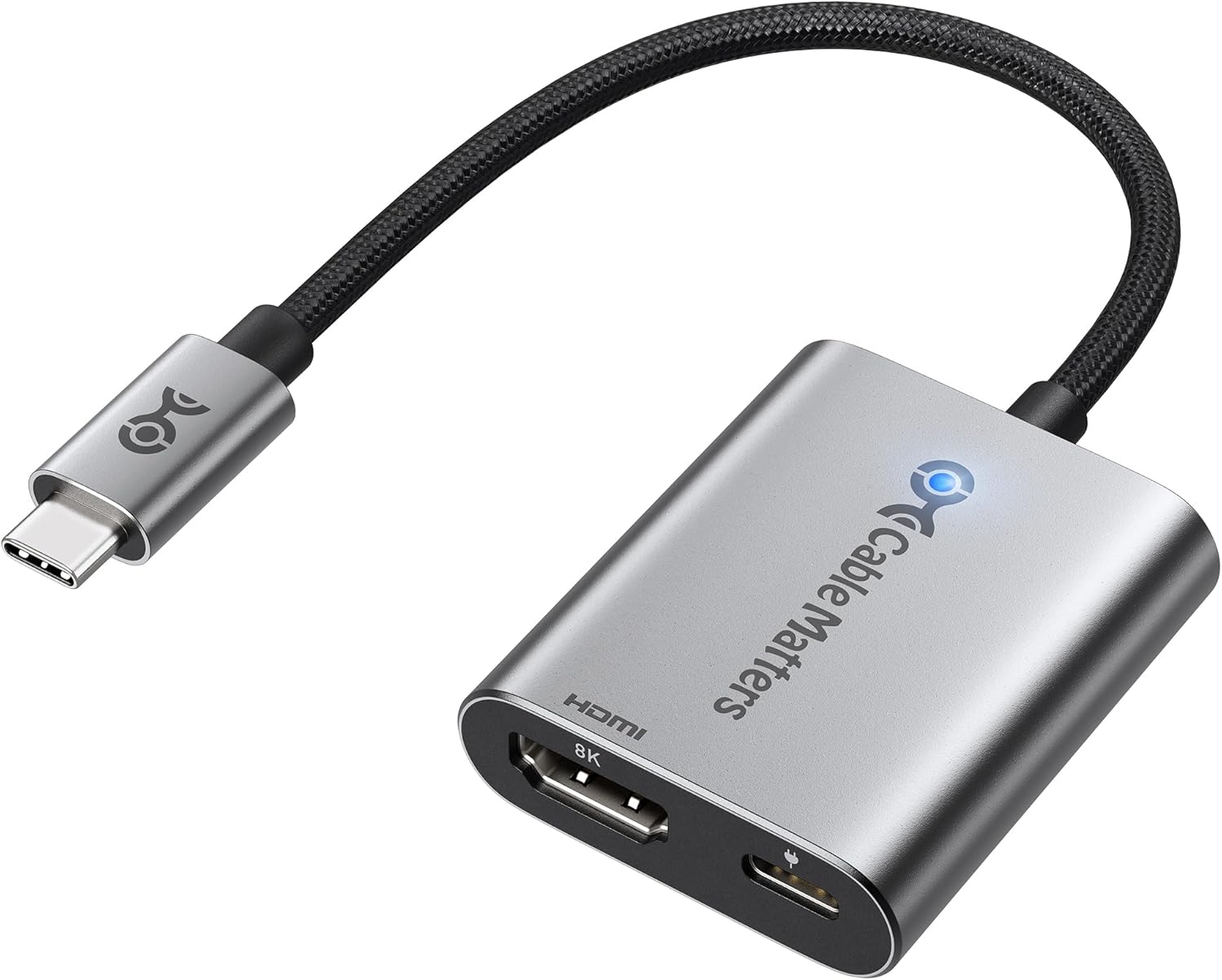
Image: The Cable Matters USB-C to HDMI 2.1 Adapter, featuring a braided cable and a sleek silver housing with HDMI and USB-C PD ports.
2. Główne cechy
- Wyjście wideo o wysokiej rozdzielczości: Supports up to 8K@60Hz with RGB 4:4:4 and UHD support for 4K at 240Hz, 120Hz, or 60Hz.
- Obsługa HDR: Provides vibrant, lifelike colors for an enhanced viewzdobywania doświadczenia.
- Dostawa mocy 140 W: Allows simultaneous charging of your device while connected to a display, maximizing utility with a single port.
- Mac Optimization: Custom firmware tailored for Mac users, supporting 4K@120Hz on M1/M2/M3 chips and 4K@240Hz on M3 Pro/Max, M4, and M4 Pro/Max chips.
- Szeroka kompatybilność: Compatible with USB-C devices supporting DisplayPort Alternate Mode (DP Alt Mode), Thunderbolt 3/4/5, USB 4 (20Gbps & 40Gbps), and Intel Evo laptops.
- Trwała konstrukcja: Features a premium braided cable, robust metal connectors, and aluminum housing for enhanced durability and performance.

Image: Visual representation of the adapter's capabilities, highlighting 4K@240Hz, 8K@60Hz video resolution, and 140W charging, connected to a laptop and external monitor.
3. Zawartość opakowania
- 1 x Cable Matters 48Gbps USB-C to HDMI 2.1 Adapter
- 1 x Instrukcja obsługi (ten dokument)
4. Instrukcje konfiguracji
- Połącz z urządzeniem źródłowym: Insert the USB-C connector of the adapter into a compatible USB-C or Thunderbolt port on your laptop, smartphone, or tablet. Ensure your device's USB-C port supports DisplayPort Alternate Mode (DP Alt Mode) for video output.

Image: The USB-C end of the adapter connected to a laptop's USB-C port, illustrating how it saves a port by providing both display and charging capabilities.
- Połącz z wyświetlaczem: Connect one end of an HDMI cable (not included) to the HDMI port on the adapter. Connect the other end of the HDMI cable to an HDMI input port on your display, monitor, or TV.

Image: A setup showing the adapter connecting a laptop to an external monitor, demonstrating concurrent display and 140W charging.
- Podłącz zasilanie (opcjonalnie): If your source device requires charging or if you wish to utilize the 140W Power Delivery feature, connect a USB-C power adapter (not included) to the USB-C PD port on the adapter. This will pass power through to your connected device.
- Wybierz wejście na wyświetlaczu: On your display, select the correct HDMI input source to view the content from your connected device.
5. Instrukcja obsługi
The Cable Matters USB-C to HDMI 2.1 Adapter is designed for plug-and-play operation. Once connected correctly, your device should automatically detect the external display and extend or mirror your screen.
- Ustawienia wyświetlania: You can adjust display settings (resolution, refresh rate, display mode - extend/mirror) through your operating system's display settings. For Windows, navigate to Display Settings. For macOS, go to System Settings > Displays.
- Wysoka częstotliwość odświeżania: To achieve 4K@240Hz or 8K@60Hz, ensure both your source device and display support these resolutions and refresh rates, and that you are using a high-quality HDMI 2.1 certified cable.
- Dostawa energii: When a USB-C power adapter is connected to the adapter's PD port, power will be supplied to your connected laptop or device. The adapter supports up to 140W Power Delivery.

Image: A user working at a desk with a laptop connected to an external monitor via the adapter, illustrating the ease of plug-and-play connectivity for work.
6. Zgodność
This adapter is designed for broad compatibility with various USB-C and Thunderbolt enabled devices and HDMI displays.
- Urządzenia źródłowe:
- MacBook, MacBook Air, MacBook Pro (M1, M1 Pro/Max, M2, M2 Pro/Max, M3, M3 Pro/Max, M4, M4 Pro/Max chips)
- Windows Laptops with USB-C ports supporting DisplayPort Alternate Mode (DP Alt Mode)
- Chromebooks with USB-C ports supporting DisplayPort Alternate Mode (DP Alt Mode)
- Smartphones and Tablets with USB-C ports supporting DisplayPort Alternate Mode (e.g., iPad Pro, Samsung Galaxy series with Dex)
- Devices with Thunderbolt 3, Thunderbolt 4, Thunderbolt 5 ports
- Devices with USB 4 (20Gbps & 40Gbps)
- Intel Evo laptops
- Desktops and laptops with Nvidia RTX 3000 series or AMD Radeon RX6000 series graphics cards
- Target Displays:
- Monitors with HDMI input
- Projectors with HDMI input
- Televisions with HDMI input

Image: A diagram illustrating the wide range of compatible USB-C source devices (MacBook, Windows Laptop, Chromebook, Phone, iPad) and HDMI target devices (Monitor, Projector, TV).

Image: A detailed compatibility chart showing compatible USB-C port types (Thunderbolt 3/4/5, DP Alt Mode, USB 4) and incompatible types (Data Transfer Only, Charging Only), emphasizing one-way transmission from USB-C to HDMI.
7. Rozwiązywanie Problemów
- Brak wyświetlacza/sygnału:
- Upewnij się, że zarówno złącze USB-C, jak i kabel HDMI są prawidłowo podłączone do odpowiednich portów.
- Verify that your source device's USB-C port supports DisplayPort Alternate Mode (DP Alt Mode) for video output. Not all USB-C ports support video.
- Check the input source selection on your display/monitor to ensure it is set to the correct HDMI input.
- Spróbuj ponownie uruchomić urządzenie źródłowe i wyświetlacz.
- Test with a different HDMI cable or display if possible to rule out cable or display issues.
- Low Resolution/Refresh Rate:
- Ensure your HDMI cable is HDMI 2.1 certified to support 48Gbps bandwidth required for 4K@240Hz or 8K@60Hz.
- Verify that your source device's graphics card and display both support the desired resolution and refresh rate.
- Adjust display settings in your operating system to the desired resolution and refresh rate.
- For Mac users, ensure your macOS version and chip (M1, M2, M3, M4 series) support the specific resolutions and refresh rates as outlined in the features section.
- Charging Not Working (140W PD):
- Ensure your USB-C power adapter and cable are capable of delivering the required wattage (do 140 W).
- Verify the power adapter is securely connected to the adapter's USB-C PD port.
- Some devices may have specific power requirements; ensure your power source meets these.
- Sygnał przerywany:
- Check for loose connections at both ends of the adapter and HDMI cable.
- Upewnij się, że nie występują żadne zakłócenia ze strony innych urządzeń elektronicznych.
- Zaktualizuj sterowniki graficzne w urządzeniu źródłowym.
8. Specyfikacje
| Marka | Sprawy kablowe |
| Numer modelu | 201438 |
| UPC | 810115187974 |
| Obsługa rozdzielczości wideo | Up to 8K@60Hz (RGB 4:4:4), 4K@240Hz, 4K@120Hz, 4K@60Hz |
| Przepustowość łącza | 48Gbps (HDMI 2.1) |
| Dostarczanie mocy | Do 140 W przez port USB-C PD |
| Obsługa HDR | Tak |
| Tryb automatycznego niskiego opóźnienia (ALLM) | Tak |
| Waga przedmiotu | 1.44 uncji (0.04 kilograma) |
| Wymiary opakowania | 4.02 x 3.31 x 0.67 cala |
9. Konserwacja
- Czyszczenie: Use a soft, dry cloth to clean the adapter. Avoid using liquid cleaners or aerosols.
- Składowanie: Przechowywać adapter w chłodnym i suchym miejscu, z dala od bezpośredniego światła słonecznego i ekstremalnych temperatur.
- Obsługiwanie: Avoid bending or twisting the cable excessively, as this can damage internal wires. Do not drop the adapter.
- Połączenie: Always grasp the connector ends when plugging or unplugging the adapter; do not pull on the cable itself.
10. Gwarancja i wsparcie
For warranty information and technical support, please refer to the official Cable Matters webOdwiedź witrynę lub skontaktuj się bezpośrednio z działem obsługi klienta. Szczegóły dotyczące rejestracji produktu, roszczeń gwarancyjnych i zasobów pomocy technicznej można zazwyczaj znaleźć na stronach pomocy technicznej producenta.
Manufacturer: Cable Matters
Webstrona: www.kablematters.com