
1. Koniec produktuview
The KOORUI G2722P is a 27-inch QHD (2560x1440) gaming monitor designed for an immersive visual experience. It features a Fast IPS panel with a 200Hz refresh rate and a 1ms response time, ensuring smooth and responsive gameplay. The monitor supports HDR 400 for enhanced contrast and color depth, and Adaptive Sync technology to minimize screen tearing and stuttering. Its ergonomic stand allows for height, tilt, and pivot adjustments, and it is VESA 75x75mm compatible for flexible mounting options.

The KOORUI G2722P monitor integrated into a typical gaming environment.
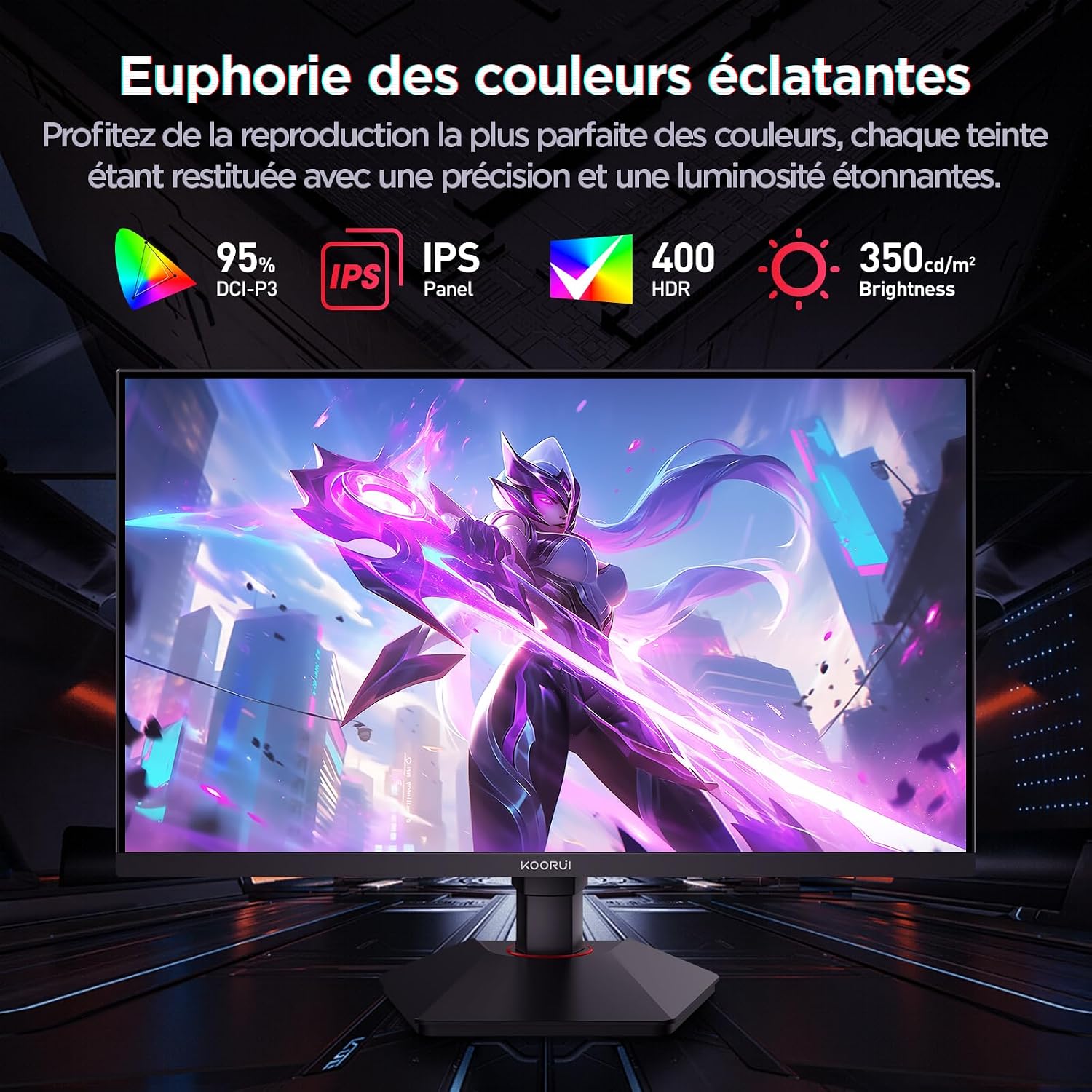
This image highlights the monitor's color capabilities, including 95% DCI-P3 color gamut, IPS panel technology, HDR 400 support, and 350 cd/m² brightness.
2. Informacje dotyczące bezpieczeństwa
- Przed użyciem monitora należy uważnie przeczytać wszystkie instrukcje.
- Aby uniknąć ryzyka pożaru lub porażenia prądem, nie wystawiaj monitora na działanie deszczu i wilgoci.
- Nie otwierać monitora casing. Wewnątrz nie ma żadnych części, które mogłyby być naprawiane przez użytkownika. Wszelkie prace serwisowe należy zlecać wykwalifikowanemu personelowi.
- Aby zapobiec jego upadkowi, ustaw monitor na stabilnej, płaskiej powierzchni.
- Trzymaj monitor z dala od bezpośredniego światła słonecznego, źródeł ciepła i ekstremalnych temperatur.
- Zapewnij odpowiednią wentylację wokół monitora. Nie blokuj otworów wentylacyjnych.
- Należy używać wyłącznie zasilacza i kabli dostarczonych lub zalecanych przez producenta.
- Odłączaj monitor od gniazdka elektrycznego podczas burzy z piorunami lub jeśli nie używasz go przez dłuższy czas.
3. Zawartość opakowania
Sprawdź, czy w opakowaniu znajdują się wszystkie elementy:
- KOORUI G2722P Monitor
- Stojak na monitor (podstawa i szyjka)
- Zasilacz i kabel zasilający
- Kabel DisplayPort (DP)
- Instrukcja obsługi (ten dokument)
- Śruby do montażu stojaka
4. Montaż monitora
4.1 Mocowanie stojaka
- Ostrożnie połóż monitor ekranem do dołu na miękkiej, czystej szmatce, aby zapobiec porysowaniu.
- Attach the stand neck to the back of the monitor until it clicks into place or is secured with screws (refer to specific instructions in the included quick start guide).
- Przymocuj podstawę stojaka do szyjki stojaka i zabezpiecz ją za pomocą dołączonej śruby.
- Carefully lift the monitor and place it on a stable desk.
4.2 Montaż VESA
The monitor supports VESA 75x75mm mounting. To use a VESA mount:
- Remove the stand if it is already attached.
- Attach your VESA-compatible mount (sold separately) to the 75x75mm screw holes on the back of the monitor using appropriate screws.
- Przed ponownym montażem upewnij się, że uchwyt jest solidnie zamocowany.asing monitora.

This image demonstrates the monitor's ergonomic adjustments (height, tilt, pivot) and provides a visual reference for stand attachment points.
5. Podłączanie monitora
Podłącz monitor do komputera lub innego urządzenia, korzystając z dostępnych portów.
- Podłączenie zasilania: Connect the power cable to the power adapter, then connect the adapter to the monitor's power input and a wall outlet.
- Połączenie wideo:
- For optimal performance (QHD @ 200Hz), use the provided DisplayPort (DP 1.4) cable to connect the monitor to your graphics card.
- Alternatively, use an HDMI 2.0 cable to connect to an HDMI port on your device.
- Wyjście audio: Connect external speakers or headphones to the 3.5mm audio output jack on the monitor if you wish to use the monitor's audio passthrough.

This image displays the rear of the monitor, highlighting the available connectivity options: two HDMI 2.0 ports, one DisplayPort 1.4, an audio output jack, and the VESA 75x75mm mounting pattern.
6. Obsługa monitora
6.1 Włączanie/wyłączanie zasilania
- Naciśnij przycisk zasilania znajdujący się na monitorze, aby go włączyć lub wyłączyć.
- The power indicator light will illuminate when the monitor is on.
6.2 Menu ekranowe (OSD)
The OSD menu allows you to adjust various monitor settings. Typically, buttons are located on the back or bottom right of the monitor.
- Naciśnij jeden z przycisków OSD, aby aktywować menu.
- Use the navigation buttons (usually directional or a joystick) to browse through menu options.
- Naciśnij przycisk wyboru, aby wejść do podmenu lub potwierdzić ustawienie.
- Naciśnij przycisk wyjścia, aby zamknąć menu OSD.
7. Ustawienia wyświetlania
7.1 Rozdzielczość i częstotliwość odświeżania
The monitor supports a native resolution of 2560x1440 (QHD) and a maximum refresh rate of 200Hz. Ensure your graphics card and operating system are configured to use these settings for the best experience.

This image illustrates the difference in motion clarity between a 75Hz and a 200Hz refresh rate, emphasizing the 1ms response time for reduced blur and ghosting.
7.2 Adaptacyjna synchronizacja (FreeSync)
This monitor supports Adaptive Sync technology (compatible with AMD FreeSync) to synchronize the monitor's refresh rate with your graphics card's frame rate, eliminating screen tearing and reducing stuttering.
- Enable Adaptive Sync in the monitor's OSD menu.
- Ensure Adaptive Sync (or FreeSync) is enabled in your graphics card control panel.

This image visually compares the display with Adaptive Sync enabled versus disabled, demonstrating how Adaptive Sync eliminates screen tearing for a smoother visual experience.
7.3HDR 400
The monitor supports HDR 400, providing a wider dynamic range for brighter whites and deeper blacks, resulting in more vibrant and realistic images.
- Enable HDR in your operating system's display settings and in the monitor's OSD menu if available.
7.4 Ustawienia kolorów
The Fast IPS panel offers excellent color reproduction and wide viewkąty.
- Adjust color temperature, gamma, and saturation through the OSD menu to suit your preferences.
- The monitor features a 178-degree wide viewing angle, ensuring consistent color and image quality from various perspectives.
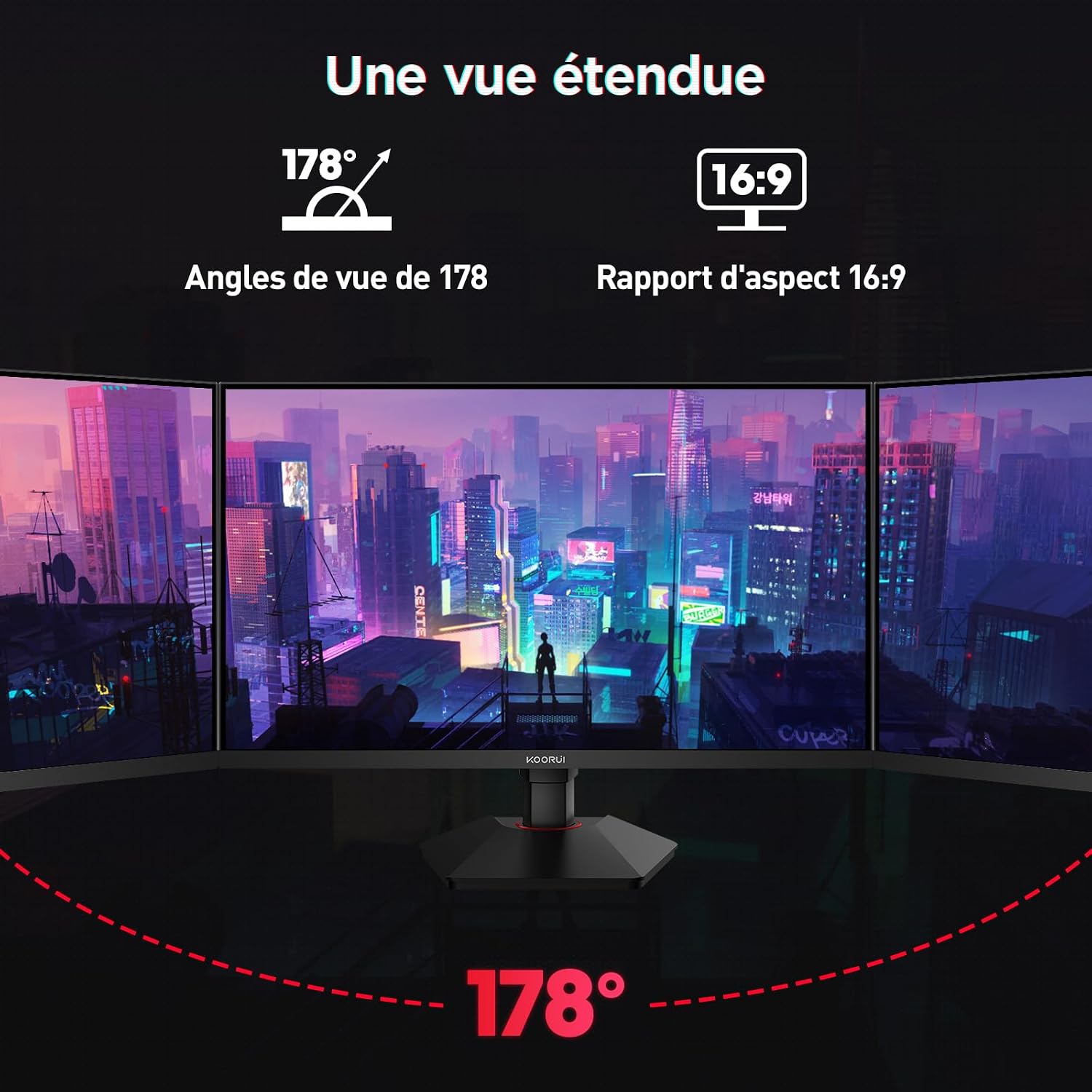
This image demonstrates the monitor's wide 178-degree viewing angle, illustrating how the display maintains clarity and color consistency even when viewed from extreme angles, ideal for multi-monitor setups.
8. Regulacje ergonomiczne
Podstawka pod monitor umożliwia różne regulacje, aby zoptymalizować viewkomfort:
- Regulacja wysokości: Adjust the monitor height by up to 100mm by gently pushing or pulling the monitor up or down.
- Regulacja nachylenia: Tilt the screen from -5° (forward) to +20° (backward) to find your preferred viewkąt.
- Pivot (Rotation): Rotate the screen 90° to switch between landscape and portrait orientations.
This image illustrates the full range of ergonomic adjustments available: 100mm height adjustment, -5° to +20° tilt, and 90° pivot rotation for optimal viewkomfort.
9. Funkcje pielęgnacji oczu
The KOORUI G2722P monitor incorporates features designed to reduce eye strain during prolonged use:
- Technologia bez migotania: Redukuje migotanie ekranu, które może powodować zmęczenie oczu.
- Filtr o niskim poziomie niebieskiego światła: Minimizes harmful blue light emissions to protect your eyes. This feature can usually be adjusted or enabled/disabled in the OSD menu.
10. Konserwacja
Właściwa konserwacja gwarantuje długowieczność i optymalną wydajność monitora.
- Czyszczenie ekranu: Delikatnie przetrzyj ekran miękką, niepozostawiającą włókien ściereczką. W przypadku uporczywych zabrudzeń użyj środka czyszczącego przeznaczonego do danego monitora, nakładając go na ściereczkę, a nie bezpośrednio na ekran.
- Czyszczenie Casing: Do czyszczenia monitora należy używać miękkiej, suchej ściereczki.asing. Unikaj stosowania środków czyszczących o właściwościach ściernych i rozpuszczalników.
- Obsługiwanie: Avoid touching the screen directly with your fingers or sharp objects. Do not place heavy objects on the monitor.
11. Rozwiązywanie Problemów
Jeśli masz problemy z monitorem, zapoznaj się z poniższymi typowymi problemami i ich rozwiązaniami:
| Problem | Możliwe rozwiązanie |
|---|---|
| Brak obrazu na ekranie |
|
| Migotanie lub rozrywanie obrazu |
|
| Brak dźwięku z wyjścia audio |
|
| Monitor not reaching 200Hz |
|
12. Specyfikacje
Key technical specifications for the KOORUI G2722P monitor:
| Funkcja | Specyfikacja |
|---|---|
| Rozmiar ekranu | 27 cali |
| Typ panelu | Prawie IPS |
| Rezolucja | Rozdzielczość QHD (2560 × 1440) |
| Częstotliwość odświeżania | 200 Hz |
| Czas reakcji | 1 ms |
| Obsługa HDR | HDR400 |
| Adaptacyjna synchronizacja | FreeSync |
| Współczynnik kontrastu | 1000:1 (statyczny) |
| Jasność | 350 cd/m² |
| Viewing kąt | 178° (poziom/pion) |
| Gama kolorów | 95% DCI-P3 |
| Wejścia wideo | 2x HDMI 2.0, 1x DisplayPort 1.4 |
| Wyjście audio | 1x 3.5mm Audio Out |
| Zgodność ze standardem VESA | 75x75mm |
| Pobór mocy | 19 watów (typowo) |
| Ergonomia | Height, Tilt, Pivot Adjustment |

This diagram provides the physical dimensions of the monitor, including width, height, and depth.
Szczegółowe informacje dotyczące energii można znaleźć w bazie danych EPREL: https://eprel.ec.europa.eu/qr/2216313
13. Gwarancja i wsparcie
The KOORUI G2722P monitor comes with a 2-letnia gwarancja producentaNiniejsza gwarancja obejmuje wady materiałowe i wykonawcze powstałe w wyniku normalnego użytkowania.
For technical support, warranty claims, or further assistance, please contact KOORUI customer service through their official webwitrynę lub sprzedawcę, u którego zakupiono produkt.


