
1. Wprowadzenie
Thank you for choosing the KOORUI N07 27-inch 4K UHD Monitor. This monitor is designed to provide a superior visual experience with its 3840x2160 resolution, IPS panel, 60Hz refresh rate, HDR10 support, and Adaptive Sync technology. This manual provides essential information for setting up, operating, and maintaining your monitor to ensure optimal performance and longevity. Please read this manual thoroughly before using the product.
2. Informacje dotyczące bezpieczeństwa
- Monitor należy zawsze umieszczać na stabilnej, płaskiej powierzchni.
- Nie blokuj otworów wentylacyjnych.
- Należy używać wyłącznie zasilacza dostarczonego przez producenta.
- Chroń monitor przed wodą i nadmierną wilgocią.
- Avoid exposing the monitor to direct sunlight or high temperatures.
- Odłączaj kabel zasilający podczas burzy z piorunami lub jeśli urządzenie nie jest używane przez dłuższy czas.
3. Zawartość opakowania
Proszę sprawdzić zawartość opakowania po otwarciu. Jeśli brakuje któregokolwiek elementu lub jest on uszkodzony, prosimy o kontakt ze sprzedawcą.
- KOORUI N07 27-inch 4K UHD Monitor
- Stojak na monitor (podstawa i szyjka)
- Zasilacz i kabel zasilający
- Kabel HDMI
- Kabel DisplayPort
- Instrukcja obsługi
4. Montaż i konfiguracja monitora
4.1 Mocowanie stojaka
- Ostrożnie połóż monitor ekranem do dołu na miękkiej, czystej szmatce, aby zapobiec porysowaniu.
- Attach the stand neck to the back of the monitor, aligning the mounting points.
- Secure the stand neck with the provided screws.
- Przymocuj podstawę stojaka do szyjki stojaka i dokręć śrubę skrzydełkową.

Rysunek 4.1: Tył view of the monitor showing VESA mount and tilt adjustment.
4.2 Kable połączeniowe
The KOORUI N07 monitor offers versatile connectivity options. Ensure your computer is turned off before making any connections.
- Podłączenie zasilania: Podłącz zasilacz do portu wejściowego DC monitora, a następnie podłącz kabel zasilający do gniazdka elektrycznego.
- Połączenie wideo: Connect one end of the HDMI or DisplayPort cable to the corresponding port on your computer's graphics card and the other end to an HDMI (HDMI1 or HDMI2) or DisplayPort (DP) input on the monitor.
- Wyjście audio: If desired, connect external speakers or headphones to the 3.5mm audio output port on the monitor.

Figure 4.2: Connectivity options for the KOORUI N07 monitor.
4.3 Włączanie
After connecting all necessary cables, press the power button on the monitor to turn it on. The monitor will automatically detect the active input source.
5. Instrukcja obsługi
5.1 Menu ekranowe (OSD)
Menu OSD umożliwia regulację różnych ustawień monitora. Do nawigacji i wyboru opcji służą przyciski znajdujące się w prawym dolnym rogu monitora.
- Przycisk zasilania: Włącza/wyłącza monitor.
- Przycisk menu: Otwiera menu ekranowe.
- Przyciski nawigacyjne: Służy do poruszania się po opcjach menu i dostosowywania wartości.
- Przycisk wyjścia: Wyjście z menu OSD.
5.2 Ustawienia klawiszy OSD
- Ustawienia obrazu: Dostosuj jasność, kontrast, ostrość i temperaturę barw.
- Tryby kolorów: Select from various preset modes like Standard, Movie, Game, and Eye Care.
- Źródło sygnału wejściowego: Manually select between HDMI1, HDMI2, or DisplayPort inputs.
- Synchronizacja adaptacyjna: Enable or disable Adaptive Sync for smoother gameplay.
- HDR10: Activate HDR10 for enhanced dynamic range with compatible content.
6. Funkcje ponadview
6.1 4K UHD Resolution (3840x2160)
Experience incredible detail and clarity with a resolution four times higher than Full HD. This monitor provides 8.3 million pixels for a sharper and more colorful image.

Rysunek 6.1: Porównanie szczegółów rozdzielczości 4K UHD.
6.2 IPS Panel Technology
The IPS panel offers a wide 178° viewing angle and vibrant color reproduction (90% DCI-P3, 99% sRGB), ensuring consistent image quality from almost any perspective. This is ideal for graphic designers, gamers, and movie enthusiasts.

Figure 6.2: IPS panel with 99% sRGB color accuracy.
6.3 Obsługa HDR10
Enjoy content with enhanced dynamic range. HDR10 provides brighter whites, deeper blacks, and more vivid colors, bringing your favorite movies and games to life with greater realism.

Figure 6.3: HDR10 technology for improved image quality.
6.4 Technologia adaptacyjnej synchronizacji
Adaptive Sync eliminates screen tearing and stuttering, providing a smoother and more fluid visual experience, especially during fast-paced gaming or video playback.

Rysunek 6.4: Funkcja Adaptive Sync w akcji, zapobiegająca rozrywaniu obrazu.
6.5 Technologia pielęgnacji oczu
The monitor features a Blue Light Filter and Flicker-Free technology to reduce eye strain during prolonged use. The Eye Care mode optimizes settings to minimize blue light emission, promoting visual comfort.
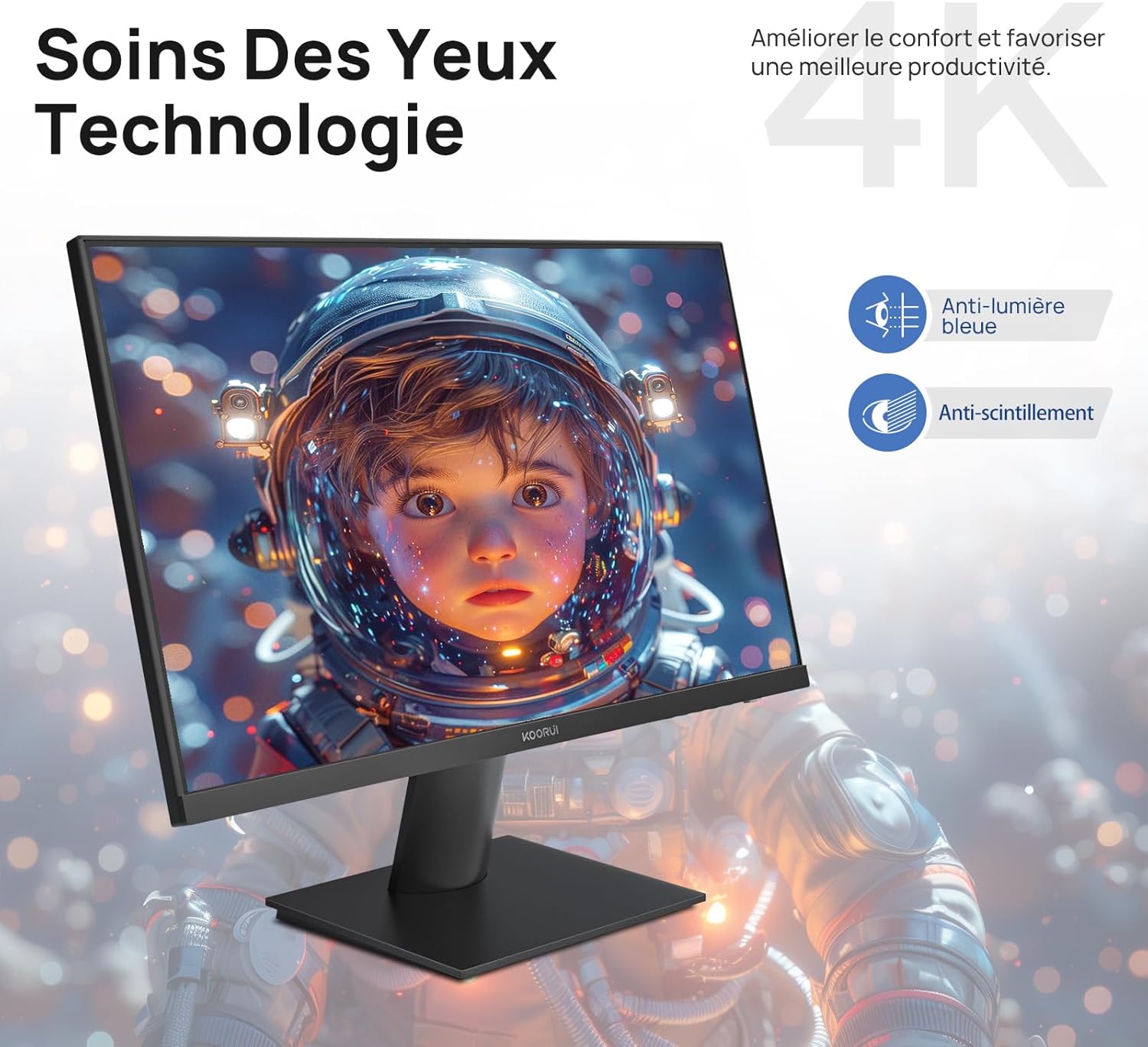
Figure 6.5: Eye Care technology for reduced eye strain.
6.6 Ergonomiczna konstrukcja
The monitor stand allows for tilt adjustment from -5° to 20°, enabling you to find the most comfortable viewing angle for your posture.
6.7 Zgodność z mocowaniem VESA
The KOORUI N07 supports 100x100mm VESA mounting, allowing you to easily attach it to a wall mount or an articulated monitor arm for a flexible and clutter-free workspace.

Rysunek 6.6: Zgodność mocowania VESA zapewniająca elastyczność konfiguracji.
7. Film o produkcieview
Wideo 7.1: Overview of the KOORUI N07 27-inch 4K UHD monitor, highlighting its key features such as 4K resolution, DCI-P3 color gamut, HDR10 support, versatile usage for creation, viewing, and gaming, adjustable tilt, and VESA mounting capabilities.
8. Rozwiązywanie Problemów
Jeśli masz problemy z monitorem, zapoznaj się z poniższymi typowymi problemami i ich rozwiązaniami:
| Problem | Możliwe rozwiązanie |
|---|---|
| Brak obrazu na ekranie | Ensure power cable is securely connected. Check video cable connection (HDMI/DP) to both monitor and computer. Verify correct input source is selected in OSD. |
| Obraz jest niewyraźny lub zniekształcony | Check display resolution settings on your computer. Ensure it is set to 3840x2160. Adjust sharpness in the OSD menu. |
| Kolory są nieprawidłowe | Adjust color temperature and color settings in the OSD menu. Try resetting picture settings to factory defaults. |
| Migotanie ekranu | Ensure the video cable is securely connected. Disable Adaptive Sync if enabled, or update your graphics card drivers. |
9. Specyfikacje
| Funkcja | Szczegół |
|---|---|
| Marka | KOORUI |
| Numer modelu | N07 |
| Rozmiar ekranu | 27 cali |
| Rezolucja | 4K UHD (3840 x 2160 pikseli) |
| Typ panelu | IPS |
| Częstotliwość odświeżania | 60 Hz |
| Czas reakcji | 4 milisekund |
| Proporcje obrazu | 16:9 |
| Współczynnik kontrastu | 1000:1 |
| Jasność | 300 cd/m² |
| Viewing kąt | 178 stopni |
| Łączność | 2x HDMI 2.0, 1x DisplayPort 1.4, 1x wyjście audio |
| Zgodność ze standardem VESA | 100x100mm |
| Cechy specjalne | Blue Light Filter, Tilt Adjustment, Frameless, Flicker-Free, Adaptive Sync, HDR10 |
| Wymiary (gł. x szer. x wys.) | 20.5P x 61l x 45H centymetrów |
| Waga | 3 kilograma |
10. Konserwacja
To ensure the longevity and optimal performance of your KOORUI N07 monitor, follow these maintenance guidelines:
- Czyszczenie ekranu: Delikatnie przetrzyj ekran miękką, niepozostawiającą włókien ściereczką. W przypadku uporczywych zabrudzeń,ampDelikatnie przetrzyj ściereczkę wodą lub specjalnym środkiem do czyszczenia ekranów. Nigdy nie spryskuj ekranu bezpośrednio płynem.
- Czyszczenie Casing: Do czyszczenia monitora należy używać miękkiej, suchej ściereczki.asing. Unikaj środków czyszczących o właściwościach ściernych i rozpuszczalników.
- Wentylacja: Aby zapobiec przegrzaniu, upewnij się, że otwory wentylacyjne monitora nie są zablokowane.
- Wyłączone: Wyłącz monitor, jeśli nie będziesz go używać przez dłuższy czas.
11. Gwarancja i wsparcie
The KOORUI N07 monitor comes with a 2-letnia gwarancja producenta. This warranty covers defects in materials and workmanship under normal use. For warranty claims or technical support, please contact KOORUI customer service or your retailer with your proof of purchase.
For additional support, troubleshooting guides, and driver downloads, please visit the official KOORUI webstrona.