
1. Wprowadzenie
The Alxum HDMI DisplayPort USB 3.0 KVM Switch allows you to control two computers using a single set of peripherals (keyboard, mouse, monitors). This device supports dual monitor output for each computer, enabling seamless switching between systems for enhanced productivity in various environments.
2. Zawartość opakowania
- 1 x USB HDMI DP KVM Switch
- 2 x USB A to B cables
- 1 x Desktop Controller
- 1 x zasilacz prądu stałego 5 V
- 1 x Instrukcja obsługi
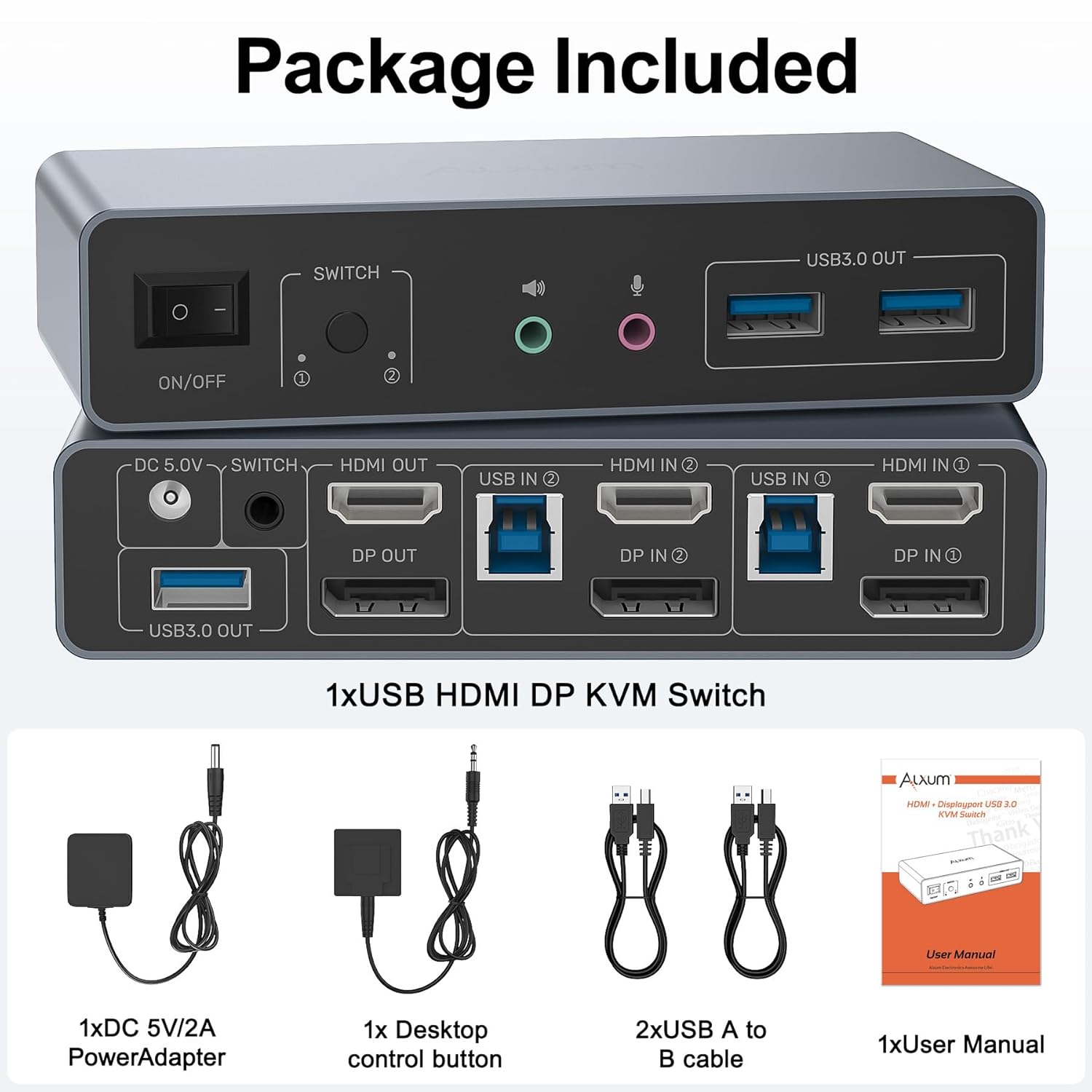
Rysunek 1: Zawartość opakowania
3. Koniec produktuview
3.1 Panel przedni
- Przełącznik włącz / wyłącz: Power control for the KVM switch.
- Przycisk przełącznika: Manually switch between PC1 and PC2.
- Wyjście audio (wyjście liniowe): Podłącz słuchawki lub głośniki.
- Microphone Input (Mic In): Podłącz mikrofon.
- USB 3.0 OUT Ports (x3): Connect USB peripherals like keyboard, mouse, USB drives, or printers.
3.2 Panel tylny
- 5V DC: Port wejściowy zasilania.
- WYJŚCIE HDMI: Connect to Monitor 1.
- WYJŚCIE DP: Connect to Monitor 2.
- USB IN (PC1/PC2): Podłącz do portu USB 3.0 w komputerze.
- HDMI IN (PC1/PC2): Connect to the HDMI output of your computer.
- DP IN (PC1/PC2): Connect to the DisplayPort output of your computer.
- Desktop Controller Port: Connect the included desktop controller for remote switching.

Rysunek 2: Schemat połączeń
4. Instrukcje konfiguracji
- Połącz komputery:
For each computer (PC1 and PC2), connect one HDMI cable from the computer's HDMI output to the KVM switch's HDMI IN port, and one DisplayPort cable from the computer's DisplayPort output to the KVM switch's DP IN port. Additionally, connect a USB A to B cable from each computer's USB 3.0 port to the KVM switch's USB IN port. - Podłącz monitory:
Connect your primary monitor to the KVM switch's HDMI OUT port. Connect your secondary monitor to the KVM switch's DP OUT port. Ensure you use 4K-compatible HDMI and DisplayPort cables for optimal results. - Podłącz urządzenia peryferyjne:
Connect your keyboard, mouse, USB drives, printer, or other USB 3.0 devices to the USB 3.0 OUT ports on the front panel of the KVM switch. - Podłącz urządzenia audio:
If desired, connect your headphones/speakers to the Audio Output (Line Out) and your microphone to the Microphone Input (Mic In) on the front panel. - Podłącz kontroler komputera stacjonarnego:
Plug the desktop controller into the dedicated port on the rear panel for convenient remote switching. - Włączanie:
Connect the DC 5V Power Adapter to the KVM switch's DC 5V port and plug it into a power outlet. Turn on the KVM switch using the ON/OFF switch.
Ważne uwagi:
- To use dual-screen mode, both of your computers must be desktop PCs. This USB 3.0 KVM Switch is NOT recommended for use with laptops in dual-screen mode.
- All interfaces must be properly connected for the KVM switch to control two monitors with two computers.
- Always ensure the included DC 5V power adapter is connected when using the KVM switch, especially when connecting high-power equipment.
- For protection during transportation, the product is covered with a clear protective film. You can remove the clear protective film before use.
Video 1: Alxum USB 3.0 HDMI KVM Switch 2 Monitors to 2 Computers - This video demonstrates the connection process and functionality of the KVM switch, showing how to connect two computers to two monitors and share USB peripherals.
5. Instrukcja obsługi
5.1 Przełączanie się między komputerami
You can instantly switch between the two connected computers using one of the following methods:
- Przyciski urządzenia: Press the 'Switch' button on the front panel of the KVM switch.
- Kontroler pulpitu: Press the button on the included wired desktop controller.

Figure 3: Multiple Switching Methods
5.2 Tryby wyświetlania
The KVM switch supports both Extend Mode and Mirror Mode for your dual monitor setup. To switch between these modes, you must set both computers to the desired mode simultaneously by operating on the monitor settings of each computer.
- Tryb rozszerzania: Each monitor displays different content, extending your desktop across two screens.
- Tryb lustrzany: Both monitors display the same content, duplicating your desktop.

Figure 4: Extend Mode and Mirror Mode
6. Rozwiązywanie Problemów
- No Display/Inconsistent Signal: Ensure all HDMI and DisplayPort cables are securely connected and are 4K-compatible. Verify that the DC 5V power adapter is connected and providing power. Check your computer's display settings to ensure the correct output mode (Extend/Mirror) is selected for both monitors.
- USB Peripherals Not Responding: Confirm that the USB A to B cables are correctly connected from both computers to the KVM switch. Try connecting the USB device to a different USB 3.0 OUT port on the KVM switch. Ensure the KVM switch is powered.
- Problemy z przełączaniem: If the device button or desktop controller is not switching, ensure the desktop controller is properly plugged in. Try restarting the KVM switch by cycling its power.
- Kompatybilność laptopa: This KVM switch is primarily designed for desktop PCs for dual-screen output. Connecting a laptop for dual monitor output is not recommended and may result in unstable performance.
- Optimal 4K Resolution: For 4K@60Hz resolution, use high-quality, 4K-compatible HDMI and DisplayPort cables.
7. Specyfikacje
| Funkcja | Specyfikacja |
|---|---|
| Numer modelu | SJW-DKM202B |
| Wejścia wideo | 2x HDMI, 2x DisplayPort |
| Wyjścia wideo | 1x HDMI, 1x DisplayPort |
| Wejścia USB | 2x USB 3.0 (Type-B) |
| Wyjścia USB | 3x USB 3.0 (Type-A) |
| Maksymalna rozdzielczość | 4K@60Hz (backward compatible with 4K@30Hz, 1080p) |
| Szybkość przesyłania danych USB | Do 5 Gbps |
| Porty audio | 1x Line Out, 1x Mic In |
| Metody przełączania | Device Button, Desktop Controller |
| Zasilacz | DC 5V Power Adapter (Included) |
| Tworzywo | Aluminium |
| Wymiary produktu | Wymiary 13 x 6.25 x 2.96 cm |
| Waga przedmiotu | 490 gramów |
8. Gwarancja i wsparcie
Alxum is committed to providing high-quality products and excellent customer service. If you have any questions before purchase or during use, please contact us. We offer 24-hour customer-friendly support service to assist you with any inquiries or issues.
Please refer to the product packaging or the official Alxum webAby zapoznać się ze szczegółowymi informacjami i warunkami gwarancji, odwiedź naszą stronę.