
1. Wprowadzenie
Thank you for choosing the Ftoghe Android 13 Car Stereo. This manual provides detailed instructions for the installation, operation, and maintenance of your new car stereo system. This unit is specifically designed for Mazda MX-5 models manufactured between 2006 and 2021, offering a seamless upgrade to your vehicle's infotainment system. It features a 9-inch touchscreen, wireless Apple CarPlay and Android Auto, GPS navigation, Bluetooth connectivity, Wi-Fi, and support for a backup camera.
2. Informacje dotyczące bezpieczeństwa
- Zalecana profesjonalna instalacja: Ze względu na złożoność układów elektrycznych w samochodach, zaleca się zlecenie montażu profesjonalnemu instalatorowi, aby zapobiec uszkodzeniu urządzenia lub pojazdu.
- Bezpieczeństwo jazdy: Nie należy obsługiwać urządzenia ani view videos while driving. Always prioritize road safety.
- Odłączenie zasilania: Disconnect the vehicle's battery before beginning any installation or wiring procedures.
- Wentylacja: Aby zapobiec przegrzaniu, należy zapewnić odpowiednią wentylację wokół urządzenia.
- Ekspozycja na płyny: Avoid exposing the unit to water or other liquids.
3. Zawartość opakowania
Sprawdź, czy w przesyłce znajdują się wszystkie elementy wymienione poniżej:
- Ftoghe Android 13 Car Stereo Unit (9-inch display)
- Kabel zasilający
- Kable wejściowe/wyjściowe RCA
- 2 kable USB
- Kabel wejściowy kamery
- Antena GPS
- Instrukcja obsługi
- Mikrofon
- Adapter USB
- Kamera cofania AHD

4. Instalacja
This section outlines the general steps for installing the car stereo. Specific vehicle disassembly and reassembly procedures may vary. Always refer to your vehicle's service manual if unsure.
- Przygotowanie: Upewnij się, że zapłon pojazdu jest wyłączony i odłącz zacisk ujemny akumulatora, aby zapobiec zwarciu elektrycznemu.
- Usuń starą jednostkę: Carefully remove the existing car stereo and trim panels from your Mazda MX-5.
- Podłącz okablowanie:
- Podłącz główną wiązkę zasilania do instalacji elektrycznej pojazdu.
- Connect the RCA input/output cables for external amplifiers or video displays if applicable.
- Attach the USB cables for external devices.
- Podłącz antenę GPS i umieść ją w miejscu z wolnym dostępem do światła. view nieba (np. deska rozdzielcza).
- Podłącz zewnętrzny mikrofon, aby poprawić jakość rozmów.
- Kamera cofania: Route the backup camera cable from the rear of the vehicle to the stereo unit. Connect the camera input cable to the stereo and ensure the camera's power wire is connected to the vehicle's reverse light circuit for automatic activation.
- Montaż urządzenia: Secure the new Ftoghe car stereo into the dashboard opening.
- Ponowny montaż: Zamontuj ponownie wszystkie zdjęte panele wykończeniowe.
- Podłącz ponownie akumulator: Podłącz ujemny zacisk akumulatora samochodowego.
5. Konfiguracja początkowa
Po instalacji wykonaj poniższe czynności, aby przeprowadzić konfigurację początkową:
- Włączanie: Start your vehicle to power on the car stereo.
- Ustawienia językowe: Navigate to the system settings to select your preferred language.
- Połączenie Wi-Fi: Go to Wi-Fi settings, scan for available networks, and connect to your mobile hotspot or a local Wi-Fi network to enable online features and app downloads.
- Konfiguracja GPS: Ensure the GPS antenna is properly connected. The system should automatically detect satellites. You can download offline maps for navigation without an internet connection.
- Parowanie Bluetooth:
- Otwórz aplikację Bluetooth na samochodowym radiu.
- Włącz Bluetooth na swoim smartfonie i wyszukaj dostępne urządzenia.
- Select the car stereo's Bluetooth name (e.g., "Ftoghe Car Stereo") from your phone's list and confirm the pairing code.
- Steering Wheel Control (SWC) Learning:
- Access the SWC settings in the car stereo's menu.
- Postępuj zgodnie z instrukcjami wyświetlanymi na ekranie, aby przypisać funkcje do przycisków na kierownicy pojazdu. Note: An additional interface may be required for some vehicle models if direct connection is not supported.

6. Instrukcja obsługi
6.1. Nawigacja na ekranie głównym
The home screen provides access to all main functions and installed applications. Swipe left or right to navigate between screens. Tap on an icon to open an application.
6.2. Bezprzewodowy CarPlay i Android Auto
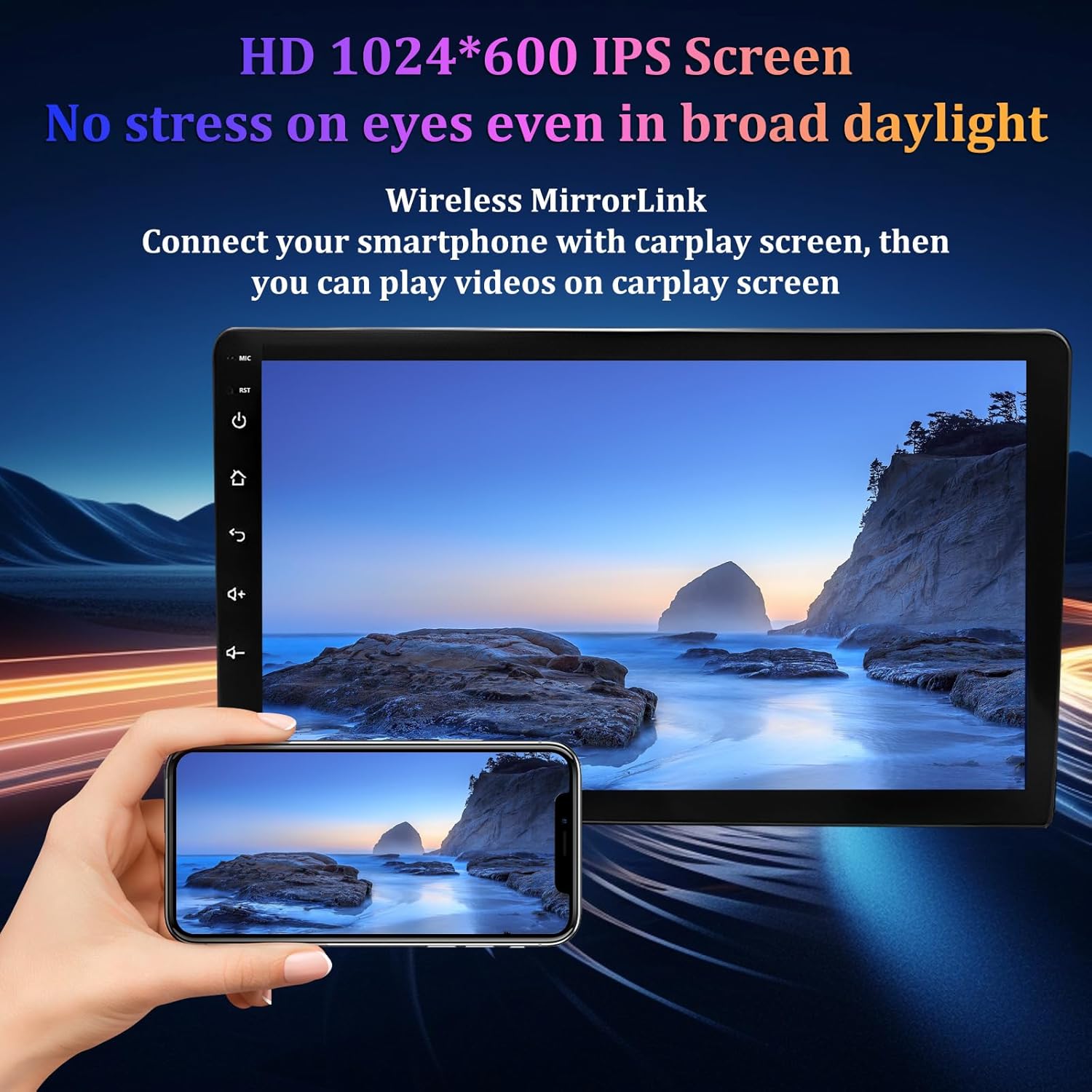
Connect your compatible smartphone wirelessly to access Apple CarPlay or Android Auto. This allows you to use phone apps, navigation, make calls, and play music directly from the car stereo's touchscreen.
- Upewnij się, że Bluetooth i Wi-Fi są włączone zarówno w telefonie, jak i w samochodowym radiu.
- Open the CarPlay/Android Auto app on the stereo and follow the on-screen prompts to connect your device.

6.3. Nawigacja GPS
The unit supports both online and offline navigation. Use pre-installed map applications or download your preferred navigation apps from the app store. Ensure the GPS antenna has a clear signal for accurate positioning.
- Tap the 'Navigation' icon to launch the map application.
- Wprowadź miejsce docelowe za pomocą ekranu dotykowego lub poleceń głosowych.

Ask a question about this manual
Ask about setup, troubleshooting, compatibility, parts, safety, or missing instructions. Manuals+ will review the question and use this page’s manual context to help answer it.