
1. Wprowadzenie
Thank you for choosing the IAMJOY U-Air Wireless Gaming Earbuds. These earbuds are designed to provide a high-fidelity audio experience with ultra-low latency for gaming across various platforms. This manual provides detailed instructions on how to set up, operate, maintain, and troubleshoot your earbuds to ensure optimal performance.
2. Zawartość opakowania
Sprawdź, czy w przesyłce znajdują się wszystkie elementy:
- IAMJOY Wireless Gaming Earbuds (Left and Right)
- Etui z ładowaniem bezprzewodowym
- USB-C to USB-A Dongle Adapter
- Kabel ładujący USB-C
- Różne rozmiary silikonowych nakładek dousznych (S, M, L)
- Instrukcja obsługi

Image 2.1: IAMJOY U-Air Wireless Gaming Earbuds, charging case, and USB dongle.
3. Koniec produktuview
The IAMJOY U-Air earbuds feature a compact design with integrated ear wings for a secure fit. The charging case includes an LED display to show battery levels for both earbuds and the case itself. A 2.4GHz wireless dongle is provided for low-latency connections to gaming devices.
4. Ładowanie słuchawek i etui
Przed pierwszym użyciem należy w pełni naładować słuchawki i etui ładujące.
4.1 Ładowanie słuchawek dousznych
- Umieść słuchawki w etui ładującym, upewniając się, że są prawidłowo osadzone w odpowiednich gniazdach (L - lewy, R - prawy).
- Close the charging case. The earbuds will begin charging automatically.
4.2 Ładowanie etui
- Podłącz kabel ładujący USB-C do portu ładowania w obudowie.
- Podłącz drugi koniec kabla do źródła zasilania USB (np. zasilacza sieciowego, portu USB komputera).
- The LED display on the case will show the charging status. A full charge typically takes approximately 1.5 hours.
The charging case provides approximately 22 hours of additional playtime, extending the total battery life to up to 30 hours. Each earbud offers up to 6 hours of playtime per charge (3 hours in game mode).
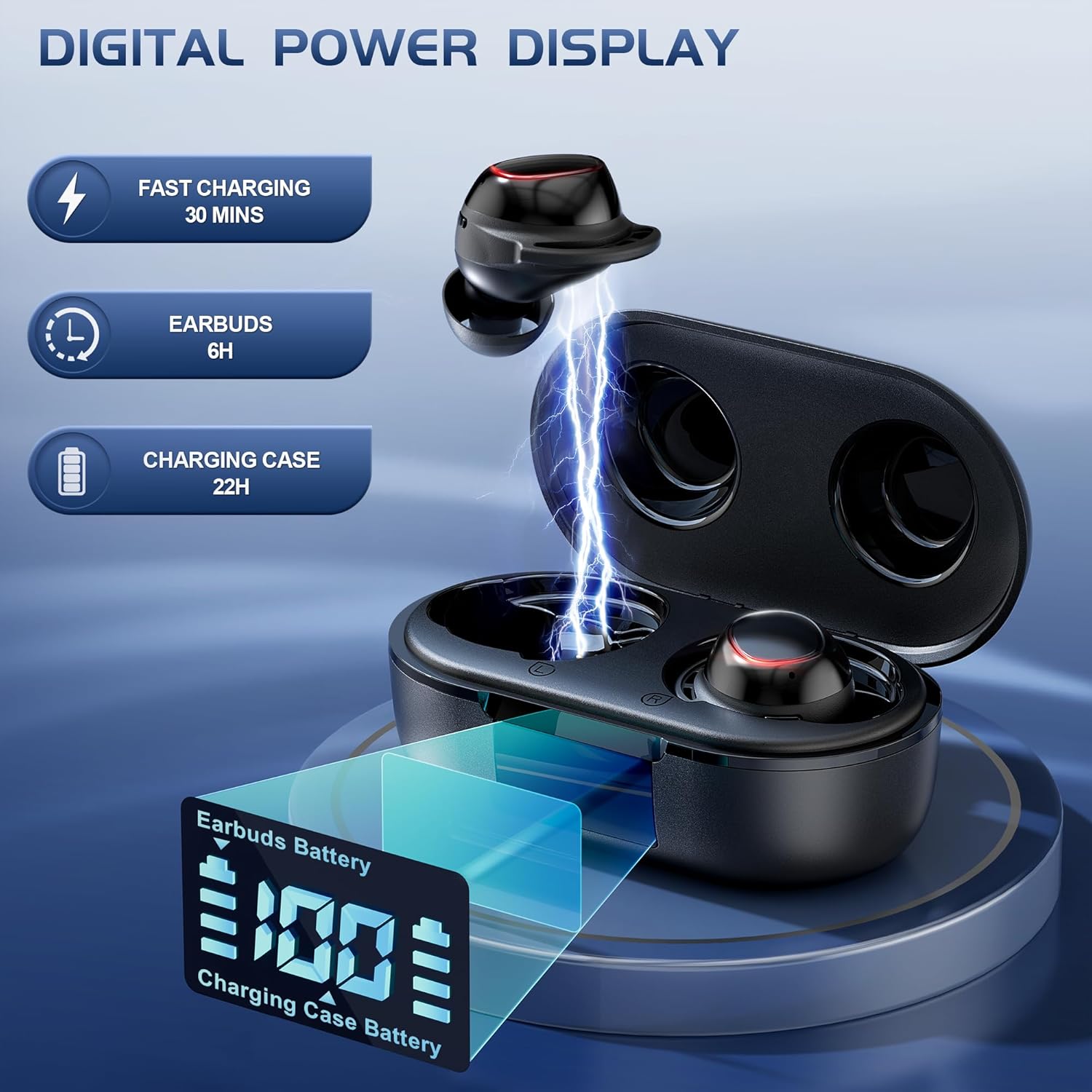
Image 4.1: Digital power display on the charging case indicates earbud and case battery levels.

Obraz 4.2: Koniecview of earbud and charging case battery life.
5. Zakładanie słuchawek dousznych
Proper fit is essential for comfort and optimal sound quality.
- Wybierz odpowiedni rozmiar: Select the silicone ear tips that provide the best seal and comfort for your ears. Three sizes (S, M, L) are included.
- Włóż słuchawki douszne: Ostrożnie włóż każdą słuchawkę do kanału słuchowego.
- Dostosuj dla komfortu: Twist the earbuds slightly until the ear wings sit securely in your outer ear, ensuring a stable and comfortable fit. The 45° angled in-ear design helps maintain stability during movement.

Image 5.1: Steps for selecting ear tips and achieving a comfortable fit.
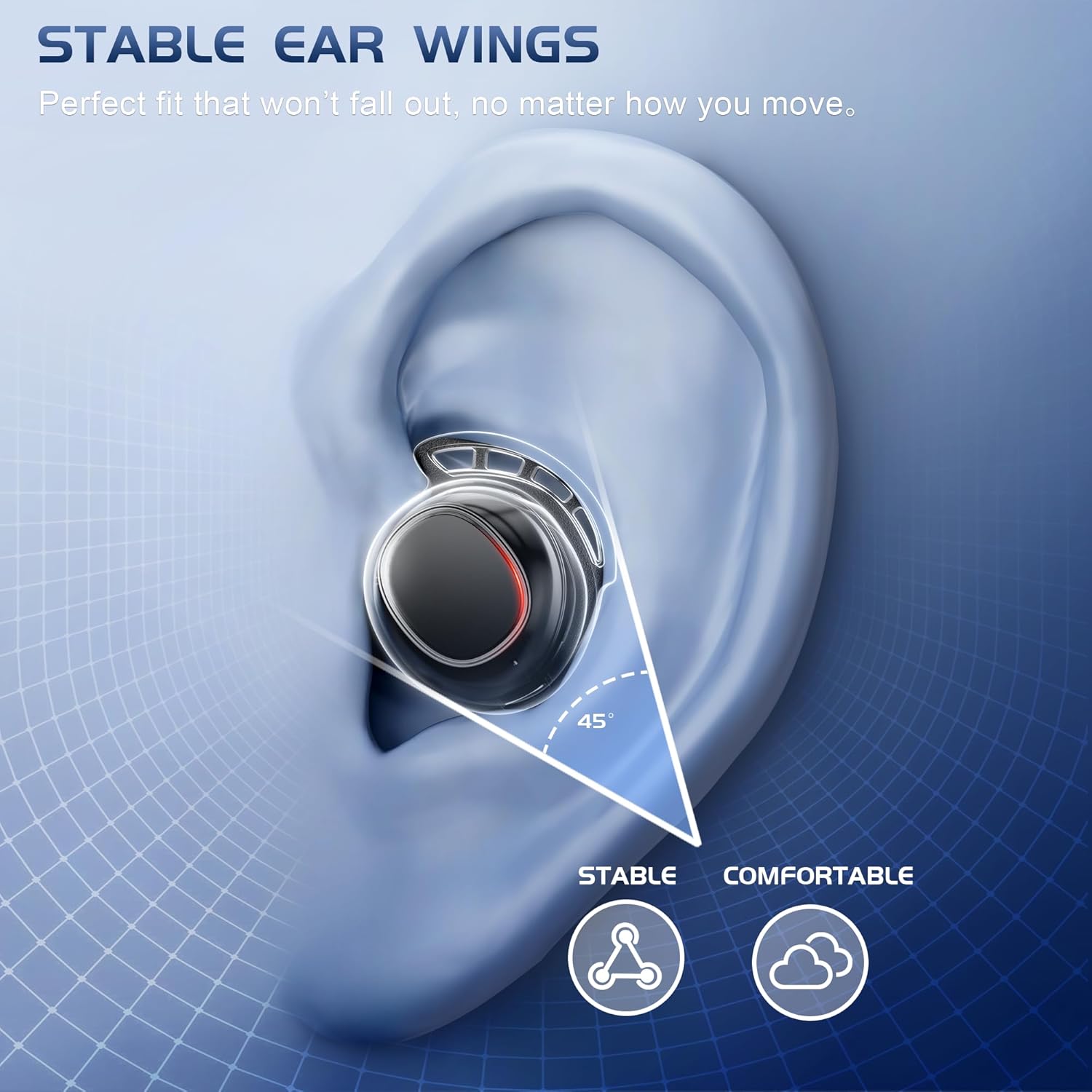
Image 5.2: The stable ear wing design ensures the earbuds remain in place.
6. Łączność
The IAMJOY U-Air earbuds offer both 2.4GHz wireless and Bluetooth 5.3 connectivity.
6.1 2.4GHz Wireless Connection (for Gaming Devices)
This mode provides ultra-low latency (20ms) for an optimized gaming experience.
- Insert the USB-C dongle into the compatible port of your gaming device (Meta Quest 2/3, PICO 4, PlayStation 4/5, Steam Deck, Nintendo Switch, PC, laptop). If your device only has USB-A, use the provided USB-A adapter.
- Take the earbuds out of the charging case. They will automatically attempt to connect to the dongle.
- A successful connection is indicated by a specific light pattern or audio cue (refer to earbud indicator lights for details).
6.2 Bluetooth 5.3 Connection (for Mobile Devices and General Use)
Use Bluetooth for connecting to smartphones, tablets, and other Bluetooth-enabled devices.
- Ensure the earbuds are out of the charging case.
- Na swoim urządzeniu przejdź do ustawień Bluetooth i włącz Bluetooth.
- Szukaj available devices and select "IAMJOY U-Air" to pair.
- Once paired, the earbuds will connect automatically when taken out of the case and within range of your device.
6.3 Dual-Connection Compatibility
The earbuds support simultaneous connection to both 2.4GHz (via dongle) and Bluetooth. This allows you to receive calls on your phone while gaming without interruption.
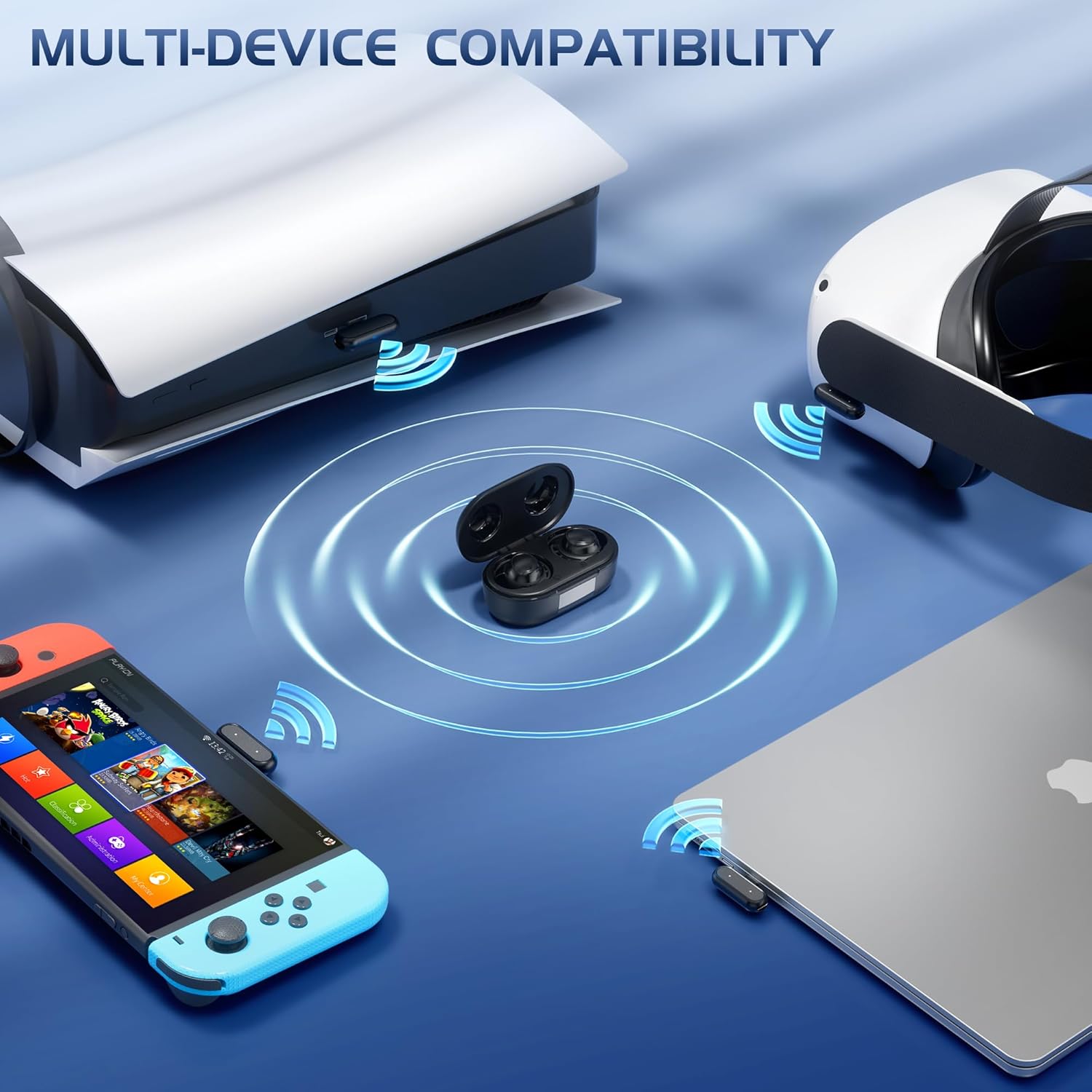
Image 6.1: Multi-device compatibility with 2.4GHz dongle for various gaming platforms.

Image 6.2: Answer calls mid-game by connecting to Bluetooth and the dongle simultaneously.
7. Obsługa słuchawek dousznych
7.1 Sterowanie dotykowe
The earbuds feature touch-sensitive areas for various functions:
- Ściszanie: Long press Left earbud (Bluetooth connection only).
- Zwiększenie głośności: Long press Right earbud (Bluetooth connection only).
- Następna piosenka: Double-click Right earbud.
- Poprzednia piosenka: Double-click Left earbud.
- Odtwórz/Pauza: Single-click Left or Right earbud.
- Odbieranie/kończenie połączeń: Single-click Left or Right earbud.
- Odmowa połączenia: Long press Left or Right earbud for 2 seconds.
- Asystent głosowy: Triple-click Left earbud.

Image 7.1: Detailed touch control functions for the earbuds.
7.2 Funkcje audio
- 20 ms, bardzo niskie opóźnienie: Optimized for gaming, ensuring synchronized sound with on-screen action.
- Immersive High-Fidelity Audio: Delivers clear surround sound with deep bass, balanced mids, and crisp highs.
- Mikrofony z redukcją szumów: Four integrated microphones reduce background noise for clear voice chat.

Image 7.2: Experience ultra-low latency for immersive gaming.

Image 7.3: Upgraded Hi-Fi level sound quality with 13mm speaker dynamic audio.

Image 7.4: Dual microphones with Environmental Noise Cancellation (ENC) for clear communication.
8. Konserwacja
To ensure the longevity and performance of your earbuds:
- Czyszczenie: Regularnie czyść słuchawki douszne i etui ładujące miękką, suchą ściereczką. Unikaj stosowania materiałów ściernych i silnych środków chemicznych.
- Końcówki douszne: Regularnie zdejmuj i czyść silikonowe nakładki douszne łagodnym mydłem i wodą. Przed ponownym założeniem upewnij się, że są całkowicie suche.
- Wodoodporność: Słuchawki douszne są wodoodporne (IPX5), co oznacza, że są odporne na zachlapania i pot. Nie są przeznaczone do zanurzania w wodzie. Przed ładowaniem upewnij się, że port ładowania jest suchy.
- Składowanie: Gdy nie używasz słuchawek, przechowuj je w etui ładującym, aby je chronić i utrzymać naładowanie.

Image 8.1: IPX5 water resistance protects against sweat and splashes.
9. Rozwiązywanie Problemów
If you encounter issues with your IAMJOY U-Air earbuds, try the following solutions:
9.1 Brak dźwięku lub niski poziom głośności
- Sprawdź, czy słuchawki są prawidłowo naładowane.
- Check the volume levels on both your earbuds and the connected device.
- Verify that the earbuds are correctly paired and connected to your device (2.4GHz dongle or Bluetooth).
- For 2.4GHz connections, ensure the dongle is firmly inserted into the device.
9.2 PS5 Sound Issues
If you experience sound issues with your PlayStation 5:
- Idź do Ustawienia > Dźwięk > Wyjście audio.
- Select the correct audio device (e.g., "Headphones (USB Headset)" if using the dongle).
- Ensure your PS5 software is up to date.
- Turn up the volume on your TV/monitor and PS5.

Image 9.1: PS5 audio settings to resolve sound issues.
9.3 PS4 Sound Low or Disconnecting
If you experience sound issues with your PlayStation 4:
- Idź do Ustawienia > Urządzenia > Urządzenia audio.
- Under "Output to Headphones," select "All Audio."
- Ensure your PS4 software is up to date.
- Turn up the volume on your TV/monitor and PS4.

Image 9.2: PS4 audio settings to resolve sound issues.
9.4 Problemy z łącznością
- Zresetuj słuchawki: Place earbuds back in the case, close it, then open it again.
- Naprawa: Delete the earbuds from your device's Bluetooth list and re-pair.
- Ingerencja: Odsuń się od innych urządzeń bezprzewodowych, które mogą powodować zakłócenia.
10. Specyfikacje
| Nazwa modelu | U-powietrze |
| Technologia łączności | Bezprzewodowa (2.4 GHz, Bluetooth 5.3) |
| Opóźnienie dźwięku | 20 milisekund |
| Czas pracy baterii (słuchawki douszne) | Up to 6 Hours (3 Hours in Game Mode) |
| Czas pracy baterii (z etui ładującym) | Do 30 godzin |
| Czas ładowania | Około 1.5 godzin |
| Pojemność akumulatora etui ładującego | 500 mAh |
| Zasięg Bluetooth | 10 metrów |
| Poziom wodoodporności | IPX5 |
| Waga słuchawek | Około 5 gramy (każdy) |
| Tworzywo | Akrylonitryl-butadien-styren (ABS) |
| Kompatybilne urządzenia | Meta Quest VR, PlayStation 4/5, Switch, Pico 4 Ultra, Steam Deck, PC, Laptops, Phones (Note: Not compatible with Xbox) |
11. Gwarancja i wsparcie
IAMJOY is committed to ensuring your satisfaction. If you experience any issues or have questions regarding your U-Air Wireless Gaming Earbuds, please do not hesitate to contact our customer support team.
Our team is available to provide prompt and helpful assistance to resolve any concerns you may have.

Image 11.1: Contact customer support for assistance.