
GrandStream GCC6010
Instrukcja obsługi Grandstream GCC6010
Integrated IP PBX, Firewall, VPN Router, and Network Switch
1. Wprowadzenie
The Grandstream GCC6010 series offers a comprehensive, multifunctional solution designed to streamline communication and networking for small and medium businesses. This device integrates the functionalities of a VPN router, a next-generation firewall, an IP PBX, and a network switch into a single platform. It enables users to establish and manage wired and wireless networks, implement VPNs, ensure enterprise-level network security, and utilize a leading unified communication and collaboration platform.
The GCC6010 facilitates quick configuration of complete unified communication (UC), network, and security solutions. Management can be performed via the Grandstream Device Management System (GDMS) cloud platform, a mobile application, the local web interface, or through SSH console management. This integrated approach simplifies data security, business communication, and collaboration.
2. Zawartość opakowania
Sprawdź, czy w paczce znajdują się wszystkie elementy. Jeśli któregokolwiek z nich brakuje lub jest uszkodzony, natychmiast skontaktuj się ze sprzedawcą.
- Grandstream GCC6010 Unit
- Uniwersalny zasilacz
- Szybki przewodnik instalacji
3. Przekroczenie fizyczneview
The Grandstream GCC6010 features a compact design with various ports and indicators for network connectivity and system status.
3.1. Device Front View
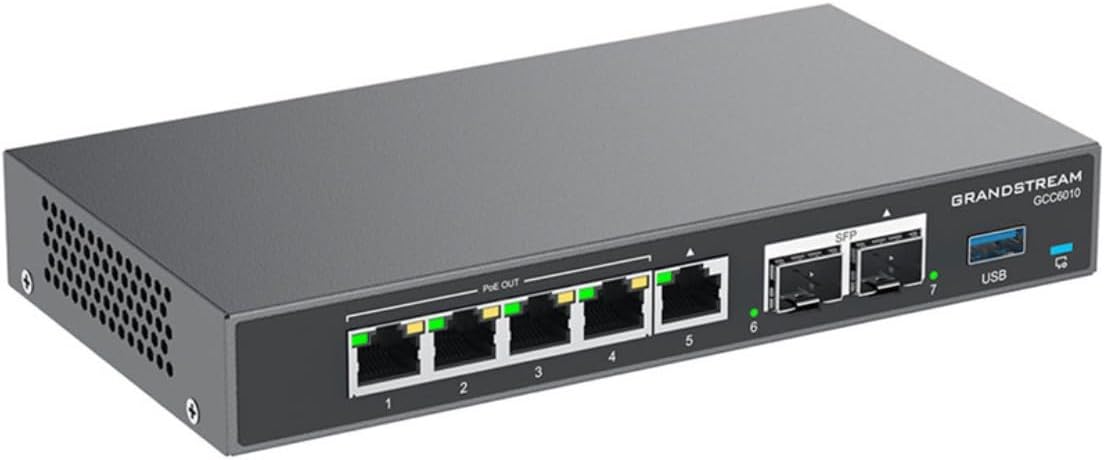
Rysunek 1: Kątowy przód view of the Grandstream GCC6010, displaying the network ports, SFP slots, and USB port.
Na tym zdjęciu widać kąt view of the GCC6010, highlighting its front panel. Visible features include multiple Ethernet ports (labeled 1-5), two SFP ports (labeled 6-7), and a USB port. LED indicators above each port show connection status and activity. The device casing is dark gray with the Grandstream logo and model number clearly visible.
3.2. Układ panelu przedniego

Rysunek 2: Szczegółowy view of the Grandstream GCC6010 front panel, showing port numbering and LED indicators.
The front panel of the GCC6010 features five Gigabit Ethernet ports (1-5), with ports 1-4 supporting PoE Out. Each Ethernet port has corresponding LED indicators for link/activity status. Two SFP ports (6-7) are provided for fiber optic connections, also with individual LED indicators. A USB 3.0 port is located on the far right, alongside a system status LED.
3.3. Układ tylnego panelu

Rysunek 3: Szczegółowy view of the Grandstream GCC6010 rear panel, showing power input, reset button, and Micro SD slot.
The rear panel includes the 48V DC power input jack, a recessed reset button, and a Micro SD card slot for storage. Additionally, there is a Kensington lock slot for security and a grounding screw terminal.
4. Konfiguracja
4.1. Instalacja sprzętu
- Podłączenie zasilania: Connect the universal power adapter to the 48V DC power input on the rear panel of the GCC6010 and then plug it into a power outlet.
- Połączenie internetowe: Connect your internet service provider's modem or router to one of the WAN ports (typically port 5, consult the Quick Installation Guide for specifics) on the GCC6010. Connect your local network devices (computers, switches, IP phones) to the LAN ports (1-4).
- Optional SFP Connection: If using fiber optic connections, insert compatible SFP modules into the SFP ports (6-7) and connect the fiber cables.
- Optional USB Storage: For additional storage or specific applications, connect a USB drive to the USB port.
- Optional Micro SD Storage: Insert a Micro SD card into the Micro SD slot on the rear panel for additional storage.
4.2. Dostęp do konfiguracji początkowej
After connecting the hardware, you can access the device for initial configuration using one of the following methods:
- Web Interfejs: Connect a computer to a LAN port of the GCC6010. Open a web browser and enter the default IP address (refer to the Quick Installation Guide or device label for the default IP). Follow the on-screen prompts to complete the initial setup wizard.
- Grandstream Device Management System (GDMS): For cloud-based management, register your GCC6010 device on the GDMS platform. This allows for centralized management and configuration.
- Aplikacja mobilna: Utilize the Grandstream mobile application for basic monitoring and configuration.
- SSH Console: For advanced users, access the device via SSH for command-line configuration.
It is highly recommended to change default passwords immediately after initial access for security purposes.
5. Instrukcja obsługi
The GCC6010 combines multiple functionalities. This section provides an overview of its primary operational aspects.
5.1. Network Configuration (Router & Switch)
- WAN Setup: Configure your internet connection settings (DHCP, Static IP, PPPoE) through the web interfejs.
- LAN Management: Manage IP addresses, DHCP server settings, and VLANs for your local network.
- Przełączanie: The integrated switch ports (1-5) provide basic layer 2 switching capabilities. Ports 1-4 support Power over Ethernet (PoE) output for compatible devices.
- Sieci bezprzewodowe: If external Grandstream Wi-Fi Access Points are connected and managed by the GCC6010, configure SSIDs, security protocols, and guest networks.
5.2. IP PBX Features
The GCC6010 functions as an IP PBX, supporting up to 10 users and 4 simultaneous calls.
- Zarządzanie użytkownikami: Create and manage extensions for IP phones and softphones.
- Call Routing: Configure inbound and outbound call routes, IVRs (Interactive Voice Response), and ring groups.
- Poczta głosowa: Set up voicemail boxes and access methods.
- Konferencje: Utilize built-in conferencing features for multi-party calls.
5.3. Firewall and VPN
- Reguły zapory sieciowej: Configure security policies, access control lists (ACLs), and port forwarding to protect your network.
- Konfiguracja VPN: Establish Virtual Private Network (VPN) connections for secure remote access or site-to-site connectivity. Supported VPN protocols may include OpenVPN, IPsec, etc.
- Intrusion Detection/Prevention: Utilize advanced security features to detect and prevent network threats.
5.4. Zarządzanie systemem
- Web Interfejs: The primary method for detailed configuration and monitoring.
- GDMS: For managing multiple Grandstream devices from a centralized cloud platform.
- Logs and Reports: Monitor system logs, call detail records (CDRs), and network traffic reports for diagnostics and performance analysis.
6. Konserwacja
6.1. Aktualizacje oprogramowania sprzętowego
Regularnie sprawdzaj dostępność aktualizacji oprogramowania układowego i stosuj je, aby zapewnić optymalną wydajność, bezpieczeństwo i dostęp do nowych funkcji. Oprogramowanie układowe można aktualizować za pośrednictwem web interface or GDMS.
- Download the latest firmware from the official Grandstream webstrona.
- Uzyskaj dostęp do urządzenia web interfejs i przejdź do sekcji aktualizacji oprogramowania sprzętowego.
- Follow the instructions to upload and install the new firmware. Do not power off the device during the upgrade process.
6.2. Kopia zapasowa i przywracanie konfiguracji
It is recommended to regularly back up your device's configuration settings. This allows for quick restoration in case of system issues or when migrating settings to a new device.
- Uzyskaj dostęp do web interface and locate the backup/restore section.
- Zapisz konfigurację file w bezpieczne miejsce.
- Aby przywrócić, prześlij zapisaną konfigurację file through the same interface.
6.3. Reset systemu
If the device becomes unresponsive or you need to revert to factory settings, a system reset can be performed. Use the recessed reset button on the rear panel. Press and hold the button for approximately 10 seconds until the device reboots to factory defaults. Ostrzeżenie: A factory reset will erase all configurations and data.
7. Rozwiązywanie Problemów
W tej sekcji opisano podstawowe czynności rozwiązywania typowych problemów.
- Brak zasilania: Ensure the power adapter is securely connected to the device and a working power outlet. Check the power LED indicator.
- Brak połączenia sieciowego:
- Verify Ethernet cables are properly connected to the correct ports (WAN/LAN).
- Check port LED indicators for link and activity.
- Confirm IP address settings on connected devices.
- Restart the GCC6010 and connected network devices.
- Nie można uzyskać dostępu Web Interfejs:
- Ensure your computer is on the same network segment as the GCC6010 (e.g., connected to a LAN port).
- Sprawdź, czy adres IP wprowadzony w przeglądarce jest poprawny.
- Wyczyść pamięć podręczną przeglądarki lub spróbuj innej przeglądarki.
- Tymczasowo wyłącz wszelkie oprogramowanie zapory sieciowej na swoim komputerze.
- IP PBX Call Issues:
- Check SIP registration status for extensions.
- Verify inbound/outbound routes and firewall rules.
- Zapewnij wystarczającą przepustowość dla ruchu głosowego.
For more advanced troubleshooting, consult the comprehensive online documentation or contact Grandstream technical support.
8. Specyfikacje
| Funkcja | Szczegół |
|---|---|
| Marka | Wielki Strumień |
| Numer modelu | GCC6010 |
| Porty sieciowe | 5 x Gigabit Ethernet (RJ45), 2 x 2.5 Gigabit (SFP) |
| Wyjście PoE | Yes, on ports 1-4 |
| Zawarte komponenty | GCC6010 unit, Universal Power Adapter, Quick Installation Guide |
| Kolor | Czarny |
| Kompatybilne urządzenia | Desktop computers, Laptops, Printers, Servers |
| Interfejs | RJ45, SFP, USB, Micro SD |
| Typ przełącznika | Unmanaged (Layer 2 functionality) |
| Zgodność platformy | Wszystkie systemy operacyjne |
| Casing Materiał | Plastikowy |
| Waga przedmiotu | 1.85 funta (ok. 0.84 kg) |
| Producent | Sieci Grandstream |
| Kraj pochodzenia | Portugalia |
| IP PBX Capacity | 10 users, 4 simultaneous calls |
9. Gwarancja i wsparcie
Aby uzyskać szczegółowe informacje dotyczące gwarancji, zapoznaj się z kartą gwarancyjną dołączoną do produktu lub odwiedź oficjalną stronę internetową Grandstream website. Technical support is available through Grandstream's support portal, knowledge base, and community forums. Contact information for support can be found on the Grandstream webstrona.
Ask a question about this manual
Ask about setup, troubleshooting, compatibility, parts, safety, or missing instructions. Manuals+ will review the question and use this page’s manual context to help answer it.