1. Koniec produktuview
The CHICIRIS Programmable LED Display is a flexible, full-color LED panel designed for dynamic visual communication. With 1280 RGB LED beads, it delivers bright and attractive effects. Its thin and lightweight silicone design, coupled with an IP65 waterproof rating, makes it suitable for various indoor and outdoor applications. The display is powered via USB and controlled through the iPixel Color APP, allowing for extensive customization of text, patterns, animations, and more.
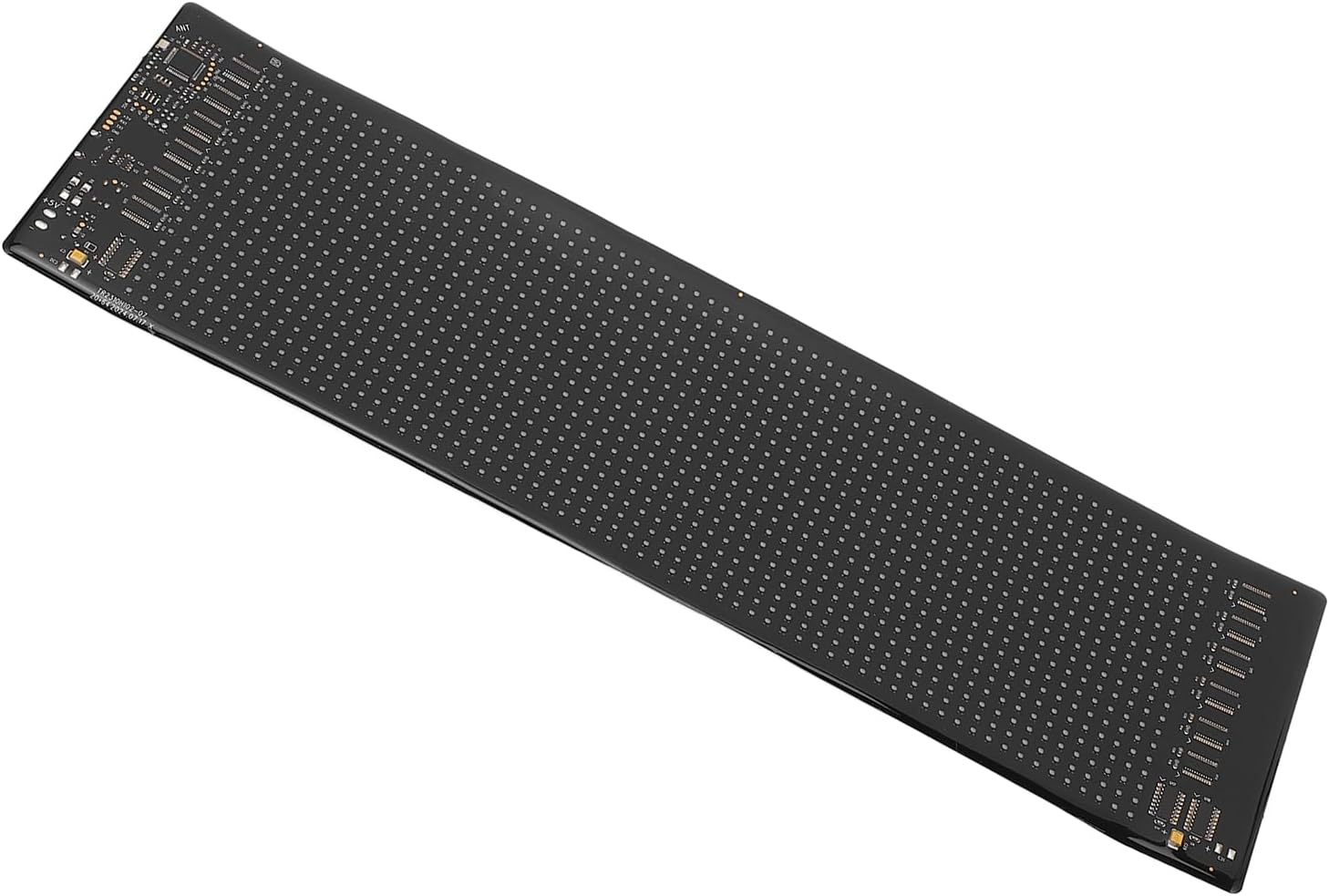
Figure 1.1: The CHICIRIS Programmable LED Display, showcasing its flexible and elongated design.
Główne cechy:
- Przenośna i elastyczna konstrukcja: Thin, lightweight, and bendable silicone construction for easy installation and transport.
- High Intensity Full Color Effects: Equipped with 1280 RGB LED beads for vibrant and eye-catching displays.
- Customizable Light Display: Personalize content with text, patterns, animations, doodles, and music rhythm synchronization via the iPixel Color APP.
- Stopień wodoodporności IP65: Ensures durability and protection against water and dust, suitable for various environments.
- Ekologiczny projekt: USB-powered, requiring no internal battery, making it a sustainable choice.
- Wszechstronne zastosowanie: Ideal for holiday gatherings, weddings, bars, offices, vehicles, and other events.
2. Specyfikacje
| Atrybut | Szczegół |
|---|---|
| Typ przedmiotu | Programmable LED Display |
| Tworzywo | Silicone, PCB |
| Piksele | 20x64 pikseli |
| Rozszerzony rozmiar | Około 13.7 x 4.0 cali (34.8 x 10.16 cm) |
| Kolor | Czarny |
| Ilość diod LED | 1280pcs RGB LEDs |
| Zasilacz | USB |
| Moc wejściowa | 5 V 2 A 10 W |
| Aplikacja kontrolna | iPixel Color APP |
| Numer modelu | CHICIRISy9830bntme |
3. Zawartość opakowania
Sprawdź, czy w przesyłce znajdują się wszystkie elementy wymienione poniżej:
- 1 x Programmable LED Display
- 1 x Instrukcja obsługi
- 1 x kabel USB
- 1 x Pilot zdalnego sterowania
- 1 x taśma dwustronna

Figure 3.1: All components included in the package: LED display, USB cable, remote control, and double-sided tape.
4. Konfiguracja
4.1 Rozpakowanie i kontrola
- Ostrożnie wyjąć wszystkie elementy z opakowania.
- Inspect the LED display and accessories for any signs of damage. If any damage is found, do not proceed with setup and contact customer support.
- Confirm all items listed in Section 3 are present.
4.2 Połączenie zasilania
- Locate the USB port on the LED display.
- Connect the provided USB cable to the display's USB port.
- Plug the other end of the USB cable into a 5V 2A USB power source (e.g., a USB wall adapter, power bank, or computer USB port). Ensure the power source meets the 5V 2A requirement for optimal performance.

Figure 4.1: The included USB cable for power connection and the remote control.
4.3 Instalacja aplikacji
- Pobierz iPixel Color APP from your mobile device's app store (Google Play Store for Android or Apple App Store for iOS).
- Zainstaluj aplikację na swoim smartfonie lub tablecie.
- Ensure your device's Bluetooth is enabled for connection to the LED display.
4.4 Mounting the Display (Optional)
The display can be mounted using the provided double-sided tape or by hanging it. Its flexible design allows it to conform to various surfaces.
- Używanie taśmy dwustronnej: Clean the desired mounting surface. Apply the double-sided tape to the back of the LED display and firmly press the display onto the surface.
- Wiszące: The display's lightweight nature allows it to be hung using appropriate hooks or fasteners (not included) through its flexible structure.
5. Działanie
5.1 Connecting to the iPixel Color APP
- Ensure the LED display is powered on.
- Otwórz iPixel Color APP na Twoim urządzeniu mobilnym.
- The app should automatically detect the LED display via Bluetooth. If not, navigate to the connection settings within the app and select your device from the list of available devices.
- Once connected, the app interface will allow you to control the display.
5.2 Content Customization
The iPixel Color APP provides various options for customizing the display content:
- Tryb tekstowy: Enter custom text, adjust font, size, color, scrolling direction, and speed.
- Pattern Mode: Select from pre-set patterns or create your own static or animated designs.
- Tryb animacji: Choose from a library of animations or upload custom GIF files.
- Doodle Mode: Draw directly on the virtual display within the app to create unique designs.
- Tryb rytmu muzycznego: Synchronize the display's lighting effects with music played through your device's microphone.
5.3 Korzystanie z pilota zdalnego sterowania
The included remote control provides quick access to common functions and pre-set displays without needing the app.
- Przycisk zasilania: Włącza/wyłącza wyświetlacz.
- Regulacja jasności: Increases or decreases display brightness.
- Wybór trybu: Cycles through various pre-programmed display modes (e.g., text, patterns, animations).
- Regulacja prędkości: Controls the speed of scrolling text or animations.
- Pre-set Icons/Symbols: Buttons for displaying common symbols or emojis (e.g., warning signs, arrows, hearts).
6. Konserwacja
6.1 Czyszczenie
To maintain the display's appearance and functionality:
- Ensure the display is powered off and disconnected from the power source before cleaning.
- Use a soft, dry, lint-free cloth to gently wipe the surface of the LED panel.
- W przypadku uporczywych zabrudzeń, delikatnieampen the cloth with water. Avoid using harsh chemicals, abrasive cleaners, or excessive moisture, as these can damage the display.
6.2 Przechowywanie
When not in use, store the display in a cool, dry place, away from direct sunlight and extreme temperatures. Avoid folding or creasing the display sharply to prevent damage to the internal components.
7. Rozwiązywanie Problemów
If you encounter issues with your Programmable LED Display, refer to the following common troubleshooting steps:
| Problem | Możliwa przyczyna | Rozwiązanie |
|---|---|---|
| Wyświetlacz się nie włącza. | No power, insufficient power, faulty USB cable. | Ensure USB cable is securely connected. Use a 5V 2A power source. Try a different USB cable or power adapter. |
| Cannot connect to iPixel Color APP. | Bluetooth off, app not updated, display too far, interference. | Ensure Bluetooth is enabled on your device. Restart the app and display. Move closer to the display. Check for app updates. |
| Display shows garbled text or incorrect patterns. | Data transmission error, app settings incorrect. | Reconnect the app to the display. Verify settings within the app. Restart the display. |
| Pilot nie działa. | Line of sight blocked, remote battery low (if applicable). | Ensure direct line of sight to the display's receiver. (Note: This remote does not use batteries, it's an IR remote). |
Jeśli po wypróbowaniu tych rozwiązań problem nadal występuje, skontaktuj się z obsługą klienta.
8. Gwarancja i wsparcie
Ten produkt jest objęty standardową gwarancją producenta. Szczegółowe warunki gwarancji można znaleźć w dokumentacji dołączonej do produktu lub u sprzedawcy.
For technical support, troubleshooting assistance, or warranty claims, please contact CHICIRIS customer service through the retailer where the product was purchased or visit the official CHICIRIS brand store on Amazon.
CHICIRIS Store: https://www.amazon.com/stores/CHICIRS/page/5DDA4A76-A419-4A11-8D0F-A017222BC2F1