1. Koniec produktuview
The Vaydeer Air 3 Ultra Mouse Mover is designed to keep your computer active by simulating realistic mouse movements. This device prevents your computer from entering sleep mode or locking, offering an undetectable and noiseless solution for continuous activity. It features app control for customized settings and a built-in timer function.
2. Główne cechy
- App Control & Timer Shutdown: Remotely manage the mouse mover via a dedicated app. Adjust pause times, set running durations, and schedule automatic shut-off after 1-8 hours, or enable continuous operation.
- LED Display for Easy Monitoring: A bright LED display shows real-time settings, including current pause intervals and running times, allowing for easy monitoring and adjustment without the app.
- Ultra-Slim and Portable Design: With a thickness of only 17.3mm and a net weight of 105g, the device occupies minimal desk space and is highly portable for use on the go.
- Realistic and Undetectable Mouse Movement: Simulates natural, random mouse movements to keep your system active and prevent sleep mode or locking. The device is 100% undetectable by IT systems.
- Cicha praca: Equipped with a compact, ultra-quiet micro-motor, ensuring silent operation without distracting sounds.
3. Zawartość opakowania
- Vaydeer Air 3 Ultra Mouse Mover Unit
- Kabel USB-C do USB-A
- Krótki przewodnik użytkownika
4. Instrukcje konfiguracji
4.1 Połączenie zasilania
Connect the provided USB-C cable to the mouse mover unit. Plug the USB-A end of the cable into either a USB port on your computer or a 5V wall power adapter. The device is compatible with both Windows and Mac operating systems and requires no additional drivers.

Image: Powering the Vaydeer Air 3 Ultra Mouse Mover via a wall socket or a computer's USB port.
4.2 App Setup (Optional)
For enhanced control, download and set up the Vaydeer mouse jiggler app on your smartphone.
- Krok 1: Pobieranie aplikacji
Scan the QR code provided in the quick user guide or search for "Vaydeer mouse jiggler" in your device's app store to download the application. - Step 2: Register and Log In
Open the app, register a new user account, and then log in. - Step 3: Add Device to App
Press the Wi-Fi button on the device for 5 seconds until the Wi-Fi icon on the screen starts flashing. Then, tap "Add Device" in the app. - Step 4: Connect Device to App
Find your device in the app, tap on it, and fill in your Wi-Fi network information to establish a connection. - Step 5: Remote Control Ready
Once connected, you can use the app to turn the device on/off, adjust rotation times, and set scheduled shutdowns.
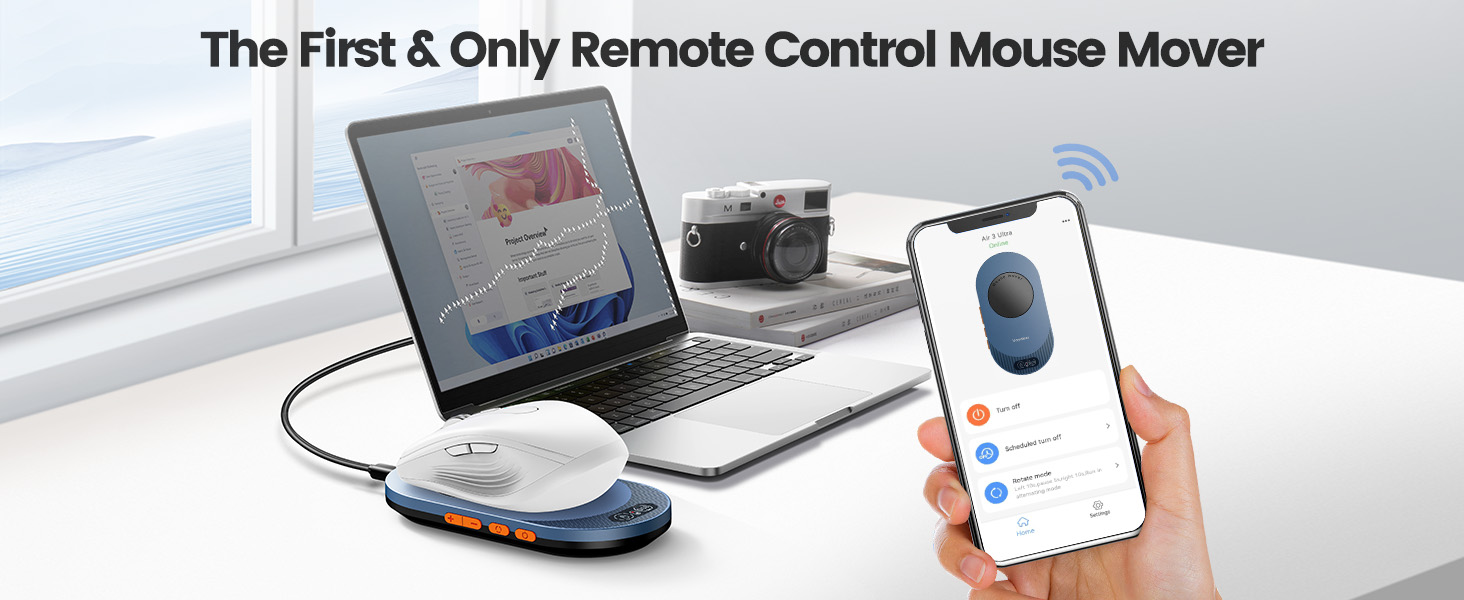
Image: Instructions for downloading the Vaydeer mouse jiggler app.
5. Instrukcja obsługi
5.1 Podstawowa obsługa
Place your optical mouse directly on the rotating disc of the Vaydeer Air 3 Ultra Mouse Mover. Ensure the optical sensor of your mouse is centered on the disc for optimal movement detection.
Video: Demonstration of the Vaydeer Air 3 Ultra Mouse Mover in action, showing the mouse moving on the device and the cursor moving on screen.
5.2 Adjusting Rotation Time and Timer
The device features an LED display and physical buttons for direct control:

Image: LED display indicators for rotation status, pause, and timer functions.
- Przycisk zasilania: Naciśnij, aby włączyć lub wyłączyć urządzenie.
- Rotation Time Buttons: Use the dedicated buttons to cycle through different rotation intervals: 10 seconds, 30 seconds, 3 minutes, or continuous motion.
- Przyciski timera: Use the '+' and '-' buttons to set a scheduled turn-off time from 1 to 8 hours. The device will automatically power off after the set duration.

Image: Visual representation of adjustable rotation times and scheduled turn-off options.
5.3 Kontrola aplikacji
The Vaydeer app provides remote control over all device functions:
- Zdalne włączanie/wyłączanie: Power the device on or off from your smartphone.
- Scheduled Turn Off: Set specific times for the device to automatically shut down.
- Adjustable Rotation: Fine-tune the rotation time and pause intervals for customized mouse movement patterns.

Obraz: Ponadview of remote control features available through the Vaydeer app.
6. Konserwacja
- Utrzymuj urządzenie w czystości i zapobiegaj jego zakurzaniu. Do czyszczenia używaj miękkiej, suchej ściereczki.
- Unikaj narażania urządzenia na działanie ekstremalnych temperatur lub wilgoci.
- Przechowywać w chłodnym i suchym miejscu, gdy nie jest używany.
7. Rozwiązywanie Problemów
- Urządzenie nie włącza się: Ensure the USB-C cable is securely connected to both the mouse mover and a power source (computer USB port or 5V wall adapter).
- Mouse not moving on screen: Verify that your optical mouse is placed centrally on the rotating disc. Some non-optical mice (e.g., Apple Magic Mouse) may not be compatible due to their sensor design.
- Problemy z połączeniem aplikacji: Ensure your device's Wi-Fi is enabled and the mouse mover is in pairing mode (Wi-Fi icon flashing). Follow the app setup steps carefully.
- Niezwykły dźwięk: The device is designed for silent operation. If you hear unusual noise, ensure no foreign objects are obstructing the rotating disc. If the issue persists, contact customer support.
8. Specyfikacje
| Numer modelu | FM209BE |
| Tworzywo | Plastikowy |
| Waga przedmiotu | 4.9 uncji (140 grama) |
| Wymiary opakowania | 6.1 x 4.53 x 0.83 cala |
| Kompatybilne urządzenia | Laptop, Personal Computer (Windows, Mac, Linux) |
| Źródło zasilania | USB typu C (5 V) |
9. Gwarancja i wsparcie
For warranty information, technical support, or any inquiries regarding your Vaydeer Air 3 Ultra Mouse Mover, please contact Vaydeer customer service.
E-mail: vaydeerservice@outlook.com