
Wstęp
Thank you for choosing the HP 14-inch Laptop. This manual provides essential information for setting up, operating, maintaining, and troubleshooting your new device. Please read this guide thoroughly to ensure optimal performance and longevity of your laptop.
The HP 14-inch Laptop is designed for everyday computing tasks, offering a balance of portability and functionality. It features an Intel Celeron N4120 processor, 8GB of RAM, and 256GB of storage, running on Windows 11 Home in S Mode.
Co jest w pudełku
Sprawdź, czy w opakowaniu znajdują się wszystkie elementy:
- HP 14-inch Laptop
- Zasilacz sieciowy
- 128GB Storage Card
- Podkładka pod myszkę
- Kabel HDMI
- Kabel USB
- Słuchawki bezprzewodowe
- Mysz bezprzewodowa

Image: The HP 14-inch Laptop shown with its 5-in-1 value pack bundle, including wireless earbuds, mouse pad, HDMI cable, USB cable, and wireless mouse.
Organizować coś
1. Pierwsze uruchomienie
- Rozpakuj laptopa: Ostrożnie wyjmij laptopa i wszystkie akcesoria z opakowania.
- Podłącz zasilanie: Plug the AC power adapter into the laptop's AC smart pin port and then into a wall outlet. It is recommended to fully charge the battery before first use.
- Włączanie: Otwórz pokrywę laptopa i naciśnij przycisk zasilania, zwykle znajdujący się na klawiaturze.
2. Windows 11 S Mode Setup
Follow the on-screen prompts to complete the initial Windows 11 Home S Mode setup. This includes selecting your region, keyboard layout, connecting to a Wi-Fi network, and setting up your Microsoft account.
3. Podłączanie akcesoriów
- Bezprzewodowa mysz: Insert the USB receiver for the wireless mouse into an available USB Type-A port on the laptop. The mouse should connect automatically.
- Słuchawki bezprzewodowe: Refer to the earphones' specific instructions for pairing via Bluetooth. On your laptop, go to Ustawienia > Bluetooth i urządzenia sparować.
- Karta pamięci 128 GB: Insert the storage card into the multi-format media card reader slot.
- Kabel HDMI: Connect one end of the HDMI cable to the laptop's HDMI port and the other end to an external display (monitor or TV).
4. Activating Microsoft Office 365
Your laptop includes a 1-year subscription to Microsoft Office 365. To activate:
- Open any Office application (e.g., Word, Excel) from the Start Menu.
- Follow the on-screen prompts to sign in with your Microsoft account and activate your subscription.
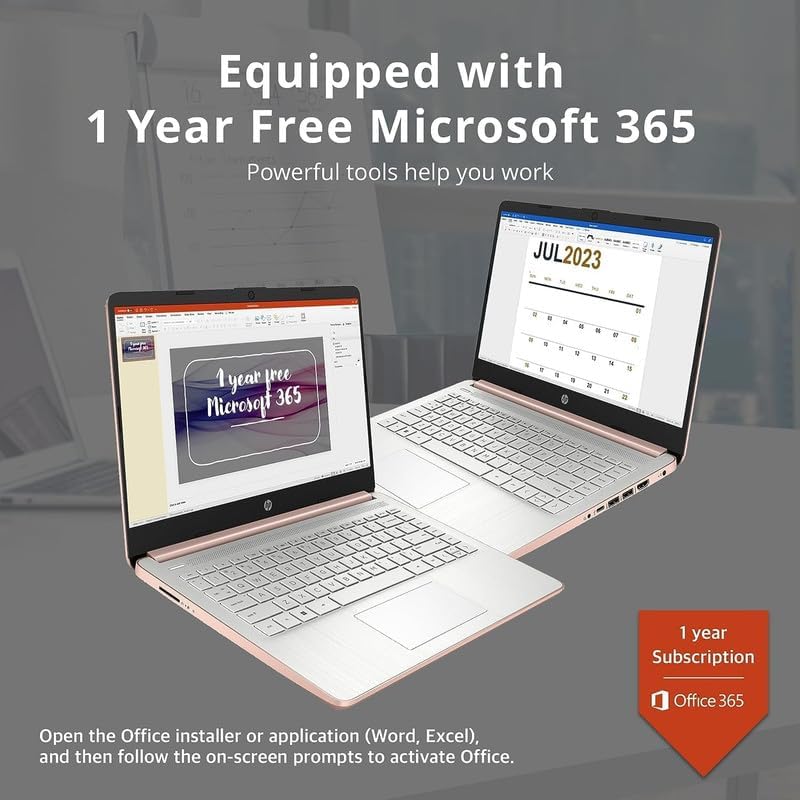
Image: Two HP laptops illustrating the activation process for the included 1-year Microsoft 365 subscription.
Korzystanie z laptopa
1. Windows 11 Home w trybie S
Windows 11 Home in S Mode is a streamlined version of Windows configured for security and performance. It exclusively uses apps from the Microsoft Store and requires Microsoft Edge for safe browsing. You can switch out of S Mode if you need to install apps from outside the Microsoft Store, but this action is irreversible.
2. Using Ports and Connectivity
Your HP 14-inch Laptop is equipped with various ports for connectivity:
- USB Type-C (1): Do przesyłania danych i podłączania kompatybilnych urządzeń.
- USB Type-A (2): For connecting standard USB devices like external drives, keyboards, or mice.
- HDMI 1.4b (1): Do podłączania zewnętrznych wyświetlaczy.
- Headphone/Microphone Combo Jack (1): For audio output to headphones or input from a microphone.
- Multi-format Media Card Reader (1): For reading SD cards and other compatible memory cards.
- AC Smart Pin (1): Do podłączenia zasilacza.

Image: A detailed diagram highlighting the multi-port configuration on the HP 14-inch laptop, including SD Card Reader, Headphone Jack, USB Type-A, USB Type-C, HDMI, and AC Smart Pin.
3. Wi-Fi i Bluetooth
To connect to Wi-Fi or Bluetooth devices:
- Kliknij Sieć icon on the taskbar (bottom right).
- Select the desired Wi-Fi network and enter the password, or turn on Bluetooth and pair with your device.
4. Korzystanie z Webkrzywka
The HP True Vision 720p HD camera is integrated for video calls and conferencing. Access it through applications like Camera, Microsoft Teams, or Zoom.

Image: The HP 14-inch laptop demonstrating its remote work capabilities, featuring HP Fast Charge, HP True Vision 720p HD camera, and HD audio with stereo speakers.
5. Zarządzanie baterią
Laptop oferuje do 11.5 godzin pracy na baterii. Aby zoptymalizować wydajność baterii:
- Dostosowanie jasności ekranu.
- Zamknij nieużywane aplikacje.
- Korzystaj z trybów oszczędzania energii systemu Windows.
- The laptop supports HP Fast Charge, allowing it to charge from 0% to 50% in approximately 45 minutes.
Konserwacja
1. Czyszczenie laptopa
- Ekran: Delikatnie użyj miękkiej, niestrzępiącej się szmatki dampSpryskaj wodą lub płynem do czyszczenia ekranów. Nie rozpylaj płynu bezpośrednio na ekran.
- Klawiatura i obudowa: Użyj miękkiej, suchej ściereczki. W przypadku uporczywych zabrudzeń, delikatnie przetrzyj.amp Można użyć ściereczki, upewniając się, że do otworów nie dostanie się żaden płyn.
- Porty: Delikatnie usuń kurz z portów za pomocą sprężonego powietrza.
2. Aktualizacje oprogramowania
Regularnie sprawdzaj dostępność aktualizacji systemu Windows i instaluj je, aby mieć pewność, że Twój system ma najnowsze poprawki zabezpieczeń i usprawnienia wydajności. Przejdź do Ustawienia > Windows Update.
3. Zarządzanie magazynem
Okresowo ponownieview i usuń niepotrzebne files to free up storage space on your 256GB drive (128GB eMMC + 128GB Storage Card). Utilize the included 128GB storage card for additional file składowanie.
4. Pielęgnacja baterii
- Unikaj ekstremalnych temperatur.
- Do not leave the laptop plugged in constantly after it is fully charged for extended periods.
- For long-term storage, charge the battery to about 50% and store the laptop in a cool, dry place.
Rozwiązywanie problemów
This section addresses common issues you might encounter with your HP 14-inch Laptop.
| Problem | Możliwe rozwiązanie |
|---|---|
| Laptop się nie włącza | Ensure the AC adapter is securely connected to both the laptop and a working power outlet. Try a different outlet. If the battery is completely drained, it may take a few minutes to respond after plugging in. |
| Ekran jest pusty lub czarny | Check if the laptop is powered on. Adjust screen brightness. If an external monitor is connected, ensure it is properly configured (press Klawisz Windows + P to cycle display modes). |
| Problemy z połączeniem Wi-Fi | Ensure Wi-Fi is enabled in Windows settings. Restart your router and modem. Forget the network and reconnect. Update Wi-Fi drivers if necessary. |
| Urządzenie Bluetooth nie łączy się | Upewnij się, że Bluetooth jest włączony zarówno na laptopie, jak i na urządzeniu. Umieść urządzenia blisko siebie. Usuń i ponownie dodaj urządzenie w ustawieniach Bluetooth. |
| Laptop performance is slow/lagging | Close unnecessary applications. Check for background processes in Task Manager. Ensure Windows is up to date. Consider running a disk cleanup. If running in S Mode, ensure all apps are from the Microsoft Store. |
| Dźwięk nie działa | Check volume levels. Ensure correct playback device is selected. Update audio drivers. Test with headphones. |
Specyfikacje
Detailed technical specifications for the HP 14-inch Laptop:
| Funkcja | Szczegół |
|---|---|
| Marka | HP |
| Nazwa modelu | Newest HP 14 Inch Laptop |
| Edytor | Intel Celeron N4120 (Quad-Core, 1.1 GHz base, up to 2.6 GHz burst) |
| Grafika | Karta graficzna Intel UHD 600 (zintegrowana) |
| System operacyjny | Windows 11 Home w trybie S |
| Pamięć (RAM) | 8 GB pamięci DDR4 SDRAM |
| Składowanie | 256 GB (128GB eMMC + 128GB Storage Card) |
| Wyświetlacz | 14.0-inch diagonal, HD (1366 x 768), micro-edge, BrightView, 220 nitów, 45% NTSC |
| Łączność | Realtek 802.11b/g/n/ac (2x2) Wi-Fi, Bluetooth |
| Porty | 1x SuperSpeed USB Type-C (5Gbps), 2x SuperSpeed USB Type-A (5Gbps), 1x HDMI 1.4b, 1x Headphone/microphone combo, 1x AC smart pin, Multi-format media card reader |
| Webkrzywka | Kamera HP True Vision 720p HD ze zintegrowanym podwójnym układem mikrofonów cyfrowych |
| Audio | Podwójne głośniki |
| Klawiatura | US English, Non-Backlit |
| Bateria | 3-cell, 41 Wh Lithium-Ion Prismatic Battery |
| Żywotność baterii | Do 11.5 godzin (odtwarzanie wideo) |
| Wymiary (dł. x szer. x wys.) | 12.76 x 8.86 x 0.71 cala |
| Waga | 3.24 funtów |
| Kolor | Różowe złoto |

Image: The sleek design of the HP 14-inch laptop, highlighting its thin profile i wymiary całkowite.

Image: A visual representation of the Intel Celeron N4120 processor, detailing its 4 cores, 4 threads, 2.6GHz Max Turbo Frequency, Intel UHD Graphics 600, and 4MB Smart Cache.

Image: The HP 14-inch laptop displayed in a scenic outdoor setting, emphasizing its core components: Intel Celeron N4020 processor, Intel UHD Graphics 600, and Windows 11 Home in S mode.
Informacje o gwarancji
Your HP 14-inch Laptop comes with a limited manufacturer's warranty. For specific terms and conditions, please refer to the warranty documentation included with your product or visit the official HP support webZachowaj dowód zakupu na wypadek roszczeń gwarancyjnych.
Wsparcie
For further assistance, technical support, or to download updated drivers and manuals, please visit the official HP support webstrona:
You can also find contact information for HP customer service on their webstrona.