
Wstęp
This manual provides comprehensive instructions for the Akko MG75 ABNT2 Mechanical Keyboard. Designed for efficiency and customization, this 75% layout keyboard features Akko Silver V3 Pro mechanical switches, full RGB backlighting, and hot-swappable switch sockets. Please read this manual carefully to ensure proper use and maintenance of your device.
1. Konfiguracja
1.1 Zawartość opakowania
- Akko MG75 ABNT2 Mechanical Keyboard
- USB-C Cable (Removable)
- Ściągacz nasadek klawiszy
- Przełącznik ściągacza
- Dodatkowe przełączniki
- Instrukcja obsługi (ten dokument)
1.2 Podłączanie klawiatury
- Znajdź port USB-C z tyłu klawiatury.
- Podłącz dołączony kabel USB-C do klawiatury.
- Podłącz drugi koniec kabla USB-C do wolnego portu USB w komputerze.
- Klawiatura zostanie automatycznie rozpoznana przez system operacyjny. Do podstawowej funkcjonalności zazwyczaj nie są wymagane żadne dodatkowe sterowniki.

Image: USB-C port for connecting the keyboard.
1.3 Regulacja wysokości klawiatury
The Akko MG75 keyboard features three levels of adjustable height. Flip out the feet located on the underside of the keyboard to select your preferred typing angle.
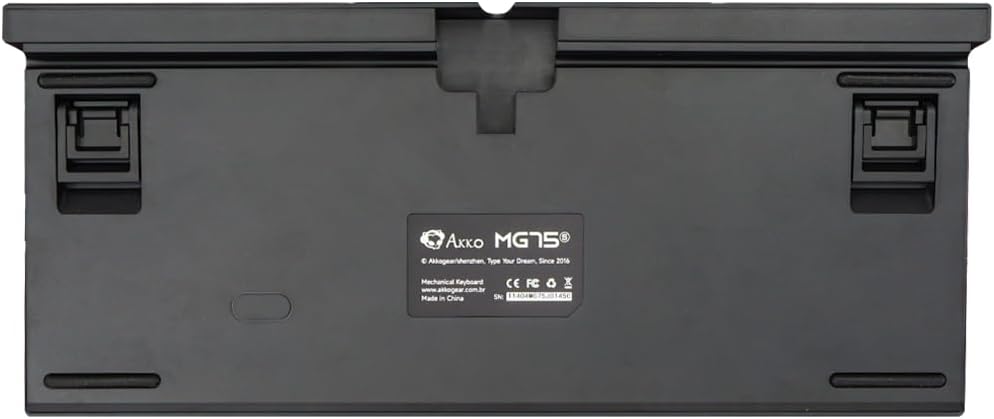
Image: Underside of the keyboard with adjustable feet.
2. Instrukcja obsługi
2.1 Sterowanie oświetleniem RGB
The Akko MG75 keyboard features full RGB backlighting with multiple effects and customization options. Refer to the included quick guide or the official Akko software for detailed instructions on changing lighting modes, colors, and brightness. Typically, lighting effects can be cycled using specific key combinations (e.g., Fn + certain keys).
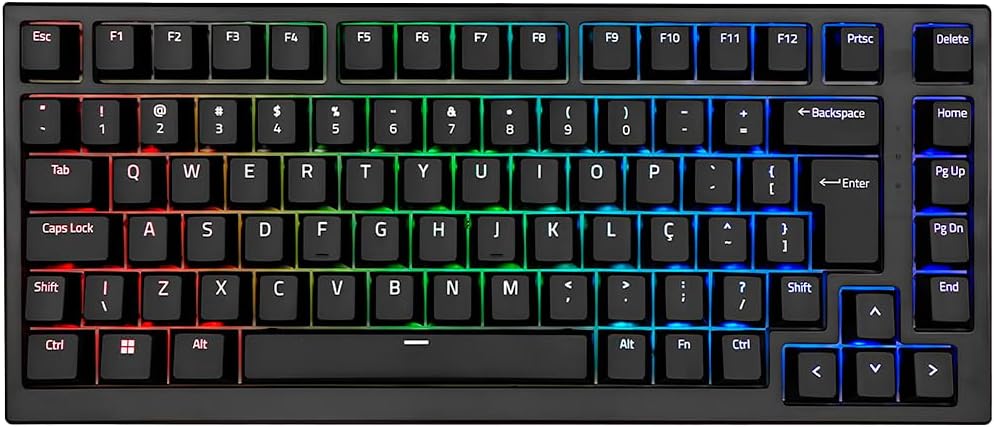
Image: Akko MG75 keyboard displaying RGB lighting.
2.2 Przełączniki z możliwością wymiany na gorąco
The Akko MG75 supports hot-swappable mechanical switches, compatible with both 3-pin and 5-pin switches. This allows for easy customization of your typing experience without soldering.
Zmiana przełączników:
- Użyj dołączonego ściągacza przełączników, aby ostrożnie wyjąć wybrany przełącznik z klawiatury. Chwyć przełącznik mocno i pociągnij prosto do góry.
- Dopasuj piny nowego przełącznika do otworów w płytce PCB. Upewnij się, że piny są proste.
- Gently press the new switch into place until it clicks securely. Do not force the switch if it does not go in easily; check pin alignment.

Image: Akko mechanical switches, illustrating their design for hot-swapping.
2.3 ABNT2 Layout
This keyboard features the ABNT2 layout, which includes specific keys for Portuguese language characters and punctuation, such as 'Ç' and dedicated keys for accents. This layout is standard for Brazilian Portuguese users.

Obraz: widok z góry view of the Akko MG75 keyboard, highlighting the ABNT2 layout.
3. Konserwacja
3.1 Czyszczenie klawiatury
- Przed czyszczeniem odłącz klawiaturę od komputera.
- Za pomocą miękkiej szczotki lub sprężonego powietrza usuń kurz i zanieczyszczenia spomiędzy klawiszy.
- W przypadku uporczywych zabrudzeń delikatnie przetrzyj klawisze i powierzchnię klawiatury lekko miękką szmatką.amp cloth (water only). Avoid excessive moisture.
- Nie używaj żrących chemikaliów ani ściernych środków czyszczących.
3.2 Wymiana nakładek klawiszy
To replace keycaps, use the provided keycap puller. Gently hook the puller onto the keycap and pull straight up. To install a new keycap, align it with the switch stem and press down firmly until it is seated.
4. Rozwiązywanie Problemów
4.1 Klawiatura nie odpowiada
- Sprawdź, czy kabel USB-C jest prawidłowo podłączony do klawiatury i komputera.
- Try disconnecting and reconnecting the USB-C cable multiple times. Some users have reported this resolves initial connection issues.
- Test the keyboard on a different USB port on your computer.
- If possible, test the keyboard on another computer to rule out system-specific issues.
- Check if the cable itself is damaged by trying a different USB-C cable if available.
4.2 RGB Lighting Not Working Correctly
- Sprawdź, czy klawiatura jest prawidłowo podłączona i ma zasilanie.
- Refer to the quick guide for key combinations to cycle through lighting modes and adjust brightness.
- If using Akko software, ensure it is up-to-date and correctly configured.
5. Specyfikacje
| Funkcja | Szczegół |
|---|---|
| Marka | Akko |
| Model | MG75 |
| Układ | 75% ABNT2 |
| Przełączniki | Akko Silver V3 Pro Mechanical |
| Hot-swap | Tak (kompatybilny z 3-pinami i 5-pinami) |
| Łączność | USB-C (Removable Cable) |
| Podświetlenie | RGB |
| Anty-ghosting | N-keys Rollover |
| Klawisze | ABS Laser |
| Regulowana wysokość | Tak, 3 poziomy |
| Kompatybilne urządzenia | PC |
| Kolor | Czarny |
| Liczba kluczy | 84 |
| Masa brutto | 1582 gramów |
| Masa netto | 1451 gramów |
| Package Dimensions (L x H x D) | 350mm x 250mm x 50mm |
6. Gwarancja i wsparcie
6.1 Gwarancja na produkt
The Akko MG75 Mechanical Keyboard comes with a 12-miesięczna gwarancja against manufacturing defects from the date of purchase. Please retain your proof of purchase for warranty claims. This warranty does not cover damage caused by misuse, accidents, unauthorized modifications, or normal wear and tear.
6.2 Obsługa klienta
For technical assistance, warranty claims, or further inquiries, please visit the official Akko website or contact your local retailer. You may find additional resources, FAQs, and software downloads on the manufacturer's support page.
Oficjalny Akko Webstrona: www.akkogear.com