
SUPVANA E11
Instrukcja obsługi drukarki etykiet Bluetooth SUPVAN E11
Wstęp
This manual provides detailed instructions for the setup, operation, maintenance, and troubleshooting of your SUPVAN E11 Bluetooth Label Maker Machine. Please read this manual thoroughly before using the device to ensure proper function and longevity.
Informacje dotyczące bezpieczeństwa
- Trzymaj urządzenie z dala od wody i dużej wilgotności.
- Nie wystawiaj urządzenia na działanie ekstremalnych temperatur ani bezpośredniego światła słonecznego.
- Use only SUPVAN approved label tapes to prevent damage to the print head.
- Nie próbuj samodzielnie demontować ani naprawiać urządzenia. Skontaktuj się z obsługą klienta, aby uzyskać pomoc.
- Przechowywać w miejscu niedostępnym dla dzieci.
Zawartość opakowania
Sprawdź, czy w przesyłce znajdują się wszystkie elementy:
- Drukarka etykiet E11
- Instrukcja obsługi
- Kabel USB-C
- 2 Rolls White Continuous Label Tape (15 mm x 6 m)
- 2 Rolls White Die-cut Label Tape (12 mm x 40 mm)

Image: Contents of the SUPVAN E11 Label Maker package, including the label maker, USB-C cable, user manual, and four rolls of label tape.
Produkt ponadview
The SUPVAN E11 is a portable thermal label maker designed for various labeling needs. It features a QWERTY keyboard for direct input and Bluetooth connectivity for app-based design and printing.
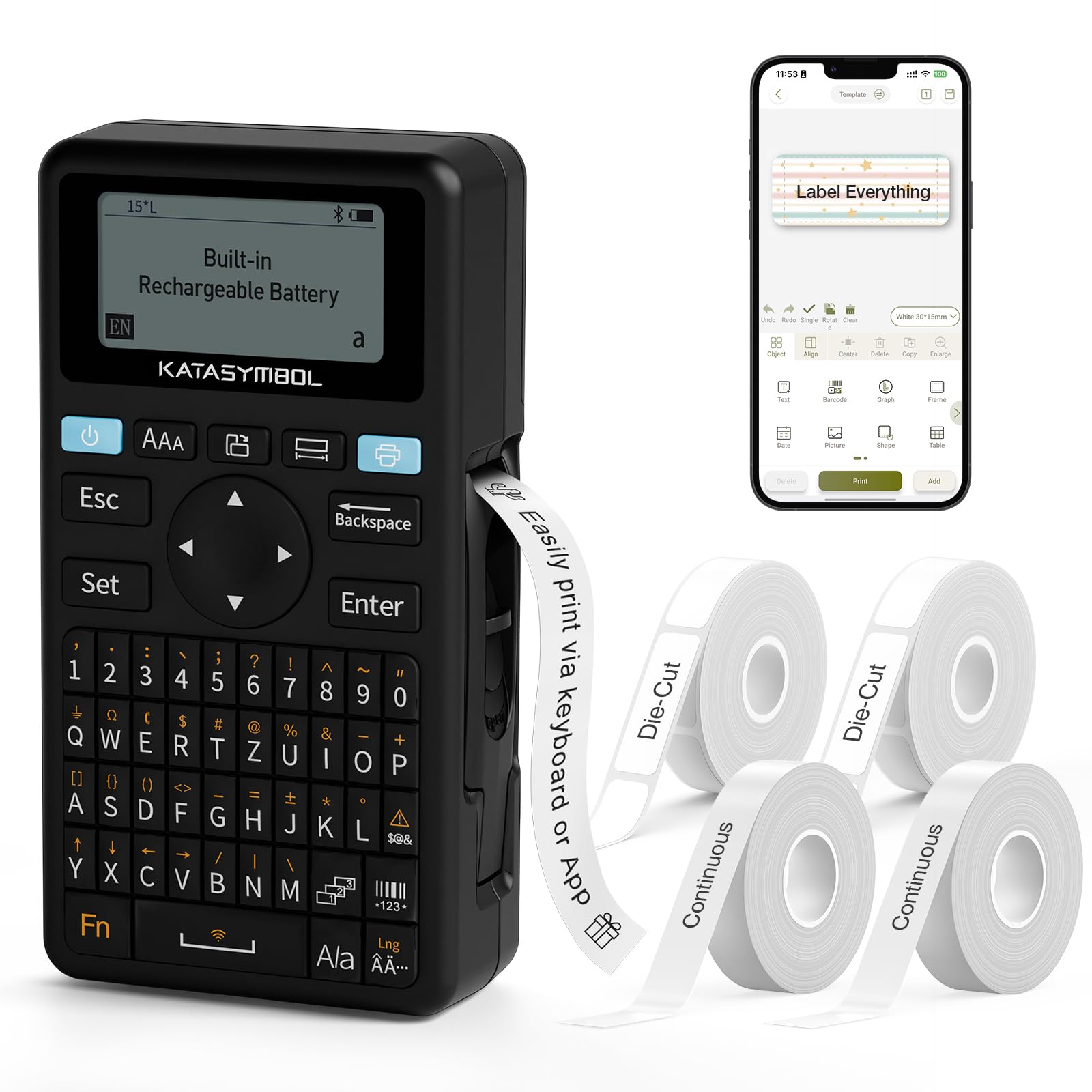
Obraz: Przód view of the SUPVAN E11 Label Maker, showing the QWERTY keyboard and display screen.
Organizować coś
1. Ładowanie urządzenia
The SUPVAN E11 features a built-in 1200 mAh rechargeable battery. Before initial use, fully charge the device using the provided USB-C cable.
- Connect the USB-C cable to the charging port on the label maker.
- Drugi koniec kabla podłącz do zasilacza USB (nie ma go w zestawie) lub do portu USB komputera.
- Wskaźnik ładowania na urządzeniu pokaże stan ładowania.

Image: The SUPVAN E11 Label Maker demonstrating that it uses thermal paper and requires no ink or toner.
2. Instalowanie taśmy etykietowej
The E11 label maker uses thermal label rolls. Follow these steps to install a new roll:
- Otwórz pokrywę przegródki na etykiety znajdującej się z boku urządzenia.
- Insert the label roll into the compartment, ensuring the label tape feeds out from the bottom and through the guide slot.
- Zamknij dokładnie pokrywę komory.

Image: A hand demonstrating how to install a label tape roll into the SUPVAN E11 Label Maker.
3. Connecting via Bluetooth (App)
For advanced customization and printing, connect your label maker to the companion app:
- Download the official SUPVAN app from your device's app store.
- Turn on the label maker and ensure Bluetooth is enabled on your smartphone.
- Open the SUPVAN app and follow the on-screen instructions to pair with your E11 device.

Image: A visual guide showing the step-by-step process of connecting the label maker to the mobile app via Bluetooth.
Działanie
1. Keyboard Printing
For quick and frequent labeling, use the integrated QWERTY keyboard:
- Włącz drukarkę etykiet.
- Type your desired text using the keyboard. The text will appear on the LCD display.
- Naciśnij przycisk „Drukuj”, aby wydrukować etykietę.
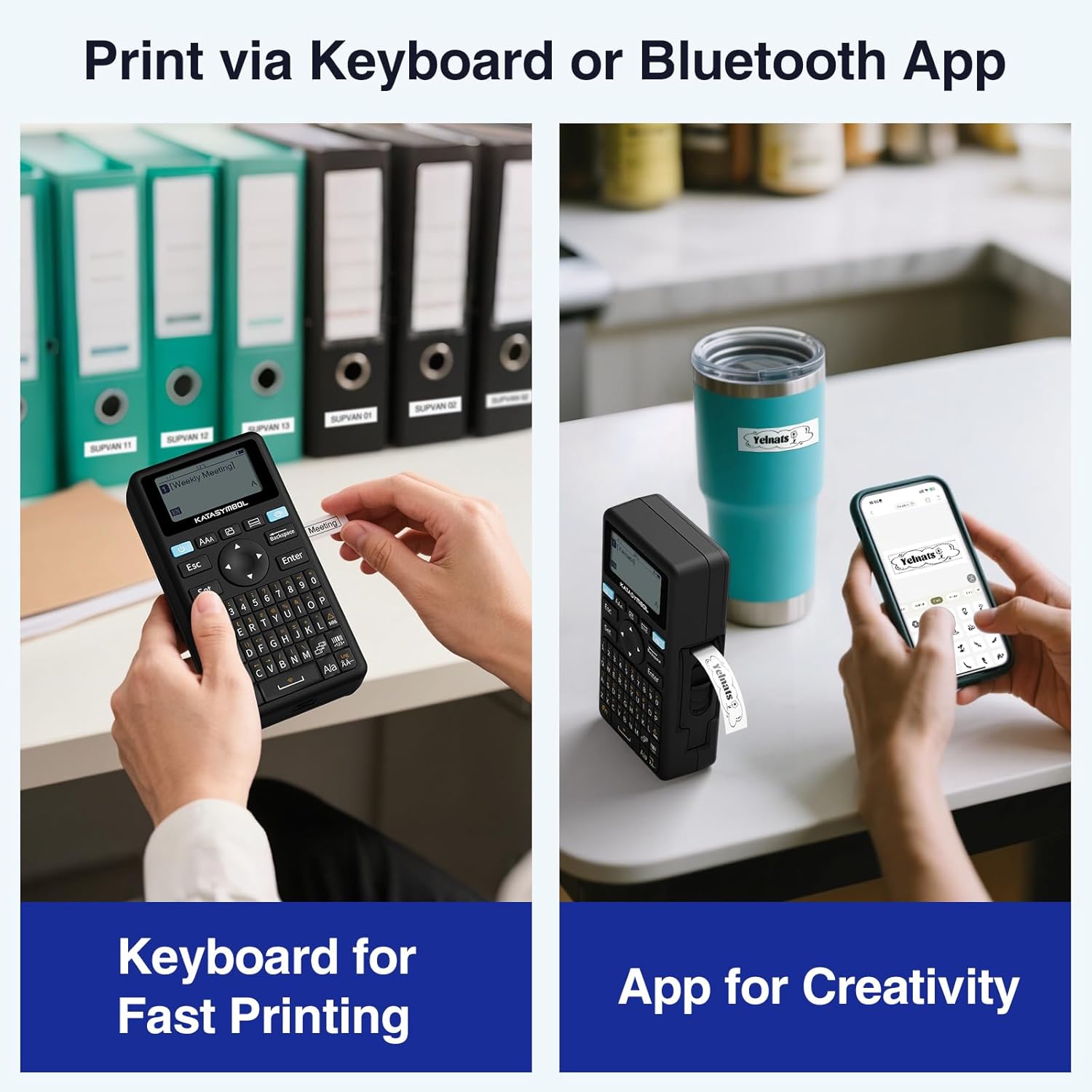
Image: A person using the SUPVAN E11 Label Maker's keyboard to type and print a label.
2. App Printing and Customization
Aplikacja SUPVAN oferuje szerokie możliwości personalizacji:
- Ensure your device is connected to the app via Bluetooth.
- Open the app and select your label design.
- Wykorzystaj funkcje aplikacji, aby spersonalizować swoją etykietę:
- Czcionki: Choose from over 30 fonts.
- Ramki: Apply from over 50 frames.
- Ikony: Select from over 660 icons.
- Kody QR i kody kreskowe: Generate and print QR codes and various barcode types.
- Szablony: Create and save your own label templates.
- Once your design is complete, tap the 'Print' button in the app.
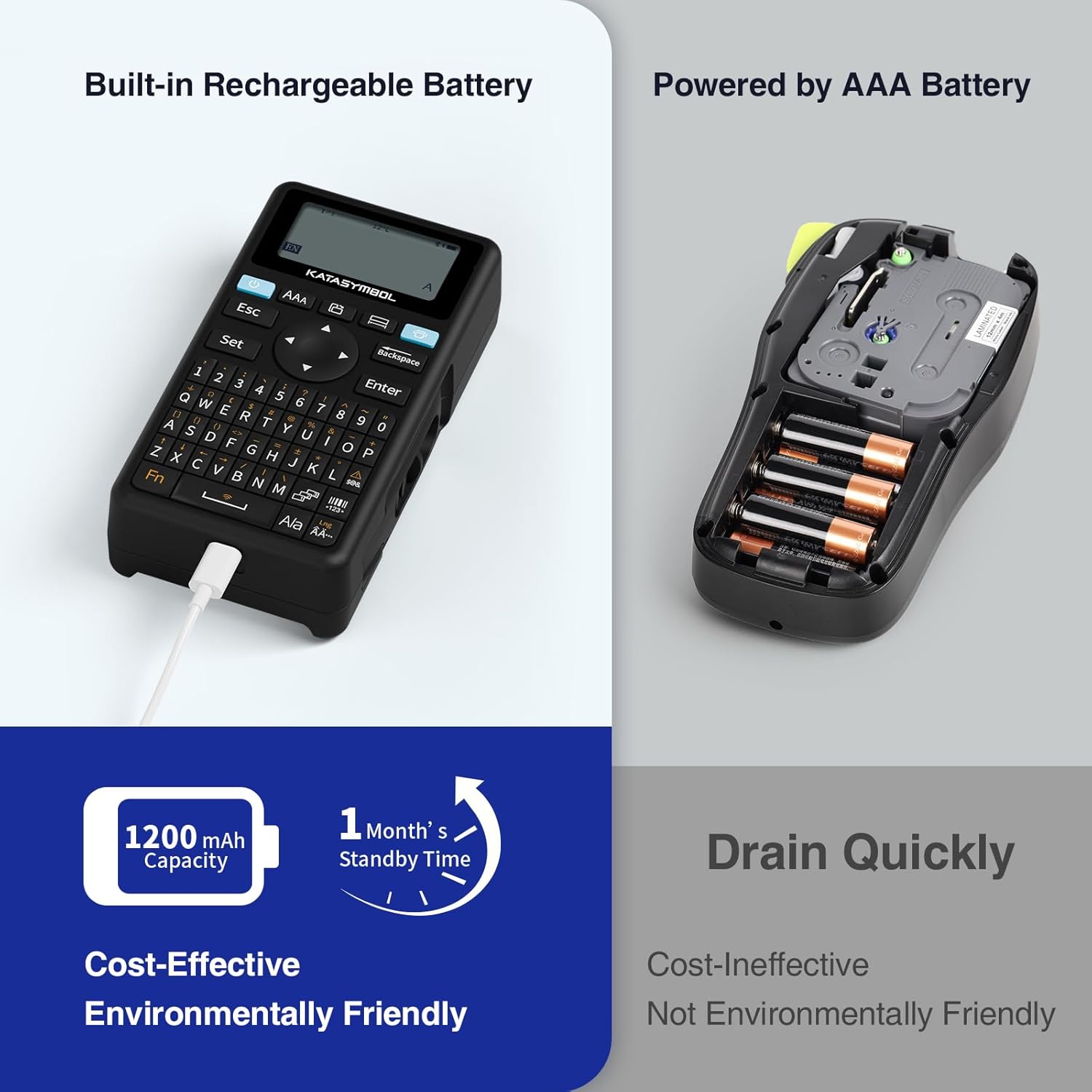
Image: A person using the SUPVAN E11 Label Maker in conjunction with the mobile app to design and print a customized label.

Image: A visual representation of the SUPVAN Label App's features, including a wide selection of fonts, frames, icons, and options for QR codes and barcodes.
Adjusting Label Font Size in the App
Video: This video demonstrates how to adjust the font size of your label text within the SUPVAN mobile application.
Adjusting Font Styles in the App
Video: This video illustrates the process of changing font styles and applying various formatting options to your labels using the SUPVAN mobile application.
3. Label Types and Minimal Margin Printing
The E11 supports both continuous and die-cut labels, offering flexibility for different applications. It also features minimal margin printing, reducing label waste.
- Etykiety ciągłe: Ideal for long text or custom lengths.
- Die-Cut Labels: Pre-sized labels for specific items or standard applications.
- Minimalny margines: The E11 prints with only a 0.2-inch margin, significantly less than many other label makers, saving tape.

Obraz: Byłyamples of die-cut and continuous labels printed by the SUPVAN E11, showcasing its versatility for different label types.
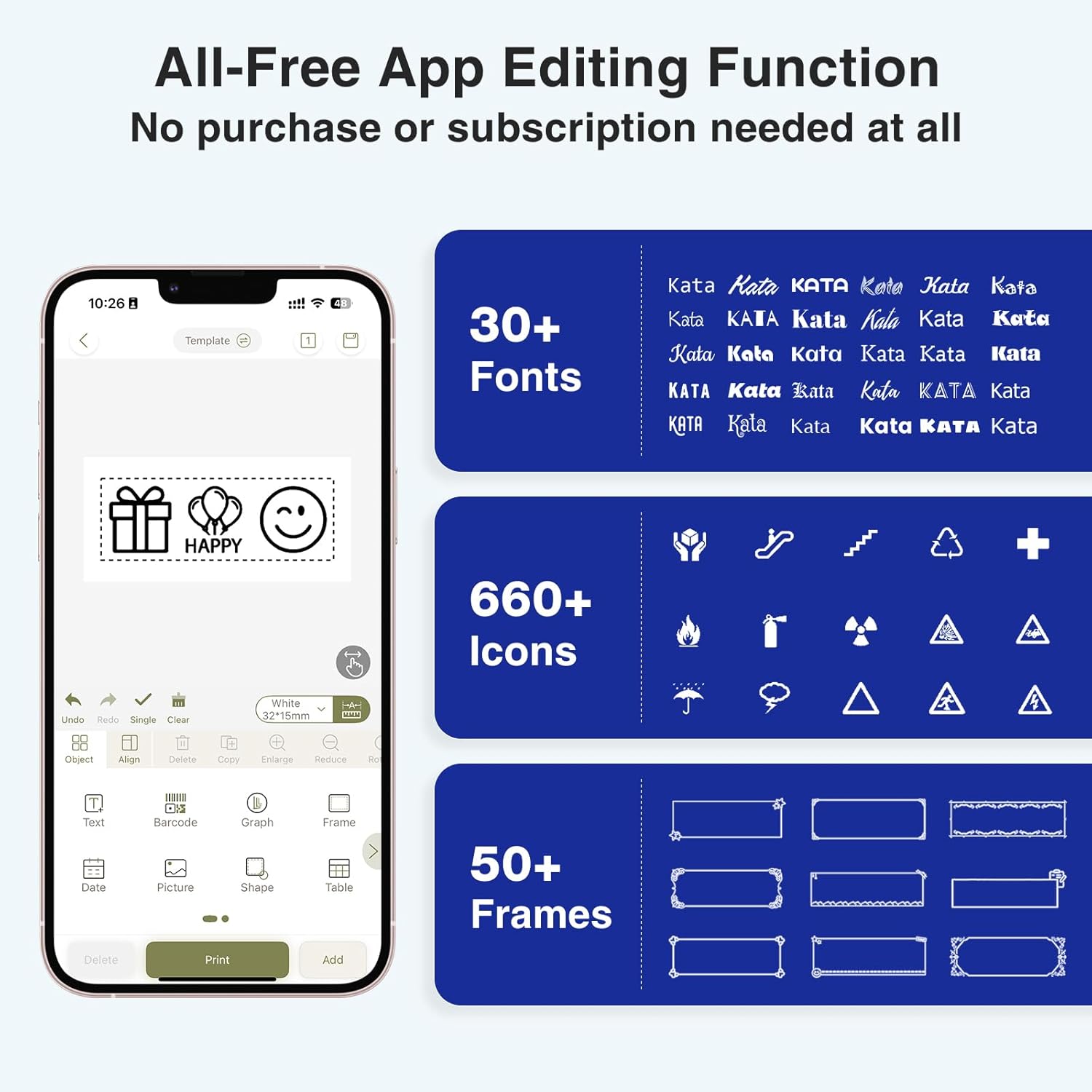
Image: A visual comparison highlighting the minimal 0.2-inch margin of SUPVAN labels versus the larger 1-inch margin of other label makers, demonstrating material efficiency.
4 Szerokie zastosowania
The SUPVAN E11 is suitable for various organizational tasks in different environments:
- Dom: Organizing pantry items, storage bins, and personal belongings.
- Kuchnia: Labeling food containers, spices, and expiry dates.
- Biuro: Categorizing files, folders, and office supplies.
- Szkoła: Labeling school supplies, books, and projects.
- Garaż/Warsztat: Organizing tools and parts.

Image: A collage showing various applications of labels created with the SUPVAN E11, including labeling bottles, file folders, and storage containers.
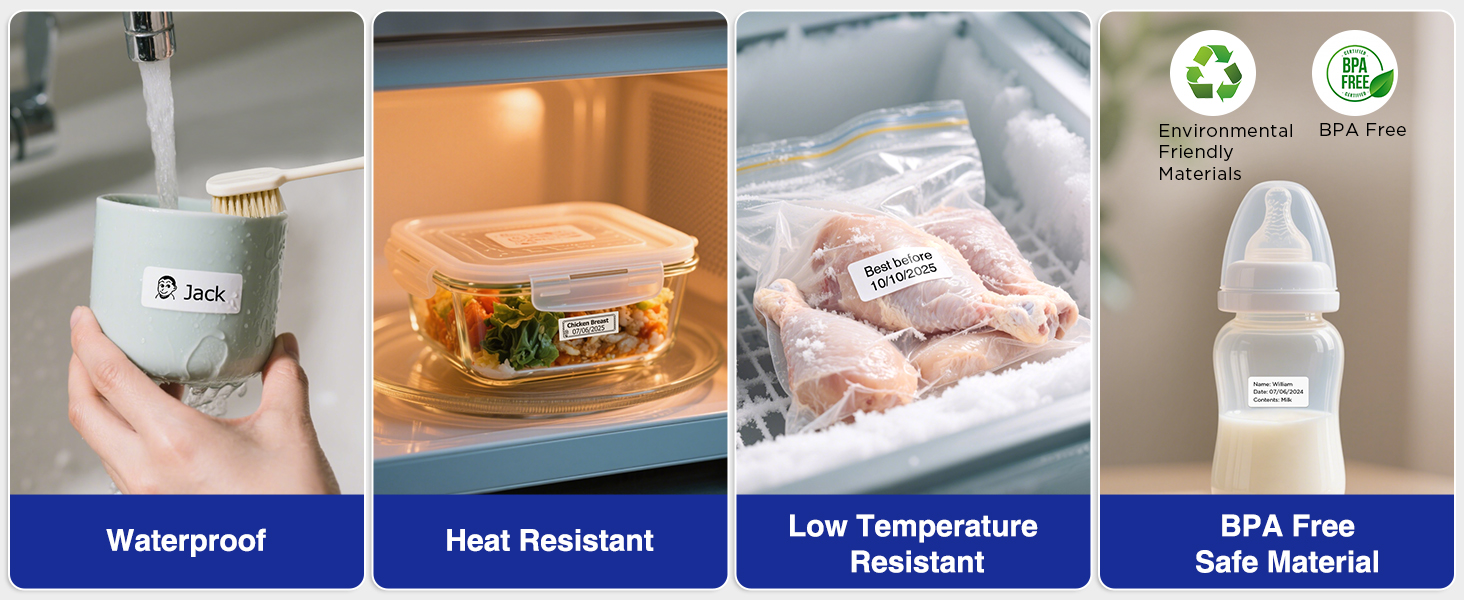
Image: A display illustrating the durability of SUPVAN laminated labels, highlighting their waterproof, heat-resistant, low-temperature resistant, and BPA-free characteristics.
Konserwacja
1. Czyszczenie głowicy drukującej
Aby zapewnić optymalną jakość druku, należy regularnie czyścić głowicę drukującą:
- Turn off the label maker and open the label compartment.
- Gently wipe the print head with a soft, lint-free cloth dampnasączone alkoholem izopropylowym.
- Przed zamknięciem komory i użyciem urządzenia należy odczekać, aż głowica drukująca całkowicie wyschnie.
2. Pielęgnacja baterii
Aby przedłużyć żywotność baterii:
- Unikaj częstego całkowitego rozładowywania akumulatora.
- Aby zachować sprawność baterii, ładuj urządzenie regularnie, nawet jeśli go nie używasz.
- Przechowuj urządzenie w chłodnym i suchym miejscu, jeśli nie będziesz go używać przez dłuższy czas.
Rozwiązywanie problemów
| Problem | Możliwa przyczyna | Rozwiązanie |
|---|---|---|
| Device does not turn on or turns off unexpectedly. | Low battery; device overload during long prints. | Ensure the device is fully charged. For long prints, try breaking the text into shorter segments. |
| Poor print quality (faint, streaky, or blank labels). | Print head is dirty; incorrect label tape installation; faulty label tape. | Clean the print head as described in the Maintenance section. Reinstall the label tape correctly. Try a new roll of label tape. |
| Problemy z połączeniem Bluetooth. | Bluetooth is off; device not paired; app issues. | Ensure Bluetooth is enabled on both devices. Re-pair the label maker through the app. Restart the app and the label maker. |
| Labels are not feeding correctly or jamming. | Improper tape installation; foreign object in the feed path. | Open the compartment and re-install the tape, ensuring it is aligned. Check for any obstructions and carefully remove them. |
Specyfikacje
| Funkcja | Szczegół |
|---|---|
| Marka | SUVAN |
| Nazwa modelu | E11 |
| Technologia łączności | Bluetooth |
| Technologia druku | Termiczny |
| Wyjście drukarki | Monochromia |
| Maksymalna prędkość druku monochromatycznego | 40 mm/s |
| Rezolucja | 203 dpi |
| Waga przedmiotu | 0.5 funta (ok. 227 g) |
| Wymiary produktu (Gł. x Szer. x Wys.) | 5.8" x 3.1" x 1.5" (ok. 14.7 cm x 7.9 cm x 3.8 cm) |
| Pojemność baterii | 1200 mAh |
| Interfejs ładowania | USB typu C |
| Typ wyświetlacza | LCD |
| Metoda kontroli | Aplikacja, przycisk |
| Maksymalny rozmiar nośnika | 15mm x 6m |
Informacje o gwarancji
Drukarka etykiet SUPVAN E11 jest wyposażona w: Roczna gwarancja producentaNiniejsza gwarancja obejmuje wady materiałowe i wykonawcze powstałe w wyniku normalnego użytkowania. Prosimy zachować dowód zakupu na potrzeby roszczeń gwarancyjnych.
For detailed warranty terms and conditions, please refer to the official SUPVAN webodwiedź witrynę lub skontaktuj się z działem obsługi klienta.
Obsługa klienta
If you encounter any issues or have questions not covered in this manual, please contact SUPVAN customer support:
- Webstrona: Visit the official SUPVAN webStrona z odpowiedziami na często zadawane pytania i zasobami pomocy.
- E-mail: Zapoznaj się z opakowaniem produktu lub oficjalnym webwitryna zawierająca adresy e-mail obsługi klienta.
Ask a question about this manual
Ask about setup, troubleshooting, compatibility, parts, safety, or missing instructions. Manuals+ will review the question and use this page’s manual context to help answer it.