
Phomemo A30 Bluetooth Thermal Label Printer Instruction Manual
Wzór: A30
1. Koniec produktuview
The Phomemo A30 is an updated Bluetooth thermal label printer designed for creating custom labels. It supports both continuous labels and label tapes, featuring a high-tech thermal print head for clear and consistent print quality. Its compact and portable design makes it suitable for various labeling needs.
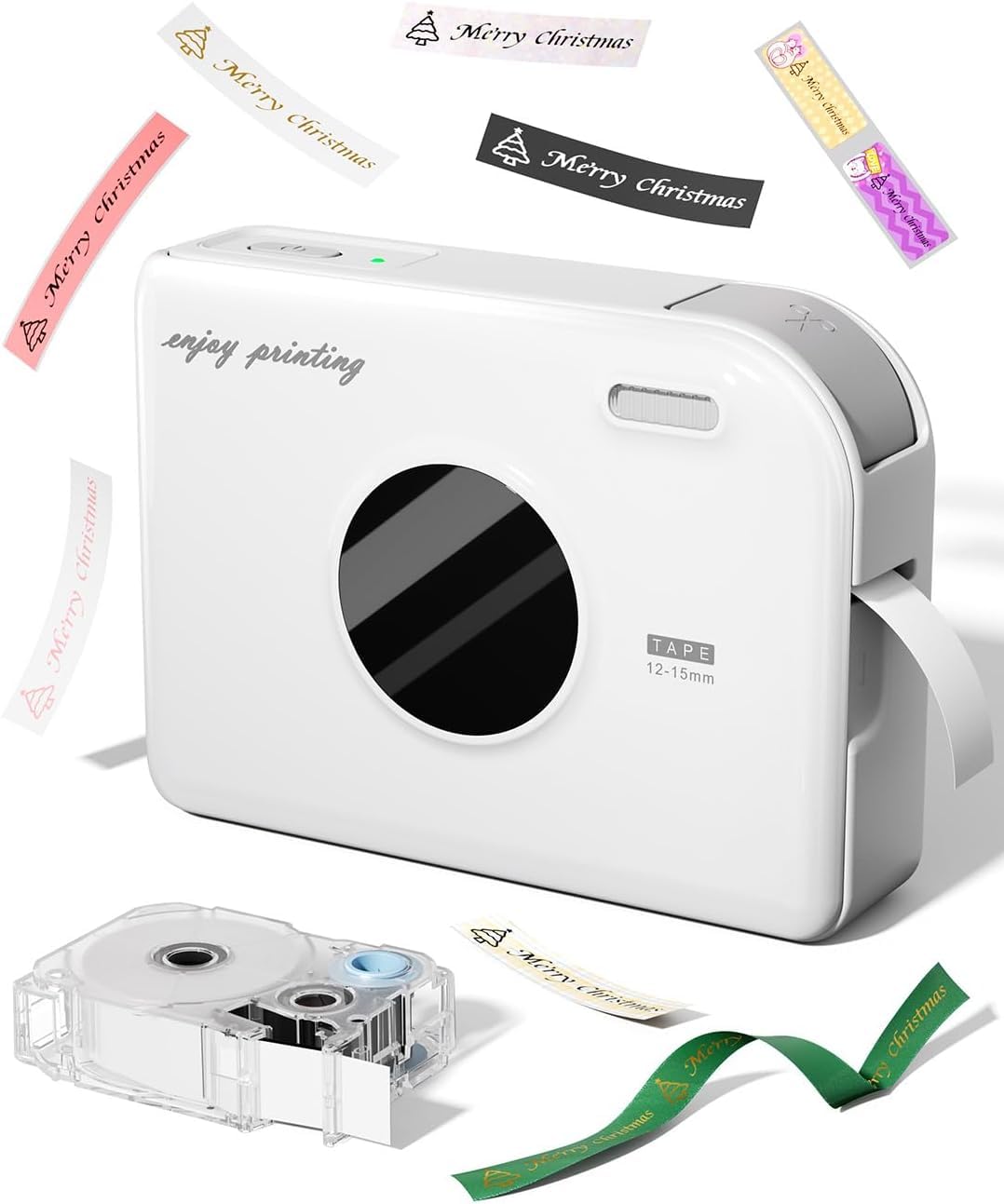
Image 1.1: Phomemo A30 Label Printer with a roll of white label tape.
2. Zawartość opakowania
Sprawdź, czy w opakowaniu znajdują się wszystkie elementy:
- Phomemo A30 Label Printer (1 unit)
- White Label (15 mm * 4 m) (1 roll)
- USB-Type-C Data Cable (1 unit)
- Instrukcja obsługi (1 szt.)
3. Konfiguracja
3.1 Ładowanie urządzenia
Before initial use, fully charge the Phomemo A30 printer. Connect the provided USB-Type-C cable to the printer and a power source. The device features a 1200 mAh rechargeable lithium battery, offering approximately 4 hours of continuous use or 7 days of standby time on a full charge.
3.2 Instalacja aplikacji
Download the "Print Master" application from your device's app store (compatible with iOS and Android). This app is essential for connecting your phone to the printer and creating custom labels.
3.3 Połączenie Bluetooth
- Sprawdź, czy Bluetooth jest włączony na Twoim smartfonie lub tablecie.
- Open the "Print Master" app.
- The app will automatically detect and connect to the Phomemo A30 printer. If prompted, allow location services for Bluetooth functionality.
- Upon first connection, the app may suggest a firmware update. Follow the on-screen instructions to complete the update, which is managed automatically via Bluetooth.

Image 3.3: Screenshot of the 'Print Master' app interface for label creation.
3.4 Ładowanie etykiet
Open the printer cover and insert the label roll. The Phomemo A30 features an automatic paper detection system that helps prevent jams and ensures correct label alignment. Ensure the label tape is properly fed through the output slot.

Image 3.4: The Phomemo A30 printer with label tape correctly loaded and extending from the output slot.
4. Instrukcja obsługi
4.1 Tworzenie etykiet za pomocą aplikacji
The "Print Master" app provides extensive customization options:
- Szablony: Access numerous pre-designed label templates.
- Fonts & Styles: Choose from over 200 fonts and 600 symbols, and more than 200 frames.
- Elementy: Add icons, text, emojis, logos, timestamps, and import data from Excel.
- Skanowanie OCR: Utilize OCR functionality for text recognition.
- Języki: Supports multiple languages for text input.

Obraz 4.1: Koniecview of the 'Print Master' app's features, including fonts, borders, icons, and language options.
4.2 Drukowanie etykiet
Once your label design is complete in the app, select the print option. The printer will produce labels with superior clarity and consistent quality. The integrated cutter allows for precise trimming of labels after printing.

Image 4.2: The Phomemo A30 printer producing various personalized labels, demonstrating its versatility.
4.3 Typy etykiet i zastosowania
The Phomemo A30 supports a variety of label materials and applications:
- Standard Labels: For general organization, such as food expiration dates, cosmetic selection, and document management.
- Etykiety ciągłe: Allows for custom length labels.
- Specialty Labels: Includes colored, magnetic, glitter, glow-in-the-dark, and iron-on fabric labels.
- Ribbon Printing: Customize ribbons for gift wrapping and decorative purposes.

Obraz 4.3: Examples of Phomemo A30 labels used for organizing clothing, storage, files, and home items.

Image 4.4: Gift boxes adorned with custom-printed ribbons, showcasing the ribbon printing capability.
5. Konserwacja
5.1 Czyszczenie drukarki
To maintain optimal print quality, periodically clean the print head and the interior of the printer. Use a soft, lint-free cloth, slightly dampened with isopropyl alcohol, to gently wipe the print head. Ensure the printer is turned off and disconnected from power before cleaning.
5.2 Pielęgnacja baterii
To prolong battery life, avoid fully discharging the battery frequently. Charge the device regularly, especially if it will be stored for an extended period. Store the printer in a cool, dry place.
6. Rozwiązywanie Problemów
6.1 Problemy z łącznością
- Ensure Bluetooth is active on your mobile device and the printer is powered on.
- Uruchom ponownie drukarkę i urządzenie mobilne.
- Verify that the "Print Master" app has the necessary permissions (e.g., location services) enabled.
6.2 Słaba jakość wydruku
- Check if the label tape is correctly installed and not damaged.
- Wyczyść głowicę drukującą zgodnie z opisem w rozdziale Konserwacja.
- Ensure you are using genuine Phomemo A30 compatible labels for optimal results.
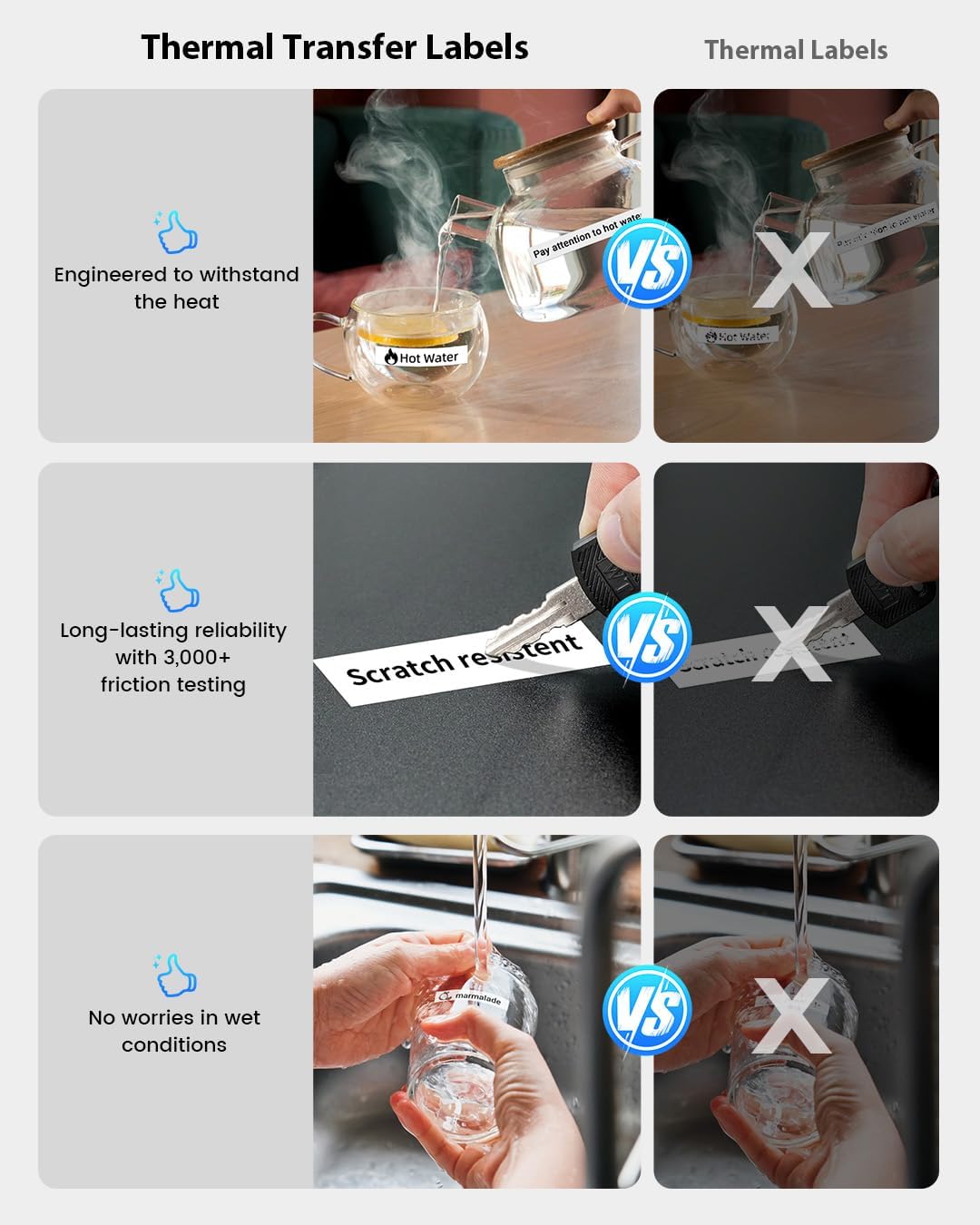
Image 6.2: Comparison illustrating the durability of thermal transfer labels against standard thermal labels, highlighting resistance to heat, scratches, and water.
6.3 Label Jams
- Wyłącz drukarkę i ostrożnie otwórz pokrywę.
- Remove any jammed label material.
- Re-insert the label roll, ensuring it is properly aligned with the automatic detection system.
7. Specyfikacje
| Marka | Fomemo |
| Nazwa modelu | DE-A30-WH-PRIMTER |
| Technologia łączności | Bluetooth |
| Technologia druku | Termiczny |
| Wyjście drukarki | Monochromia |
| Maksymalna prędkość drukowania (czarno-białe) | 60 stron na minutę |
| Maksymalna rozdzielczość druku | 300 dpi |
| Maksymalny rozmiar papieru | 15mm |
| Wymiary produktu | 4P x 10L x 8H cm |
| Bateria | 1200 akumulator litowy mAh do ładowania |
8. Gwarancja i wsparcie
Phomemo offers excellent and professional customer service. If you encounter any issues before or after your purchase, please do not hesitate to contact us through Amazon. Refer to the product packaging or the official Phomemo webSzczegóły dotyczące gwarancji i dane kontaktowe można znaleźć na stronie.