
1. Wprowadzenie
This manual provides detailed instructions for the HOU Keyboard Case designed for the iPad Pro 13-inch M5/M4 models. Please read this manual carefully before use to ensure proper operation and to maximize the product's lifespan.
1.1 Zgodność
This keyboard case is specifically designed for the iPad Pro 13-inch M5/M4 (2025 models). Compatible iPad models include: A2925, A2926, A3007.
Important: This case is NOT compatible with iPad Air 13 (M2) 2024 (models A2898, A2899, A2900) or iPad Pro 12.9-inch (2017-2022) (6th/5th/4th/3rd/2nd/1st generation).
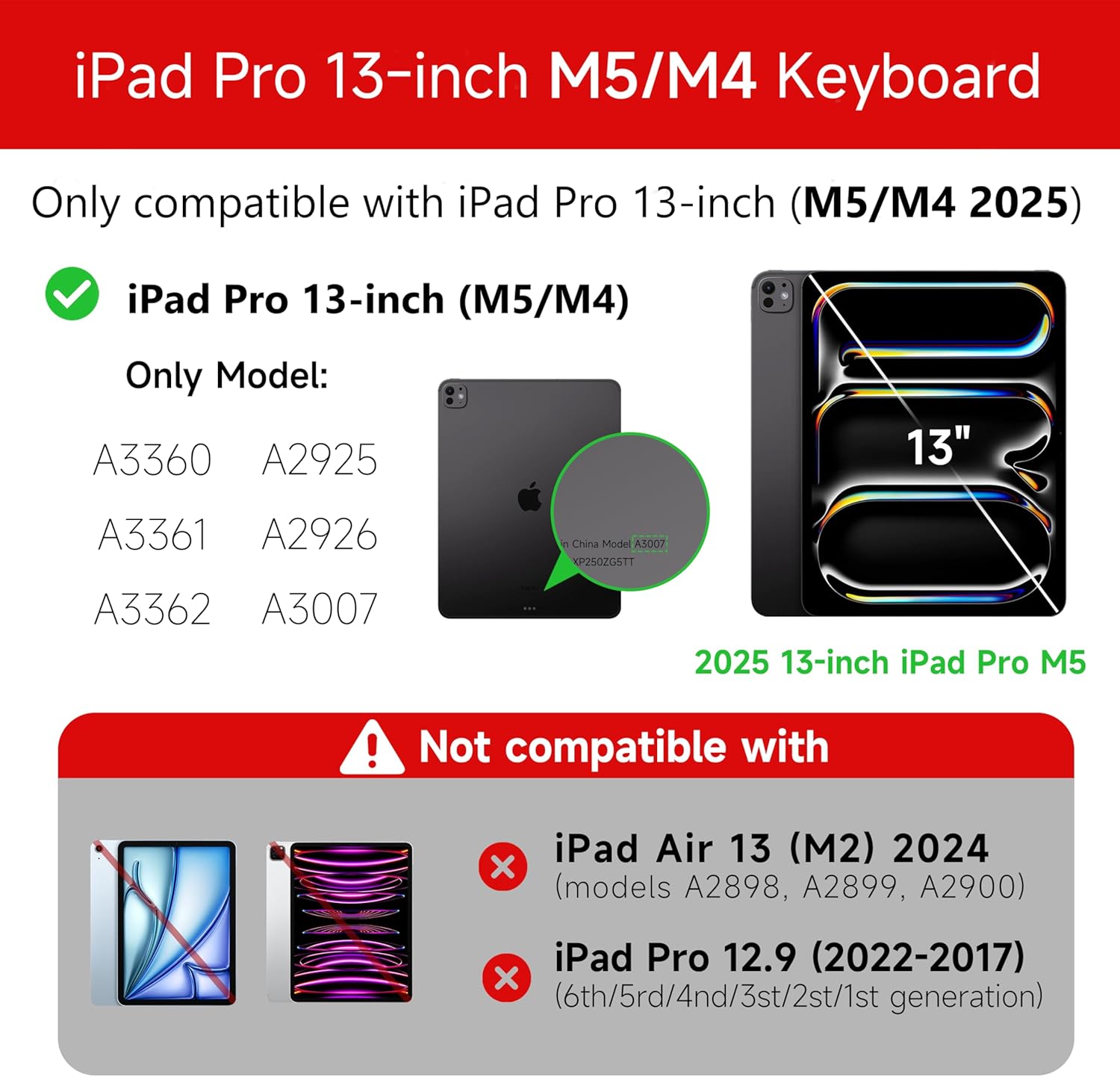
Figure 1: Compatibility details for the HOU iPad Pro 13-inch Keyboard Case.
2. Konfiguracja
2.1 Ładowanie klawiatury
Before initial use, fully charge the keyboard. Connect the provided USB-C cable to the charging port on the keyboard and to a power source. The charging indicator light will show the charging status.
- Port ładowania: Typ C
- Czas ładowania: Approximately <2 hours
- Pojemność baterii: 500mAh
2.2 Podłączanie iPada Pro
The keyboard case features a magnetic design for secure attachment. Align your iPad Pro 13-inch with the magnetic back panel of the case. The strong magnets will securely hold your iPad in place, providing stability.

Figure 2: Magnetic attachment for secure iPad placement.
2.3 Połączenie Bluetooth
To connect the keyboard to your iPad Pro via Bluetooth:
- Sprawdź, czy klawiatura jest naładowana i włączona.
- Na iPadzie przejdź do Ustawienia > Bluetooth i włącz Bluetooth.
- Na klawiaturze naciśnij i przytrzymaj Fn + Control + R for 3 seconds until the indicator light flashes, indicating pairing mode.
- On your iPad, select the keyboard from the list of available devices (e.g., "HOU Keyboard").
- Po nawiązaniu połączenia kontrolka na klawiaturze przestanie migać.
After the initial connection, the keyboard should automatically reconnect to your iPad when both devices are powered on and Bluetooth is enabled.
3. Instrukcja obsługi
3.1 Regulowany Viewkąty
The keyboard case features a floating design that allows for angle adjustment up to 135 degrees. The keyboard base opens at a 45-degree angle, providing enhanced stability for various viewpozycje pisania i pisania.
Rysunek 3: Regulowany viewing angle up to 135 degrees.
3.2 Funkcja podświetlenia
The keyboard features an adaptive backlight with 7 different colors and 3 adjustable brightness levels. This allows for comfortable typing in various lighting conditions, including low-light environments.

Figure 4: Keyboard backlight in use for typing at night.
3.3 Gładzik wielodotykowy
The integrated multi-touch trackpad supports full-area press and various swipe gestures, transforming your iPad into a laptop-like experience. It provides responsive controls for scrolling, dragging, input, and media control.
Adjusting Trackpad Sensitivity: You can adjust the trackpad sensitivity directly from your iPad's settings to match your personal preference.
- Idź do Ustawienia na Twoim iPadzie.
- Przejdź do Dostępność.
- Find and adjust Czułość śledzenia.

Figure 5: Multi-touch trackpad functionality and sensitivity adjustment.
3.4 klawiszy skrótów
The keyboard includes a series of shortcut keys to boost productivity. Refer to the keyboard layout for specific functions.
4. Konserwacja
The exterior of the keyboard case is made from a semi-silicone material, which is wear-resistant and designed to resist fingerprints and stains, making it easy to clean.
- To clean, gently wipe the surface with a soft, damp płótno.
- Unikaj stosowania silnych środków chemicznych i materiałów ściernych, ponieważ mogą one uszkodzić wykończenie.
- Ensure the charging port and keys are free from dust and debris.
5. Rozwiązywanie Problemów
Klawiatura 5.1 nie łączy się przez Bluetooth
- Sprawdź, czy klawiatura jest w pełni naładowana.
- Upewnij się, że Bluetooth jest włączony na Twoim iPadzie.
- Re-enter pairing mode on the keyboard by pressing and holding Fn + Control + R na 3 sekundy.
- Zapomnij urządzenie w ustawieniach Bluetooth swojego iPada i spróbuj sparować je ponownie.
- Uruchom ponownie iPada i klawiaturę.
5.2 Trackpad Lag or Unresponsiveness
- This can sometimes occur due to Bluetooth connectivity. Try turning the keyboard off and then back on.
- Ensure there are no obstructions between the keyboard and the iPad that might interfere with the Bluetooth signal.
- Check for any available iPadOS updates, as software improvements can sometimes resolve connectivity issues.
5.3 Podświetlenie nie działa
- Sprawdź, czy klawiatura ma wystarczająco naładowaną baterię.
- Check the keyboard's function keys for backlight control (usually a dedicated key or Fn combination).
6. Specyfikacje
| Funkcja | Szczegół |
|---|---|
| Marka | DOM |
| Kompatybilne urządzenia | 2025 (M4/M5) iPad Pro 13-inch (A2925/A2926/A3007) |
| Technologia łączności | Bluetooth 5.2 |
| Opis klawiatury | Multi-functional with Trackpad |
| Zalecane zastosowanie | Osobisty |
| Cechy specjalne | Trackpad, Backlit, Hot Keys & Media Keys, Rechargeable, Lightweight |
| Kolor | Biały |
| Kolory podświetlenia | 7 kolorów RGB |
| Wymiary produktu (dł. x szer. x wys.) | Wymiary 32 x 24.2 x 2.7 cm |
| Tworzywo | Aluminum, Metal, ABS, Polyurethane (PU), Semi-silicone |
| Waga przedmiotu | 1.1 kilograma |
| Źródło zasilania | Zasilany bateryjnie |
| Pojemność baterii | ~500 mAh |
| Prąd roboczy | <10mA |
| Czas czuwania | ≥ 30 dni |
| Odległość robocza | ≤10m |
7. Wsparcie
For any questions or further assistance, please contact the seller directly through your Amazon account:
- Zaloguj się na swoje konto Amazon.
- Go to "Order History".
- Locate your order for the HOU iPad Pro 13-inch Keyboard Case.
- Kliknij „Skontaktuj się ze sprzedawcą”.