
Wstęp
This manual provides essential information for the proper setup, operation, and maintenance of your Anmite Portable Monitor. Please read this guide thoroughly before using the product to ensure optimal performance and longevity.
Zawartość opakowania
- Anmite Portable Monitor x 1
- Mini-HDMI to HDMI cable x 1
- Kabel typu C do typu C x 1
- Type-C to USB-A cable x 1
- Instrukcja obsługi x 1
Specyfikacje
| Masa netto | 0.7 kg (1.54 funtów) |
| Wymiary | 360 x 225 x 5-10 mm (14.17 x 8.86 x 0.2-0.39 cala) |
| Rozmiar ekranu | 16 cala |
| Typ panelu | IPS |
| Proporcje obrazu | 16:10 |
| Rezolucja | 2560 x 1600 (2.5K QHD) |
| Kolor wyświetlacza | 16.7 mln |
| Temperatura barwowa | 6800 tys. |
| Kąt widzenia | Wys.:178° Pion.:178° |
| Obszar wizualny | 344.16x194.59mm |
| Współczynnik kontrastu | 1000:1 |
| Jasność | 280cd/m² |
| Gama kolorów | 100% sRGB |
| Częstotliwość odświeżania | 144 Hz |
| Interfejs wejściowy | Mini-HDMI, Type-C (Full Function) x 2 |
| Interfejs wyjściowy | Interfejs audio 3.5 mm |
| Głośnik | Built-in speakers (1W*2) |
| Pobór mocy | Około. 12 watów |
Produkt ponadview
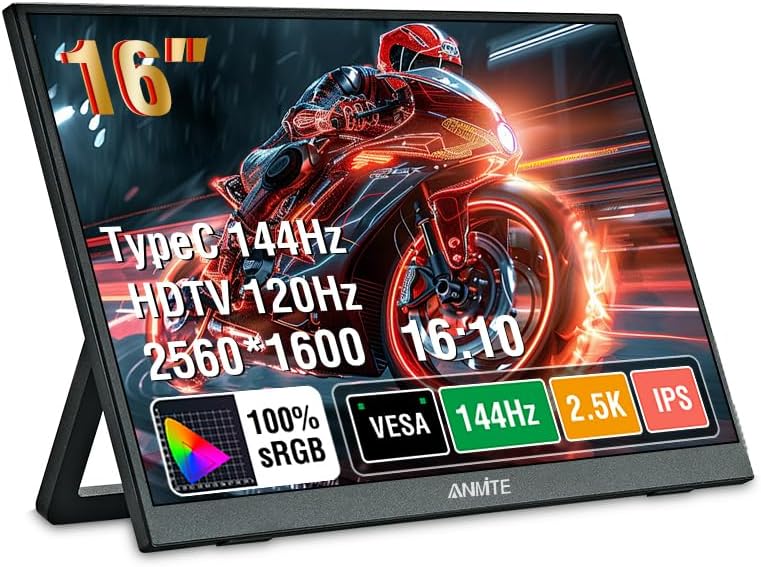
Image: Anmite Portable Monitor showcasing its display capabilities with vibrant gaming graphics.
The Anmite Portable Monitor is a compact and versatile display designed for various uses, including extending your laptop screen, gaming, or mobile entertainment. Its slim metal enclosure and lightweight design make it highly portable.
Physical Features and Ports
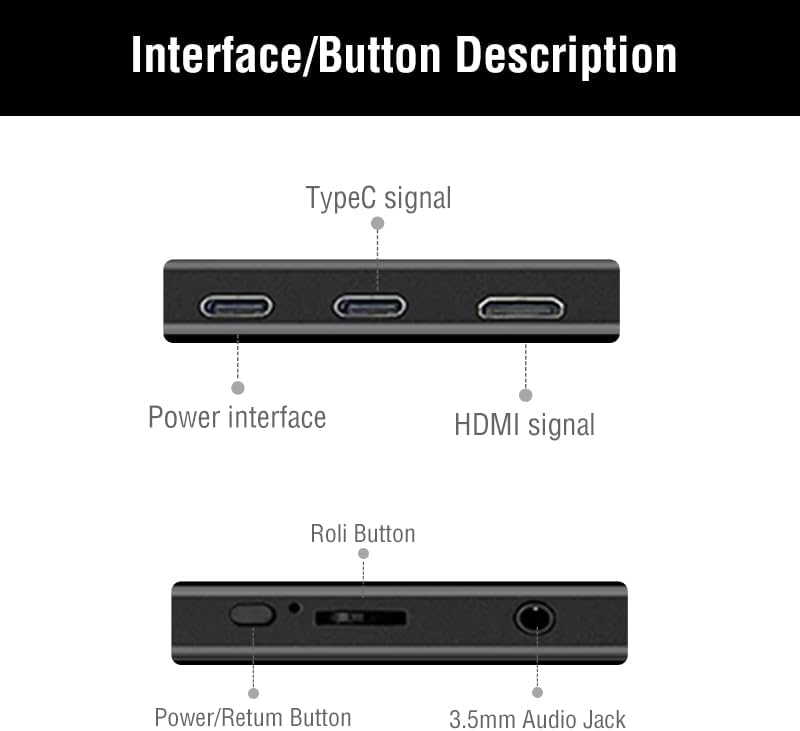
Image: Detailed diagram illustrating the monitor's interface ports and control buttons.
- Interfejsy wejściowe: Two full-function Type-C (USB-C) ports and one Mini-HDMI port for video signal transmission.
- Interfejs wyjściowy: A 3.5mm audio jack for connecting headphones or external speakers.
- Przyciski sterujące: A toggle button for menu navigation, volume control, and power on/off.
- Wbudowane głośniki: Dual 1W speakers provide audio output.
- Okładka magnetyczna: The included magnetic cover protects the screen and doubles as an adjustable stand.
- Zgodność z mocowaniem VESA: Features wall mounting holes (7.5cm x 7.5cm spacing) on the rear for alternative installation.
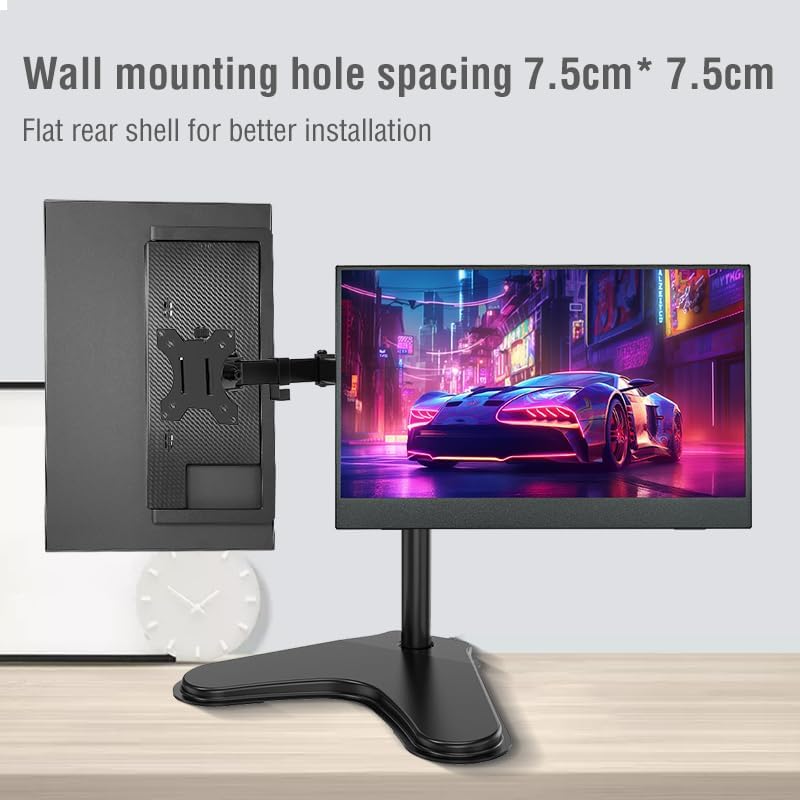
Obraz: Tył view of the monitor highlighting the 7.5cm x 7.5cm VESA wall mounting holes for secure installation.
Przewodnik po konfiguracji
Follow these steps to connect and set up your Anmite Portable Monitor.
1. Podłączenie zasilania
- Connect the provided Type-C to USB-A cable to one of the monitor's Type-C ports and a compatible power adapter (not included) or a USB-A port on your host device for power.
- Alternatively, if your host device supports power delivery via Type-C, a single full-function Type-C cable can provide both power and video.

Image: The portable monitor demonstrating multiple power supply methods, including connection to a power bank and a laptop via USB-C.
2. Video Connection
Wybierz jedną z następujących metod połączenia:
- Typ C (pełna funkcjonalność): Use the provided Type-C to Type-C cable to connect the monitor to a device with a full-featured USB-C port (supports video output and power delivery). This is the simplest connection for compatible devices.
- Mini-HDMI: Use the provided Mini-HDMI to HDMI cable to connect the monitor to a device with an HDMI output. Ensure the monitor is also powered via a separate Type-C to USB-A cable or a power adapter.
Note: Ensure your device's Type-C interface is full-featured for video output. If it is only for charging, it will not transmit video signals.
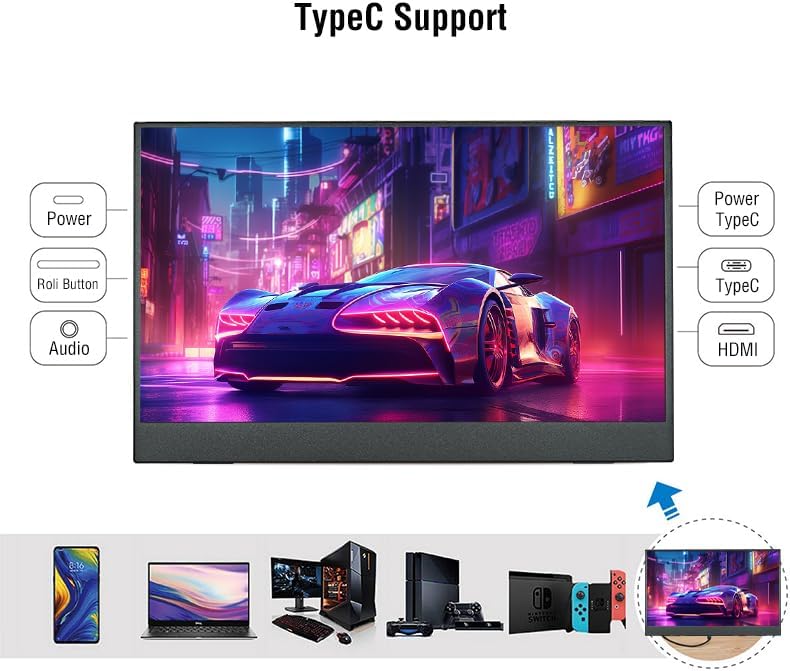
Image: The monitor displaying its compatibility with multiple devices, including smartphones, laptops, and gaming consoles, through Type-C and HDMI connections.
3. Display Settings (Windows/macOS)
After connecting, your operating system should detect the new display. You may need to adjust display settings:
- Rozszerz wyświetlacz: To use the portable monitor as a secondary screen, allowing you to drag windows between displays.
- Duplicate Display: To mirror your primary screen's content onto the portable monitor.
- Rezolucja: Set the resolution to 2560x1600 for optimal clarity.
- Częstotliwość odświeżania: Adjust to 144Hz for smoother visuals, especially for gaming.
Instrukcja obsługi
1. Using the Magnetic Cover/Stand
The included magnetic cover can be folded to create a stand, allowing you to position the monitor at various viewing angles. Simply fold the cover into a triangular shape and place the monitor into the grooves for stability.
2. Menu ekranowe (OSD)
Use the toggle button on the side of the monitor to access and navigate the OSD menu. This menu allows you to adjust various display settings:
- Jasność/Kontrast: Adjust screen luminance and contrast levels.
- Ustawienia kolorów: Zmień temperaturę barwową, odcień i nasycenie.
- Audio: Regulacja głośności wbudowanych głośników lub podłączonych słuchawek.
- Źródło sygnału wejściowego: Manually select between Type-C and Mini-HDMI inputs.
- Inne ustawienia: Access advanced display options.
3. Scenariusze użytkowania

Image: The monitor adapts to different environments, including casual viewing, gaming, watching films, and professional office tasks.
- Extended Office: Enhance productivity by using the monitor as a second screen for your laptop, allowing for more workspace.
- Hazard: Connect to gaming consoles (Xbox, PS4, Nintendo Switch) or gaming PCs for a high-refresh-rate, portable gaming experience.
- Rozrywka mobilna: Connect to smartphones (with full-function Type-C) for watching videos or browsing content on a larger display.
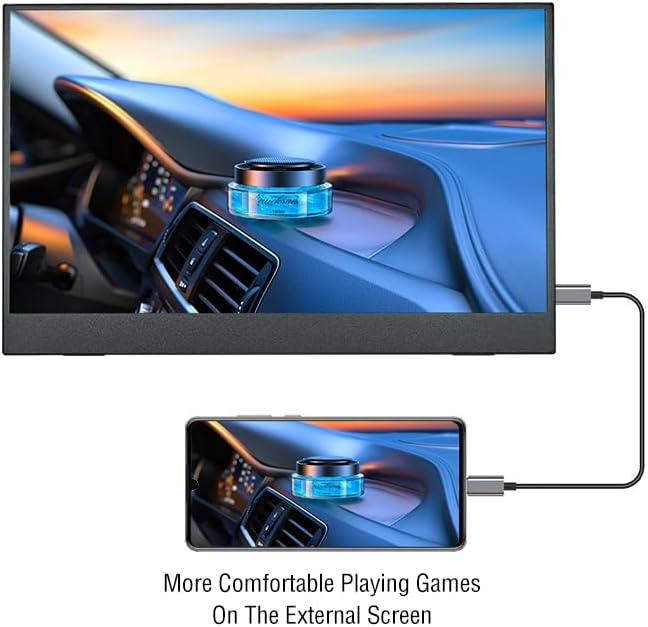
Image: A smartphone connected to the portable monitor, providing a larger display for an enhanced mobile gaming experience.
Konserwacja
- Czyszczenie: Do czyszczenia ekranu użyj miękkiej, niepozostawiającej włókien ściereczki. W przypadku uporczywych zabrudzeń delikatnie przetrzyjampPrzetrzyj ściereczkę wodą lub płynem do czyszczenia ekranów. Unikaj silnych środków chemicznych.
- Składowanie: When not in use, store the monitor in its magnetic cover to protect the screen from scratches and dust.
- Obsługiwanie: Handle the monitor with care to prevent drops or impacts, which could damage the screen or internal components.
Rozwiązywanie problemów
- Brak sygnału:
- Upewnij się, że wszystkie kable są bezpiecznie podłączone.
- Verify the monitor is receiving power.
- Check if your device's Type-C port supports video output.
- Try selecting the input source manually via the OSD menu.
- Brak dźwięku:
- Sprawdź ustawienia głośności zarówno na monitorze (poprzez OSD), jak i na podłączonym urządzeniu.
- Jeśli zamierzasz korzystać z wbudowanych głośników, upewnij się, że do gniazda audio 3.5 mm nie są podłączone żadne słuchawki.
- Miganie wyświetlacza:
- Upewnij się, że monitor otrzymuje wystarczające zasilanie.
- Spróbuj użyć innego kabla lub portu.
- Dostosuj częstotliwość odświeżania w ustawieniach wyświetlacza swojego urządzenia.
Gwarancja i wsparcie
For warranty information and technical support, please refer to the included User Guide or visit the official Anmite webstrona. Zachowaj dowód zakupu na potrzeby roszczeń gwarancyjnych.