
1. Koniec produktuview
The Anmite 18.5 Inch 120Hz Portable Monitor is designed to extend your visual workspace, offering a high-definition display for laptops, gaming consoles, and mobile devices. Its lightweight and slim design ensures portability, while the IPS panel provides wide viewkąty i żywe kolory.

Obraz 1.1: Przód view of the Anmite 18.5 Inch Portable Monitor, highlighting its key features like 1920x1080 resolution, 120Hz refresh rate, 100% sRGB, 3ms response time, and IPS panel.
2. Zawartość opakowania
Sprawdź, czy w przesyłce znajdują się wszystkie elementy:
- Anmite Portable Monitor x 1
- Mini-HDMI to HDMI cable x 1
- Kabel typu C do typu C x 1
- Type-C to USB-A cable x 1
- Instrukcja obsługi x 1
3. Monitor Features and Ports
Familiarize yourself with the monitor's physical features and connection ports.
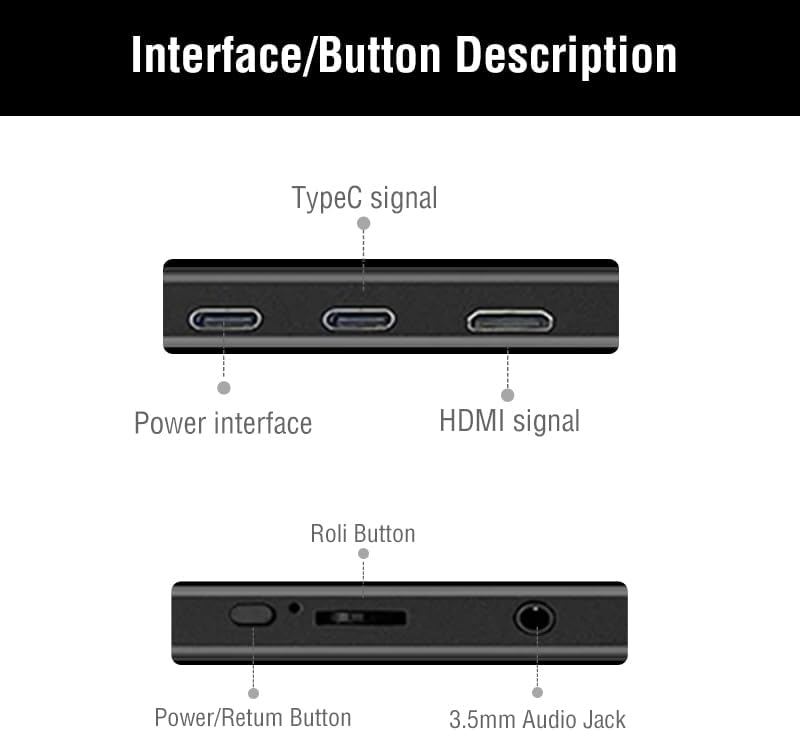
Image 3.1: Detailed diagram showing the monitor's ports and control buttons. This includes Type-C signal input, Power interface, HDMI signal input, a 'Roli Button' for menu navigation, and a 3.5mm Audio Jack.
3.1. Porty i przyciski
- Typ C (pełna funkcja): For video, audio, and power transmission from compatible devices.
- Type-C (Power): For power input to the monitor.
- Mini-HDMI: For video and audio input from devices.
- Gniazdo audio 3.5mm: For connecting external headphones or speakers.
- Roli Button: Used for navigating the On-Screen Display (OSD) menu and adjusting settings.
- Przycisk zasilania/powrotu: Used to power the monitor on/off and as a return function in the OSD menu.

Obraz 3.2: Tył view of the monitor, showcasing the integrated metal support stand and VESA mounting points.
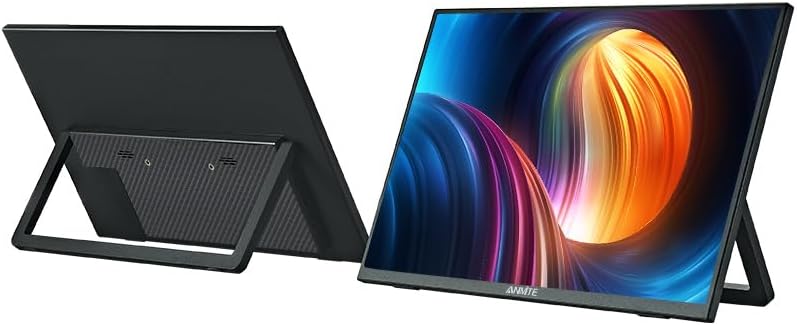
Image 3.3: Front and back perspective views of the monitor, illustrating its slim profile and the adjustable stand.
4. Instrukcje konfiguracji
4.1. Włączanie monitora
The monitor requires power to operate. Connect the provided Type-C to USB-A cable to the monitor's dedicated power Type-C port and a compatible USB power adapter (not included) or a powered USB port on your device.
4.2. Łączenie się z urządzeniami
The Anmite portable monitor supports various devices via Type-C (full function) and HDMI connections.
4.2.1. Connecting to a Laptop/PC (Type-C)
- Ensure your laptop/PC has a full-featured Type-C (USB-C) port that supports video output (DisplayPort Alternate Mode) and power delivery.
- Connect one end of the Type-C to Type-C cable to the monitor's full-function Type-C port.
- Connect the other end of the Type-C to Type-C cable to your laptop/PC's full-featured Type-C port.
- The monitor should automatically detect the signal and display your laptop/PC screen. If not, you may need to adjust display settings on your laptop/PC.
4.2.2. Connecting to a Laptop/PC (HDMI)
- Connect one end of the Mini-HDMI to HDMI cable to the monitor's Mini-HDMI port.
- Connect the other end of the Mini-HDMI to HDMI cable to your laptop/PC's HDMI port.
- Connect the monitor to a power source using the Type-C to USB-A cable and a power adapter.
- The monitor should automatically detect the signal. If not, adjust display settings on your laptop/PC.
4.2.3. Connecting to a Smartphone (Type-C)
- Ensure your smartphone has a full-featured Type-C (USB-C) port that supports video output (DisplayPort Alternate Mode) and power delivery.
- Connect one end of the Type-C to Type-C cable to the monitor's full-function Type-C port.
- Connect the other end of the Type-C to Type-C cable to your smartphone's full-featured Type-C port.
- The monitor should mirror or extend your phone's display.

Image 4.1: The portable monitor connected to a smartphone via a Type-C cable, demonstrating its use as an external display for mobile devices.
4.2.4. Connecting to Gaming Consoles (HDMI)
- Connect one end of the Mini-HDMI to HDMI cable to the monitor's Mini-HDMI port.
- Connect the other end of the Mini-HDMI to HDMI cable to your gaming console's HDMI port.
- Connect the monitor to a power source using the Type-C to USB-A cable and a power adapter.
- Power on your gaming console and the monitor. The display should appear automatically.
4.3. Korzystanie ze zintegrowanego stojaka
The monitor features an integrated metal stand for easy setup. Simply unfold the stand from the back of the monitor to position it at your desired viewing angle. The stand also allows for both landscape and portrait orientations.
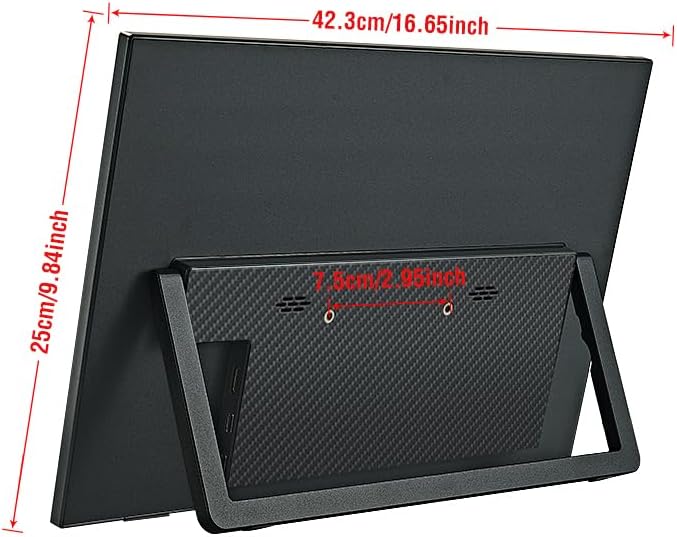
Obraz 4.2: Tył view of the monitor with its stand extended, showing the overall dimensions and stability.
5. Instrukcja obsługi
5.1. Włączanie/wyłączanie zasilania
Naciśnij i przytrzymaj Przycisk zasilania/powrotu na kilka sekund, aby włączyć lub wyłączyć monitor.
5.2. Menu ekranowe (OSD)
Menu OSD umożliwia dostosowanie różnych ustawień wyświetlania. Użyj Roli Button aby nawigować i wybierać opcje.
- Naciśnij Roli Button aby otworzyć menu OSD.
- Zwiń Roli Button up or down to navigate through menu options.
- Naciśnij Roli Button aby wybrać opcję lub wejść do podmenu.
- Użyj Przycisk zasilania/powrotu to go back to the previous menu or exit the OSD.
5.3. Common OSD Settings
- Jasność / kontrast: Adjust the display's luminance and contrast levels.
- Ustawienia kolorów: Modify color temperature, hue, and saturation.
- Źródło wejściowe: Manually select between Type-C and HDMI inputs if auto-detection fails.
- Proporcje obrazu: Change the display aspect ratio (e.g., 16:9, 4:3).
- Tom: Adjust the volume of the built-in speakers or connected headphones.
5.4. Display Orientation
The monitor supports both landscape and portrait orientations. The display will automatically adjust if your connected device supports auto-rotation. Otherwise, you may need to manually change the display orientation in your device's operating system settings.
6. Konserwacja
6.1. Czyszczenie monitora
- Zawsze wyłączaj monitor i odłączaj go od zasilania przed czyszczeniem.
- Użyj miękkiej, niestrzępiącej się ściereczki, lekko wyczyśćampCzyścić wodą lub nieściernym środkiem do czyszczenia ekranów.
- Nie rozpylać środka czyszczącego bezpośrednio na ekran.
- Unikaj stosowania alkoholu, amoniaku i ściernych środków czyszczących, ponieważ mogą one uszkodzić powierzchnię ekranu.
6.2. Przechowywanie
- Przechowuj monitor w chłodnym, suchym miejscu, z dala od bezpośredniego światła słonecznego i ekstremalnych temperatur.
- If storing for an extended period, use the original packaging or a protective sleeve to prevent dust and scratches.
7. Rozwiązywanie Problemów
If you encounter issues with your Anmite portable monitor, refer to the following common solutions:
- No Display/No Signal:
- Ensure the monitor is properly powered and turned on.
- Sprawdź, czy kabel wideo (typu C lub HDMI) jest prawidłowo podłączony do monitora i urządzenia.
- If using Type-C, confirm that your device's Type-C port is full-featured and supports video output. Some Type-C ports are for charging only.
- Spróbuj ręcznie wybrać właściwe źródło sygnału wejściowego za pomocą menu OSD.
- Jeżeli to możliwe, przetestuj przy użyciu innego kabla lub urządzenia.
- Migotanie lub niestabilny wyświetlacz:
- Sprawdź połączenia kabli pod kątem luzu.
- Upewnij się, że monitor otrzymuje wystarczające zasilanie.
- Adjust the refresh rate or resolution settings on your connected device.
- Brak dźwięku:
- Increase the volume on both the monitor (via OSD) and your connected device.
- Upewnij się, że wyjście audio w Twoim urządzeniu jest ustawione na monitor przenośny.
- If using external headphones/speakers, ensure they are properly connected to the 3.5mm audio jack.
- Monitor się nie włącza:
- Confirm the power cable is connected and the power source is active.
- Wypróbuj inny zasilacz lub port USB.
8. Specyfikacje
Detailed technical specifications for the Anmite 18.5 Inch Portable Monitor (Model A185W03).

Image 8.1: Diagram illustrating the physical dimensions of the 18.5-inch monitor in centimeters and inches.
| Funkcja | Specyfikacja |
|---|---|
| Numer modelu | A185W03 |
| Rozmiar ekranu | 18.5 cala |
| Typ panelu | IPS |
| Rezolucja | 1920x1080 (FHD) |
| Częstotliwość odświeżania ekranu | 120 Hz |
| Proporcje obrazu | 16:9 |
| Kolor wyświetlacza | 16.7 mln |
| Temperatura barwowa | 6800 tys. |
| Kąt widzenia | Wys.:178° Pion.:178° |
| Obszar wizualny | 410x230mm |
| Współczynnik kontrastu | 1000:1 |
| Jasność | 300cd/m² |
| Obsługiwane kolory | 100% sRGB |
| Interfejs wejściowy | Mini-HDMI, Type-C (Full Function), Type-C (Power) |
| Interfejs wyjściowy | Interfejs audio 3.5 mm |
| Głośniki | Built-in (1W*2) |
| Masa netto | 1.2 kilogramów |
| Wymiary | 423 x 250 x 6-13 mm (16.65 x 9.84 x 0.24-0.51 cala) |
| Wymiary produktu (w opakowaniu) | 8.26 x 14.96 x 19.29 cala |
| Tomtage | 5 V (prąd stały) |
| Opis powierzchni ekranu | Matowy |

Image 8.2: Illustration of the monitor's ultra-portable design, highlighting its thinness and lightweight nature with dimensions.

Image 8.3: Visual comparison of the 18.5-inch monitor alongside 17.3-inch and 15.6-inch models, demonstrating its larger screen size.
9. Gwarancja i wsparcie
9.1. Informacje o gwarancji
For detailed warranty information regarding your Anmite portable monitor, please refer to the warranty card included in your product packaging or visit the official Anmite webPlany ochrony mogą być również dostępne do zakupu osobno.
9.2. Obsługa klienta
If you require further assistance or have questions not covered in this manual, please contact Anmite customer support. You can find contact information and additional resources on the Anmite Official Store.