
1. Wprowadzenie
The Ulefone Armor PAD 4 Ultra is a rugged 5G tablet PC designed for durability and high performance in challenging environments. It features a 10.36-inch 2K FHD+ display, a powerful MediaTek Dimensity 6300 processor, and a large 11800mAh battery. This manual provides essential information for setting up, operating, maintaining, and troubleshooting your device.

Image: The Ulefone Armor PAD 4 Ultra tablet showcasing its rugged design in an outdoor environment.
Key features include IP68/IP69K and MIL-STD-810H certifications for water, dust, and drop resistance, a 50MP rear camera, a 32MP front camera, and a versatile 1100 lumens LED light. The tablet runs on Android 14 and offers up to 16GB RAM and 256GB internal storage, expandable up to 2TB.
2. Przewodnik konfiguracji
2.1 Zawartość opakowania
Przed rozpoczęciem upewnij się, że w opakowaniu znajdują się wszystkie elementy:
- Ulefone Armor PAD 4 Ultra Tablet PC
- Zasilacz
- Kabel USB-C
- Narzędzie do wyjmowania karty SIM
- Instrukcja obsługi (ten dokument)
2.2 Wkładanie karty SIM/SD
- Znajdź tackę na kartę SIM/SD znajdującą się z boku tabletu.
- Otwórz tackę za pomocą dołączonego narzędzia do wyjmowania karty SIM.
- Carefully place your Nano SIM card(s) and/or SD card into the designated slots. The tablet supports dual Nano SIM cards or one Nano SIM card and one SD card.
- Delikatnie wsuń tackę z powrotem do tabletu, aż zatrzaśnie się na swoim miejscu.

Obraz: Przód view of the Ulefone Armor PAD 4 Ultra tablet, showing its display and rugged frame.
2.3 Pierwsze ładowanie i włączanie
- Connect the USB-C cable to the tablet's charging port and the power adapter.
- Plug the power adapter into a wall outlet. Allow the tablet to charge for at least 30 minutes before initial use, or until the battery indicator shows sufficient charge. The 11800mAh battery supports 33W fast charging.
- Press and hold the Power button (usually located on the side) until the Ulefone logo appears on the screen.
- Postępuj zgodnie z instrukcjami wyświetlanymi na ekranie, aby dokończyć konfigurację początkową, obejmującą wybór języka, połączenie Wi-Fi i konfigurację konta Google.
2.4 Łączność sieciowa
The tablet supports 5G LTE dual SIM connectivity. Ensure your SIM card is active and your mobile data plan is configured. For Wi-Fi, navigate to Ustawienia > Sieć i internet > Wi-Fi to connect to an available network.
3. Instrukcja obsługi
3.1 Podstawowa nawigacja (Android 14)
The Ulefone Armor PAD 4 Ultra runs on Android 14. Navigate using gestures or the traditional three-button navigation bar (Back, Home, Recents). Swipe up from the bottom for the app drawer, swipe down from the top for notifications and quick settings.

Image: The tablet displaying the Android 14 interface, with an HDMI connection to an external display for presentations.
3.2 Korzystanie z kamery
The tablet is equipped with a 50MP rear camera and a 32MP front camera. Open the Camera app to capture photos and videos. Tap to focus, pinch to zoom, and use the on-screen controls for various modes and settings.

Obraz: szczegółowy view of the tablet's rear camera module, highlighting the 50MP sensor and the powerful LED light.
3.3 Uniwersalne światło LED
The tablet features a powerful 1100 lumens LED light. This can be activated via a dedicated custom key or through the exclusive app. It functions as a flashlight, headlight, or portable campświatła.
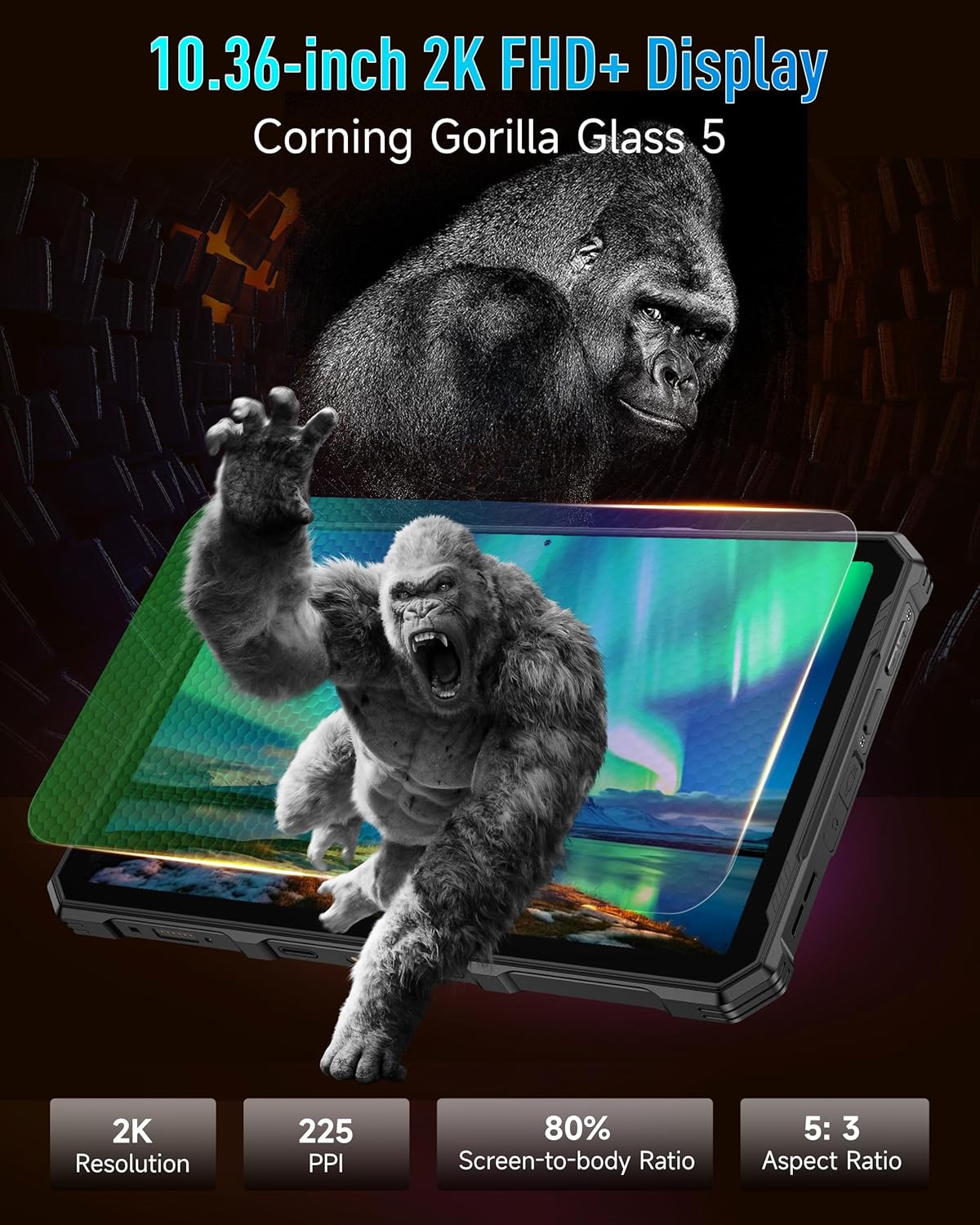
Image: The Ulefone Armor PAD 4 Ultra tablet illuminating a camping tent with its powerful LED light.
3.4 Custom Key Functionality
The tablet includes a customizable physical key. This key can be configured for single click, double click, or long press actions to quickly access specific functions or applications, such as activating the LED light or launching the camera.
3.5 Gloves Mode
For use in cold weather or industrial environments, activate Gloves Mode in Settings > Smart Assistant > Gloves Mode. This enhances touch sensitivity, allowing the screen to respond to gloved hands.
3.6 Face Unlock and Fingerprint ID
Enhance security and convenience by setting up Face Unlock or Fingerprint ID. Go to Ustawienia > Bezpieczeństwo i prywatność > Odblokowanie urządzenia to configure these options.
3.7 Multi-use Digital Toolbox
The tablet comes with a suite of pre-installed tools in the Digital Toolbox, including a compass, sound meter, protractor, and more. These tools are designed to assist in various outdoor and professional tasks.

Image: A construction worker utilizing the Ulefone Armor PAD 4 Ultra tablet's digital toolbox for various measurements and utilities.
3.8 Headset-free FM Radio
Enjoy FM radio without needing to connect headphones. Simply open the FM Radio app and tune into your favorite stations.
3.9 porty HDMI
The tablet features an HDMI port for connecting to external displays, such as monitors or projectors. This allows for screen mirroring or extended display functionality, useful for presentations or media consumption.
4. Konserwacja
4.1 Czyszczenie urządzenia
Due to its rugged design, the Armor PAD 4 Ultra can be cleaned with water and mild soap. Ensure all port covers are securely closed before exposing the device to water. Wipe with a soft, lint-free cloth. Avoid using harsh chemicals or abrasive materials.
4.2 Pielęgnacja baterii
Aby przedłużyć żywotność baterii:
- Unikaj ekstremalnych temperatur.
- Aby zapewnić optymalne ładowanie, należy używać oryginalnej ładowarki i kabla.
- Nie należy zbyt często całkowicie rozładowywać akumulatora.
- Jeśli przechowujesz urządzenie przez dłuższy czas, naładuj je do około 50% i wyłącz.
4.3 Aktualizacje oprogramowania
Regularnie sprawdzaj dostępność aktualizacji oprogramowania i instaluj je, aby zapewnić optymalną wydajność, bezpieczeństwo i dostęp do nowych funkcji. Przejdź do Ustawienia > System > Aktualizacja systemu.
4.4 Cechy wytrzymałościowe
The tablet is IP68/IP69K and MIL-STD-810H certified, meaning it is resistant to water, dust, and drops. While designed to be durable, avoid intentionally subjecting it to extreme conditions beyond its specifications. Ensure all port covers are sealed to maintain water and dust resistance.

Image: The Ulefone Armor PAD 4 Ultra tablet submerged in water, covered in dust, and dropped, demonstrating its IP68/IP69K and MIL-STD-810H certifications.
5. Rozwiązywanie Problemów
5.1 Urządzenie się nie włącza
- Upewnij się, że bateria jest naładowana. Podłącz tablet do ładowarki i odczekaj kilka minut przed próbą włączenia.
- Aby wymusić ponowne uruchomienie, naciśnij i przytrzymaj przycisk zasilania przez co najmniej 10–15 sekund.
5.2 Problemy z łącznością sieciową
- Wi-Fi: Check if Wi-Fi is enabled in Settings. Restart your router. Forget the network and reconnect.
- Dane mobilne: Ensure your SIM card is correctly inserted and activated. Check your data plan status with your carrier. Restart the tablet.
5.3 Ekran nie reaguje
- Uruchom ponownie urządzenie, przytrzymując przycisk zasilania.
- If the screen is frozen, perform a forced restart.
5.4 Aplikacje ulegają awarii lub zawieszają się
- Wyczyść pamięć podręczną i dane problematycznej aplikacji (Ustawienia > Aplikacje > [Nazwa aplikacji] > Pamięć masowa i pamięć podręczna).
- Odinstaluj i ponownie zainstaluj aplikację.
- Upewnij się, że oprogramowanie tabletu jest aktualne.
5.5 Przywracanie ustawień fabrycznych
If issues persist, a factory reset may be necessary. This will erase all data on your tablet, so back up important information first. Go to Ustawienia > System > Opcje resetowania > Usuń wszystkie dane (reset fabryczny).
6. Specyfikacje
| Funkcja | Szczegół |
|---|---|
| Marka | Ulefone |
| Numer modelu | Ulefone Armor Pad 4 Ultra |
| Rozmiar ekranu | 10.36 cali |
| Rozdzielczość natywna | 2000x1200 pixels (2K FHD+) |
| Proporcje obrazu | 5:3 |
| Edytor | MediaTek Dimensity 6300 (2400 MHz) |
| BARAN | Do 16 GB (8 GB pamięci fizycznej + 8 GB pamięci wirtualnej) |
| Pamięć wewnętrzna | 256GB (2TB Expandable) |
| System operacyjny | Android 14 |
| Kamera tylna | 50MP |
| Przednia kamera | 32MP |
| Pojemność baterii | 11800mAh |
| Ładowanie | Szybkie ładowanie 33 W |
| Wytrzymałość | Certyfikat IP68/IP69K, MIL-STD-810H |
| Łączność | 5G LTE, Wi-Fi (2.4G/5G), Bluetooth 5.2, NFC, GPS |
| Cechy specjalne | 1100 Lumens LED Light, Custom Key, Gloves Mode, HDMI Port, Multi-use Digital Toolbox |
| Waga przedmiotu | 16 uncji |
7. Gwarancja i wsparcie
7.1 Informacje o gwarancji
The Ulefone Armor PAD 4 Ultra comes with a 2-letnia globalna gwarancja. This warranty covers manufacturing defects and malfunctions under normal use. Please retain your proof of purchase for warranty claims. The warranty does not cover damage caused by misuse, accidents, unauthorized repairs, or normal wear and tear.
7.2 Obsługa klienta
For technical assistance, warranty claims, or any other inquiries, please contact Ulefone customer support. Refer to the official Ulefone webAby uzyskać najaktualniejsze dane kontaktowe, odwiedź witrynę lub dokumentację zakupu.
Your satisfaction is a priority. Should you encounter any technical issues, the dedicated support team is available to assist you.