
ZCGIOBN A8
ZCGIOBN A8 4K HDR Smart Projector User Manual
Wzór: A8
1. Informacje dotyczące bezpieczeństwa
Przed użyciem projektora prosimy o dokładne zapoznanie się ze wszystkimi instrukcjami bezpieczeństwa. Zachowaj tę instrukcję do wykorzystania w przyszłości.
- Zasilanie: Używaj wyłącznie określonego zasilacza. Upewnij się, że napięcietage jest kompatybilny z Twoim regionem.
- Wentylacja: Nie zasłaniaj otworów wentylacyjnych. Zapewnij odpowiedni przepływ powietrza wokół projektora, aby zapobiec przegrzaniu.
- Ekspozycja na płyny: Nie wystawiaj projektora na działanie deszczu, wilgoci ani żadnych płynów.
- Czyszczenie: Unplug the projector before cleaning. Use a soft, dry cloth. Avoid liquid cleaners.
- Umieszczenie: Place the projector on a stable, flat surface. Avoid direct sunlight or heat sources.
- Ochrona oczu: Nie patrz bezpośrednio w obiektyw projektora, gdyamp is on. The bright light can cause eye strain or damage.
- Serwisowanie: Nie próbuj samodzielnie naprawiać projektora. Wszelkie naprawy zlecaj wykwalifikowanemu personelowi.

The projector features EyeCare technology with diffuse reflection to reduce blue light and eye fatigue, promoting a safer viewzdobywania doświadczenia.
2. Zawartość opakowania
Sprawdź, czy w przesyłce znajdują się wszystkie elementy:
- ZCGIOBN A8 4K HDR Smart Projector
- Zdalne sterowanie
- Zasilacz
- Kabel HDMI
- Instrukcja obsługi
- Szybki przewodnik
3. Koniec produktuview
The ZCGIOBN A8 is a portable 4K HDR smart projector designed for versatile entertainment. It features a compact design and advanced image and sound technologies.
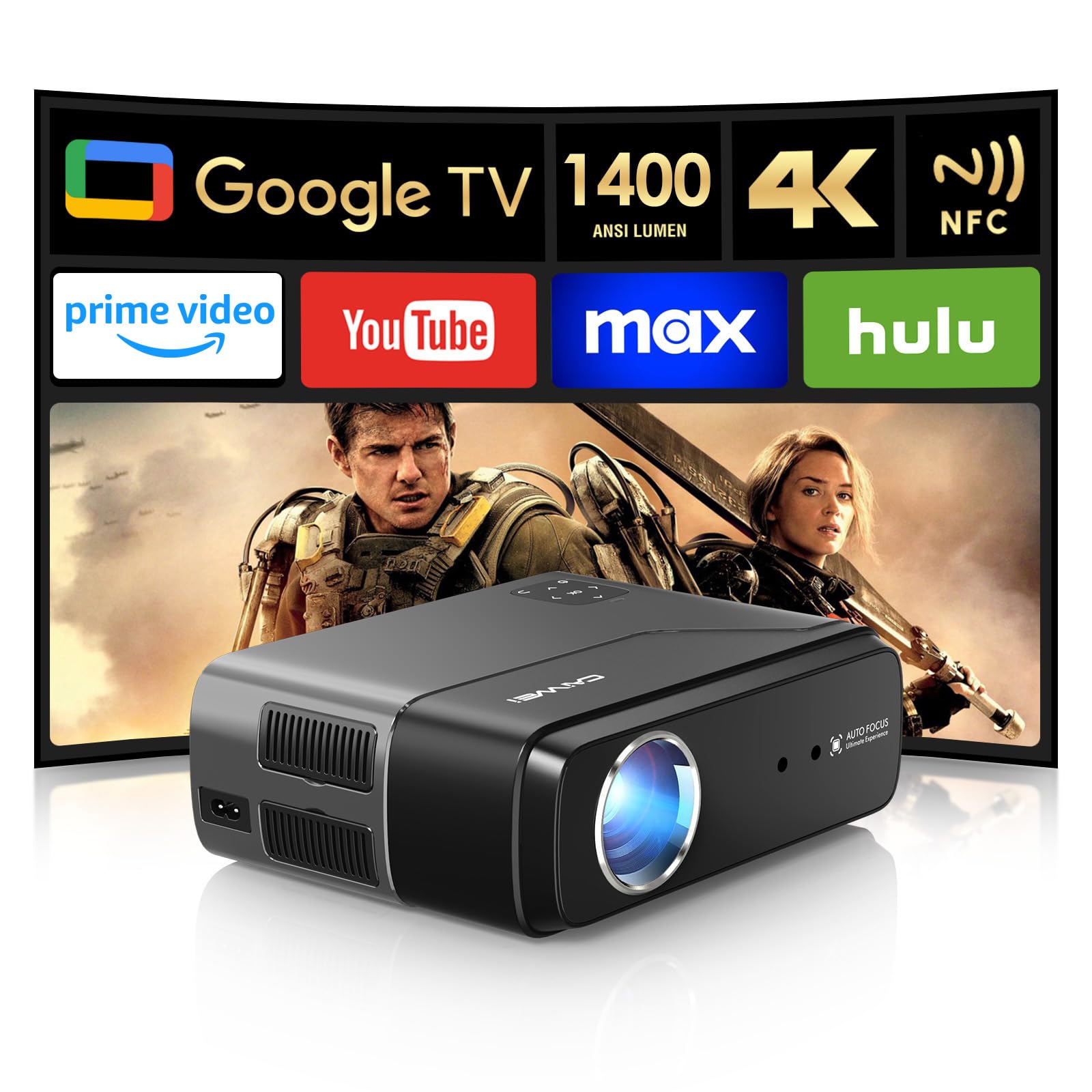
The ZCGIOBN A8 projector features a sleek design, with the projection lens prominently displayed on the front.
3.1 Kluczowe komponenty
- Soczewka projekcyjna: Wyświetla obraz na ekranie lub ścianie.
- Otwory wentylacyjne: Located on the sides and rear to ensure proper cooling.
- Panel sterowania: Top-mounted buttons for basic navigation and settings.
- Porty wejścia/wyjścia: Various ports for connecting external devices.
- Prelegenci: Zintegrowane wyjście audio.

The compact and lightweight design of the projector allows for easy portability.

Szczegółowy view of the LCD touch panel for control, the pop-up dust filter for maintenance, and the high transmittance lens for clear projection.
4. Konfiguracja
4.1 Początkowe umiejscowienie
Place the projector on a stable surface, ensuring the lens is facing the desired projection area (wall or screen). Maintain a clear path between the projector and the surface.
4.2 Połączenie zasilania
- Podłącz zasilacz do portu wejściowego zasilania projektora.
- Podłącz zasilacz do odpowiedniego gniazdka elektrycznego.
- Naciśnij przycisk zasilania na projektorze lub pilocie, aby go włączyć.
4.3 Image Adjustment (Auto Features)
The ZCGIOBN A8 projector features intelligent image adaptation technology for quick setup.
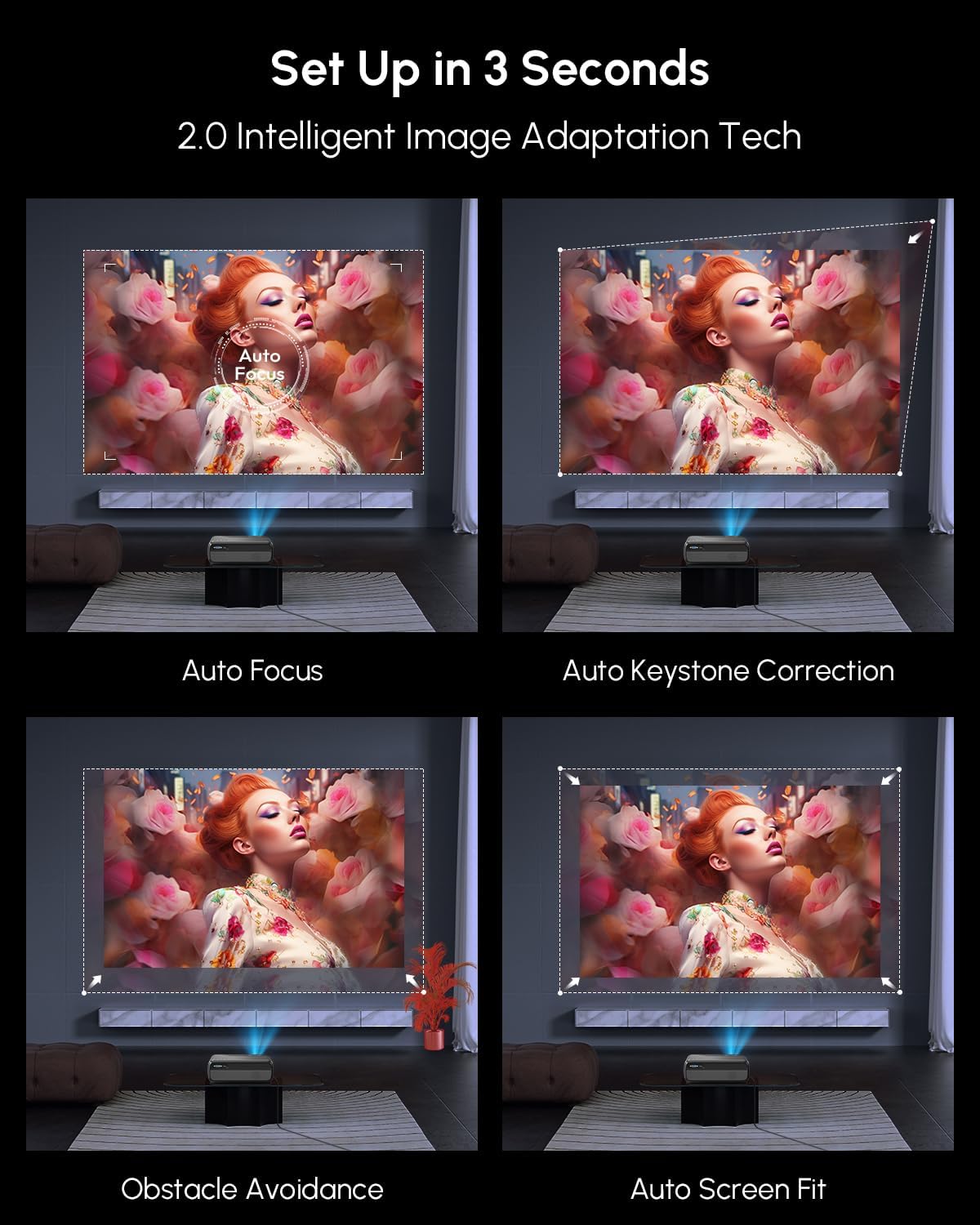
The projector automatically adjusts focus, keystone, avoids obstacles, and fits the screen for optimal viewing.
- Auto Focus: Projektor automatycznie dostosowuje ostrość obrazu.
- Automatyczna korekcja trapezu: Automatically corrects distorted images to a rectangular shape.
- Unikanie przeszkód: Detects and adjusts the projection area to avoid objects on the wall.
- Automatyczne dopasowanie do ekranu: Automatically scales the image to fit the projection screen.
Video demonstrating the intelligent projection correction features, including auto focus, auto keystone, obstacle avoidance, and screen alignment.

The projector offers instant entertainment with automatic screen alignment and obstacle avoidance upon power-on.

Real-time image perfection is achieved through auto focus and auto keystone correction, even in outdoor settings.
5. Instrukcja obsługi
5.1 Podstawowa nawigacja
Use the remote control or the projector's top panel buttons to navigate the on-screen menu. The directional buttons allow movement, and the OK button confirms selections.
5.2 Funkcje inteligentne (Google TV)
The projector comes with a built-in Smart OS, providing access to various streaming services and applications.

Access your favorite shows and apps directly from the Google TV interface.

The Google TV interface provides a wide range of content options and supports Google Cast for screen mirroring.

Utilize Google Voice Search and Google Assistant for hands-free control and content discovery.
5.3 Łączność
- Wi-Fi 6: Connect to your wireless network for streaming and online features. Navigate to Settings > Network > Wi-Fi to connect.
- Bluetooth 5.2: Connect external Bluetooth speakers or use the projector as a Bluetooth speaker. Navigate to Settings > Bluetooth.
- Przesyłanie NFC: For faster content casting from compatible devices, tap your NFC-enabled device near the projector's NFC tag.
- HDMI/USB/AV/VGA: Connect external devices such as gaming consoles, laptops, or media players using the appropriate ports.

Wirelessly cast content from your devices using NFC, Google Cast, or WiFi 6 for seamless integration.

NFC provides an easier and faster method for casting content from compatible devices.

Two-way Bluetooth 5.2 enables the projector to function as a standalone Hi-Fi speaker or connect to external audio systems.

WiFi 6 technology ensures faster speeds and a more stable connection for gaming and streaming.

The projector offers versatile connectivity options including HDMI, Audio, AV, USB, and VGA for a wide range of devices.
5.4 Ustawienia obrazu i dźwięku
- Jasność: The projector delivers 1400 ANSI Lumens for clear visuals even in softly lit rooms. Adjust brightness in the settings menu if needed.
- HDR-y: Experience enhanced contrast and color with 4K HDR support. Ensure your content source also supports HDR for optimal results.
- Optymalizacja kolorów: The projector features a wider color gamut coverage (98% DCI-P3) and an innovative 6-color vivid light source for true-to-life colors.
- Ulepszenia sztucznej inteligencji: AI Picture (4K video decoding, noise reduction, brightness adaptation, dynamic contrast optimization), AI Sport Mode (motion blur correction), and AI Sound (DSP digital sound enhancement) automatically optimize your viewzdobywania doświadczenia.
- Audio: Enjoy immersive sound with Dolby Audio and DTS support from the built-in 30W speaker.
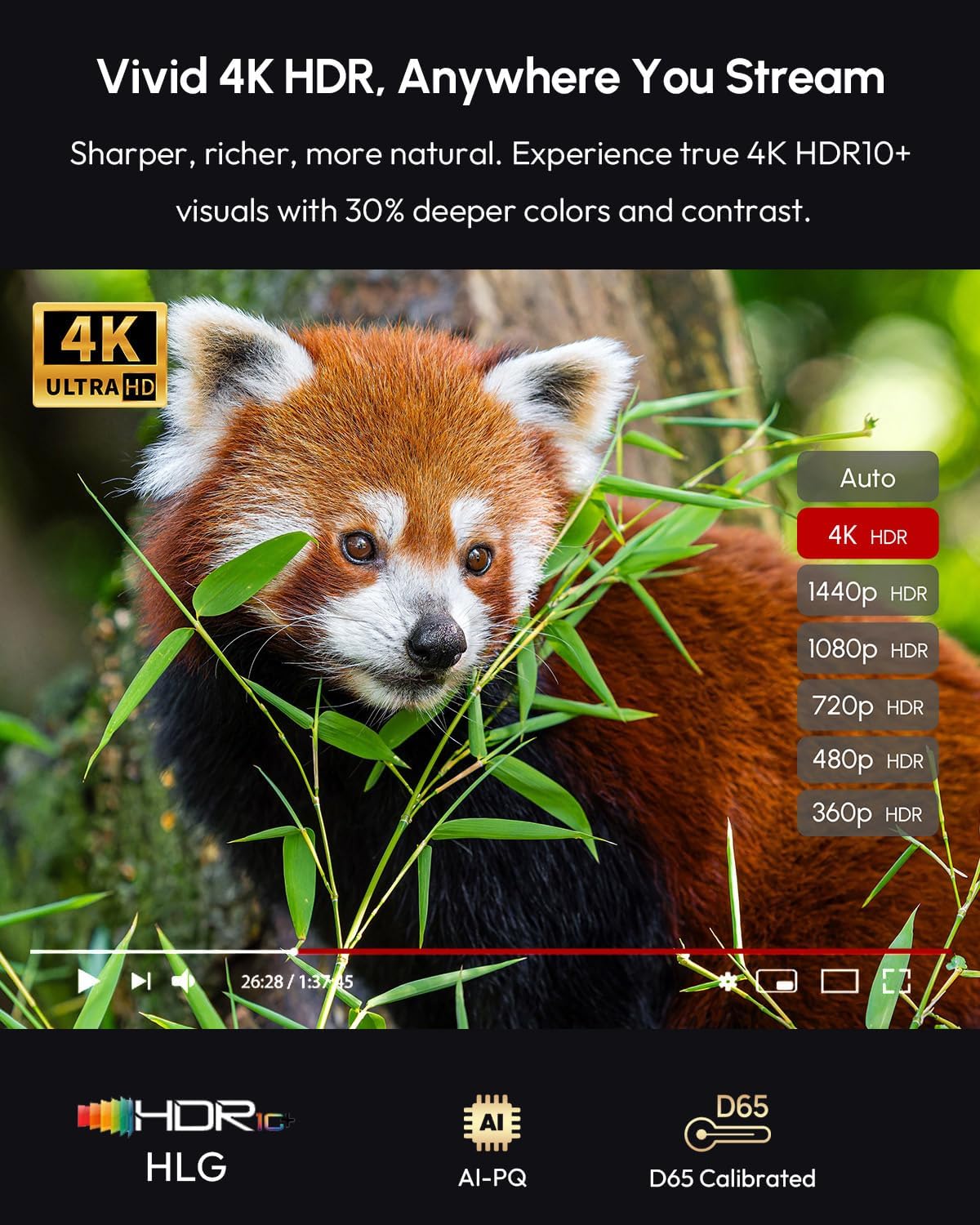
Experience vivid 4K HDR visuals with sharper, richer, and more natural colors.
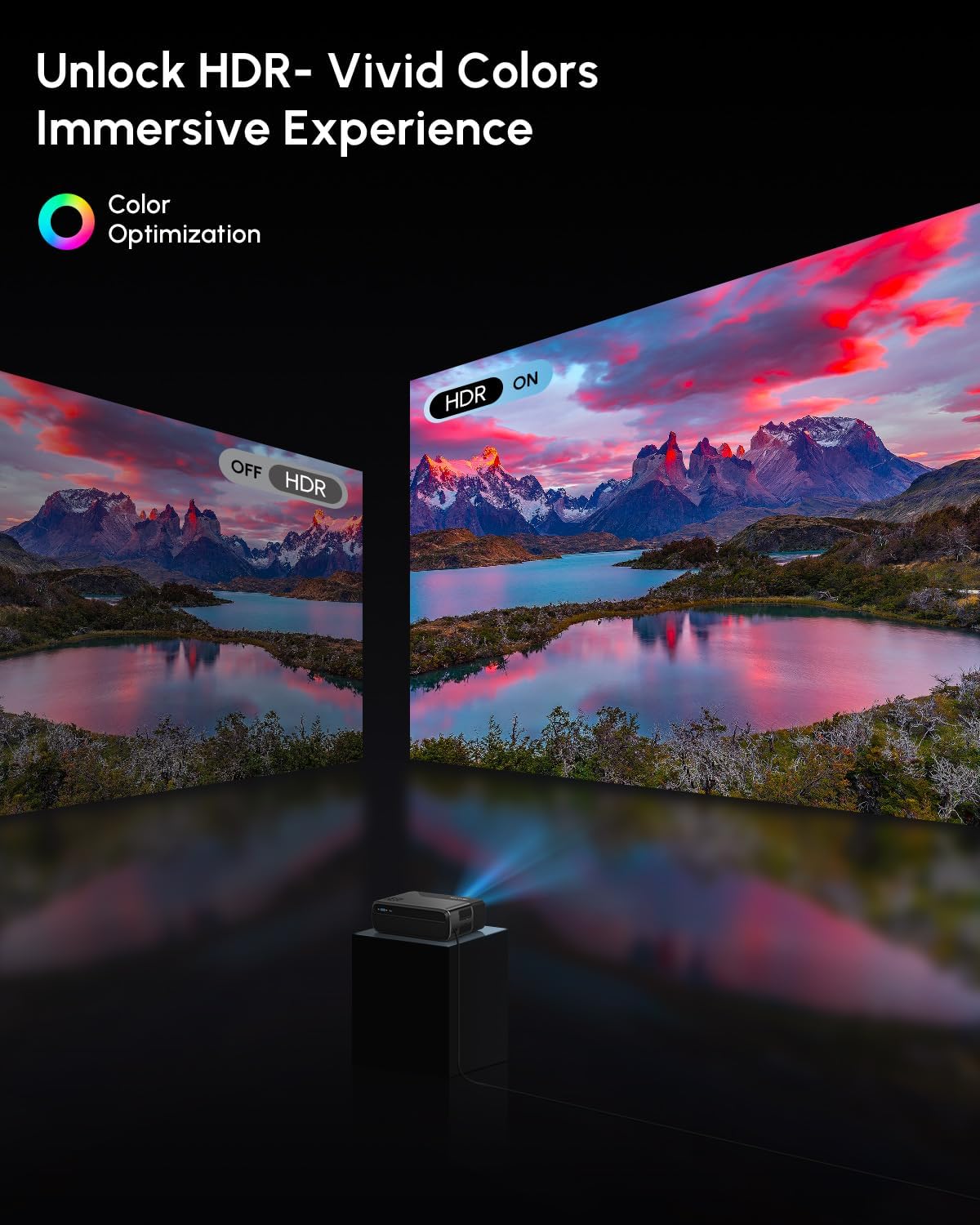
Unlock vivid colors and an immersive experience with HDR, as demonstrated by the comparison of HDR off and HDR on.

The projector offers wider color gamut coverage (98% DCI-P3) for true-to-life color reproduction.

An innovative 6-color vivid light source delivers truer color output, making images more dazzling and vibrant with high color accuracy.

AI Image Visual and Sound Enhancement Technology optimizes picture quality and audio for various content, including sports.

Feel immersive sound with Dolby Audio and DTS support from the built-in 30W speaker, enhancing your viewzdobywania doświadczenia.

The projector offers higher brightness at 1400 ANSI Lumens for clear images in various lighting conditions.
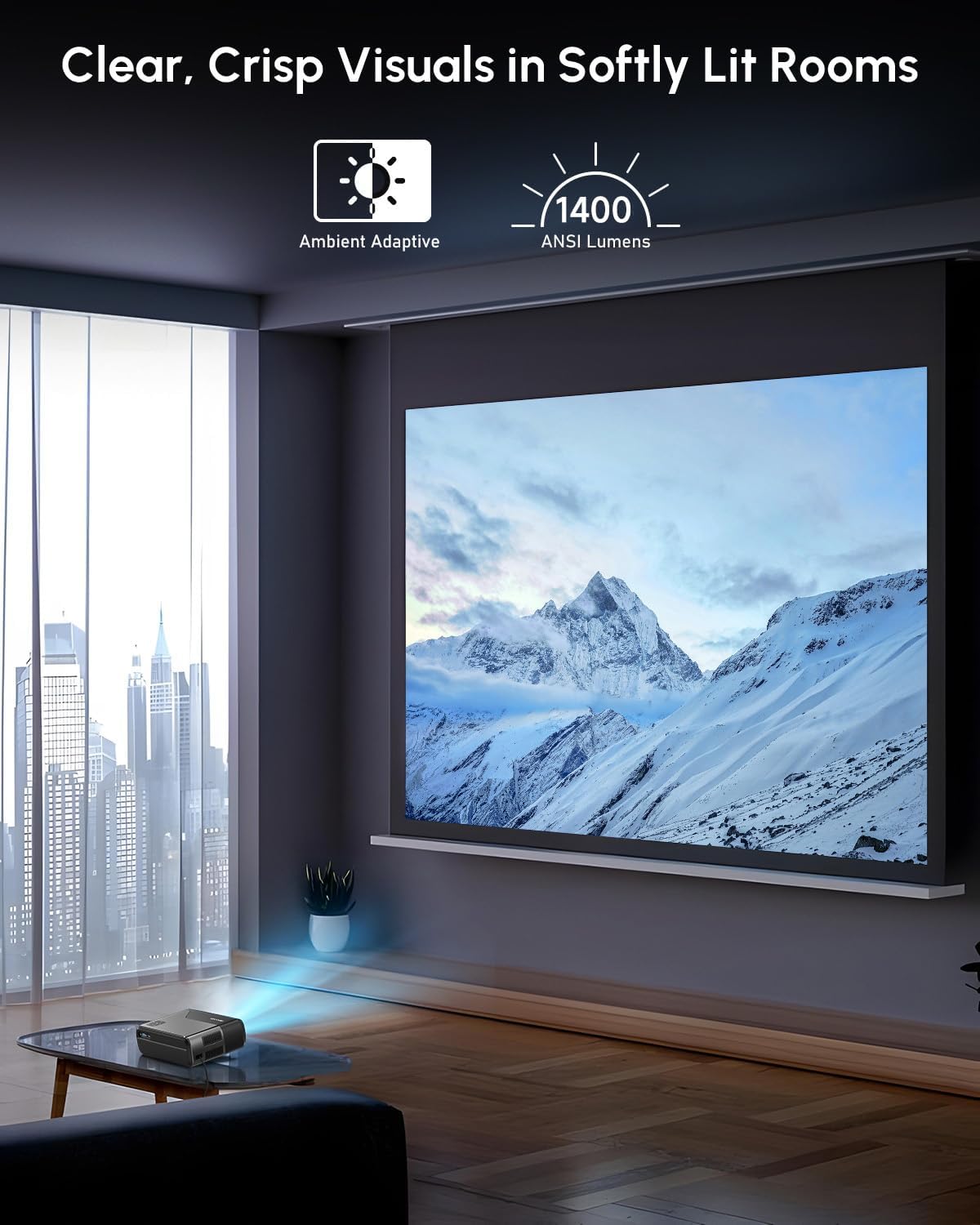
Enjoy clear, crisp visuals even in softly lit rooms thanks to the 1400 ANSI Lumens brightness and ambient adaptive technology.
5.5 Projection Size and Digital Zoom
The projector supports an adjustable projection size from 30 to 200 inches, allowing flexibility for different viewing environments. Digital zoom functionality (30%-100%) provides further control over image size without moving the projector.

Enjoy big screen fun with an adjustable projection size ranging from 30 to 200 inches.

Adjust the image size with digital zoom, ranging from 30% to 100%.
Pokaz wideoasing the projector's ability to create a large screen theater experience, demonstrating various projection sizes and image quality.
6. Konserwacja
- Czyszczenie soczewek: Gently wipe the projector lens with a soft, lint-free cloth. Do not use abrasive cleaners.
- Filtr przeciwpyłowy: The projector features a pop-up dust filter. Regularly clean or replace the filter to maintain optimal performance and prevent dust accumulation.
- Wentylacja: Ensure ventilation ports are clear of obstructions to prevent overheating.
- Składowanie: Jeśli projektor nie będzie używany przez dłuższy czas, należy go przechowywać w chłodnym i suchym miejscu, chroniąc przed kurzem.

The projector's efficient cooling system, including a turbo fan and dust control, helps maintain performance and reduce noise.
7. Rozwiązywanie Problemów
| Problem | Możliwa przyczyna | Rozwiązanie |
|---|---|---|
| Brak zasilania | Kabel zasilający nie jest podłączony; gniazdko elektryczne jest uszkodzone. | Upewnij się, że kabel zasilający jest dobrze podłączony. Spróbuj użyć innego gniazdka. |
| Brak obrazu | Input source not selected; Cable connection loose; Lens cap on. | Select correct input source. Check HDMI/USB cable connections. Remove lens cap. |
| Rozmazany obraz | Out of focus; Keystone not adjusted. | Allow auto-focus to complete or manually adjust focus. Check auto-keystone correction. |
| Brak dźwięku | Głośność jest zbyt niska; Wyciszono; Zewnętrzne urządzenie audio nie jest podłączone. | Increase volume. Unmute. Check Bluetooth or HDMI audio settings. |
| Ostrzeżenie o przegrzaniu | Zablokowana wentylacja. | Ensure all ventilation ports are clear. Turn off and let cool. |
8. Specyfikacje
| Marka | ZCIOBN |
| Nazwa modelu | 4K Google TV WiFi6 Smart Projector |
| Numer modelu przedmiotu | A8 |
| Jasność | 1400 ANSI Lumen |
| Rezolucja | Obsługa 4K HDR |
| Łączność | Wifi6, Bluetooth 5.2, HDMI eARC, DD+, NFC, USB, AV, VGA |
| System operacyjny | Smart OS (with licensed Prime Video, Disney+) |
| Kompatybilne urządzenia | Gaming Console, Laptop, Smartphone, Speaker |
| Średnia Lamp Życie | 50,000 godzin |
| Waga przedmiotu | 6.56 funta |
| Wymiary produktu | 9.65 x 7.68 x 3.94 cala |
| Kolor | Srebrny |

The projector operates with silent serenity, producing less than 25dB of noise for an immersive experience.
9. Gwarancja i wsparcie
For warranty information and technical support, please refer to the documentation included with your purchase or visit the official ZCGIOBN webZachowaj dowód zakupu na wypadek roszczeń gwarancyjnych.
Jeśli natrafisz na jakiś problem, który nie został omówiony w tej instrukcji, skontaktuj się z obsługą klienta, aby uzyskać pomoc.
Powiązane dokumenty - A8
 |
R2 Projector User Manual - Setup, Operation, and Troubleshooting This comprehensive user manual for the R2 projector provides detailed instructions on safety, setup, connecting devices, wireless screen sharing, installation, technology features, and answers to frequently asked questions. |
 |
Instrukcja obsługi projektora HONGTOP P30PRO — konfiguracja, funkcje i rozwiązywanie problemów Instrukcja obsługi projektora HONGTOP P30PRO. W tym przewodniku omówiono konfigurację, bezpieczeństwo, nawigację po interfejsie, połączenie Wi-Fi, funkcję dublowania ekranu (Android i iOS), przesyłanie strumieniowe, rozwiązywanie typowych problemów i wiele innych. Projektor oferuje system Android 14, rozdzielczość 720p, obsługę 4K i łączność Wi-Fi 6, zapewniając inteligentne wrażenia kina domowego. |
 |
Instrukcja obsługi przenośnego projektora 4K KIXIN X1AQ Kompleksowa instrukcja obsługi przenośnego projektora 4K KIXIN X1AQ, który obsługuje rozdzielczość 4K, ma jasność 290 lumenów ANSI, obsługuje Wi-Fi6, Bluetooth 5.4 i ma system Android 14, dzięki czemu może służyć jako miniaturowe kino domowe. |
 |
YG300 Portable Mini Movie Projector User Manual Comprehensive user manual for the YG300 portable mini movie projector, covering safety, interface, remote control, and operating instructions. |
 |
Instrukcja obsługi projektora wideo WOLFANG WP01 Instrukcja obsługi projektora wideo WOLFANG WP01 zawierająca opis produktu, dane techniczne, wskazówki dotyczące połączeń, funkcję kopiowania ekranu oraz informacje dotyczące gwarancji. |
 |
Everycom HQ11W User Guide: Setup, Features, and Operation Comprehensive user guide for the Everycom HQ11W projector, covering remote control, setup, connections, settings, features like auto focus/keystone, and technical specifications. |
Ask a question about this manual
Ask about setup, troubleshooting, compatibility, parts, safety, or missing instructions. Manuals+ will review the question and use this page’s manual context to help answer it.