
1. Wprowadzenie
This manual provides detailed instructions for the installation, operation, and maintenance of your Alxum H505 Wireless Apple CarPlay & Android Auto Portable Car Stereo. This device is designed to integrate smartphone functionalities like navigation, music, and communication into your vehicle's driving experience through its 9-inch HD touchscreen. It supports wireless Apple CarPlay and Android Auto, includes a backup camera, Mirror Link capabilities, and voice control for enhanced convenience and safety.

2. Zawartość opakowania
Sprawdź, czy w przesyłce znajdują się wszystkie elementy wymienione poniżej:
- 1 x Alxum Portable Car Stereo (H505)
- 1 x tylna kamera AHD
- 1 x Instrukcja obsługi
- 1 x 1.5M 3.5mm Audio Transmission Cable (AUX cable)
- 1 x 3M Type-C Power Cord (for cigarette lighter adapter)
- 1 x Chassis Rotation Bracket
- 1 x Suction Cup Stand

3. Konfiguracja i instalacja
3.1 Instalacja jednostki głównej
The Alxum H505 offers flexible installation options to suit various vehicle interiors and user preferences. Choose the most suitable mounting method for your dashboard or windshield.
- Dashboard Mounting Bracket: Secure the unit directly onto your dashboard using the provided bracket.
- Uchwyt przyssawkowy do szyby przedniej: Attach the unit to your windshield using the suction cup stand for an elevated view.
- Regulacja teleskopowa: Utilize the adjustable arm for optimal positioning and viewkąty.
- Uchwyt na naklejkę samoprzylepną: For a more permanent dashboard installation, use the adhesive sticker bracket.
Ensure the chosen location does not obstruct your view of the road or interfere with airbag deployment. Connect the Type-C power cord to the unit and plug the other end into your vehicle's 12V cigarette lighter socket.

3.2 Tyłview Instalacja kamery
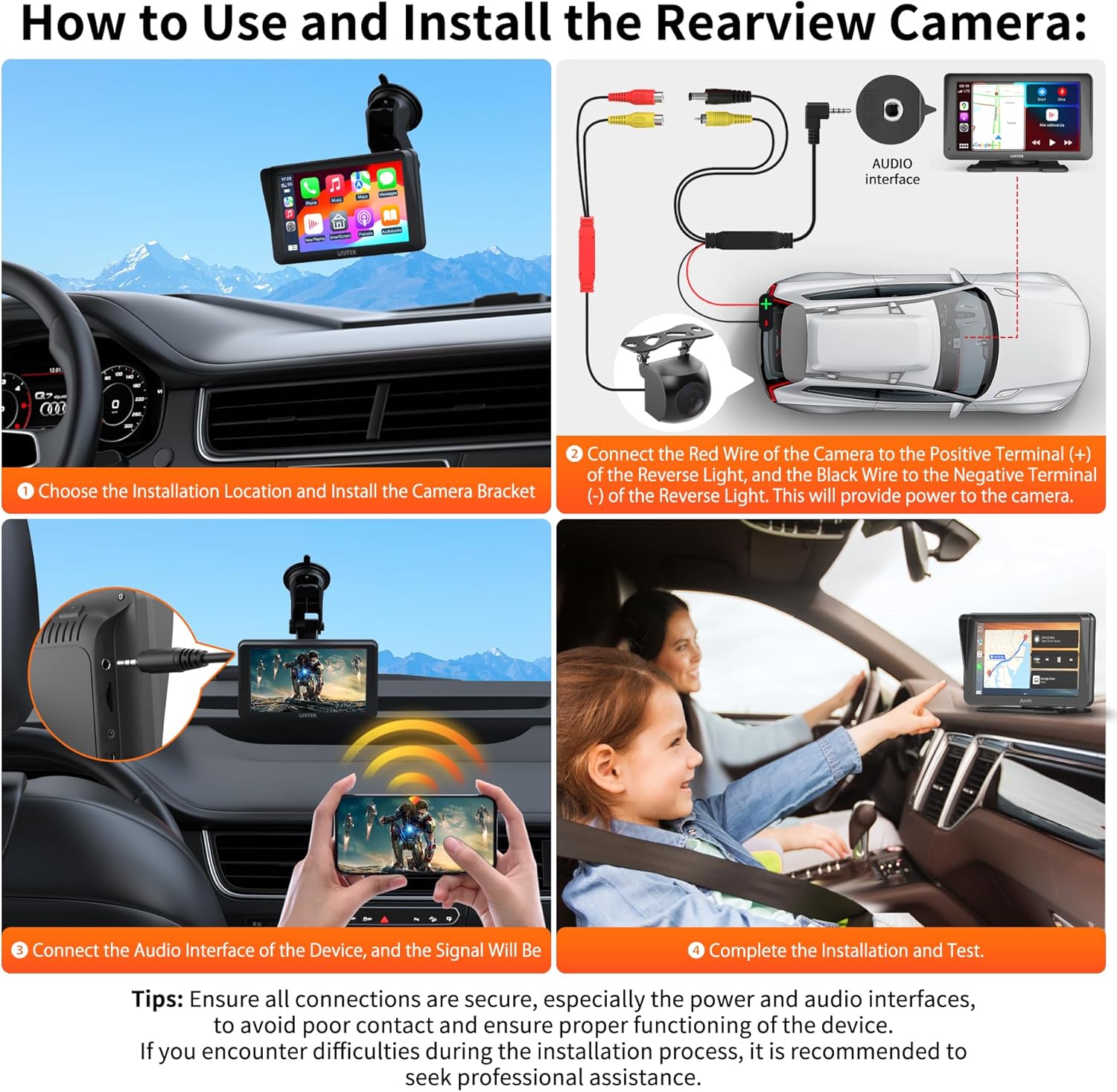
W zestawie tylny AHDview camera enhances parking safety. Follow these steps for proper installation:
- Wybierz lokalizację instalacji: Select a suitable position at the rear of your vehicle for the camera and install its bracket securely.
- Podłącz zasilanie: Connect the red wire of the camera to the positive terminal (+) of your vehicle's reverse light. Connect the black wire to the negative terminal (-) of the reverse light. This ensures the camera powers on automatically when shifting into reverse.
- Podłącz sygnał wideo: Connect the camera's video cable to the video input interface on the Alxum H505 device.
- Instalacja testowa: After all connections are made, shift your vehicle into reverse to test if the camera feed appears on the screen.
Ważne wskazówki: Ensure all connections are secure, especially the power and audio interfaces, to avoid poor contact and ensure proper functioning. If you encounter difficulties during the installation process, it is recommended to seek professional assistance.
4. Instrukcja obsługi
4.1 Bezprzewodowy Apple CarPlay i Android Auto
The Alxum H505 allows for seamless wireless integration with your smartphone. Connect your Android phone or iPhone via Bluetooth or WiFi to access your phone's features directly on the car stereo screen.
- Połączenie: Enable Bluetooth and WiFi on your smartphone. On the H505 unit, navigate to the CarPlay or Android Auto interface and follow the on-screen prompts to pair with your device.
- Cechy: Once connected, you can access navigation apps (e.g., Apple Maps, Google Maps, Waze), music streaming services (e.g., Spotify, Apple Music, YouTube Music), messaging, and make calls.
- Zgodność: Supports iOS 8.0 and Android 10 or later versions.

4.2 Sterowanie głosowe
Utilize voice commands for a hands-free and safer driving experience. The unit supports Siri for Apple devices and Google Assistant for Android devices.
- Aktywacja: Activate your phone's smart assistant (Siri or Google Assistant) through the car stereo.
- Polecenia: Use voice commands to send messages, get directions, play music, and make calls without taking your hands off the steering wheel.

4.3 Funkcja łącza lustrzanego
The Mirror Link feature allows you to mirror your smartphone's screen directly onto the Alxum H505 display. This is useful for viewing content not natively supported by CarPlay or Android Auto, such as certain video apps.
- Połączenie: Connect your smartphone to the H505 via Mirror Link (Airplay for iOS, Android Cast for Android).
- Stosowanie: Enjoy precise, real-time GPS navigation or access apps like YouTube, TikTok, and other video content for in-car entertainment.

5. Konserwacja
To ensure the longevity and optimal performance of your Alxum H505 unit, follow these maintenance guidelines:
- Czyszczenie: Do czyszczenia ekranu i obudowy użyj miękkiej, suchej ściereczki. W przypadku uporczywych plam delikatnie przetrzyj.ampPrzetrzyj ściereczkę wodą lub środkiem do czyszczenia ekranów. Unikaj materiałów ściernych i silnych środków chemicznych.
- Temperatura: Avoid exposing the unit to extreme temperatures, both hot and cold, for extended periods. Direct sunlight can cause overheating, especially when the vehicle is parked.
- Znajomości: Okresowo sprawdzaj wszystkie połączenia kablowe, aby mieć pewność, że są solidne i nieuszkodzone.
- Aktualizacje oprogramowania: Sprawdź producenta webodwiedź tę witrynę, aby sprawdzić, czy są dostępne aktualizacje oprogramowania sprzętowego, które poprawią wydajność i dodadzą nowe funkcje.
6. Rozwiązywanie Problemów
If you encounter issues with your Alxum H505, refer to the following common problems and solutions:
- Urządzenie nie włącza się:
- Ensure the 12V power cord is securely plugged into both the unit and the vehicle's cigarette lighter socket.
- Sprawdź bezpiecznik gniazda zapalniczki w pojeździe. - Wireless CarPlay/Android Auto Disconnects Frequently:
- Ensure your smartphone's Bluetooth and WiFi are enabled and stable.
- Move your phone closer to the unit to improve signal strength.
- Restart both the H505 unit and your smartphone.
- Check for any obstructions that might interfere with the wireless signal. - Poor Sound Quality / No Audio:
- If using AUX, ensure the 3.5mm audio cable is fully inserted into both the H505 and your car's AUX input.
- Check the volume levels on both the H505 and your car stereo.
- If using FM transmitter, ensure the frequency is clear and not interfering with other radio stations. - Backup Camera Not Displaying / Black Screen:
- Verify all camera connections are secure, especially the power wires to the reverse light.
- Ensure the video cable is properly connected to the H505's video input.
- Test the camera in different lighting conditions (day/night) as it supports both modes. - Unit Overheats and Shuts Down:
- This can occur in direct sunlight or high ambient temperatures. Try to position the unit out of direct sunlight or use a sunshade when parked.
- Ensure there is adequate ventilation around the unit. - Brak reakcji ekranu dotykowego:
- Uruchom ponownie urządzenie.
- Upewnij się, że ekran jest czysty i wolny od zanieczyszczeń i wilgoci.
7. Specyfikacje
| Funkcja | Specyfikacja |
|---|---|
| Numer modelu | H505 (SK6901) |
| Rozmiar ekranu | 9 cali |
| Typ wyświetlacza | Wyświetlacz LCD |
| Rozdzielczość wyświetlacza | 1280x720 |
| Technologia łączności | Bluetooth, Composite Video, Auxiliary |
| Kompatybilne urządzenia | Mobile Phone (iOS 8.0+, Android 10+) |
| Kolor | Czarny |
| Producent | Shenzhen Shengke Technology Co,Ltd |
| Wymiary paczki | Wymiary 25.81 x 16.51 x 11.1 cm |
| Waga przedmiotu | 1.18 kilogramów |
8. Gwarancja i wsparcie
The Alxum H505 Wireless Apple CarPlay & Android Auto Portable Car Stereo comes with a 2-letnia gwarancja od daty zakupu. Niniejsza gwarancja obejmuje wady produkcyjne i zapewnia, że produkt działa zgodnie z przeznaczeniem przy normalnym użytkowaniu.
For technical support, warranty claims, or any questions regarding your product, please contact Alxum customer service. Refer to the contact information provided on the product packaging or the official Alxum webwitryna z najnowszymi kanałami wsparcia.