
Uineer U6P
Uineer Wireless Mouse Instruction Manual
Model: U6P
Wireless, Upgraded 2.4GHz Rechargeable (Battery Level Visible) Ergonomic Computer Mouse, 4 Levels DPI
1. Koniec produktuview
The Uineer Wireless Mouse (Model U6P) is an ergonomic, rechargeable 2.4GHz optical mouse designed for comfortable and efficient use with various computer systems. It features adjustable DPI settings, a visible battery level indicator, and a plug-and-play wireless connection.

Figure 1: Uineer Wireless Mouse (Matte Black) with USB receiver.
2. Zawartość opakowania
- 1 x mysz bezprzewodowa
- 1 x 50CM Type-C Charging Cable
- 1 x Instrukcja obsługi (ten dokument)
- 1 x Nano receiver (stored at the bottom of the mouse)
3. Przewodnik konfiguracji
Follow these steps to set up your Uineer Wireless Mouse:
- Remove the Nano Receiver: Locate the small compartment at the bottom of the mouse and carefully remove the USB Nano receiver.
- Włóż odbiornik: Plug the USB Nano receiver into an available USB port on your computer (laptop or desktop). No additional drivers are required for installation.
- Włącz mysz: Locate the ON/OFF switch on the bottom of the mouse and slide it to the "ON" position. The mouse will automatically connect to the receiver.
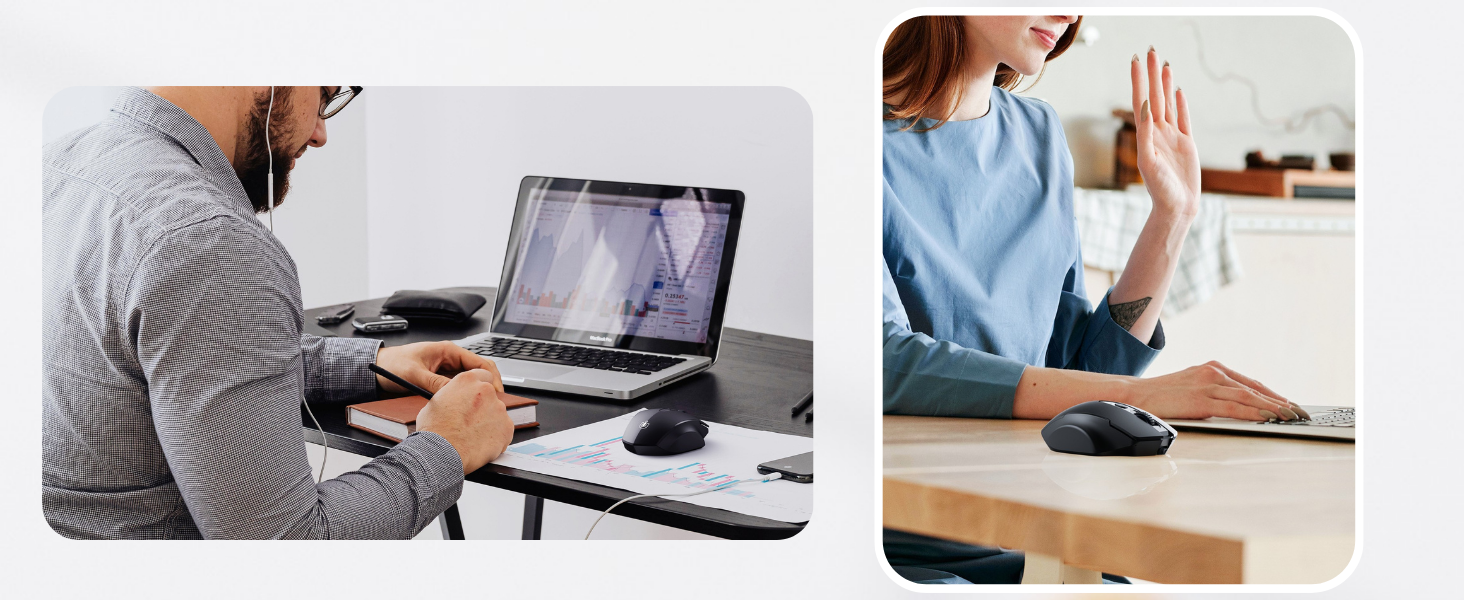
Figure 2: Steps for initial mouse setup.
Your mouse is now ready for use. If the connection is not established, try plugging the receiver into a different USB port or restarting your computer.
4. Instrukcja obsługi
4.1 Ergonomiczna konstrukcja
The Uineer Wireless Mouse is designed with an ergonomic shape that comfortably fits the contours of your hand, reducing strain during extended use. This design promotes a natural grip, enhancing comfort and efficiency for both work and entertainment.

Figure 3: Ergonomic design for comfortable use.
4.2 Regulowane ustawienia DPI
The mouse features four adjustable DPI (Dots Per Inch) levels to customize cursor sensitivity and precision. You can switch between 800, 1200, 1600, and 2400 DPI by pressing the DPI button located behind the scroll wheel. Each press cycles through the available settings, allowing you to find the optimal speed for your tasks, whether it's precise graphic design or fast-paced gaming.

Figure 4: Adjusting DPI levels for cursor speed.
4.3 przyciski nawigacyjne
In addition to the standard left and right click buttons and scroll wheel, the mouse includes side buttons for convenient forward and backward navigation in web przeglądarki lub file explorers. The scroll wheel also provides tactile feedback for precise scrolling.
5. Konserwacja i ładowanie
5.1 Visible Battery Level
The Uineer Wireless Mouse features a visible battery level display, typically indicated by LED lights near the DPI button. This allows you to monitor the battery status at a glance and know when it's time to recharge, preventing unexpected power loss during use.

Figure 5: Visible battery level indicator.
5.2 Recharging the Mouse
This mouse is equipped with a long-lasting rechargeable battery. To charge, connect the provided USB-C charging cable to the mouse's USB-C port (located at the front) and the other end to a USB power source (e.g., computer USB port, wall adapter). A full charge typically takes 2-3 hours. The battery indicator lights will show charging progress and turn off when fully charged.
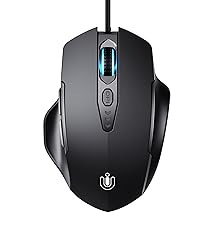
Figure 6: Charging the mouse via USB-C.
6. Rozwiązywanie Problemów
- Mysz nie odpowiada:
- Ensure the mouse is turned "ON" using the switch on the bottom.
- Verify the USB Nano receiver is securely plugged into a working USB port on your computer. Try a different USB port.
- Check the battery level indicator. If low, recharge the mouse.
- Uruchom ponownie komputer.
- Cursor movement is erratic or too slow/fast:
- Press the DPI button (behind the scroll wheel) to cycle through the 4 DPI settings (800-1200-1600-2400) until you find a comfortable cursor speed.
- Upewnij się, że mysz jest używana na odpowiedniej powierzchni. Unikaj powierzchni silnie odblaskowych lub przezroczystych.
- Side buttons or middle click are loud:
- While the main left and right click buttons are designed for quiet operation, the side buttons and middle click (scroll wheel click) may produce an audible click sound. This is normal for the design of these specific buttons.
7. Specyfikacje
| Funkcja | Szczegół |
|---|---|
| Wymiary produktu | 4.65 x 3.22 x 0.04 cala (11.8 x 8.2 x 0.1 cm) |
| Waga przedmiotu | 3.35 uncji (95 grama) |
| Numer modelu | U6P |
| Baterie | 1 bateria litowo-metalowa (w zestawie, ładowalna) |
| Marka | Uineera |
| Kolor | Matowa czerń |
| Technologia łączności | Łączność bezprzewodowa 2.4 GHz (odbiornik nano USB) |
| Cechy specjalne | Wireless, Battery Level Visible, Ergonomic Design, Rechargeable, 4 Adjustable DPI Levels |
| Wykrywanie ruchu | Optyczny |
8. Gwarancja i wsparcie
Uineer provides a forty-five day refund policy I one year of free replacement service for this product. For any questions, technical support, or warranty claims, please contact Uineer customer service through the platform where you purchased the product or visit the official Uineer Store.
Ask a question about this manual
Ask about setup, troubleshooting, compatibility, parts, safety, or missing instructions. Manuals+ will review the question and use this page’s manual context to help answer it.