
Produkt ponadview
The TP-Link Archer MR505 is a 4G+ Cat6 AC1200 Wireless Dual Band Gigabit Router designed to provide reliable internet connectivity. This router supports dual-band Wi-Fi (2.4 GHz and 5 GHz) and features Gigabit Ethernet ports for high-speed wired connections. It is compatible with 4G+ Cat6 networks, offering mobile broadband access.

Rycina 1: Przód view of the Archer MR505 router.
Rysunek 2: Strona view of the Archer MR505 router.
Zawartość opakowania
Sprawdź, czy w przesyłce znajdują się wszystkie elementy:
- TP-Link Archer MR505 Router
- Zasilacz
- Szybki przewodnik instalacji
- Kabel Ethernet RJ45

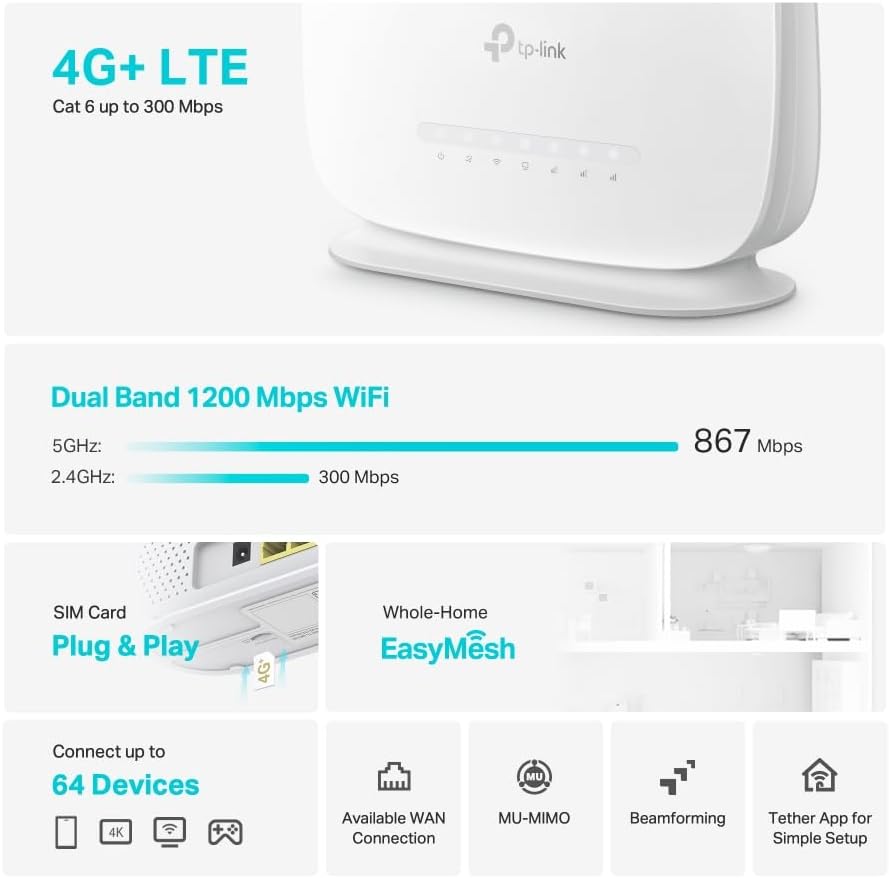
Figure 3: Key features and components of the Archer MR505.
Instrukcje konfiguracji
Follow these steps to set up your Archer MR505 router:
- Włóż kartę SIM: Locate the SIM card slot on the router. Insert your 4G/LTE SIM card into the slot until it clicks into place. Ensure the SIM card is a normal data SIM for optimal compatibility. Some data-only SIM cards may require specific configurations or may not be fully compatible.
- Podłącz zasilanie: Podłącz dołączony zasilacz do gniazda zasilania routera, a następnie do gniazdka elektrycznego. Router włączy się automatycznie.
- Poczekaj na inicjalizację: Allow a few minutes for the router to boot up and establish a connection to the 4G/LTE network. The LED indicators on the front panel will show the connection status.
- Początkowe połączenie Wi-Fi:
- Find the default Wi-Fi network name (SSID) and password printed on the label at the bottom of the router.
- Connect your computer or mobile device to this Wi-Fi network.
- Zarządzanie routerem dostępowym:
- Otwórz web przeglądarki i wprowadź domyślny adres zarządzania (np. http://tplinkwifi.net or http://192.168.1.1).
- Zaloguj się, używając domyślnej nazwy użytkownika i hasła (zwykle administrator/administrator or specified on the label).
- Konfiguruj ustawienia sieciowe: Follow the on-screen Quick Setup wizard to configure your internet connection, change the Wi-Fi network name (SSID), and set a strong, unique password for both your Wi-Fi and router management interface.
- Tether App Setup (Optional): Download the TP-Link Tether app from your device's app store. The app provides an intuitive way to manage your router settings from your smartphone or tablet.
- Antena zewnętrzna (opcjonalnie): If using external antennas (not included), connect them to the designated ports on the back of the router. You may need to manually enable external antenna usage through the router's web interfejs lub aplikacja Tether.
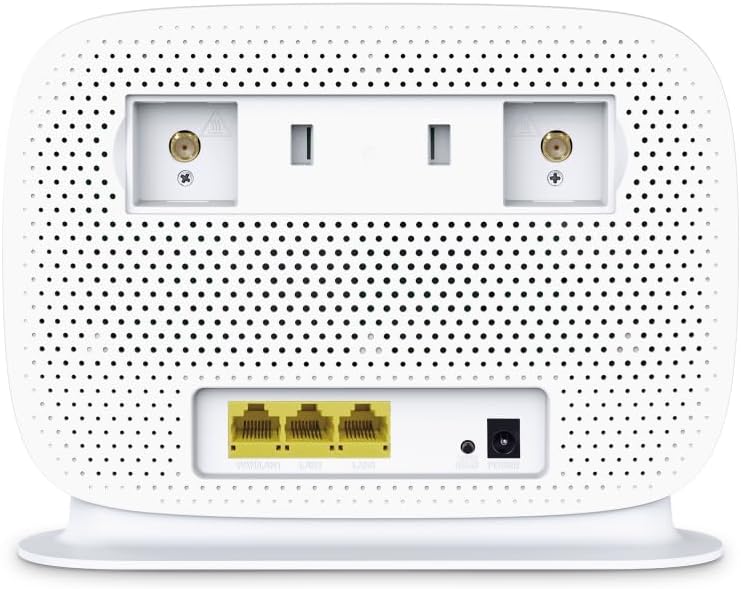
Figure 4: Rear panel of the Archer MR505 with ports and SIM slot.

Figure 5: Archer MR505 in various usage scenarios.
Instrukcja obsługi
The Archer MR505 provides robust wireless and wired connectivity:
- Dwuzakresowe Wi-Fi: The router operates on both 2.4 GHz and 5 GHz bands, offering speeds up to 300 Mbps and 867 Mbps respectively, for a total of AC1200 Wi-Fi.
- 4G+ Cat6 Connectivity: Enjoy mobile broadband speeds up to 300 Mbps download and 300 Mbps upload (maximum upstream data transfer rate).
- Porty Gigabit Ethernet: Four Gigabit LAN ports (1000 Mbps) are available for high-speed wired connections to devices like computers, gaming consoles, or smart TVs. One port can also function as a WAN port for traditional broadband connections.
- Pojemność urządzenia: The router can support connectivity for up to 64 devices simultaneously.
- Inteligentne połączenie: This feature automatically assigns devices to the best available Wi-Fi band (2.4 GHz or 5 GHz) for optimized performance.
- Zgodność z EasyMesh: The Archer MR505 is compatible with TP-Link EasyMesh, allowing you to create a seamless whole-home mesh Wi-Fi network by adding compatible range extenders.
- Zaawansowane technologie: Features like MU-MIMO and Beamforming enhance Wi-Fi efficiency and range, especially for multiple connected devices.
- Bezpieczeństwo: The router supports WPA3 encryption for enhanced network security.

Figure 6: Versatile connectivity and speed capabilities.

Figure 7: Whole-Home EasyMesh integration.
Konserwacja
To ensure optimal performance and security of your router:
- Aktualizacje oprogramowania układowego: Regularnie sprawdzaj i instaluj najnowsze aktualizacje oprogramowania sprzętowego od oficjalnego dostawcy TP-Link website or via the Tether app. Firmware updates often include security patches and performance improvements.
- Bezpieczne hasła: Use strong, unique passwords for your Wi-Fi network and router management interface. Change them periodically.
- Miejsce pracy: Umieść router w centralnym miejscu, z dala od przeszkód i źródeł zakłóceń (np. kuchenek mikrofalowych, telefonów bezprzewodowych), aby zapewnić maksymalny zasięg sieci Wi-Fi.
- Czyszczenie: Keep the router clean and free from dust. Ensure ventilation holes are not blocked.
- Okresowe ponowne uruchamianie: Restarting the router occasionally can help resolve minor network issues and improve performance.
Rozwiązywanie problemów
If you encounter issues with your Archer MR505 router, consider the following:
- No Internet Connection via 4G/LTE:
- Sprawdź, czy karta SIM jest prawidłowo włożona i aktywowana.
- Verify that your SIM card is a normal data SIM. Some data-only SIM cards may require specific APN settings or might not be fully compatible. Contact your mobile service provider for details.
- Check the 4G/LTE signal strength indicated by the router's LEDs. If the signal is weak, try repositioning the router or consider using external antennas (if supported and configured).
- Uruchom ponownie router i podłączone urządzenia.
- Problemy z połączeniem Wi-Fi:
- Upewnij się, że Twoje urządzenie znajduje się w zasięgu Wi-Fi routera.
- Sprawdź, czy używasz prawidłowego hasła Wi-Fi.
- If a device frequently connects and disconnects, try restarting that specific device.
- Sprawdź, czy nie występują zakłócenia pochodzące od innych urządzeń elektronicznych.
- Niska prędkość Internetu:
- Check your 4G/LTE signal strength. Weak signal can significantly reduce speed.
- Ensure no other applications or devices are consuming excessive bandwidth.
- If using Wi-Fi, try connecting to the 5 GHz band for faster speeds, if your device supports it.
- Perform a speed test to confirm the actual speed you are receiving.
- Nie można uzyskać dostępu do strony zarządzania routerem:
- Ensure your device is connected to the router's network (either via Wi-Fi or Ethernet cable).
- Verify you are entering the correct management address (e.g., http://tplinkwifi.net).
- Spróbuj wyczyścić pamięć podręczną przeglądarki lub użyć innej przeglądarki.
Specyfikacje
| Marka | TP-Link |
| Nazwa modelu | Łucznik MR505 |
| standard bezprzewodowy | 802.11ac (WiFi 5) |
| Klasa pasma częstotliwości | Dwuzakresowy (2.4 GHz i 5 GHz) |
| Szybkość transmisji danych Wi-Fi | Up to 300 Mbps (2.4 GHz), Up to 867 Mbps (5 GHz) - AC1200 Total |
| Prędkość 4G+ Cat6 | Up to 300 Mbps Download, Up to 300 Mbps Upload |
| Porty Ethernet | 4 x Gigabit LAN Ports (1000 Mbps), 1 x WAN/LAN Port |
| Typ anteny | Internal (External antenna support available) |
| Protokół bezpieczeństwa | WPA3 |
| Metoda kontroli | App (TP-Link Tether) |
| Kompatybilne urządzenia | Laptop, komputer osobisty, telewizor Smart TV, smartfon, tablet |
| Moc wejściowa | 12 wolty |
| Waga przedmiotu | 0.93 kilograma |
| Zawarte komponenty | Archer MR505, Power Adapter, Quick Installation Guide, RJ45 Ethernet Cable |
Gwarancja i wsparcie
Aby uzyskać informacje dotyczące gwarancji, zapoznaj się z kartą gwarancyjną dołączoną do produktu lub odwiedź oficjalną stronę internetową TP-Link website for your region. Support resources, including FAQs, firmware downloads, and contact information, are available on the TP-Link support website and through the TP-Link Tether app.
Oficjalny TP-Link Webstrona: https://www.tp-link.com
Aplikacja TP-Link Tether: Dostępne w iOS App Store i Google Play Store.


