
BSP D9
Instrukcja obsługi kontrolera gier BSP D9
Model: D9
1. Wprowadzenie
The BSP D9 Game Controller is a versatile gaming accessory designed for a wide range of devices, including iPhone, iPad, Android phones and tablets, PC, Nintendo Switch, and PlayStation consoles. It features advanced Hall Effect joysticks and triggers for precise control, along with programmable back buttons for enhanced gameplay. This manual provides detailed instructions for setting up, operating, maintaining, and troubleshooting your D9 Game Controller.
2. Koniec produktuview
The D9 Game Controller is engineered for comfort and performance, offering a stretchable design to accommodate various device sizes. Key features include:
- Joysticki i wyzwalacze z efektem Halla: Provides high precision and durability, reducing drift issues.
- Programowalne przyciski Wstecz (M1/M2): Customize functions for quick access to complex commands.
- Rozciągliwa konstrukcja: Supports device lengths from 130mm to 280mm (5-11 inches) and thickness up to 13mm.
- Zgodność z wieloma platformami: Works with iOS, Android, PC, PS3, PS4, and Nintendo Switch.
- Funkcja turbo: Adjustable auto-fire settings for various buttons.
2.1. Układ kontrolera

Image: BSP D9 Game Controller with a tablet, demonstrating its use with Call of Duty Mobile. This image highlights the controller's ergonomic design and how it holds a tablet.

Image: Detailed diagram of the BSP D9 Game Controller's buttons and indicators. This includes the Cross Key, L1/R1, L2/R2, Select, Home, Start, Turbo, A/B/X/Y buttons, Status Indicator, Charging Indicator, Left Stick/L3, Right Stick/R3, and programmable M1/M2 back buttons.

Image: Illustration explaining the Hall Effect Triggers and Joysticks. It highlights 0.1mm accuracy for triggers and features like no latency, no dead zone, long lift, and precision control for joysticks, ensuring smooth and accurate input.
3. Konfiguracja i połączenie
Before first use, ensure the controller is fully charged. Connect the provided USB cable to the controller's charging port and a power source.
3.1. Device Compatibility and Mounting

Image: Diagram illustrating the stretchable design of the BSP D9 Game Controller. It shows support for device lengths from 130-280mm (5-11 inches) and a thickness of 13mm. The image also indicates compatibility with iPhone 15 series and support for silicon & clear phone cases.
The D9 controller features a stretchable design to securely hold your smartphone or tablet. Gently pull the two halves of the controller apart to extend the central bracket. Insert your device into the bracket, ensuring it is centered and stable. The controller supports devices with lengths between 130mm and 280mm and a maximum thickness of 13mm. Extra silicone pads are included for optimal fit and protection.
3.2. Łączenie się z urządzeniami
The controller supports various connection modes. Refer to the specific pairing instructions for your device type:
- iOS Devices (iPhone/iPad):
- Włącz kontroler.
- Go to Bluetooth settings on your iOS device.
- Select "D9 Gamepad" or similar from the list of available devices to pair.
- Urządzenia z systemem Android:
- Włącz kontroler.
- Włącz Bluetooth na swoim urządzeniu z Androidem.
- Szukaj "D9 Gamepad" and pair.
- Komputer:
- Connect via USB cable or Bluetooth (if your PC has Bluetooth).
- For Bluetooth, go to PC Bluetooth settings and pair with "D9 Gamepad".
- Nintendo Switch/PS3/PS4:
- Specific pairing instructions may vary. Generally, put the console into pairing mode and then activate the controller's pairing mode (often by holding a specific button combination).

Image: Visual representation of the BSP D9 Game Controller's broad compatibility. It shows support for streaming & cloud gaming services like PS Remote Play, Xbox Game Pass, Steam Link, Rainway, NVIDIA GeForce NOW, Moonlight, and Arcade. It also lists direct play support for iOS games (Genshin Impact, Call of Duty Mobile, Diablo Immortal, Minecraft, Roblox) and Android games (Call of Duty Mobile, Diablo Immortal, Minecraft, NBA, Asphalt).
4. Instrukcja obsługi
4.1. Podstawowe sterowanie
Familiarize yourself with the controller's buttons and their standard functions:
- Joysticki lewy/prawy: Ruch i sterowanie kamerą.
- D-Pad (Cross Key): Wejście kierunkowe.
- Przyciski A/B/X/Y: Action buttons, typically for jumping, interacting, etc.
- L1/R1 (Przyciski na ramionach): Common for aiming, firing, or menu navigation.
- L2/R2 (Wyzwalacze): Analog input for acceleration, braking, or precise shooting.
- SELECT/START/HOME Buttons: Menu navigation, pausing, or system functions.
4.2. Macro Programming Function (M1/M2)

Image: Instructions for the Macro Programming Function on the BSP D9 Game Controller. It shows how to set and cancel macros for the M1 and M2 back buttons, allowing users to combine A/B/X/Y/L1/L2/R1/R2/Cross key inputs into a single button press.
The D9 controller features two programmable back buttons (M1 and M2) that can be customized to perform complex key combinations, enhancing your in-game operation and potentially prolonging the life of other buttons.
How to Set a Macro:
- Press "SELECT + M1" key for 2 seconds until the LED indicator light flashes quickly.
- Press the key combination you want to set for the macro (e.g., "A + B + X + Y").
- Then press the "M1" key again. The LED light will remain on, indicating that the setting is complete.
- After setting, pressing "M1" will automatically execute the programmed key combination. (This setting also applies to "M2".)
How to Cancel a Macro:
- Press "SELECT + M1" key for 2 seconds until the LED indicator light flashes quickly.
- Press "M1" to clear the macro programming button. (Note: Do not press other buttons at this time). The LED light will remain on to confirm the clearing.
4.3. Funkcja turbo
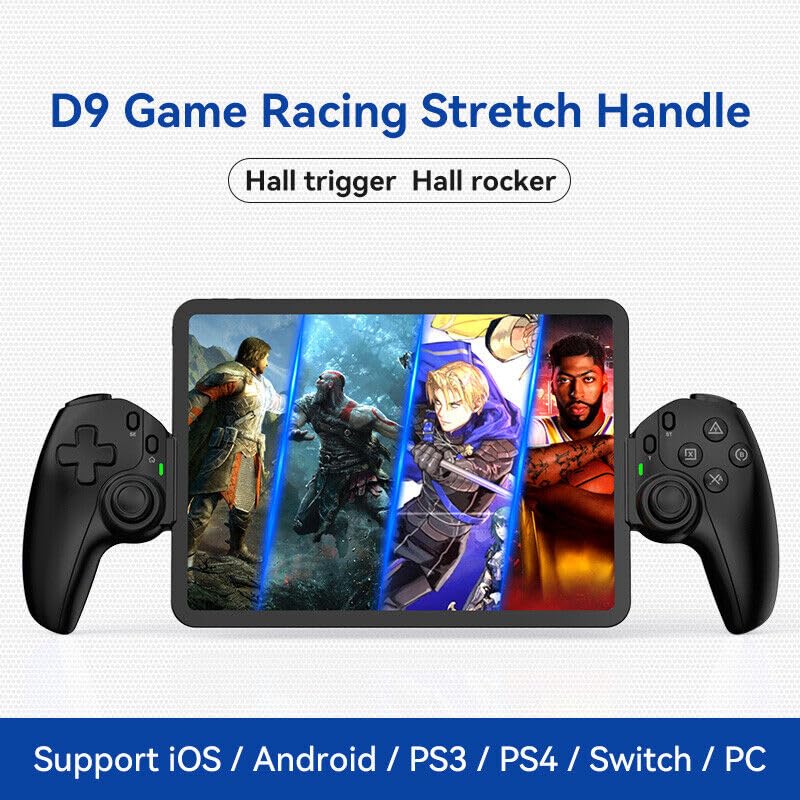
Image: The D9 Game Racing Stretch Handle, highlighting its Hall trigger and Hall rocker features. This image serves as a general product shot.

Image: Explanation of the Turbo Function on the BSP D9 Game Controller. It shows that A/B/X/Y/L1/L2/R1/R2 buttons can be set with turbo function, offering three adjustable turbo speeds: 8 shoots/s, 15 shoots/s, and 25 shoots/s.
The Turbo function allows you to set automatic rapid firing for specific buttons (A/B/X/Y, L1/L2, R1/R2). There are three adjustable turbo speeds: 8 shots/second, 15 shots/second, and 25 shots/second.
How to Set Turbo:
- Press and hold the button you wish to apply Turbo to (e.g., A button).
- While holding the button, press the "TURBO" button once to activate the lowest speed.
- Press the "TURBO" button again (while still holding the action button) to cycle through the speeds.
- Release both buttons when the desired speed is set.
How to Clear Turbo:
- Press and hold the button with Turbo enabled.
- Press the "TURBO" button until the Turbo function is deactivated (usually indicated by a specific LED flash or cessation of rapid firing).
5. Konserwacja
- Czyszczenie: Do wycierania kontrolera użyj miękkiej, suchej ściereczki. W przypadku uporczywych zabrudzeń delikatnie przetrzyjampPrzetrzyj szmatkę wodą. Unikaj stosowania silnych środków chemicznych i ściernych środków czyszczących.
- Składowanie: Przechowuj kontroler w chłodnym, suchym miejscu, z dala od bezpośredniego światła słonecznego i ekstremalnych temperatur.
- Pielęgnacja baterii: Aby przedłużyć żywotność baterii, unikaj częstego całkowitego rozładowywania kontrolera. Ładuj go regularnie, nawet jeśli nie jest używany przez dłuższy czas.
- Obsługiwanie: Unikaj upuszczania kontrolera i narażania go na silne uderzenia, gdyż może to spowodować uszkodzenie jego wewnętrznych podzespołów.
6. Rozwiązywanie Problemów
| Problem | Możliwa przyczyna | Rozwiązanie |
|---|---|---|
| Kontroler nie włącza się. | Niski poziom naładowania baterii. | Ładuj kontroler przez co najmniej 30 minut. |
| Kontroler nie łączy się przez Bluetooth. | Bluetooth not enabled on device; controller not in pairing mode; interference. | Ensure Bluetooth is on. Put controller in pairing mode. Move closer to the device. Restart both controller and device. |
| Przyciski i joysticki nie reagują. | Błąd oprogramowania, uszkodzenie fizyczne, niski poziom naładowania baterii. | Recharge the controller. Restart the controller. If problem persists, contact customer support. |
| Macro function not working. | Nieprawidłowe kroki programowania. | Review "Macro Programming Function" section and re-program carefully. |
| Device does not fit in the controller. | Device dimensions exceed supported range. | Check your device's length and thickness against the supported range (130-280mm length, 13mm thickness). |
7. Specyfikacje
- Model: D9
- Łączność: Bluetooth, Wired (USB)
- Kompatybilne platformy: iOS, Android, PC, PS3, PS4, Nintendo Switch
- Supported Device Length: 130 mm - 280 mm (5 - 11 cale)
- Supported Device Thickness: Do 13 mm
- Joysticks/Triggers: Efekt Halla
- Cechy szczególne: Programmable Back Buttons (M1/M2), Turbo Function
- Producent: ShenZhen ShanWan Technology Co., Ltd.
- ASIN: B0DBR2SZZ6
8. Gwarancja i wsparcie
For warranty information and technical support, please refer to the official BSP webOdwiedź witrynę lub skontaktuj się ze sprzedawcą. Zachowaj paragon jako dowód zakupu na wypadek reklamacji.
Producent: ShenZhen ShanWan Technology Co., Ltd.
Powiązane dokumenty - D9
 |
Kontroler bezprzewodowy BSP-S11: Instrukcja obsługi i przewodnik konfiguracji Rozpocznij korzystanie z kontrolera bezprzewodowego BSP-S11. W tej instrukcji znajdziesz informacje na temat konfiguracji, połączenia z konsolą Nintendo Switch, komputerem i systemem iOS, funkcji takich jak tryb Turbo i wibracje, a także rozwiązywania problemów. |
 |
Instrukcja parowania kontrolera gier bezprzewodowych BSP-D3 Kompleksowy przewodnik dotyczący parowania bezprzewodowego kontrolera do gier BSP-D3 z telefonami iPhone, iOS, Android, Nintendo Switch, PS4, PS5, MacBookami, iPadami i komputerami z systemem Windows. |
 |
BSP-D11 Wireless Controller User Manual Comprehensive user manual for the BSP-D11 wireless controller, covering setup, pairing modes, macro programming, and troubleshooting. |
 |
Manual do Usuário: Controlador de Jogos BSP-D3 Manual de instruções completo para o controlador de jogos BSP-D3. Aprenda a configurar, parear e utilizar o suporte extensor para celular em Android, iOS, PC e consoles. |
 |
BSP-D10 / D10s Wireless Controller User Manual Comprehensive user manual for the BSP-D10 and D10s wireless controllers, providing instructions for connection modes across Android, iOS, PC, and Nintendo Switch, along with macro and turbo settings. |
 |
Instrukcja obsługi bezprzewodowego gamepada BSP S03 – podłącz do komputera, konsoli PS4, Switch, systemu iOS i Androida Comprehensive user manual for the BSP S03 Wireless Gamepad. Learn how to connect via Bluetooth or USB to PC, PlayStation, Nintendo Switch, iOS, and Android devices. Features detailed setup guides, button functions, and operational usage. |
Ask a question about this manual
Ask about setup, troubleshooting, compatibility, parts, safety, or missing instructions. Manuals+ will review the question and use this page’s manual context to help answer it.