
1. Wprowadzenie
Thank you for choosing the Xtrike Me GW-113 Dual Mode Wireless Mouse. This mouse offers versatile connectivity options, a comfortable design, adjustable sensitivity, and silent clicks for an enhanced user experience. Please read this manual carefully to ensure proper setup and operation.
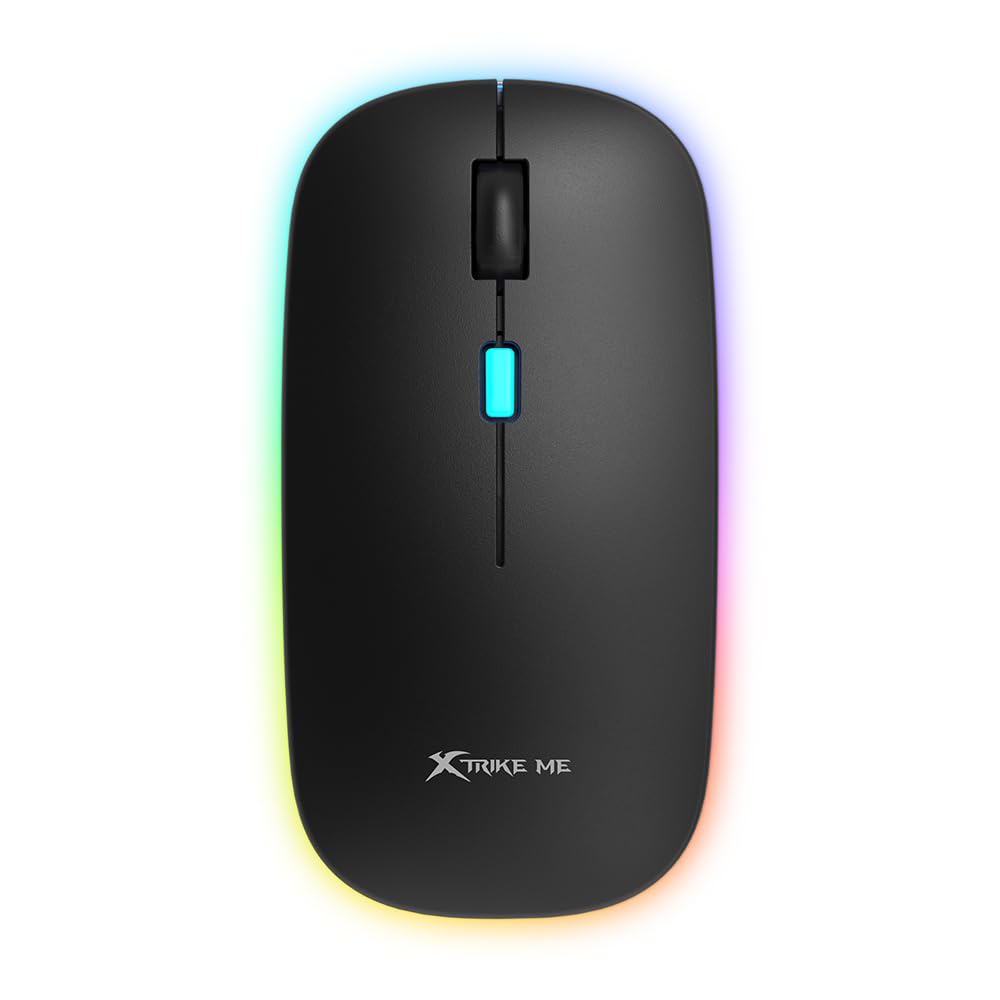
Obraz: Góra view of the Xtrike Me GW-113 Dual Mode Wireless Mouse, showcasing its ergonomic shape and RGB lighting strip.
2. Zawartość opakowania
Po rozpakowaniu należy sprawdzić zawartość opakowania, aby upewnić się, że znajdują się w nim wszystkie elementy:
- Xtrike Me GW-113 Dual Mode Wireless Mouse
- Odbiornik USB 2.4G
- Kabel ładujący USB (micro USB)
- Instrukcja obsługi

Image: The product packaging for the Xtrike Me GW-113 mouse, illustrating the mouse, USB receiver, and charging cable.
3. Instrukcje konfiguracji
The GW-113 mouse supports two connection modes: 2.4G Wireless and Bluetooth. You can switch between modes using the switch on the bottom of the mouse.
3.1. Połączenie bezprzewodowe 2.4G
- Locate the USB 2.4G receiver, usually stored in a compartment on the bottom of the mouse.
- Podłącz odbiornik USB do wolnego portu USB w komputerze lub urządzeniu.
- Turn on the mouse using the power switch on the bottom. Ensure the mode switch is set to 2.4G.
- The mouse should automatically connect to your device. If not, try moving the mouse closer to the receiver or re-inserting the receiver.
3.2. Połączenie Bluetooth
- Turn on the mouse using the power switch on the bottom. Set the mode switch to Bluetooth.
- Na swoim urządzeniu (laptopie, tablecie itp.) przejdź do ustawień Bluetooth.
- Szukaj new Bluetooth devices. The mouse should appear as "Xtrike Me GW-113" or similar.
- Wybierz myszkę do sparowania. Po sparowaniu mysz będzie gotowa do użycia.
The mouse is compatible with Windows, Mac, Android, and Linux operating systems.
4. Instrukcja obsługi
4.1. Regulacja DPI
The GW-113 mouse features adjustable DPI (Dots Per Inch) settings, allowing you to change the cursor sensitivity. This is useful for different tasks, such as precise editing or fast-paced gaming.
- Aby zmienić DPI, naciśnij przycisk DPI znajdujący się na górze myszy, zwykle za kółkiem przewijania.
- Each press will cycle through available DPI settings (e.g., 800, 1200, 1600 DPI).
- The LED indicator may change color or flash to indicate the current DPI setting.

Obraz: Zbliżenie view of the Xtrike Me GW-113 mouse, highlighting the DPI button and scroll wheel.
4.2. Ciche kliknięcia
The mouse is designed with silent click technology, significantly reducing click noise. This feature is ideal for quiet environments like libraries, offices, or late-night use, ensuring you do not disturb others.
4.3. Ładowanie akumulatora
The GW-113 mouse has a built-in rechargeable battery. When the battery is low, the LED indicator will signal this. To recharge:
- Connect the supplied USB charging cable to the Micro USB port on the front of the mouse.
- Podłącz drugi koniec kabla USB do źródła zasilania USB (np. portu USB komputera, zasilacza ściennego USB).
- Wskaźnik LED pokaże stan ładowania i wyłączy się lub zmieni kolor, gdy urządzenie będzie w pełni naładowane.
Myszy można używać podczas ładowania.
5. Konserwacja
To ensure the longevity and optimal performance of your Xtrike Me GW-113 mouse, follow these simple maintenance guidelines:
- Czyszczenie: Do przecierania powierzchni myszy użyj miękkiej, suchej ściereczki. W przypadku uporczywych zabrudzeń delikatnie przetrzyjampPrzetrzyj ściereczkę wodą lub delikatnym środkiem czyszczącym. Unikaj silnych środków chemicznych.
- Składowanie: When not in use for extended periods, store the mouse in a dry, cool place away from direct sunlight.
- Unikaj płynów: Do not expose the mouse to liquids. If liquid spills on the mouse, immediately disconnect it and allow it to dry completely before reuse.
- Zachowaj ostrożność: Unikaj upuszczania myszy i narażania jej na silne uderzenia, ponieważ może to spowodować uszkodzenie jej wewnętrznych podzespołów.
6. Rozwiązywanie Problemów
If you encounter issues with your GW-113 mouse, please refer to the following common problems and solutions:
6.1. Mysz nie odpowiada
- Sprawdź moc: Upewnij się, że mysz jest włączona i ma wystarczająco naładowaną baterię. W razie potrzeby naładuj ją.
- Sprawdź tryb połączenia: Verify that the mode switch on the bottom of the mouse is set correctly (2.4G or Bluetooth) for your intended connection.
- Odbiornik 2.4G: For 2.4G mode, ensure the USB receiver is securely plugged into a working USB port. Try a different USB port.
- Parowanie Bluetooth: For Bluetooth mode, ensure the mouse is properly paired with your device. Go to your device's Bluetooth settings and re-pair if needed.
- Uruchom ponownie urządzenie: Czasami ponowne uruchomienie komputera lub urządzenia może rozwiązać problemy z łącznością.
6.2. Nieregularny ruch kursora
- Powierzchnia: Ensure you are using the mouse on a clean, non-reflective, and uniform surface. A mouse pad is recommended.
- Czujnik optyczny: Check if the optical sensor on the bottom of the mouse is clean and free from obstructions.
- Ingerencja: Move the mouse closer to the receiver (for 2.4G) or your Bluetooth device. Avoid using it near other wireless devices that might cause interference.
- Ustawienie DPI: Adjust the DPI setting to see if a different sensitivity improves performance.
6.3. Bateria się nie ładuje
- Kabel: Ensure the USB charging cable is securely connected to both the mouse and the power source.
- Źródło zasilania: Wypróbuj inny port USB lub zasilacz.
- Uszkodzenie kabla: Inspect the charging cable for any visible damage. If damaged, replace it.
7. Specyfikacje
| Producent | Xtrike Me |
| Numer modelu | GW-113 |
| Technologia łączności | Bluetooth, bezprzewodowa sieć 2.4G |
| Funkcja specjalna | Wireless, Rechargeable, Silent Clicks, Adjustable DPI |
| Technologia wykrywania ruchu | Optyczny |
| Liczba przycisków | 7 |
| Orientacja dłoni | Prawidłowy |
| Zalecane zastosowania | Gaming, Office, General Use |
| Kompatybilne urządzenia | Personal Computer, Tablet, Laptop |
| Systemy operacyjne | Linux, Windows 7, Windows XP (and newer Windows versions), Mac, Android |

Image: The product packaging displaying detailed specifications and features of the Xtrike Me GW-113 mouse in multiple languages.
8. Gwarancja i pomoc techniczna
Xtrike Me products are designed and manufactured to the highest quality standards. This product is covered by a limited warranty from the date of purchase. Please refer to the warranty card included in your package for specific terms and conditions.
For technical support, warranty claims, or further assistance, please visit the official Xtrike Me webodwiedź witrynę lub skontaktuj się z obsługą klienta:
- Urzędnik Webstrona: www.xtrike-me.com
- Obsługa klienta: Odnieś się do webwitryna do informacji kontaktowych.