
ShanWan Q36-XPS-KABRILAN
Instrukcja obsługi kontrolera ShanWan Bluetooth Gamepad w rozmiarze breloka
Model: Q36-XPS-KABRILAN
1. Wprowadzenie
This manual provides comprehensive instructions for the ShanWan Bluetooth Gamepad Keychain Sized Mini Controller. Please read this manual carefully before use to ensure proper operation and to maximize your gaming experience. This device is designed for use with Android phones and tablets, PS4/Slim/Pro, iPhone, iPad, Nintendo Switch, and Windows PCs.
2. Koniec produktuview
The ShanWan Mini Controller is a compact and versatile gamepad designed for portability and multi-platform compatibility. It features 17 buttons and a D-Pad, all within a keychain-sized form factor.
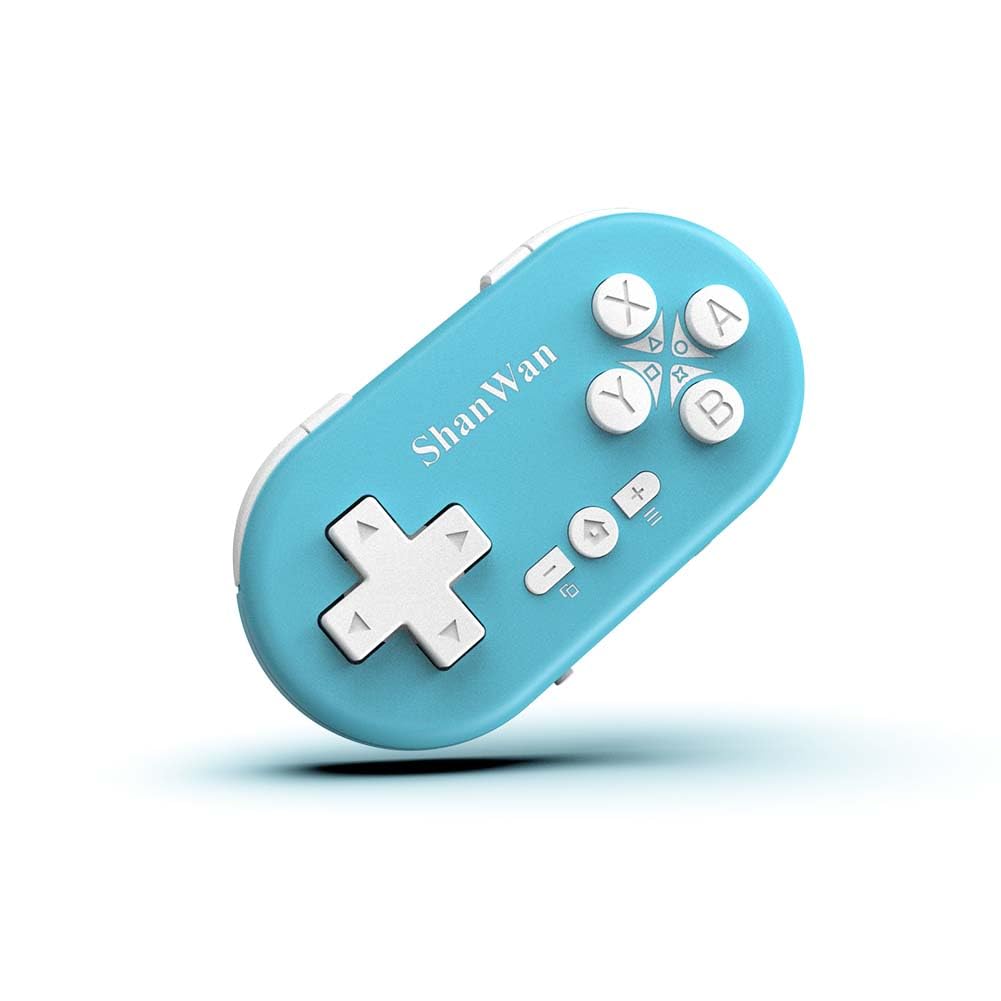
Figure 2.1: ShanWan Mini Bluetooth Gamepad, showcasinze względu na kompaktową konstrukcję i układ przycisków.

Figure 2.2: Dimensions of the ShanWan Mini Bluetooth Gamepad, measuring 2.83 inches in length, 1.57 inches in width, and 0.55 inches in thickness.
2.1 Zawartość opakowania
- ShanWan Bluetooth Gamepad Keychain Sized Mini Controller
- Kabel ładujący USB
- Instrukcja obsługi (ten dokument)
3. Specyfikacje
| Funkcja | Szczegół |
|---|---|
| Numer modelu | Q36-XPS-KABRILAN |
| Łączność | Bluetooth bezprzewodowy |
| Zgodność | Android, iOS, Windows, Nintendo Switch, PlayStation 4 |
| Pojemność baterii | 180mAh litowo-polimerowa (w zestawie) |
| Czas ładowania | Około 1 godziny |
| Czas działania | Do 5-6 godzin |
| Zasięg bezprzewodowej | Do 10 metrów (33 stóp) |
| Wymiary produktu | 2.83 x 1.57 x 0.55 cala |
| Waga przedmiotu | 1.44 uncji (około 41 gramów) |
| Cechy specjalne | Gyroscope motion sensing, One-button wake-up function |
4. Konfiguracja i parowanie
4.1 Ładowanie Kontrolera
Before first use, fully charge the controller. Connect the provided USB charging cable to the controller's charging port and the other end to a USB power source (e.g., computer, USB wall adapter). The charging indicator light will show the charging status and turn off when fully charged. A full charge typically takes about 1 hour.
4.2 Włączanie/wyłączanie
- Włączanie: Press and hold the Home button (usually the button with a house icon) for a few seconds until the indicator lights turn on.
- Wyłączone: Press and hold the Home button for approximately 5 seconds until the indicator lights turn off. The controller will also automatically power off after a period of inactivity to conserve battery.
4.3 Instrukcje parowania Bluetooth
The controller supports multiple platforms. Ensure the mode switch on the controller is set to the correct platform before pairing.
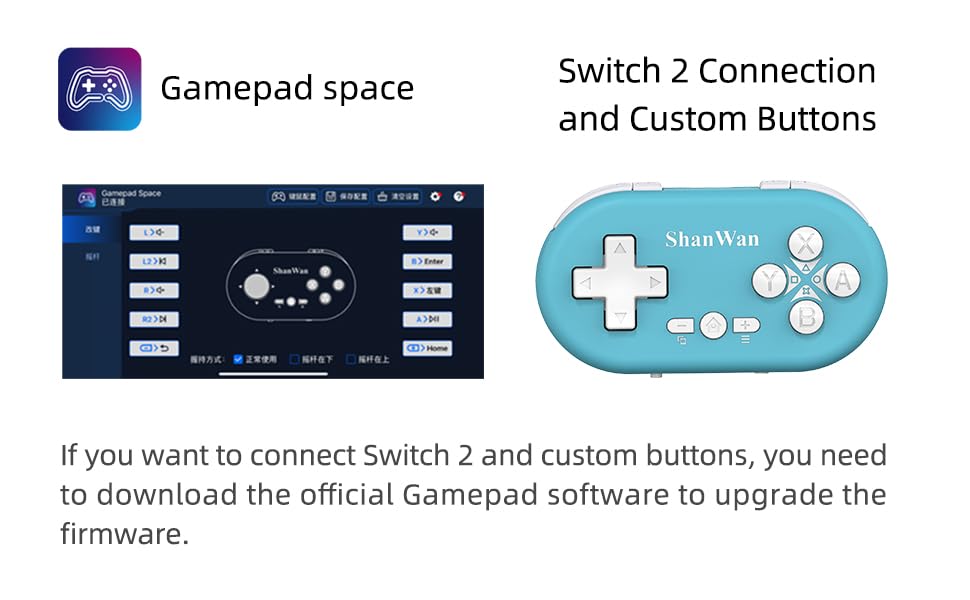
Figure 4.1: The mode switch on the controller, allowing selection between X (Xbox/PC), S (Switch), and P (PlayStation) modes for multi-device compatibility.
4.3.1 Parowanie z Nintendo Switch
- Na konsoli Nintendo Switch przejdź do menu HOME.
- Wybierz „Kontrolery”, a następnie „Zmień uchwyt/kolejność”.
- Set the controller's mode switch to "S" (Switch mode).
- Press and hold the "Pair" button on the controller until the indicator lights begin to blink rapidly.
- The Switch will detect the controller. Once paired, the LED indicator on the controller will remain solid, and the controller will be displayed on the Switch host screen.

Figure 4.2: Visual guide for connecting the controller to a Nintendo Switch, showing menu navigation and the pairing button location.
4.3.2 Pairing with Android/iOS Devices
- Set the controller's mode switch to the appropriate mode (e.g., "X" for Android, or a specific iOS mode if available, refer to device-specific instructions).
- On your Android or iOS device, go to Bluetooth settings.
- Upewnij się, że Bluetooth jest włączony.
- Press and hold the "Pair" button on the controller until the indicator lights blink rapidly.
- Select "ShanWan Controller" or a similar name from the list of available devices on your phone/tablet.
- Po podłączeniu kontrolka na kontrolerze zacznie świecić światłem ciągłym.
4.3.3 Pairing with PS4
- Set the controller's mode switch to "P" (PlayStation mode).
- On your PS4, go to "Settings" > "Devices" > "Bluetooth Devices".
- Press and hold the "Pair" button on the controller until the indicator lights blink rapidly.
- Select "ShanWan Controller" or a similar name from the list of available devices on your PS4.
- Po podłączeniu kontrolka na kontrolerze zacznie świecić światłem ciągłym.
4.3.4 Pairing with Windows PC
- Set the controller's mode switch to "X" (Xbox/PC mode).
- On your Windows PC, go to "Settings" > "Devices" > "Bluetooth & other devices".
- Ensure Bluetooth is enabled and click "Add Bluetooth or other device".
- Wybierz „Bluetooth”.
- Press and hold the "Pair" button on the controller until the indicator lights blink rapidly.
- Select "ShanWan Controller" or a similar name from the list of available devices.
- Po podłączeniu kontrolka na kontrolerze zacznie świecić światłem ciągłym.
5. Instrukcja obsługi
5.1 Funkcje przycisków
The controller features standard gamepad buttons. Their specific function may vary slightly depending on the platform and game.
- Pad kierunkowy: Wejście kierunkowe.
- Przyciski A, B, X, Y: Przyciski akcji.
- L1, L2, R1, R2 Buttons: Przyciski na ramionach i spustowe.
- Przycisk Home: Power on/off, return to home screen (platform dependent).
- Przyciski Plus (+) / Minus (-): Start/Select or menu functions.
- Przycisk parowania: Inicjuje parowanie Bluetooth.
5.2 Funkcje specjalne
5.2.1 One-Button Wake-Up Function
After initial pairing, you can wake up the controller and reconnect it to the last paired device by simply pressing the Home button. This feature allows for quick resumption of gameplay.
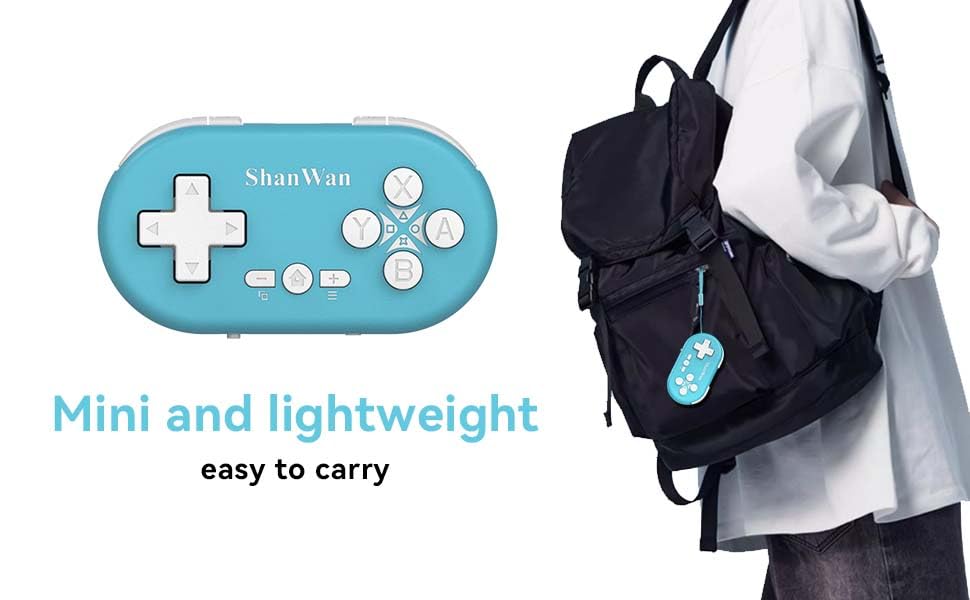
Figure 5.1: Illustration of the one-button wake-up function, highlighting the Home button used to quickly reactivate the controller.
5.2.2 Gyroscope Motion Sensing
The controller is equipped with a gyroscope for motion sensing effects, providing an immersive gaming experience in supported games, particularly on platforms like Nintendo Switch.
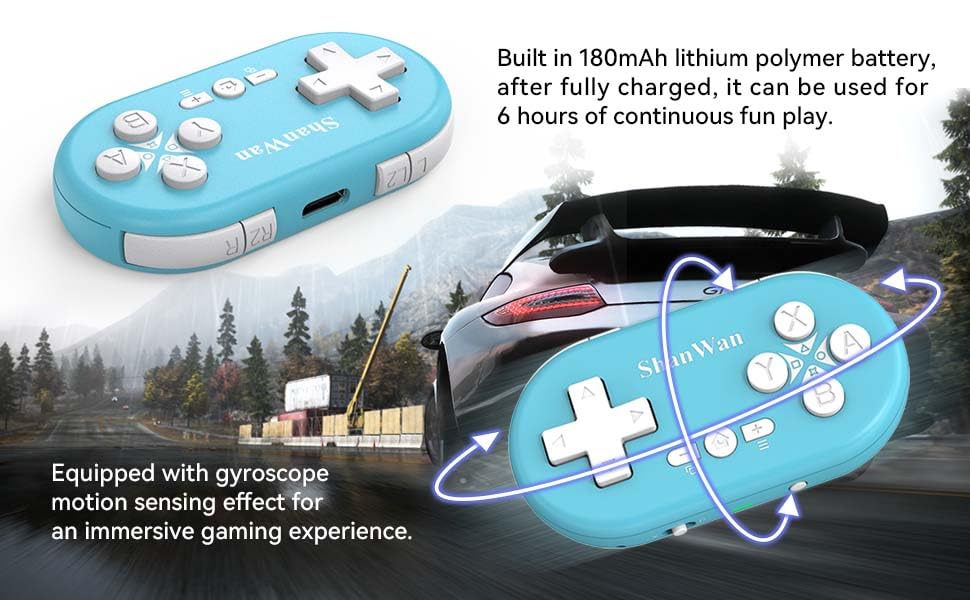
Figure 5.2: Visual representation of the gyroscope motion sensing effect, showing the controller being tilted to influence in-game actions.
5.2.3 Firmware Upgrade for Switch 2 and Custom Buttons
For compatibility with Switch 2 and to customize button mappings, it may be necessary to download the official Gamepad software and upgrade the controller's firmware. Refer to the manufacturer's official webwitryna z najnowszym oprogramowaniem i instrukcjami.

Figure 5.3: Screenshot illustrating the "Gamepad Space" software interface, used for firmware upgrades and custom button configurations, particularly for Switch 2 compatibility.
6. Konserwacja
- Czyszczenie: Do czyszczenia kontrolera używaj miękkiej, suchej ściereczki. Unikaj stosowania silnych środków chemicznych i materiałów ściernych.
- Składowanie: Przechowuj kontroler w chłodnym, suchym miejscu, z dala od bezpośredniego światła słonecznego i ekstremalnych temperatur.
- Pielęgnacja baterii: Aby przedłużyć żywotność baterii, unikaj częstego całkowitego rozładowywania baterii. Regularnie ładuj kontroler, nawet jeśli nie jest używany przez dłuższy czas.
- Unikaj uderzenia: Nie upuszczaj kontrolera ani nie narażaj go na silne uderzenia, gdyż może to spowodować uszkodzenie jego wewnętrznych podzespołów.
7. Rozwiązywanie Problemów
7.1 Controller Does Not Power On
- Ensure the controller is fully charged. Connect it to a power source and allow it to charge for at least 15 minutes before attempting to power on again.
- Verify that the charging cable and power source are functioning correctly.
7.2 Unable to Pair Controller
- Ensure the controller is in pairing mode (indicator lights blinking rapidly).
- Check that the mode switch on the controller is set to the correct platform (S for Switch, X for Android/Windows, P for PS4).
- Make sure Bluetooth is enabled on your device (Switch, phone, PC, PS4).
- Move the controller closer to the device you are trying to pair with.
- Remove any previous pairings of the controller from your device's Bluetooth settings and try pairing again.
- Uruchom ponownie kontroler i urządzenie.
7.3 Opóźnienie wejściowe lub rozłączenia
- Ensure the controller is within the 10-meter wireless range of your device.
- Zminimalizuj zakłócenia ze strony innych urządzeń bezprzewodowych (routerów Wi-Fi, innych urządzeń Bluetooth).
- Ensure the controller is fully charged. Low battery can affect connection stability.
- Spróbuj ponownie sparować kontroler z urządzeniem.
- Update the controller's firmware if available (refer to Section 5.2.3).
7.4 Przyciski nie reagują prawidłowo
- Test the controller on a different game or application to determine if the issue is game-specific.
- Sprawdź, czy oprogramowanie sprzętowe kontrolera jest aktualne.
- Perform a factory reset if possible (refer to manufacturer's support for specific instructions, as this model may not have a dedicated reset button).
8. Gwarancja i wsparcie
ShanWan products are designed for reliability and performance. For warranty information, technical support, or further assistance, please visit the official ShanWan webOdwiedź witrynę lub skontaktuj się z działem obsługi klienta. Zachowaj paragon jako dowód zakupu na wypadek reklamacji.
Official ShanWan Store: ShanWan Store on Amazon
9. Informacje dodatkowe
The ShanWan Mini Controller's compact and lightweight design makes it highly portable, allowing users to carry it easily and enjoy gaming on the go.

Figure 9.1: The ShanWan Mini Bluetooth Gamepad attached to a backpack, illustrating its keychain-sized portability and ease of transport.

Figure 9.2: The ShanWan Mini Bluetooth Gamepad being used outdoors with a portable screen, demonstrating its ease of transport and use anywhere.
Ask a question about this manual
Ask about setup, troubleshooting, compatibility, parts, safety, or missing instructions. Manuals+ will review the question and use this page’s manual context to help answer it.